Upbit Tutorial: How to Deposit and Withdraw Korean Won (KRW)
4 min read · · Korean original
Hello, this is Bitpunk. Today we'll look at how to deposit and withdraw Korean won on Upbit. If you're new to the Upbit exchange, follow this 'Upbit Deposit & Withdrawal Tutorial' step by step.

How to Deposit KRW on Upbit
To deposit Korean won on Upbit, you first need to have a K Bank account in your own name registered. Deposits are made through that account, and you must have completed identity verification. Now let's go ahead and deposit some won.
(1) Request a Deposit
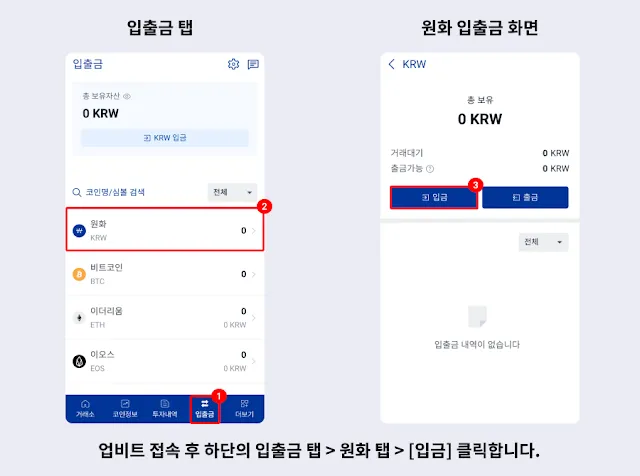
After logging in to Upbit, select Korean won (KRW) from the [Deposits & Withdrawals] menu at the bottom of the screen. Then tap the Deposit button as shown below.
(2) Verify Your Identity
Enter the amount you want to deposit to the Upbit exchange and tap the 'Request Deposit' button, and the identity verification process will begin.
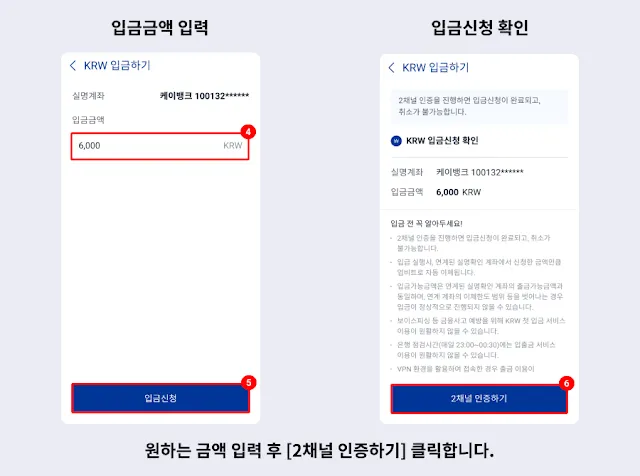
For identity verification (two-channel authentication), you can choose whichever method you prefer from KakaoTalk, Naver, or Hana Certificate. Just pick the one you use most often.
- If you use KakaoTalk verification, AlimTalk notifications for KakaoTalk Wallet must be turned on. You can't proceed if you don't receive the verification message, so be sure to check your settings.
- If you use Naver verification, it's best to issue the certificate on the same device where the Upbit app is installed. Note that if notifications for the Naver app are turned off, you may not receive the verification message.
- If you use Hana Certificate, you can only verify on the device where it was issued. If the verification message doesn't arrive, check the notification settings in the Hana Certificate app.
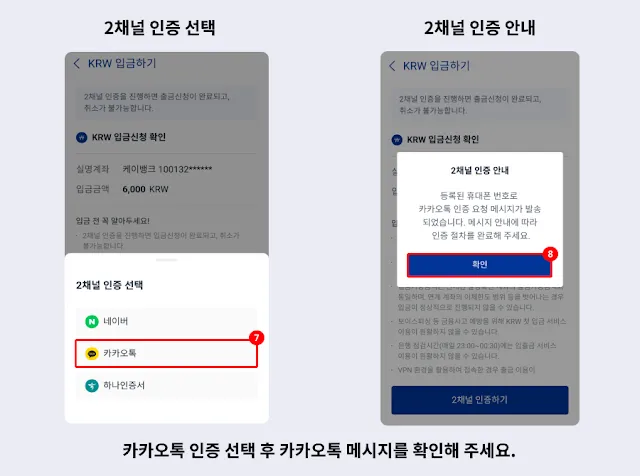
(3) Approve the Request and Complete the Deposit
Now open that app and sign the verification message as shown below. Once verification is completed successfully, Korean won will be deposited from your K Bank account into your Upbit account.
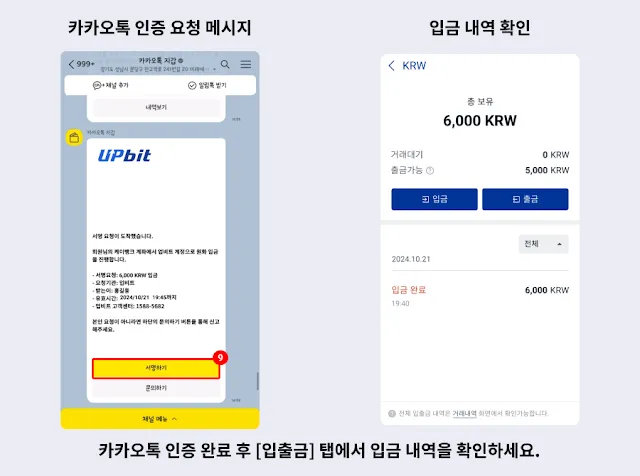
How to Withdraw KRW from Upbit
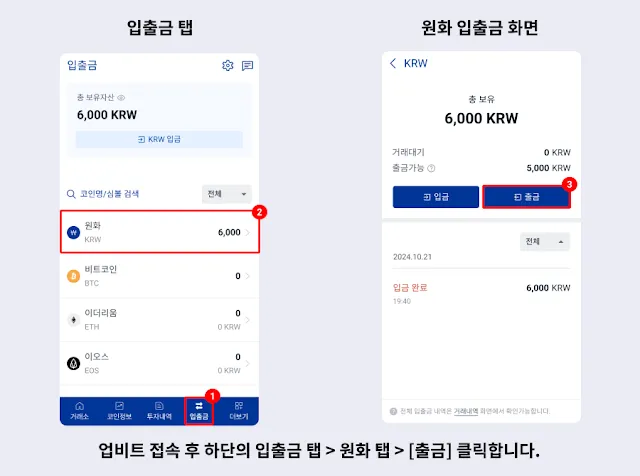
(1) Request a Withdrawal
To withdraw Korean won from the Upbit exchange, select Korean won (KRW) in the [Deposits & Withdrawals] menu and tap the Withdraw button. For reference, the minimum KRW withdrawal on Upbit is KRW 1, and the withdrawal fee is KRW 1,000.
Next, select your bank account and enter the amount you want to withdraw. Withdrawals can only be made to an account in your own name, with a limit of KRW 100 million per withdrawal and up to KRW 500 million per day.
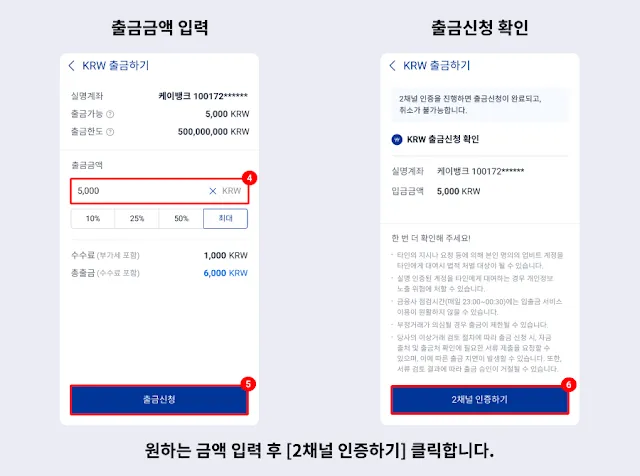
(2) Verify Your Identity
Withdrawals also require the same identity verification (two-channel authentication) as deposits. You can choose one of KakaoTalk, Naver, or Hana Certificate as your verification method.
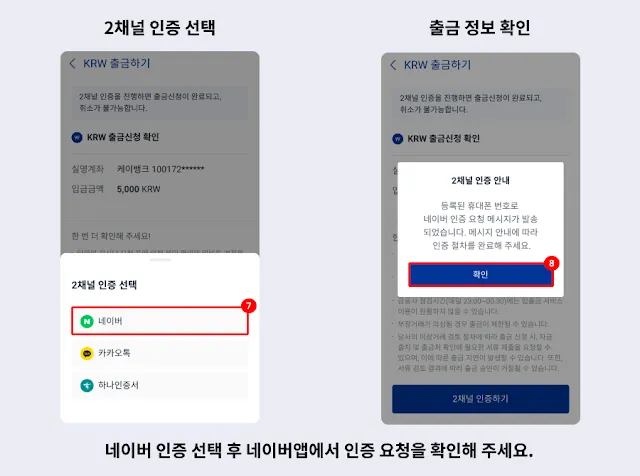
(3) Approve the Request and Complete the Withdrawal
For example, if you chose Naver verification, you'll need to verify your identity with your Naver certificate. Sign the verification request message. After that, your withdrawal request will be processed normally, and the Korean won will be deposited into your bank account.
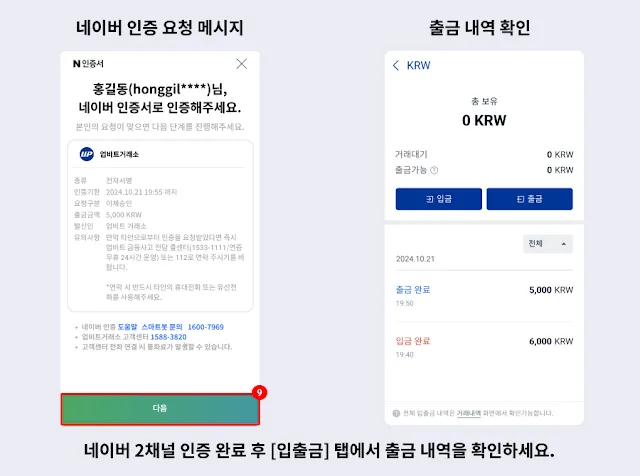
Wrapping Up
So far, we've gone step by step through how to deposit and withdraw Korean won on Upbit. Identity verification is required to deposit or withdraw KRW on Upbit, and you can complete it by choosing one of KakaoTalk, Naver, or Hana Certificate.
In particular, when depositing and withdrawing Korean won on the Upbit exchange, it's important to check the minimum amount (KRW 1) and the withdrawal fee (KRW 1,000). If you don't receive the verification message, you may not be able to deposit or withdraw, so please double-check your notification settings.
Finally, if a problem comes up during a deposit or withdrawal, check your account balance first. If the problem still isn't resolved, you can contact the Upbit Customer Center (1588-5682) for detailed help.