How to Change Shortcuts in the Binance App (Setting Up Home Screen Shortcuts)
2 min read · · Korean original
Contents 3
Want to change what appears on the first screen when you open the Binance app? If there are services you use often, you can set up Binance shortcuts so their icons appear first in the Binance app.

How to Set Up the Binance App Home Screen
Here's how to change the home screen shortcut icons in the Binance app. First, open the Binance app and then follow the steps below.
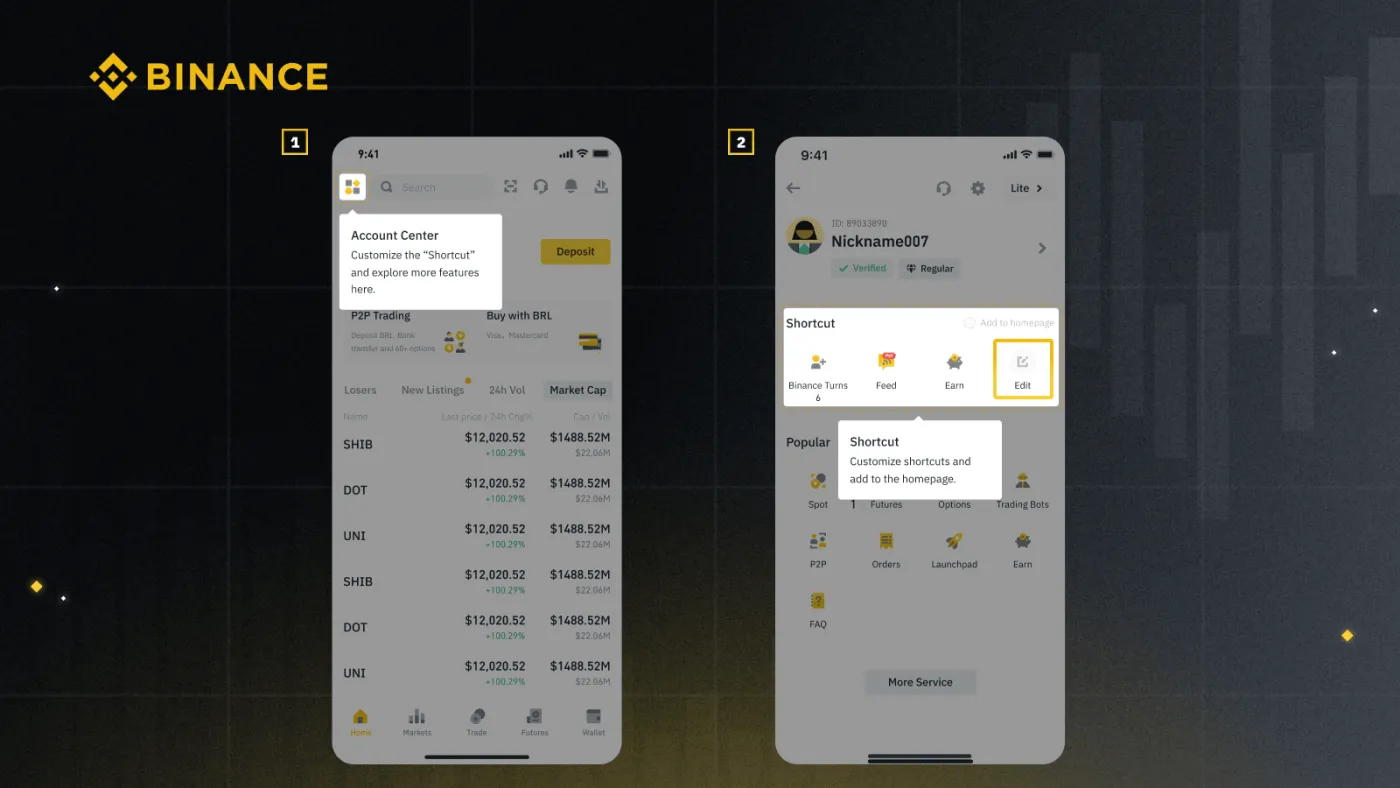
1. Tap the Account Center icon in the top-left corner.
2. Tap the [Edit] button under [Shortcut].
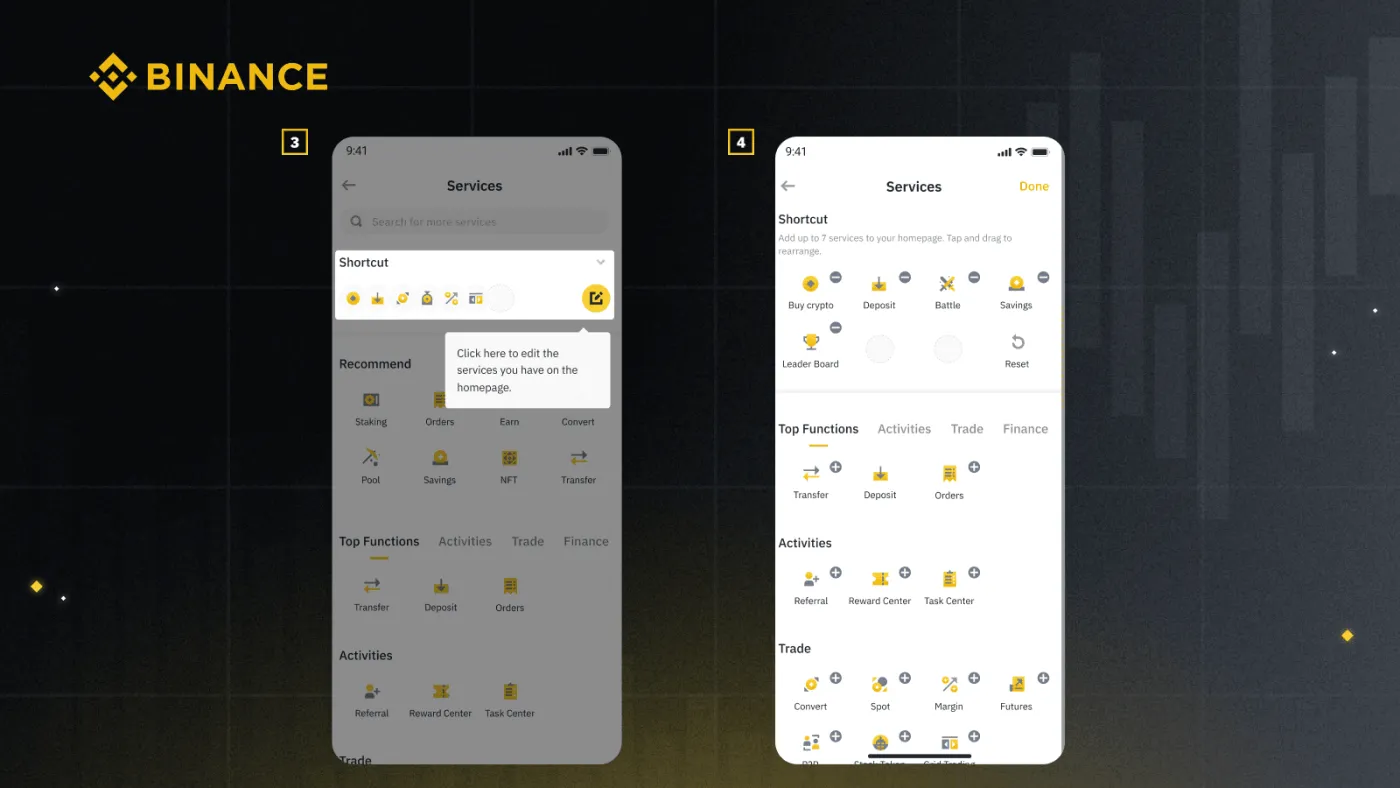
3. Tap the edit icon on the right to set up new shortcut icons.
4. You can choose up to 7 icons to show on the home screen.
5. To add an icon, tap the [+] sign. To remove an icon, tap the [-] sign.
6. When you're finished, tap the [Done] button in the top-right corner. Tapping [Reset] returns the shortcut section to the default icon settings.
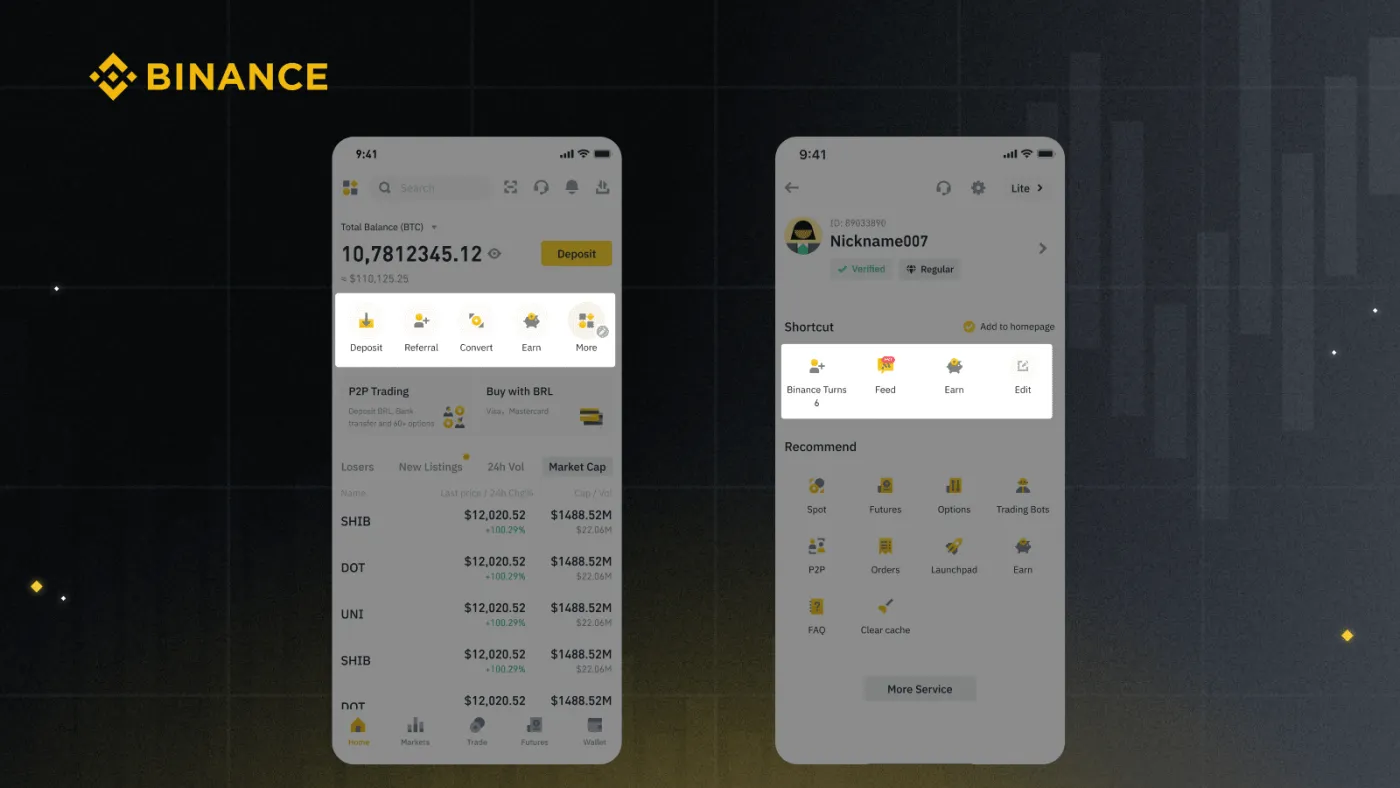
7. The shortcut icons you set up will now appear on the Binance app homepage and in the Account Center.
If the icons don't appear on your home screen, go back to the Account Center and check that you've selected [Add to homepage] next to [Shortcut]. Note that this feature isn't available in Binance Lite and can only be used in the Pro version.
How to View All Services in the Binance App
Want to see every app available on Binance? First, open the Binance app and simply follow the steps below.
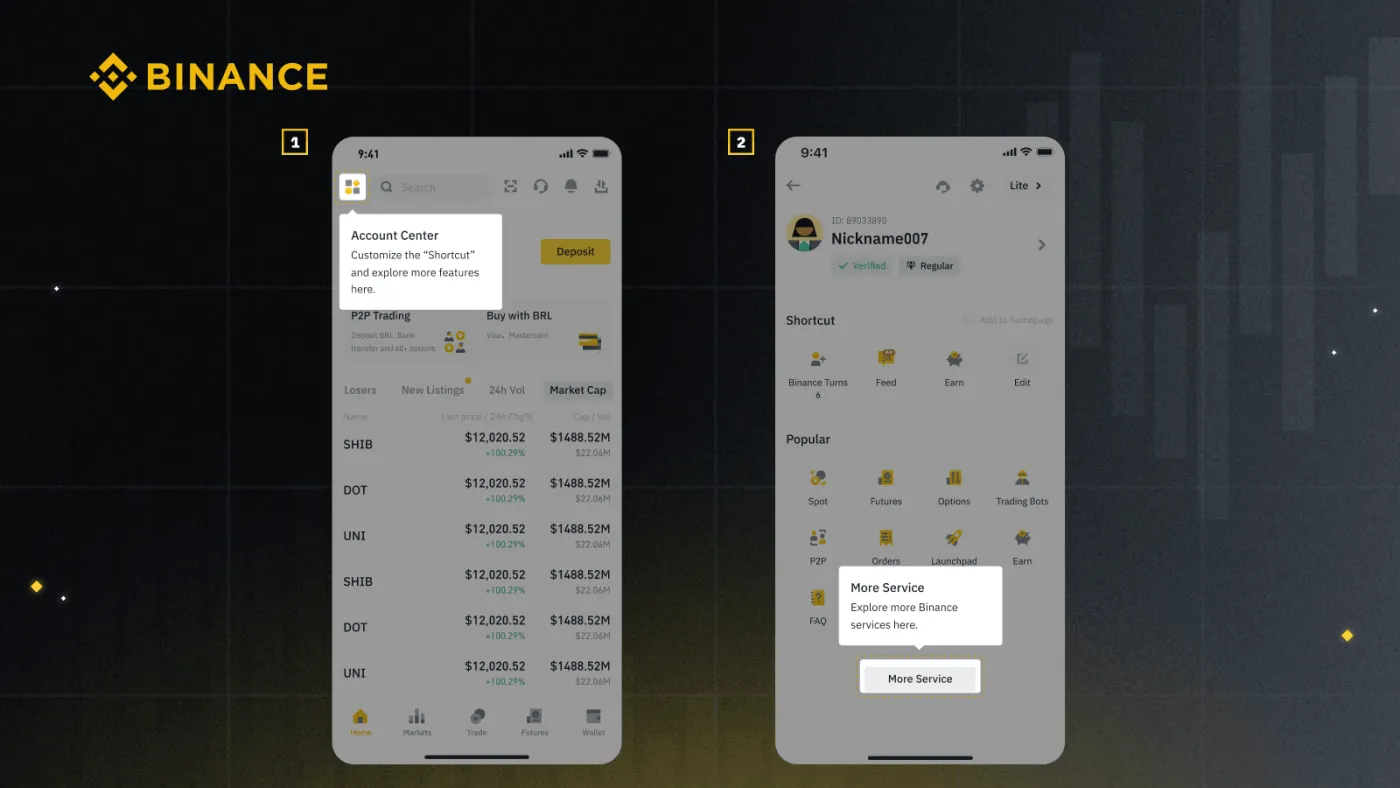
1. Tap the Account Center icon in the top-left corner of the homepage.
2. Tap [More Service] under the [Popular] section.
3. All the services you can use in the Binance app will now be displayed.
Wrapping Up
That covers how to change the home screen icon settings in the Binance app, along with how to check all the services available in the app. If you found this helpful, please give it a heart below and share it. Thank you!