How to Complete Binance Identity Verification in 8 Steps, Plus Common Failure Reasons and Fixes
6 min read · · Korean original
Contents 5
In this post, I'll walk you through Binance identity verification step by step. If you follow along to the end, you should be able to pass Binance identity verification without much trouble. And if your verification failed, find out why and how to try again.
Why You Need to Verify Your Identity
Binance runs an identity verification (KYC) program to protect accounts and prevent money laundering. New users must complete verification before they can deposit, withdraw, or trade on Binance. In other words, identity verification is required to use Binance.
Before you start verifying, if you'd like to know how to apply a 20% referral fee discount code when signing up for Binance or how to get fee discounts with BNB, check out the posts below and claim those benefits.
Recommended Binance Exchange Benefits 💸
How to Verify Your Identity on Binance
Now let's get into the 8 steps of identity verification. It's a little long, but if you follow along one step at a time, it shouldn't be too difficult.
1) Go to the Binance Website
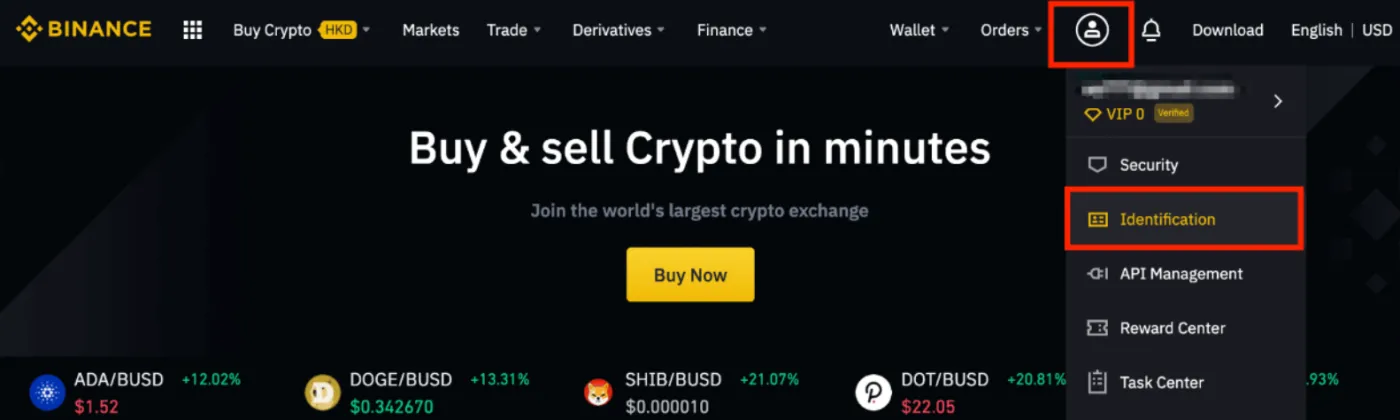
First, go to the Binance main page and click the avatar icon in the top right corner. Below it, you'll see an item called [Identification]. Click it.
2) Check the Verification Types
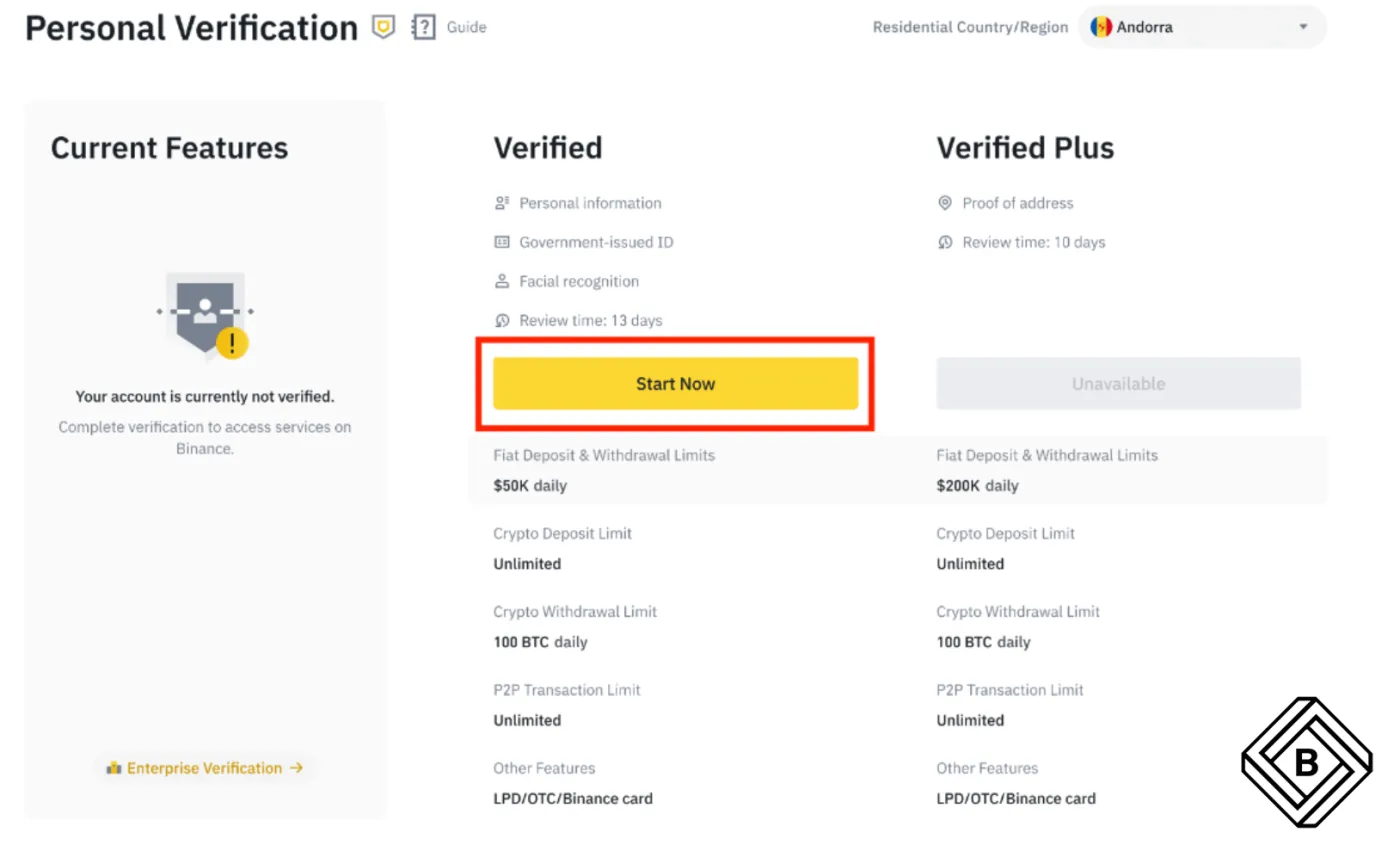
You'll then see [Verified] and [Verified Plus], as shown below. The first is the basic verification, and the one next to it is the intermediate verification. So what's the difference between the two?
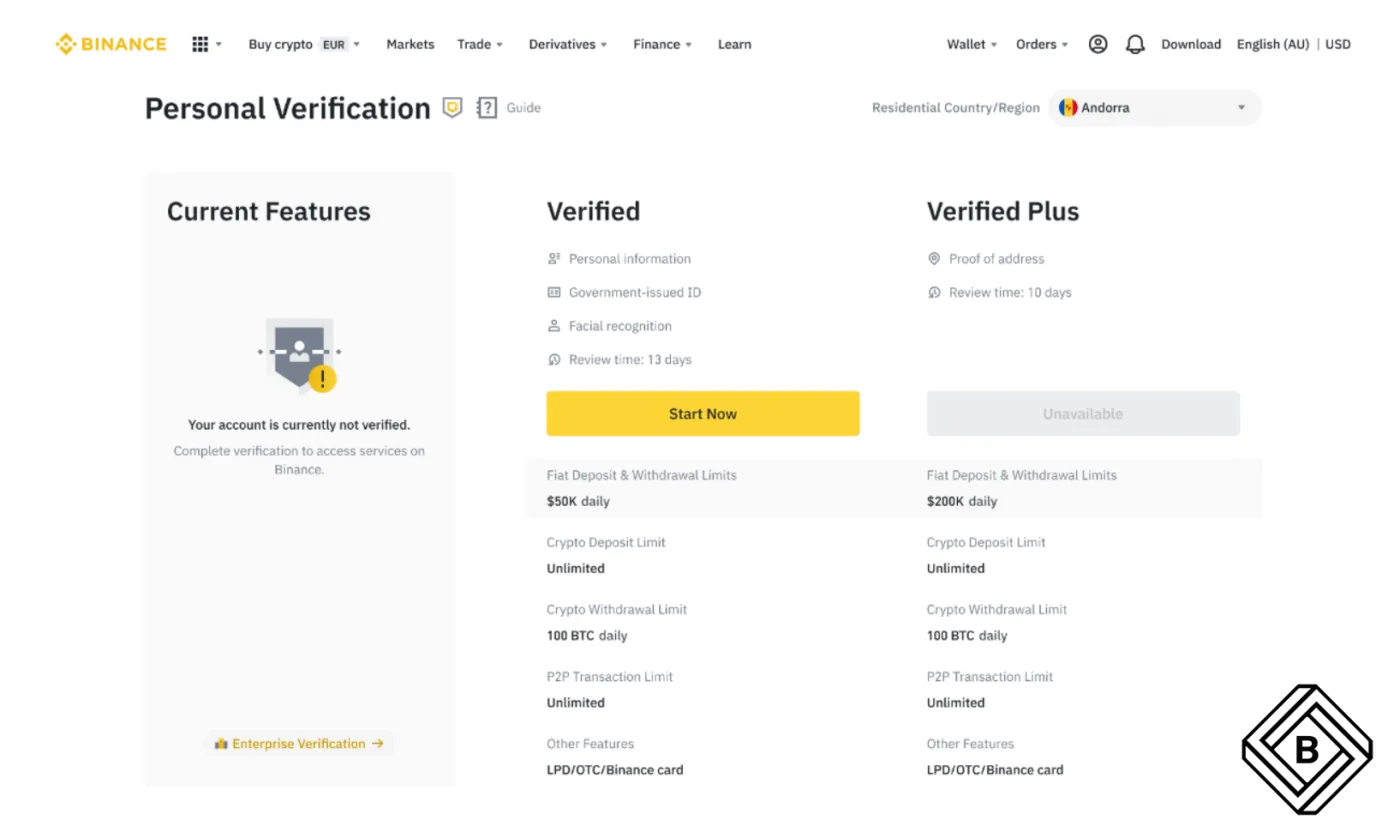
It's the deposit and withdrawal limits. If you only complete the basic verification, your deposit limit is $50,000 per day and your withdrawal limit is 100 BTC per day. If you complete the intermediate verification, your deposit limit is $200,000 per day and your withdrawal limit is 100 BTC per day.
In other words, the difference between the two is the deposit limit. Basic verification alone is usually enough, but if you plan to move a large amount of funds at once from a Korean exchange like Upbit or Coinone, you must complete the intermediate verification. Since you can only do the intermediate verification after completing the basic one, I'll first explain how to do the basic verification.
3) Start Identity Verification
To start the basic identity verification, click the yellow [Start Now] button under [Verified].
4) Select Your Country of Residence
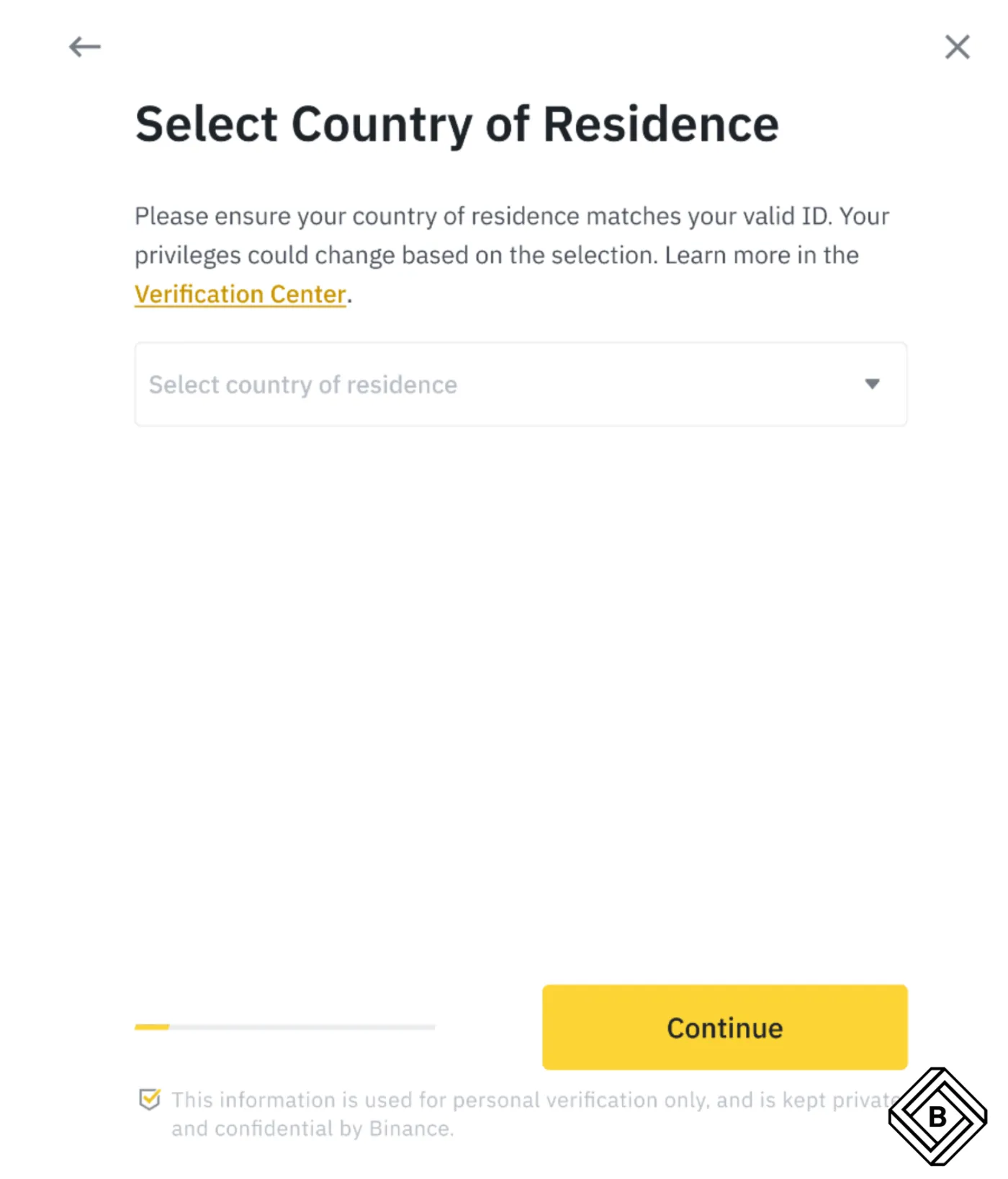
You'll then see [Select Country of Residence], as shown below. Here, choose [Republic of South Korea], which is Korea. Then click the [Continue] button.
5) Enter Your Personal Information
Now it's time to enter your personal information. You need to enter your name accurately under [Personal Information]. You might wonder whether to write it in Korean or in English. You need to write it in English.
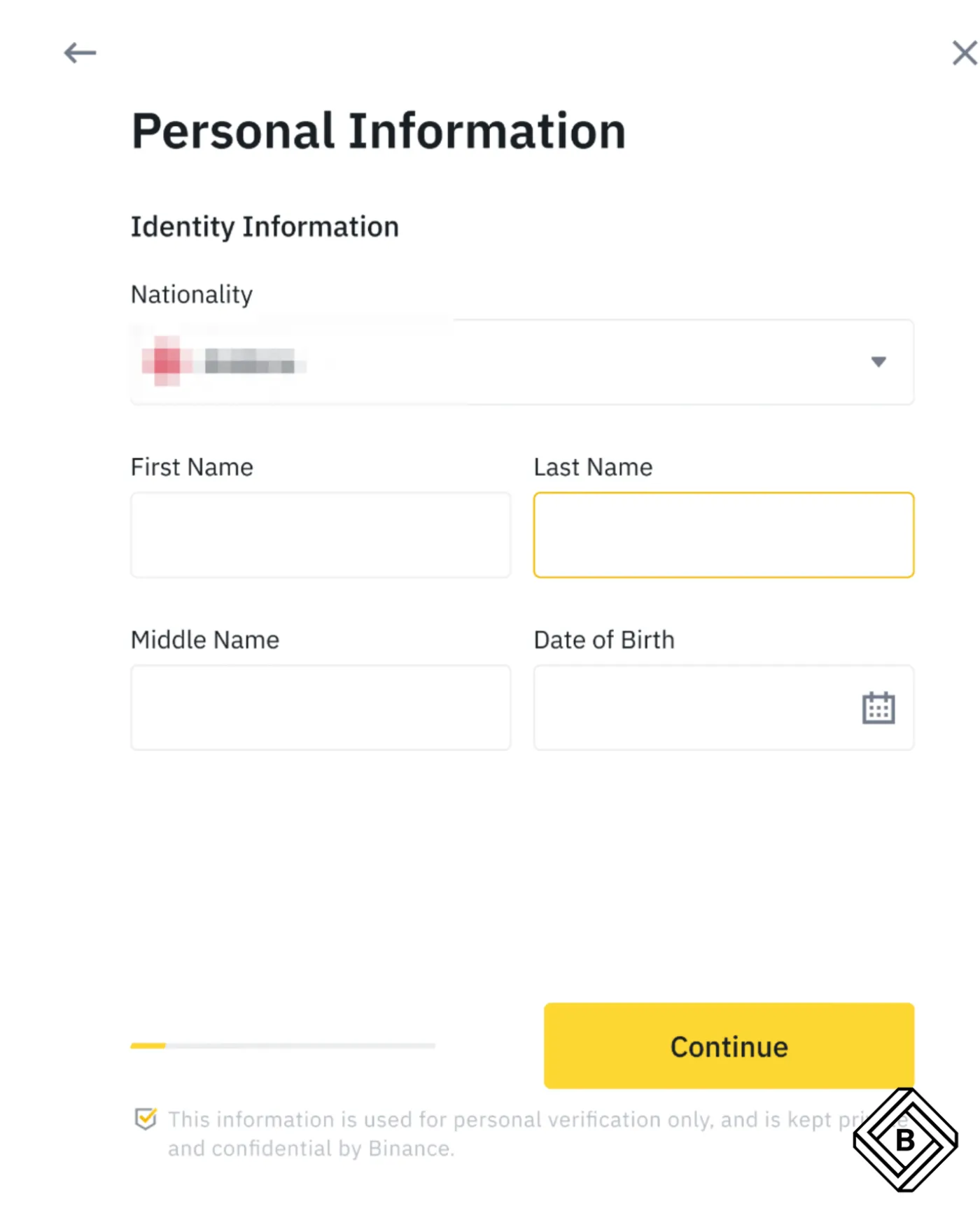
Write your given name as one word in [First Name] and your family name in [Last Name]. If your name is Hong Gildong, you'd write KilDong in [First Name] and Hong in [Last Name], right?
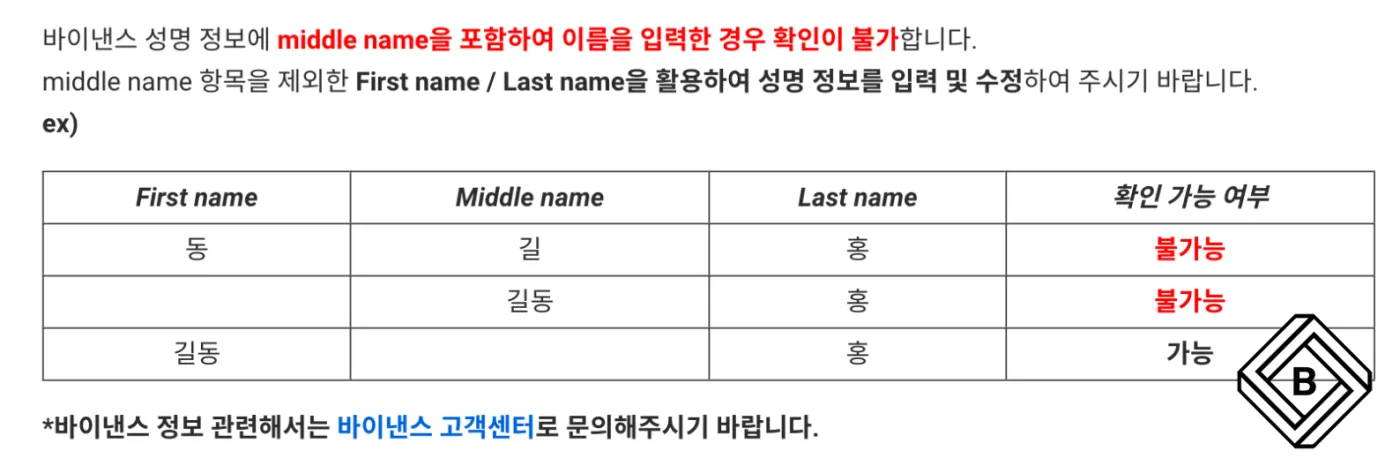
You may also wonder whether to fill in [Middle Name], but according to Upbit's guidance, you shouldn't. Check the guidance below, and be sure to enter only [First Name] and [Last Name] as explained above so that your deposits and withdrawals go through quickly.
6) Upload Your ID
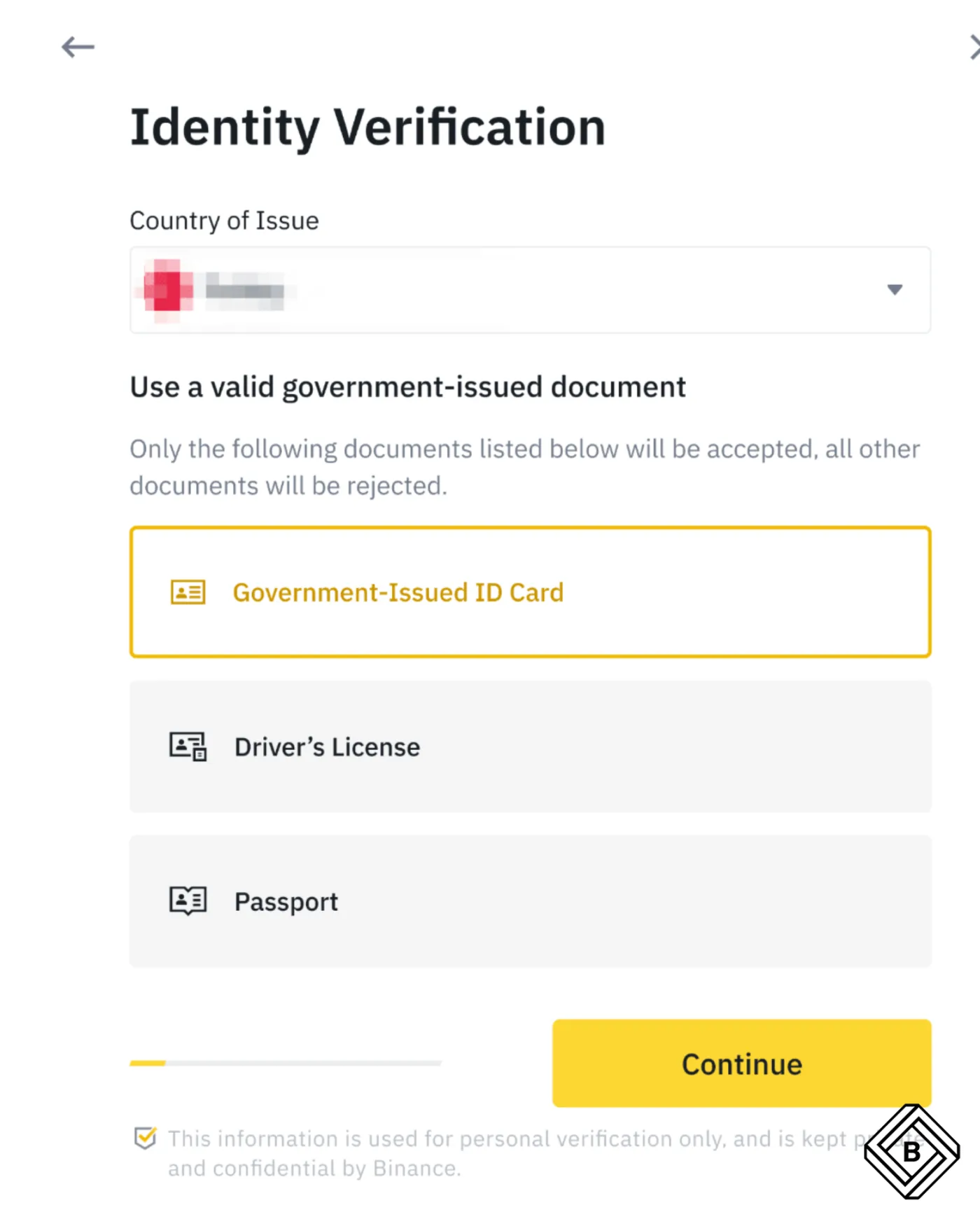
Next, it's time to upload your ID. You can use 1) a resident registration card, 2) a driver's license, or 3) a passport.
These correspond to [Government-Issued ID Card], [Driver's License], and [Passport], respectively. Select the type of ID you'll upload and click [Continue].
Once you've chosen your ID, it's time to take a photo and upload it. When taking the photo, make sure your original ID is clearly visible. Take the photo somewhere without light glare, then upload it.
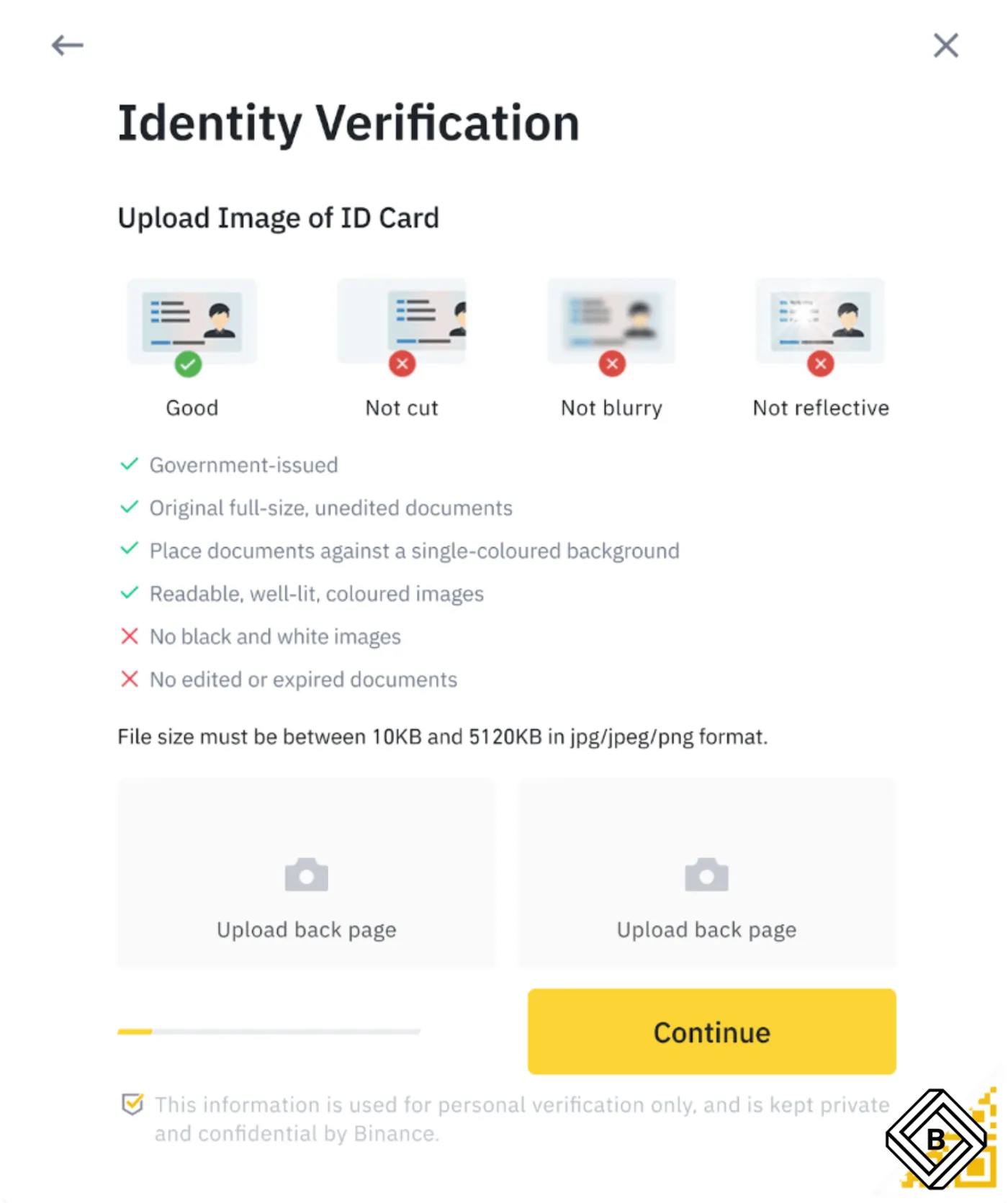
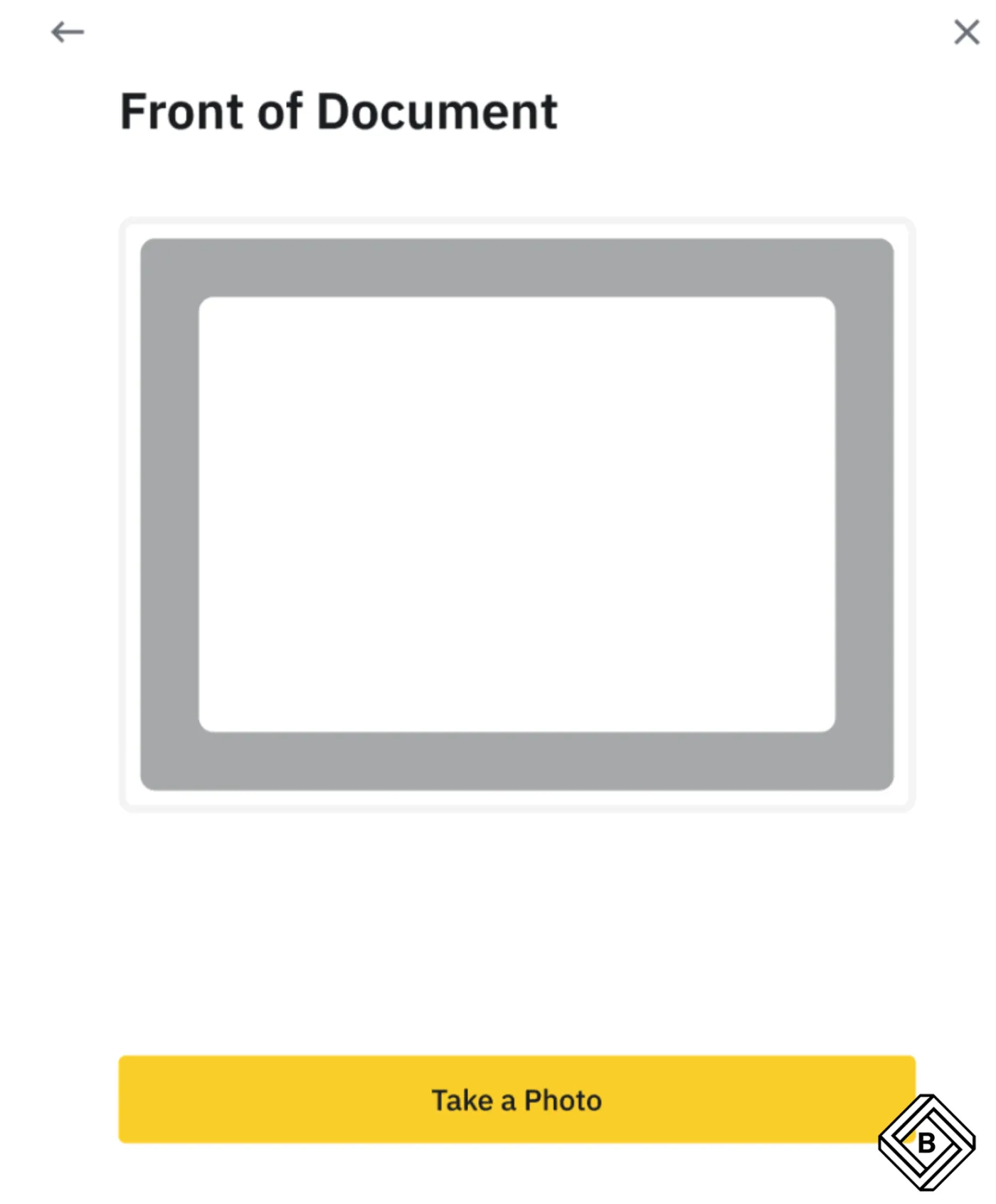
You'll need to photograph and upload both the front of your ID [Front of Document] and the back [Back of Document].
7) Take a Selfie
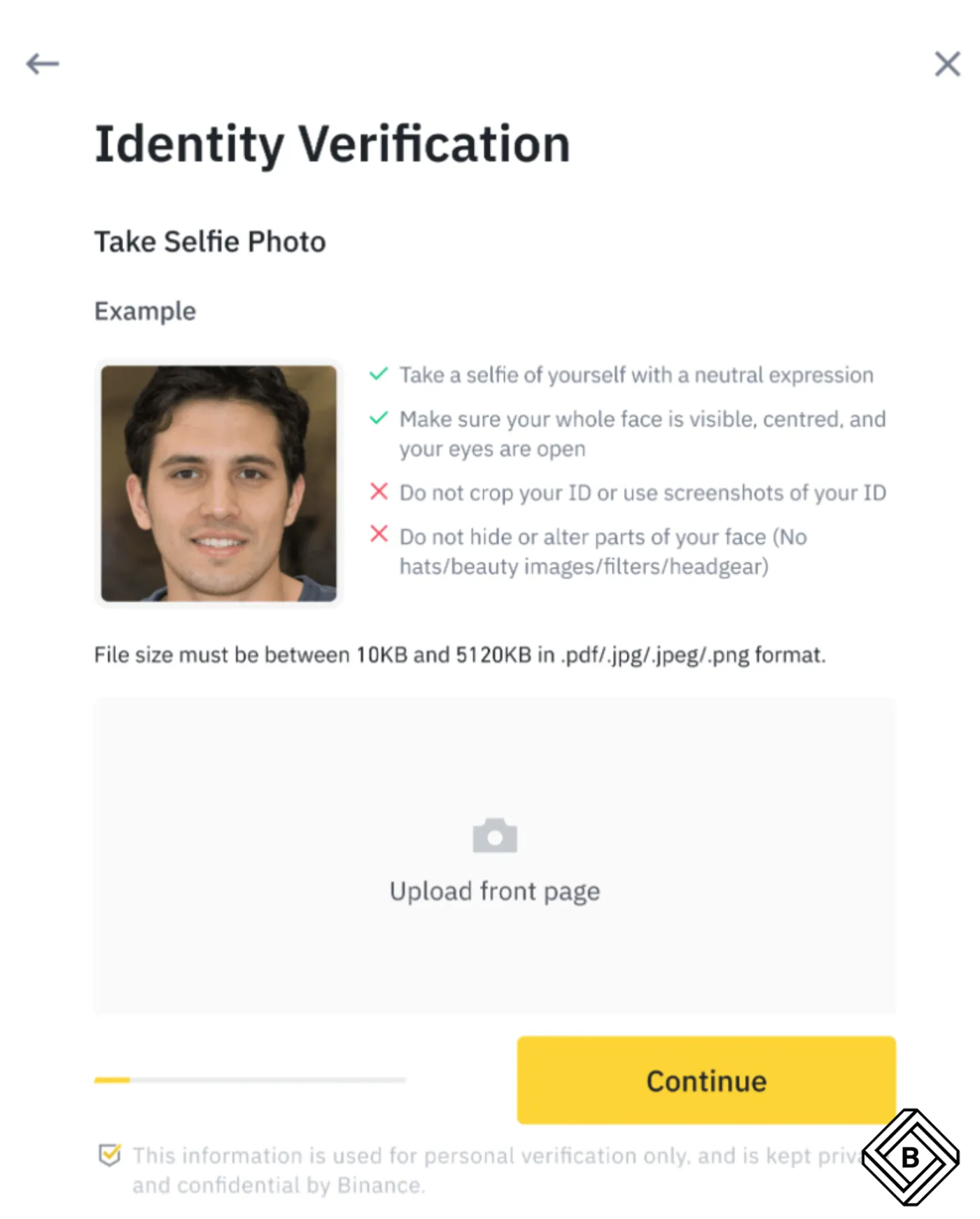
If you've made it this far, it's time to take a selfie. You can also use a selfie you took earlier: click [Upload File] to upload it, then click [Continue].
8) Facial Recognition
This is the final step. It's time for [Facial Recognition], which checks that the person in the selfie is the same person completing the verification right now. Take off any hat or glasses, move somewhere bright, and click [Continue].
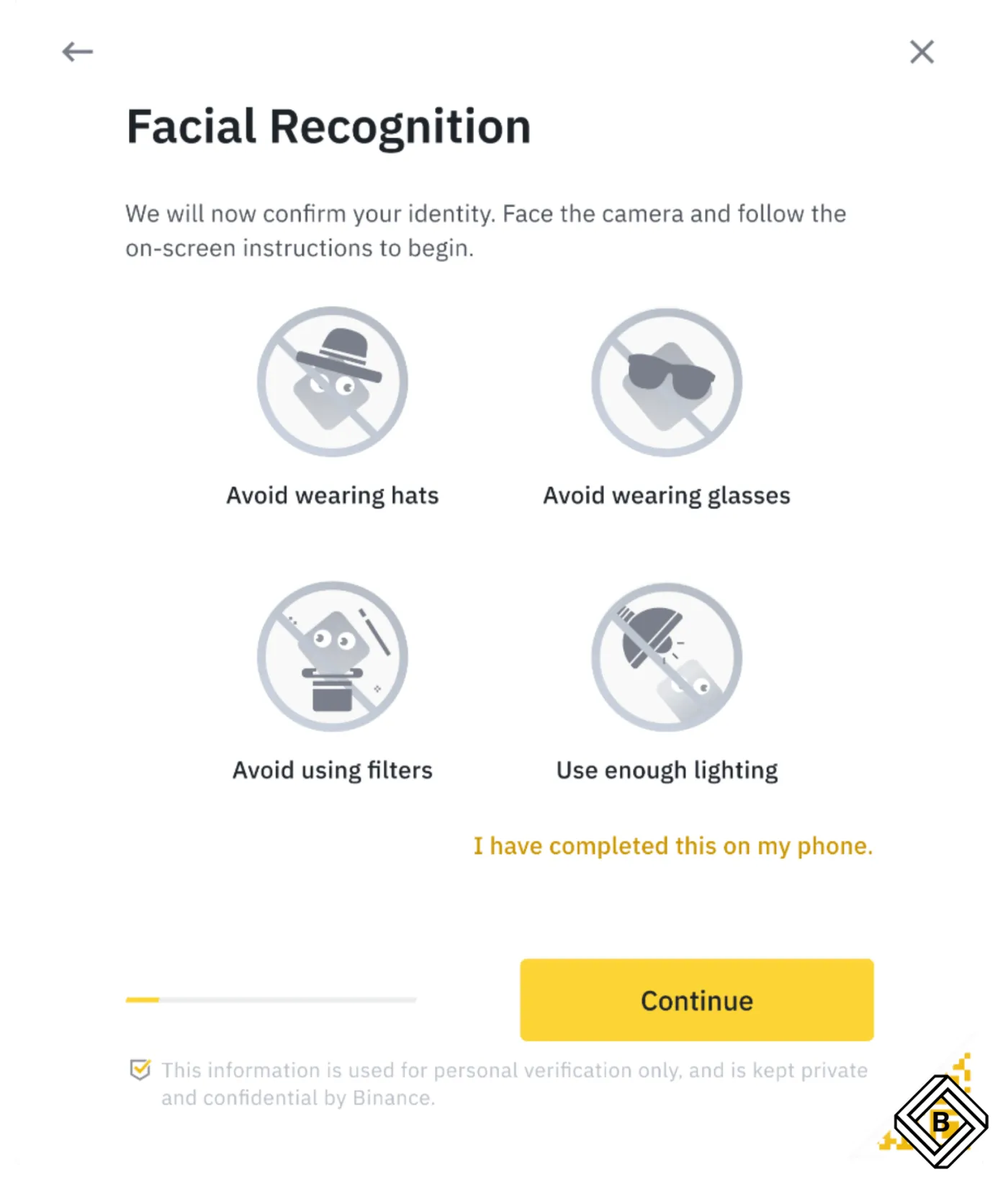
If you're doing this on a computer without a camera and can't complete face verification, just open the Binance app on your smartphone and scan the QR code.
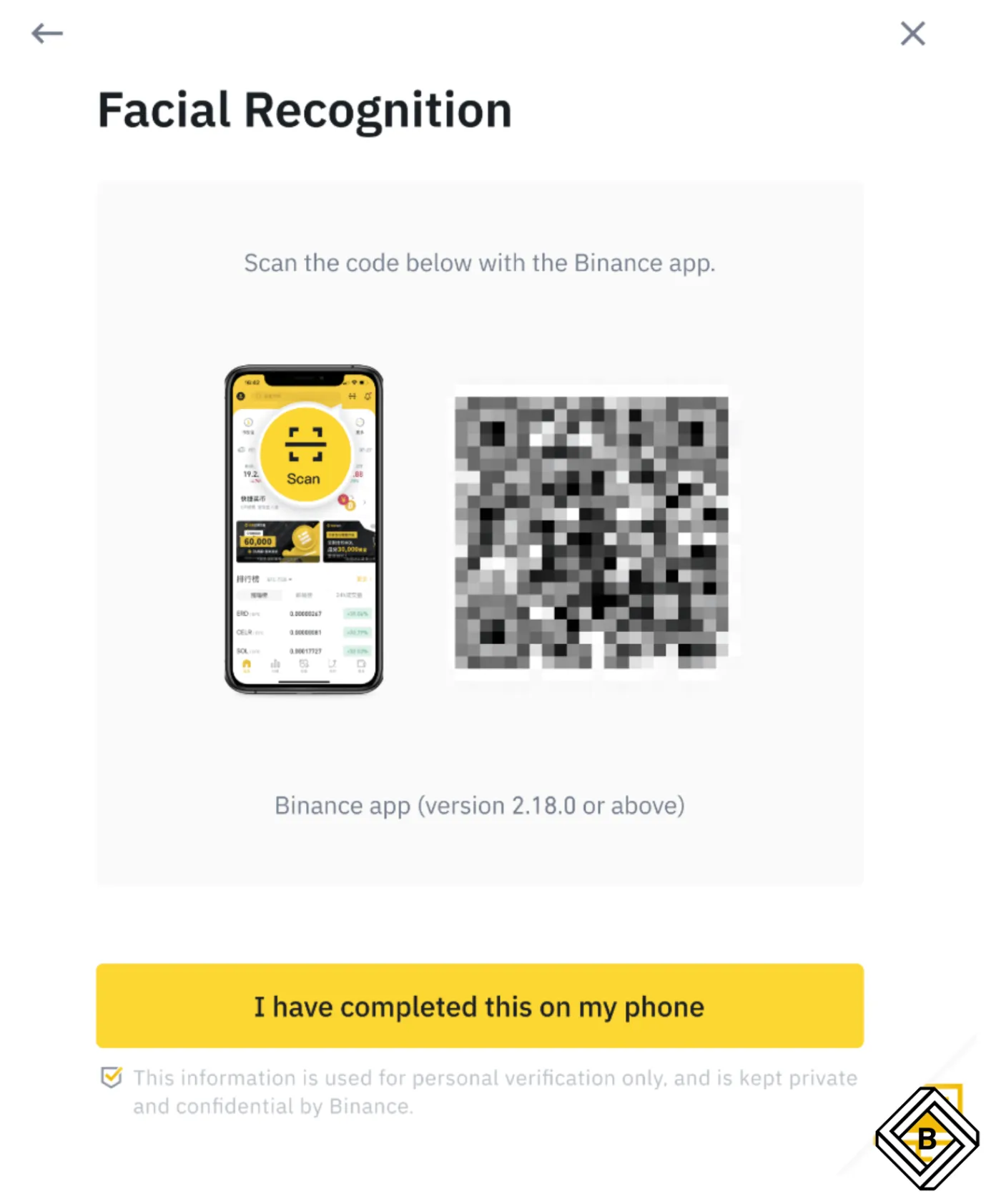
If you've made it here, you're all done. Your identity verification should be completed within a day. If something goes wrong and it fails, you can try again.
How to Complete Binance Intermediate Verification
Once you've passed the basic verification, you can click [Verified Plus] to proceed with the intermediate verification. For this one, you'll need to prove your address.
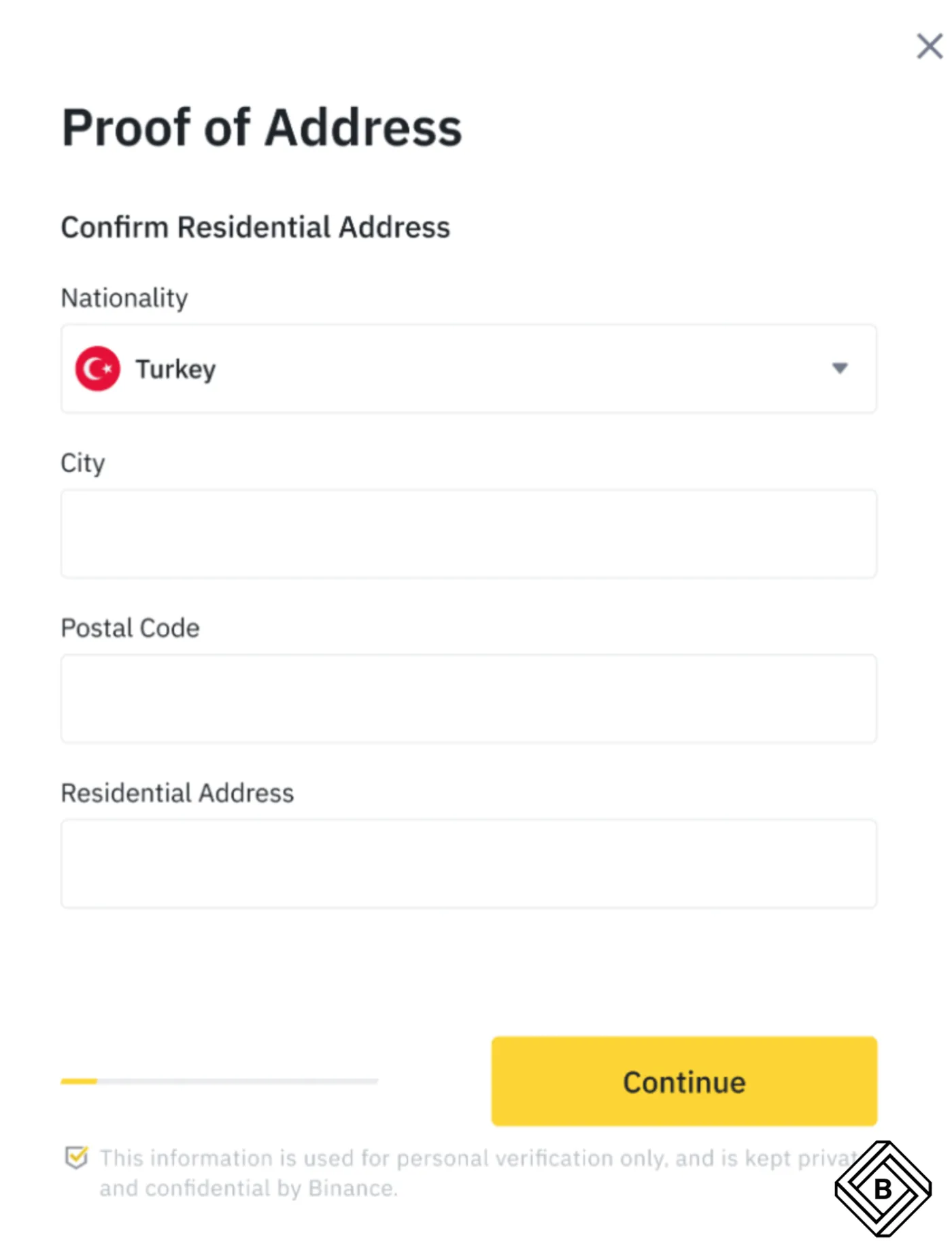
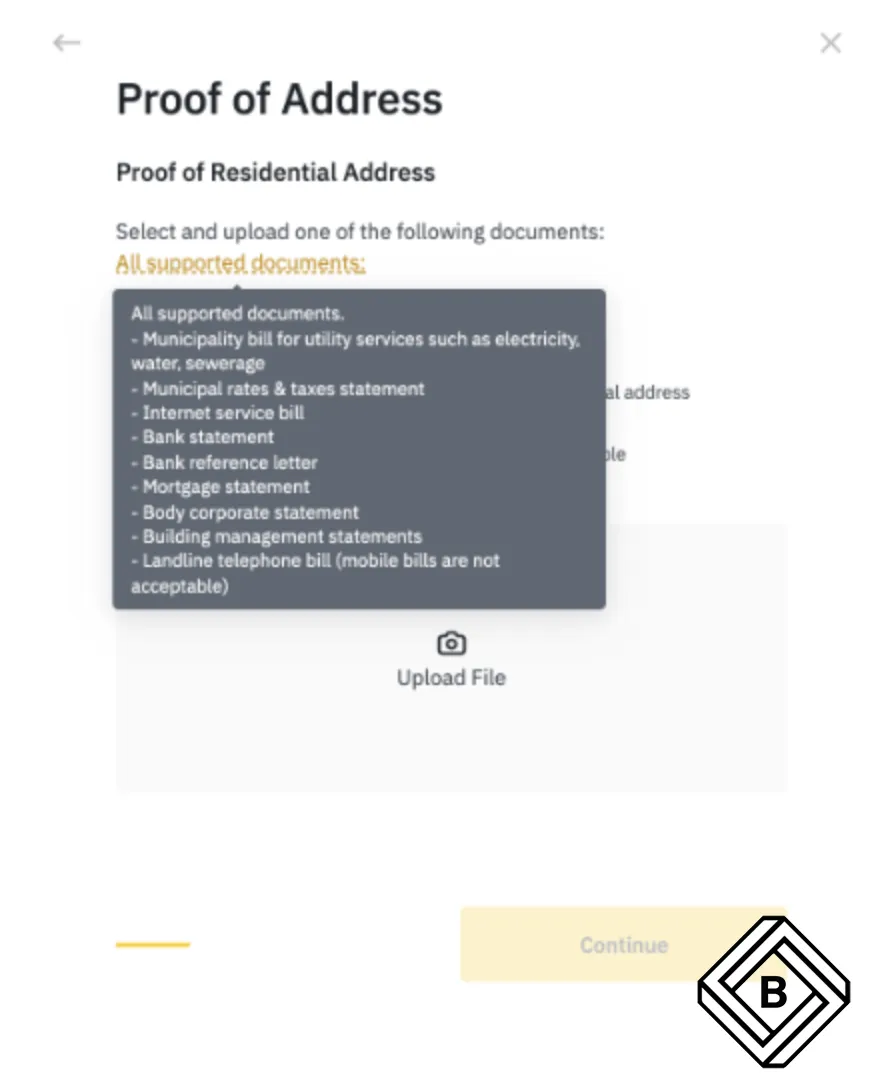
Enter your address in English under [Proof of Address], then upload a utility bill or bank statement that proves your address.
Why Identity Verification Fails and How to Fix It
Even if you follow the identity verification process as carefully as you can, Binance verification can fail for various reasons. The most common case is when your ID and selfie look too different.
In that case, Binance may ask for additional documents. Because it has to be verified manually, it can take a few more days. If you're told that your ID photo and selfie don't match, simply submit the additional documents Binance requests by email.
Your identity verification may also fail for the following reasons.
- Your ID has expired
- The name doesn't match your ID
- The ID number is invalid
- The nationality doesn't match
In these cases, double-check your ID and start the identity verification over from the beginning.
Wrapping Up
That covers how to verify your identity on Binance. Complete the basic verification step by step, and do the intermediate verification if you need it. If your identity verification fails, you won't be able to use Binance for a while. In that case, carefully check the reason given in the email or notification and try the verification again.
Below is a video explaining the process above. If you get stuck partway through verification, it may help to refer to it. If this was helpful, please tap the heart below! Thank you.