How to Connect Binance to TradingView and Trade
4 min read · · Korean original
Contents 5
If you're a Binance user, you can trade directly on TradingView. In this post, we'll look at how to connect your Binance account to TradingView and how to trade Binance USDⓈ-M Futures on TradingView.
How to Connect Your Binance Account to TradingView
Step 1: Log in to TradingView and select the Binance broker
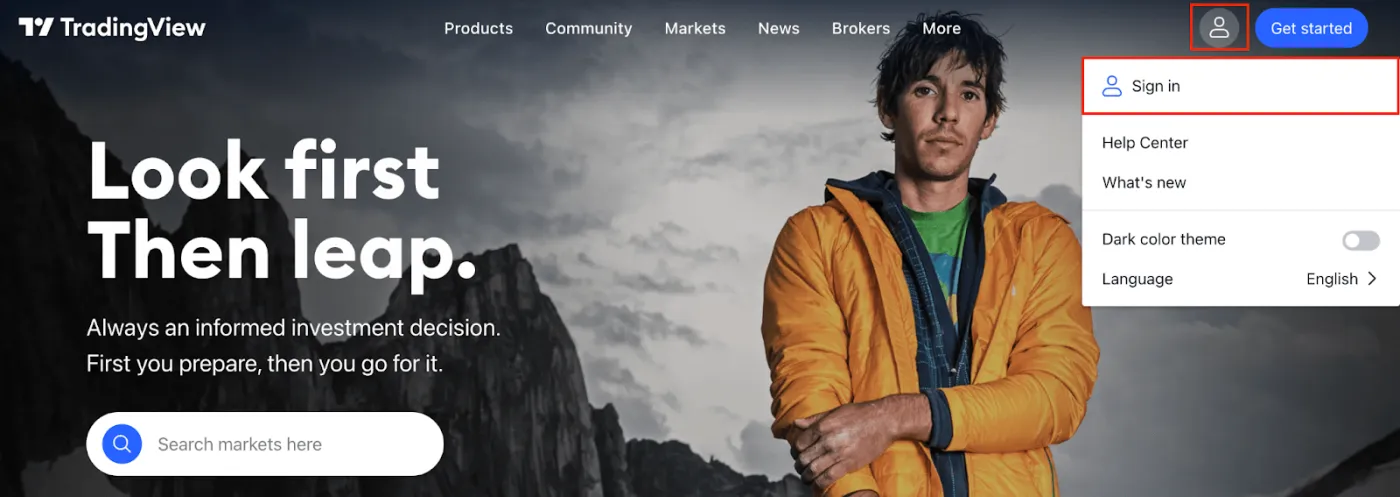
1. Go to the TradingView website and log in to your account, or click [Get Started] to create one. If you're signing up for the first time, sign up through this link to receive a $30 bonus.
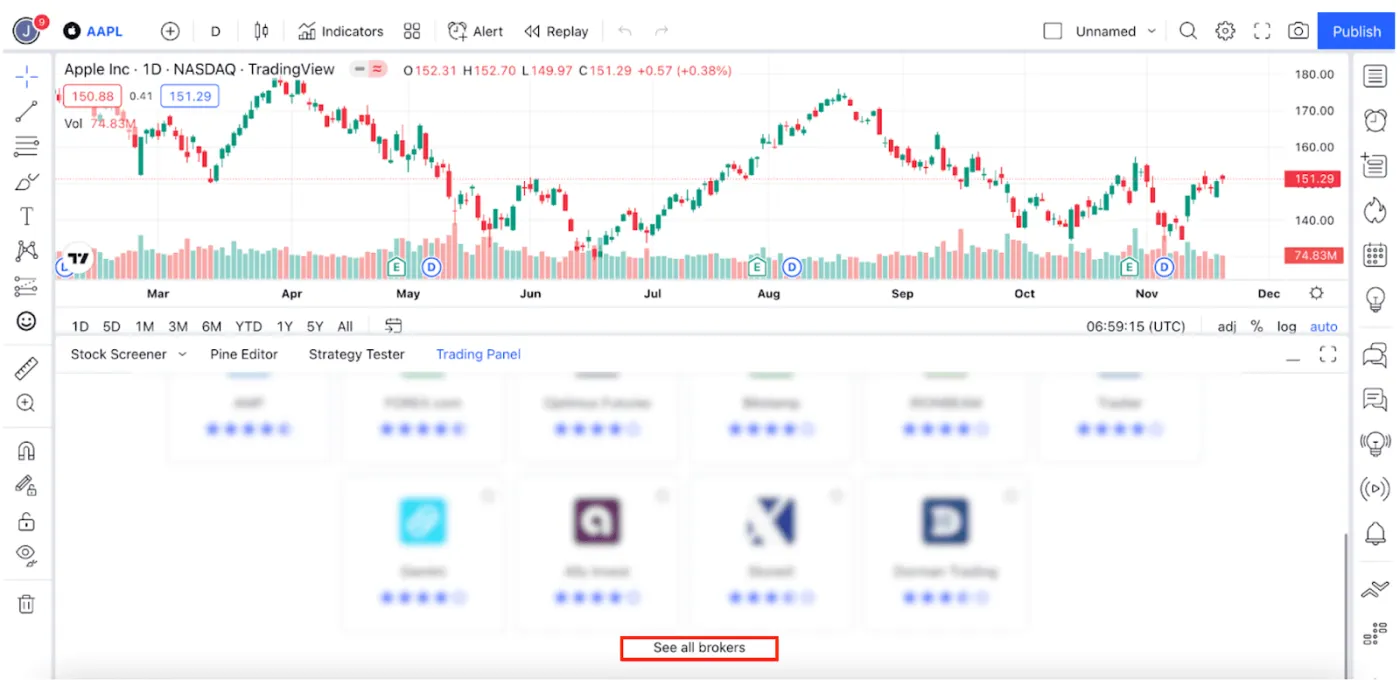
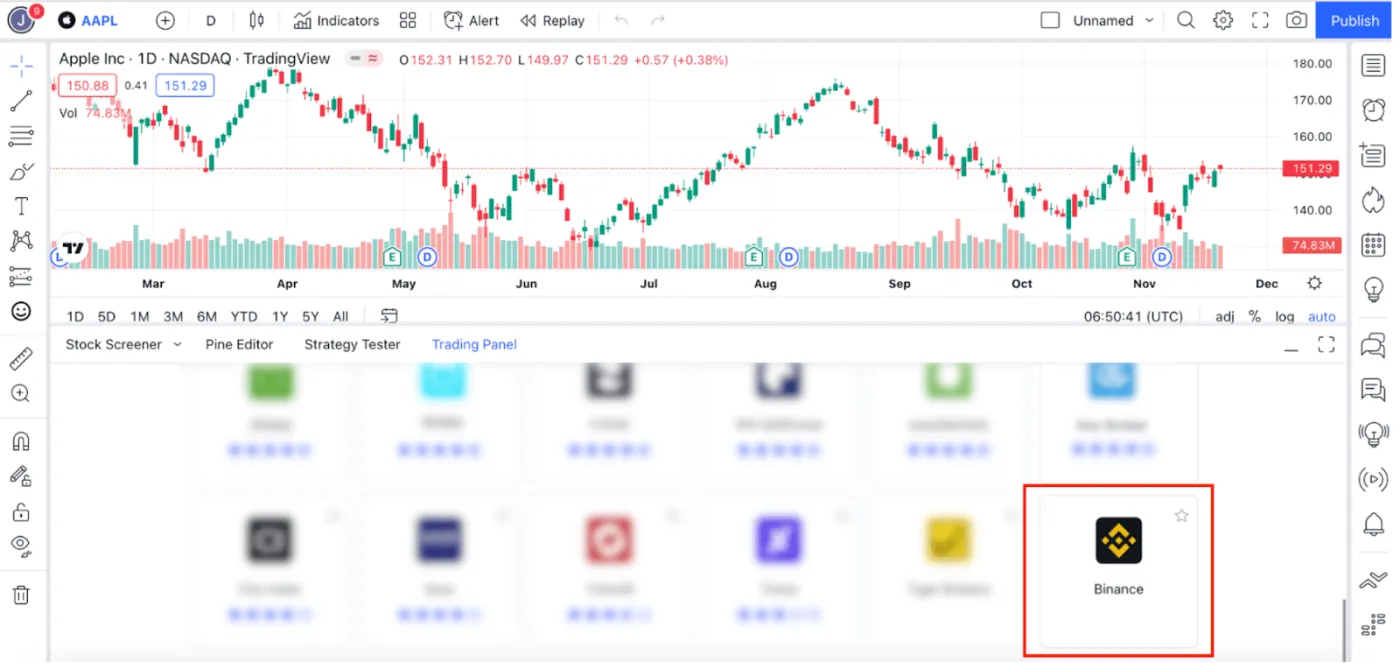
2. Scroll down in the TradingView trading interface to see the available broker partners. You should see Binance as shown below. If you don't see it, click [See all brokers]. Then select [Binance] from the list of brokers.
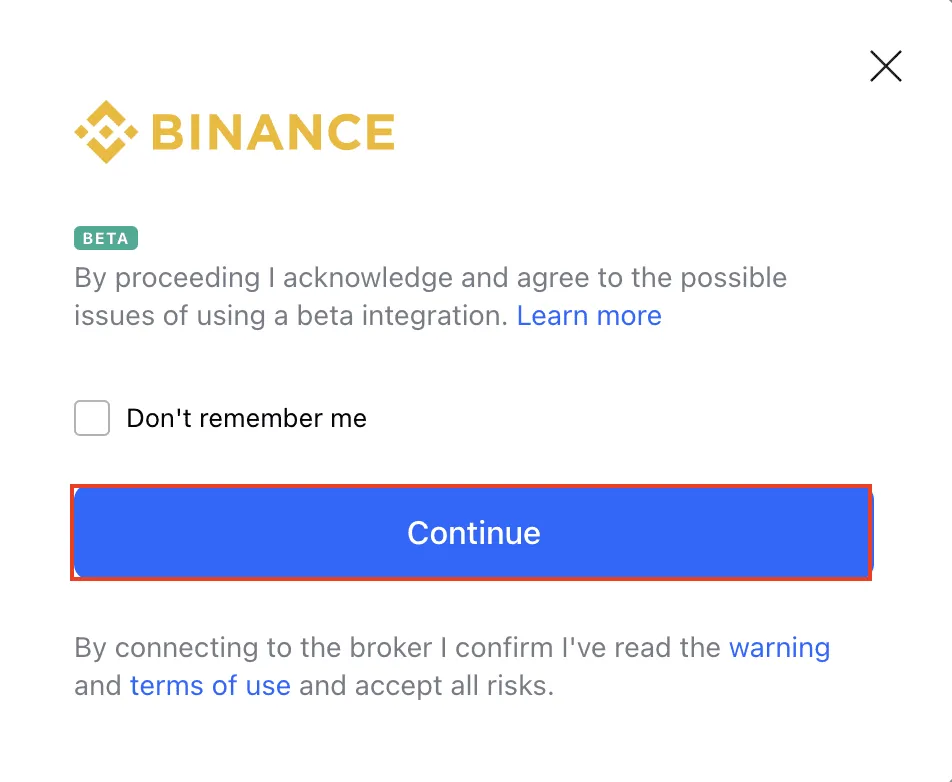
3. When the connection notice window appears, click [Continue].
Step 2: Log in to your Binance account and grant TradingView access
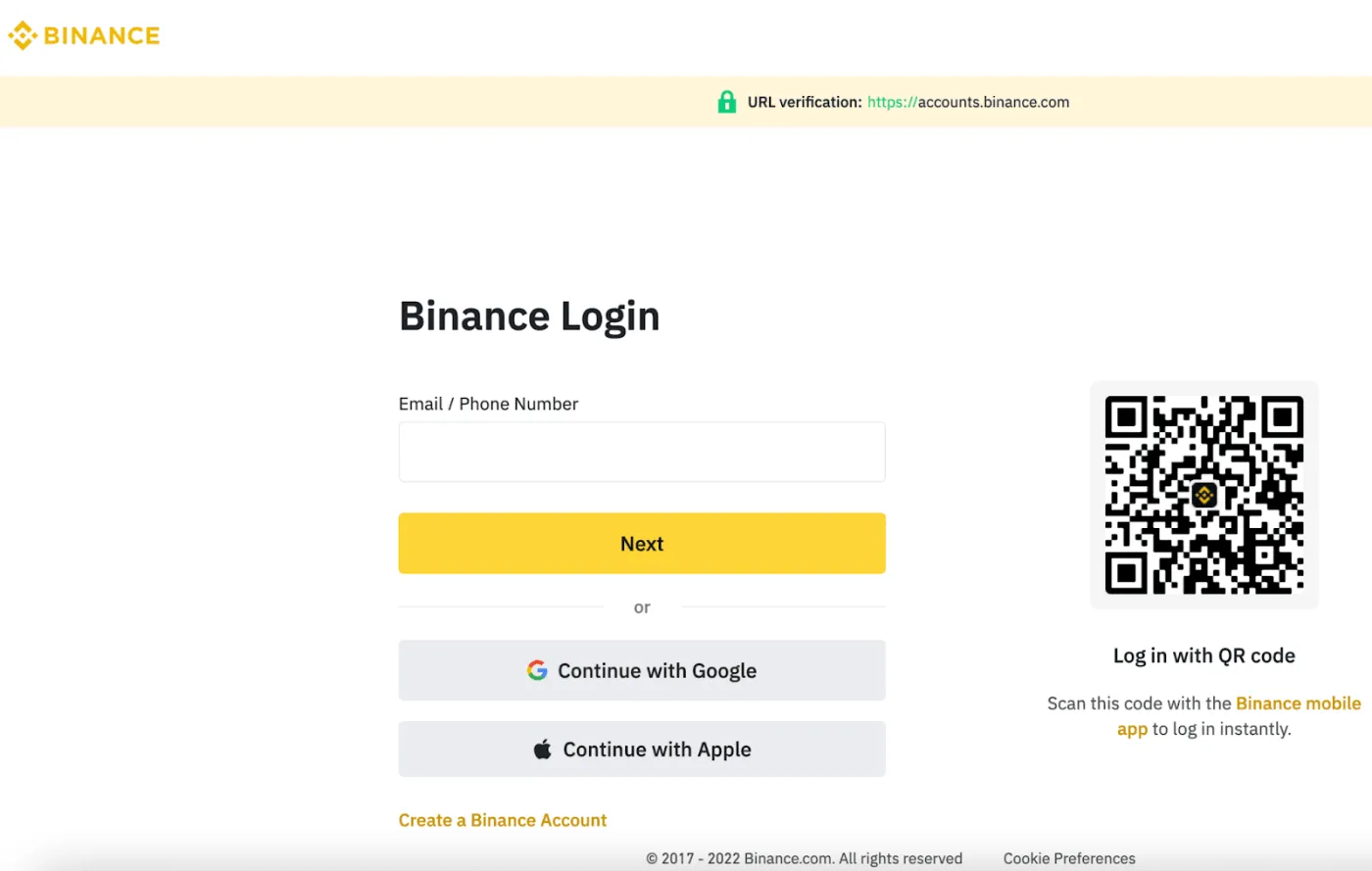
1. You'll be redirected to the Binance login page. Enter your Binance account details and click [Login].
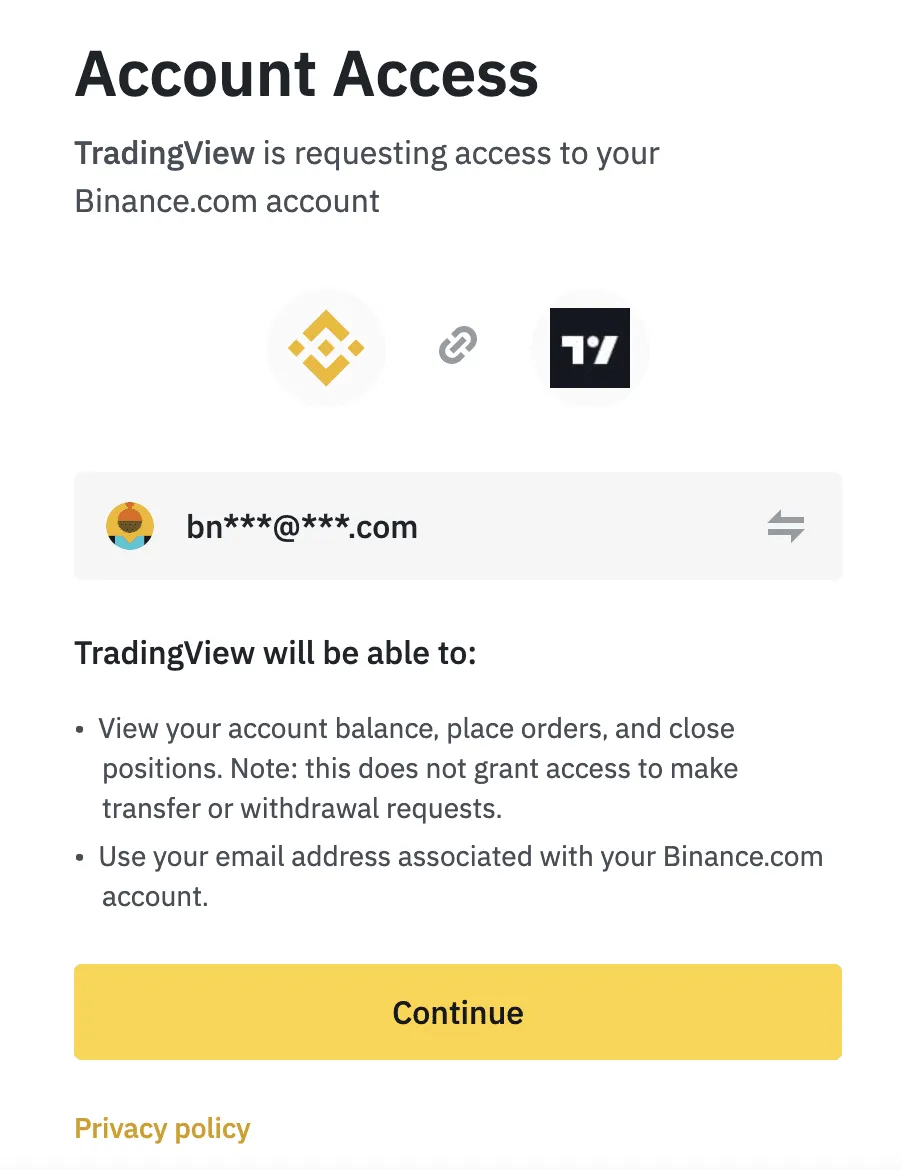
2. The account access permissions will be displayed. Click [Continue] to grant TradingView access to your Binance account. For reference, the permissions you grant are viewing assets, placing orders, and closing positions. Permissions to transfer or withdraw assets are not granted.
Step 3: Trade with your Binance account using the TradingView interface
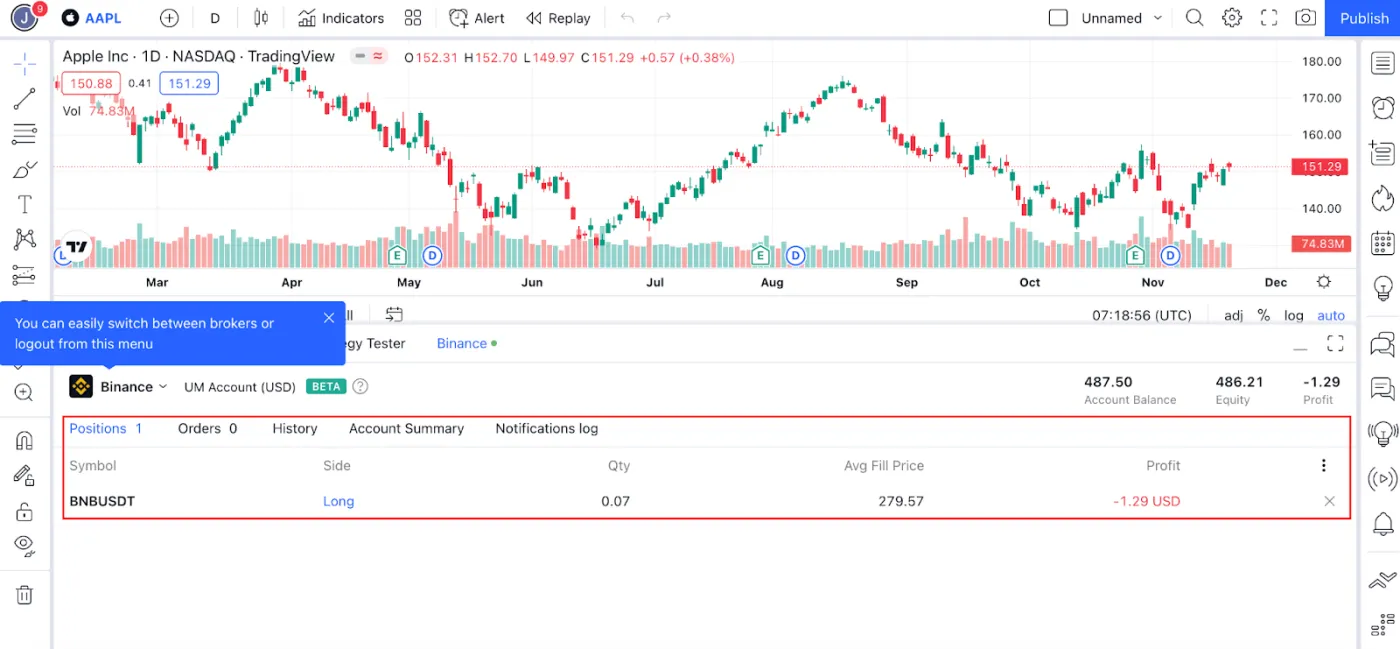
Once your Binance account is connected, you'll be redirected to the TradingView interface. Currently, only USDⓈ-M Futures contracts are available, and any futures positions you hold on Binance are automatically synced with your TradingView account.
How to Trade with Your Binance Account on TradingView
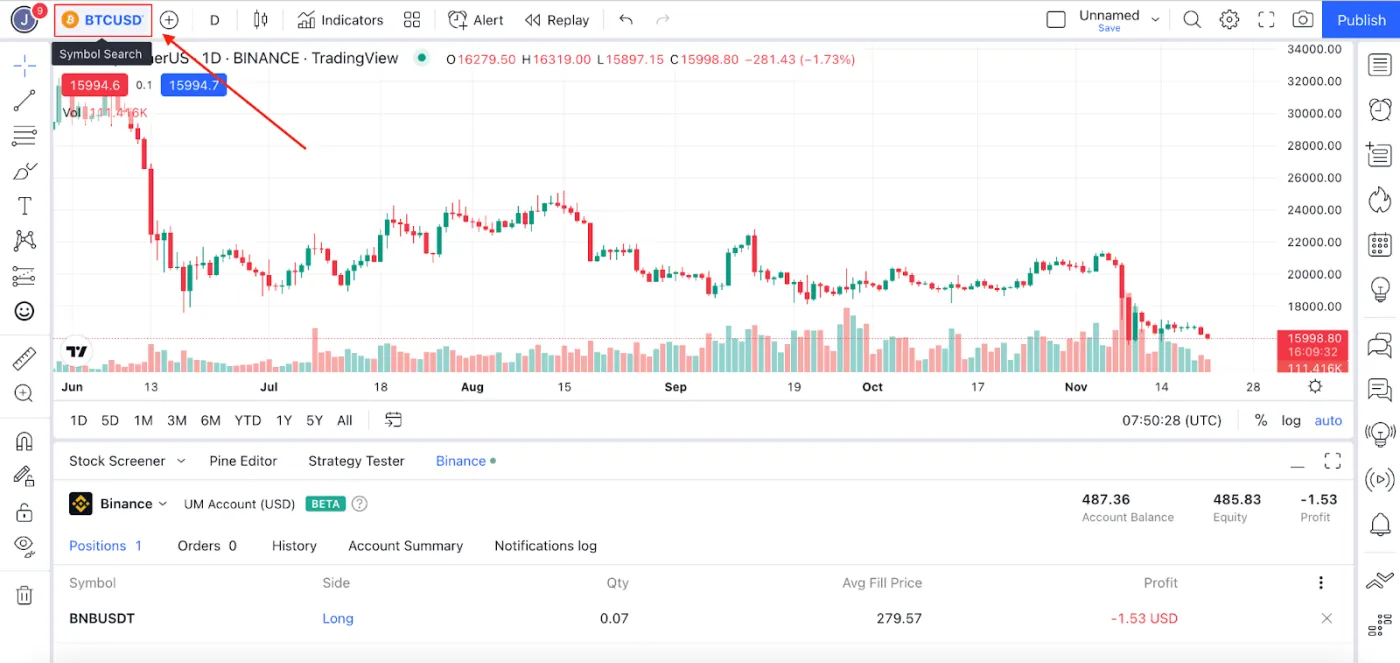
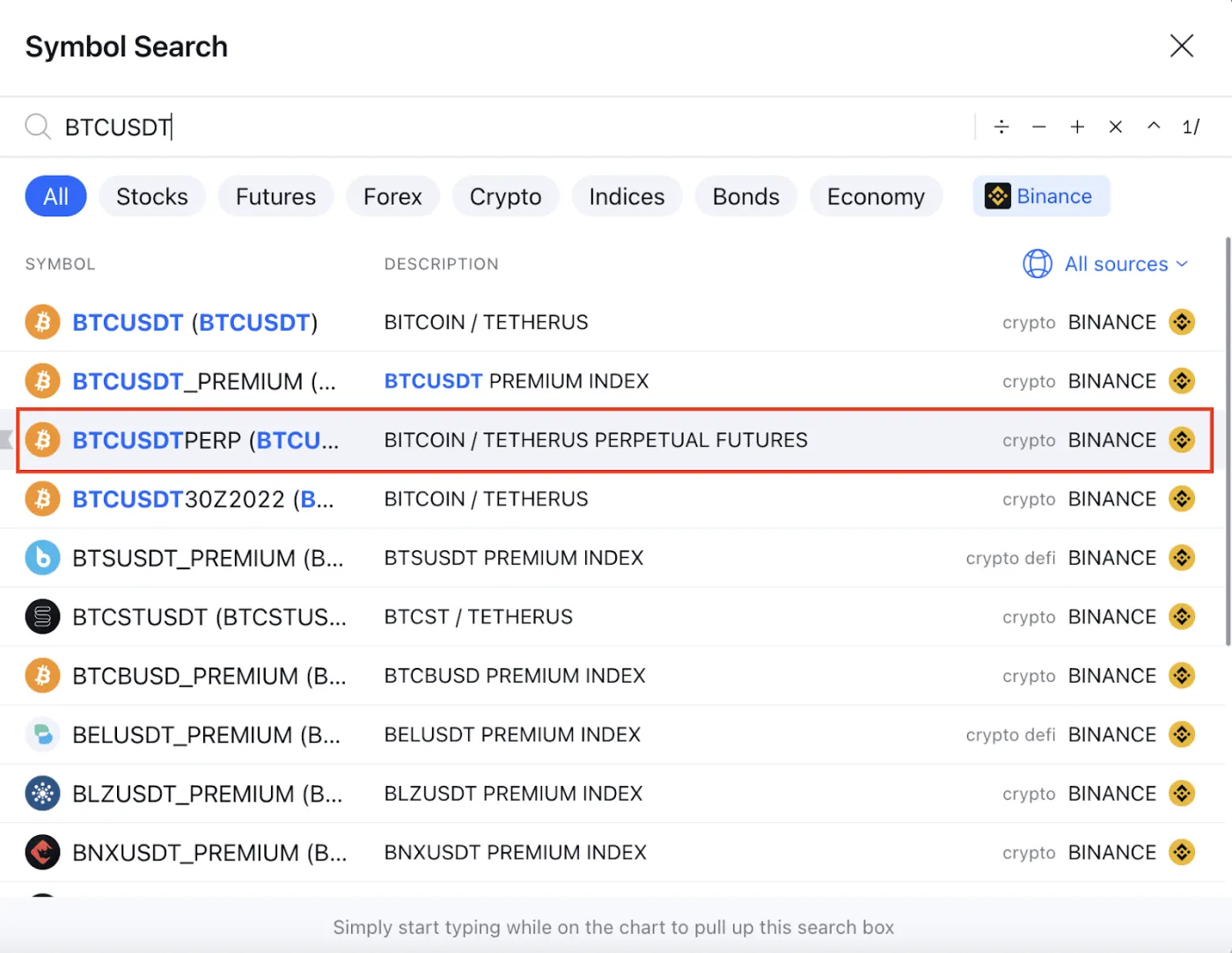
1. Go to the TradingView interface and select the symbol you want to trade at the top left of the trading panel (e.g., BTCUSDTPERP). You can select and trade any coin listed on Binance USDⓈ-M Futures.
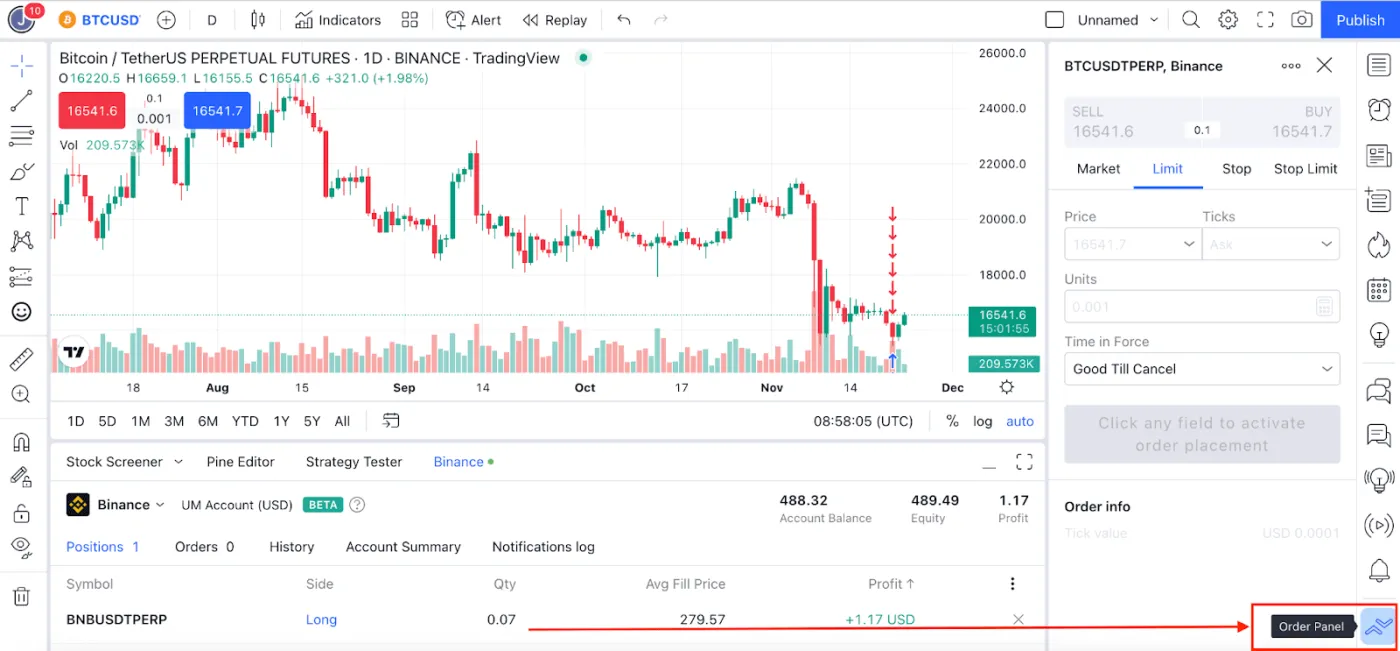
2. To place an order, select [Order Panel] at the bottom of the right navigation bar.
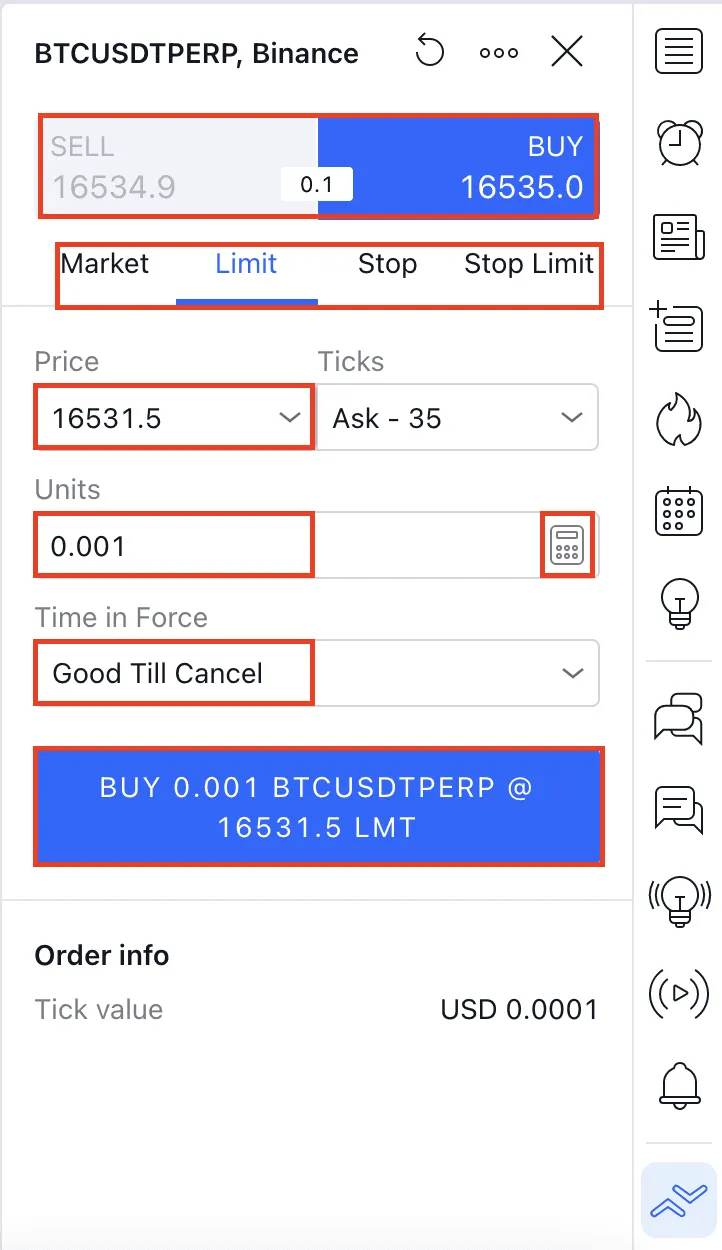
3. The order panel will appear. Choose the order type (Sell/Buy, Market/Limit/Stop/Stop-Limit) and set the price, ticks, units, and conditions.
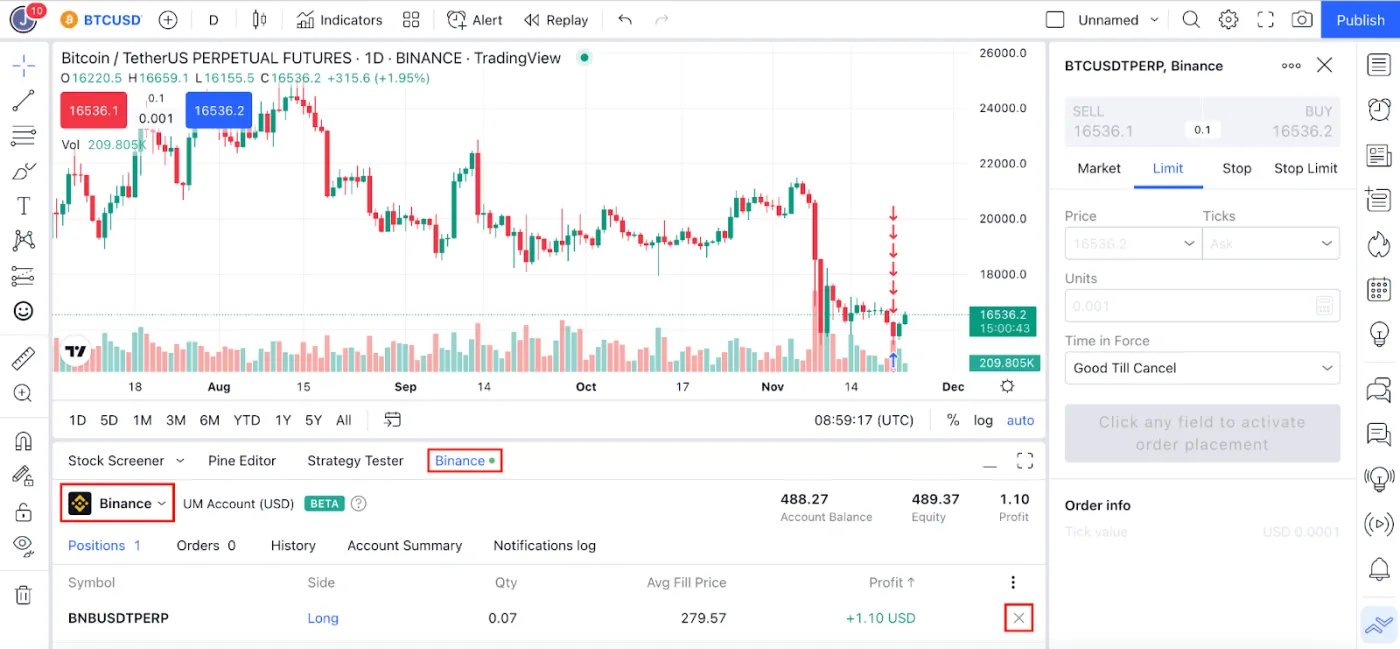
4. A [Binance] tab will appear below the trading interface. From here, you can manage the open positions in your Binance account.
How to Use the Instant Orders Placement Feature
When you enable Instant orders placement mode, your orders are placed instantly. You can use the quantity calculator to set the order quantity you need.
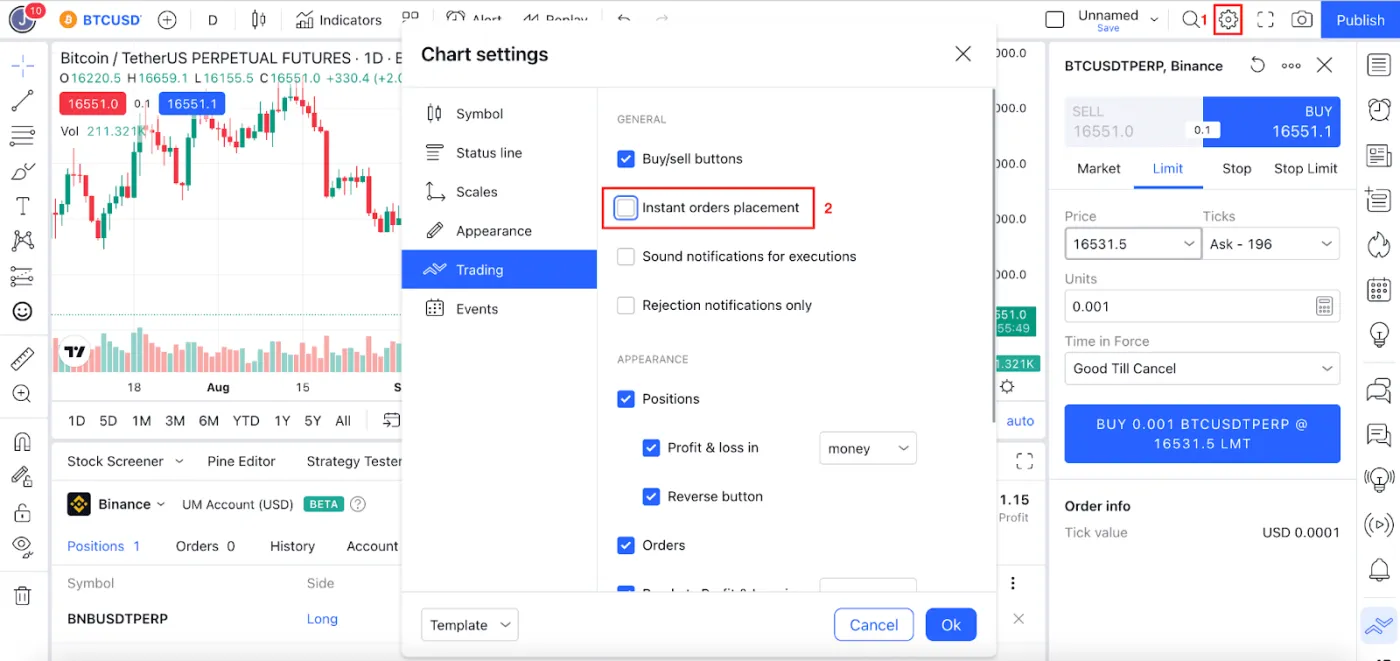
To enable this feature, go to [Chart Settings] - [Trading], check the box next to [Instant orders placement], and click OK.
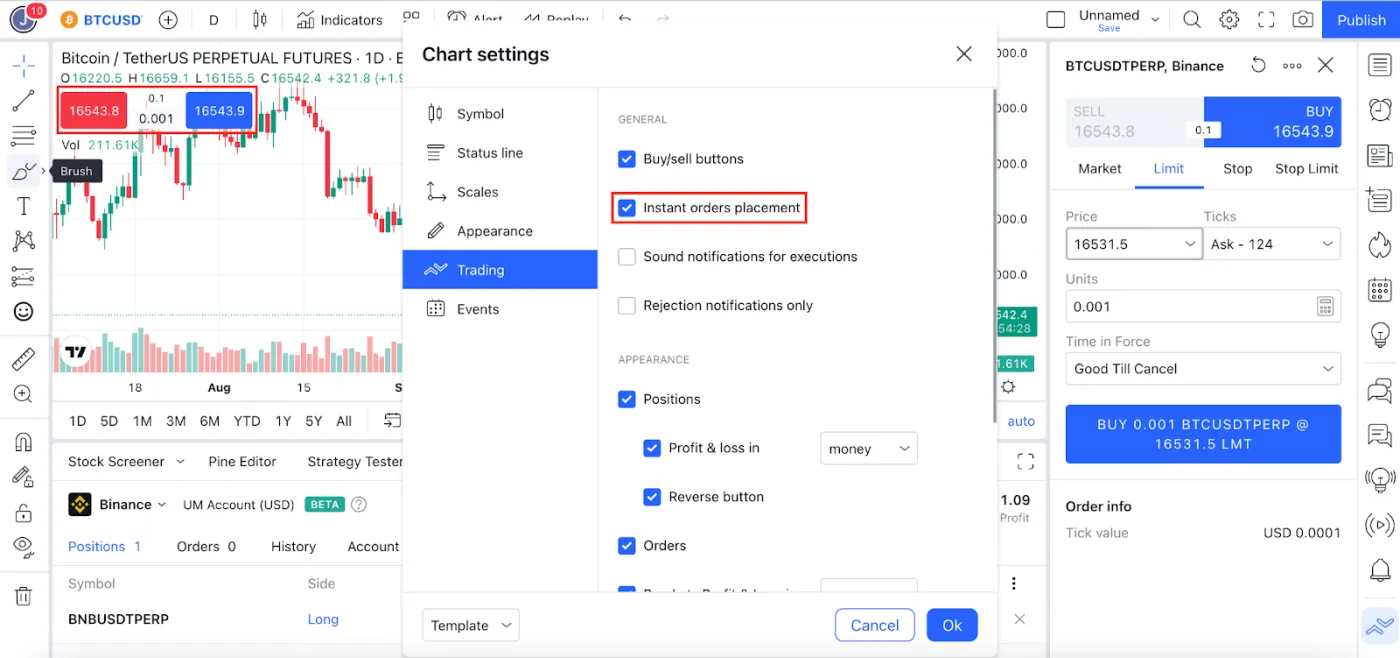
Once Instant orders placement is enabled, you can place a buy or sell order with a single click. Large Buy and Sell buttons will appear at the top left.
When Instant orders placement is enabled, the values set in the quantity calculator are used as the defaults. You can also change them yourself.
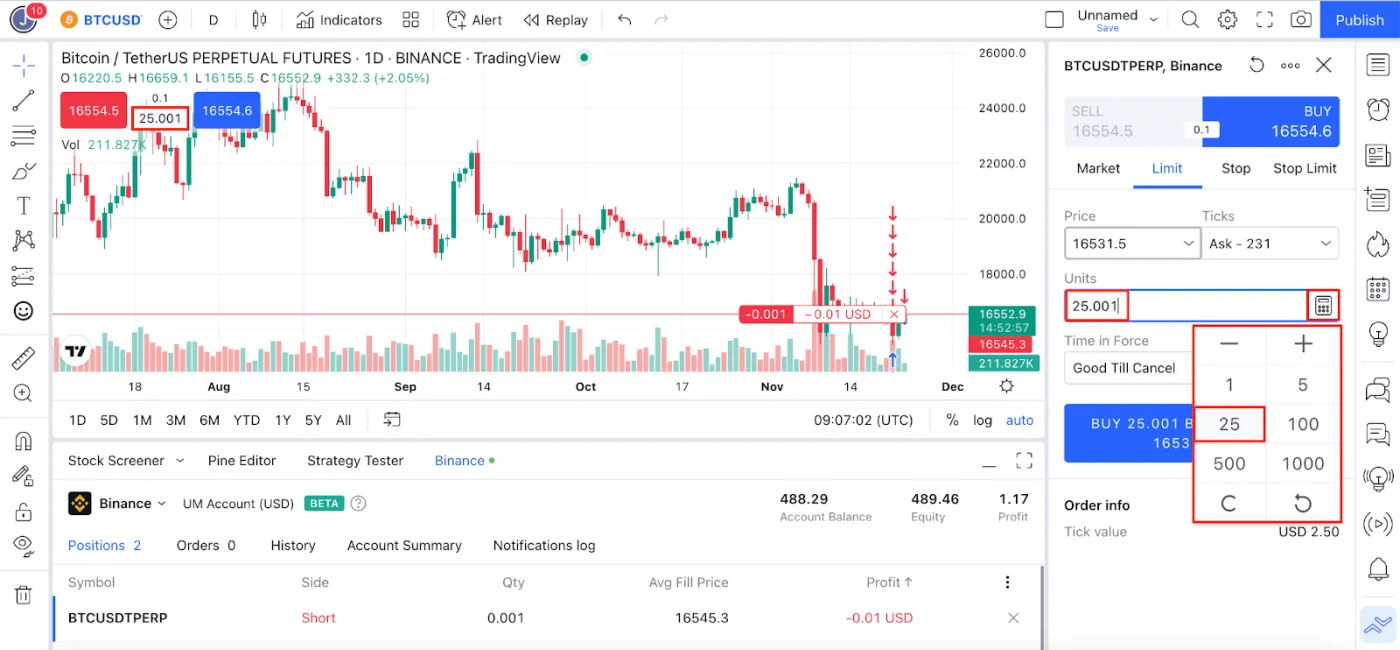
If Instant orders placement is disabled, clicking the Buy/Sell button opens an order window on the right. From there, you can freely set market, limit, stop-loss, and other orders yourself.
How to Set Leverage and Isolated/Cross Mode
You can't change leverage or isolated/cross mode directly on TradingView. So what should you do? You need to set them directly in your Binance account.
For example, if you're trading the BTC/USDT futures pair, log in to your Binance account, open that pair, and adjust the leverage and isolated/cross mode. TradingView will then trade with that leverage and trading mode.
In short, the leverage and isolated/cross mode set in your Binance account become the default settings used on TradingView. They can only be changed on the Binance exchange, and once set, they are automatically reflected on TradingView.
Wrapping Up
That covers how to trade directly on TradingView using your Binance account. TradingView is a global platform used by many traders. If you've been analyzing charts on TradingView and trading on Binance, this connection lets you consider a more convenient way to trade.