How to Add a Passkey to Your Binance Account (PassKey)
3 min read · · Korean original
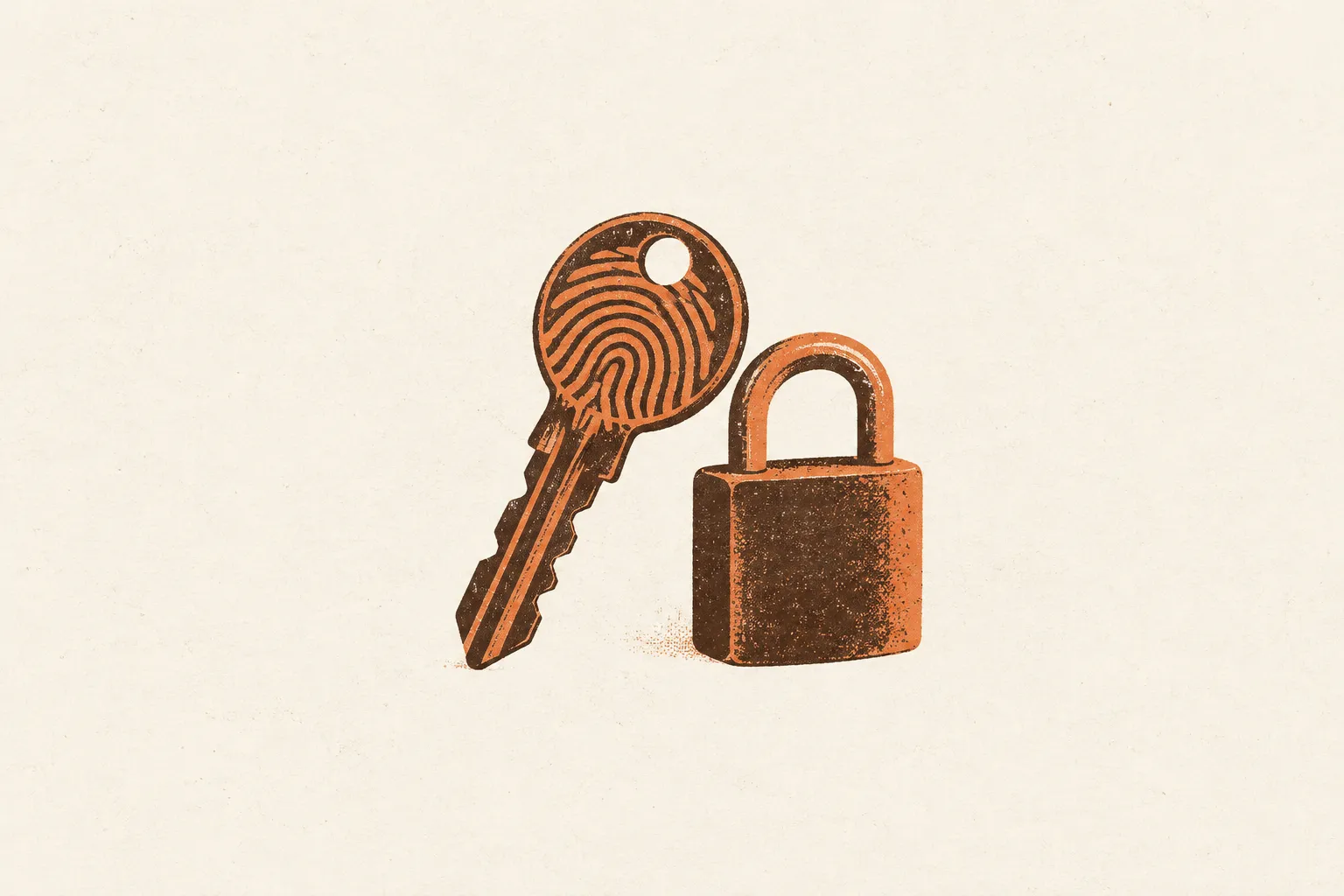
If you use the Binance exchange, pay close attention to this post! There's one step you really should take to keep your account safe: setting up the newly launched passkey.
With a passkey, you can log in and withdraw without entering a password, so the chance of that information leaking and your account getting hacked or put at risk drops sharply.
How to Add a Passkey in the Binance App
To add a passkey in the Binance app, just follow the steps below. First, log in to Binance, tap the profile icon, and go to the Account Center.
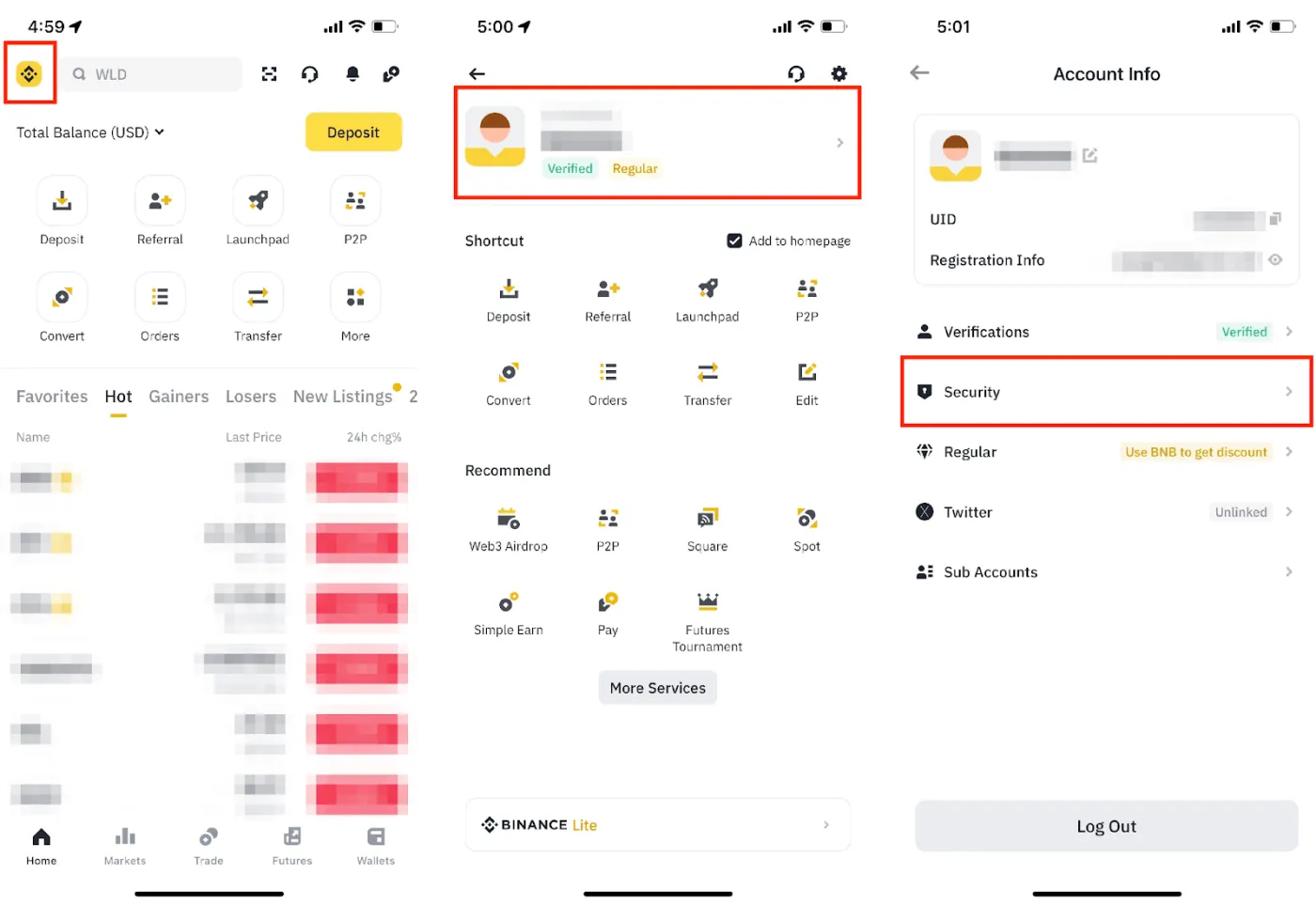
Next, add a passkey (Passkeys) in the Security tab. At this point, check that the linked email is the same as the one registered with Binance, and then activate the passkey.
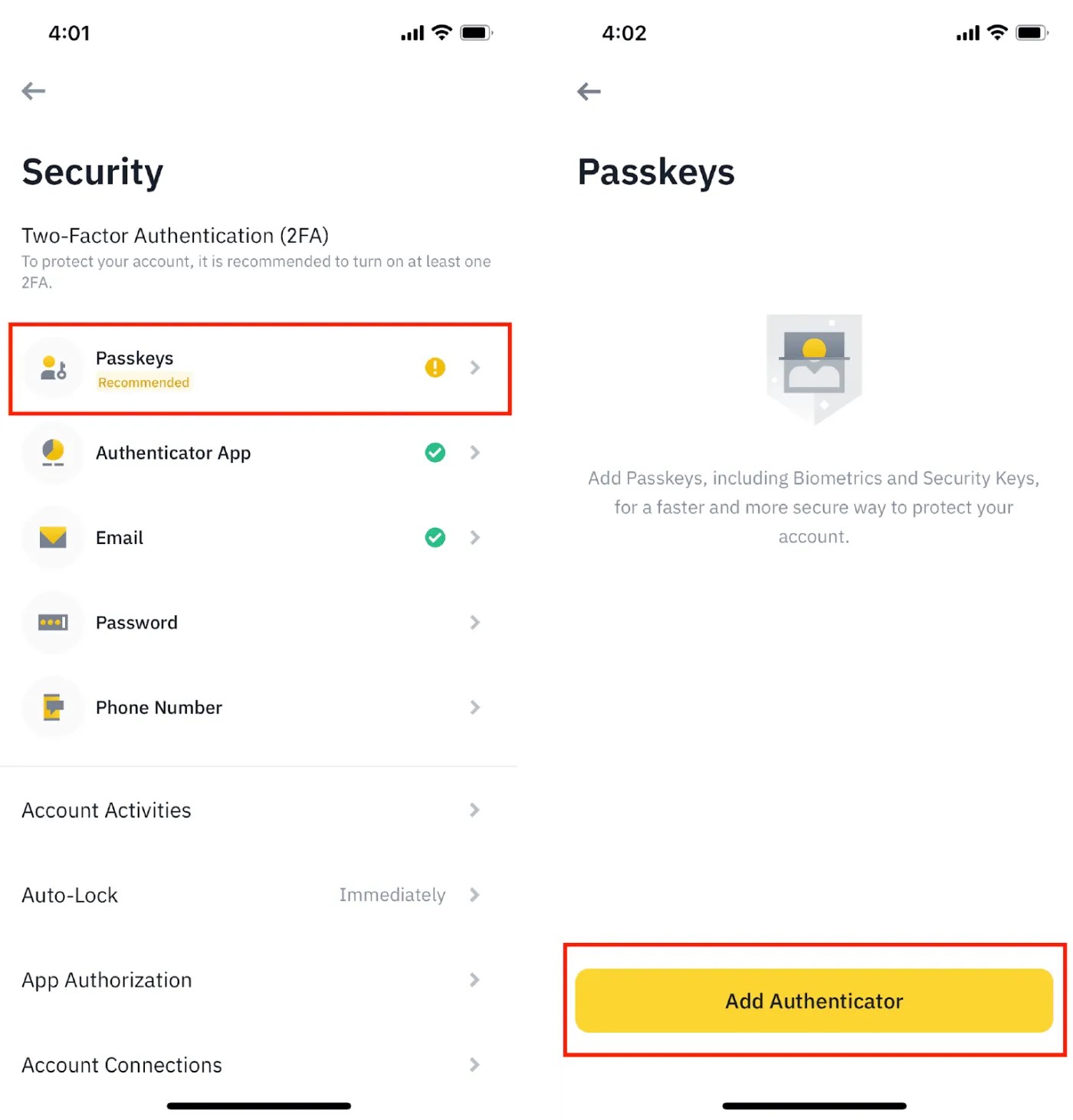
There are three main ways to set up a passkey. First, if you're an Apple user, you can save it to your iCloud Keychain. That way, you can use the passkey on all your other Apple devices.
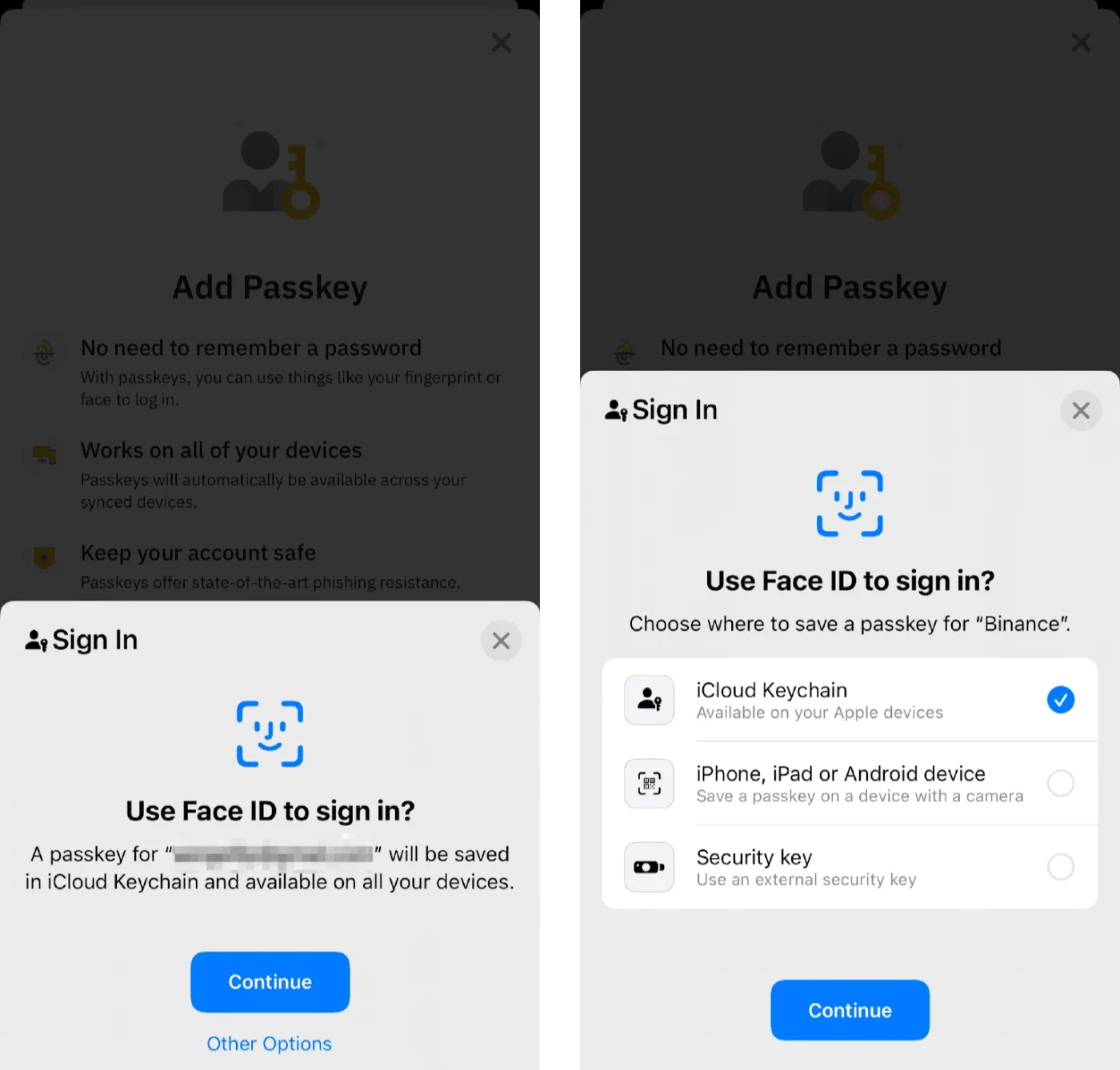
Another way is to activate an NFC or USB device. These days, many people use a YubiKey, a small stick-shaped key that works when you hold it close to your device or recognizes your fingerprint. On the add passkey screen, tap the Other Options button. Now you can register a passkey using your security key.
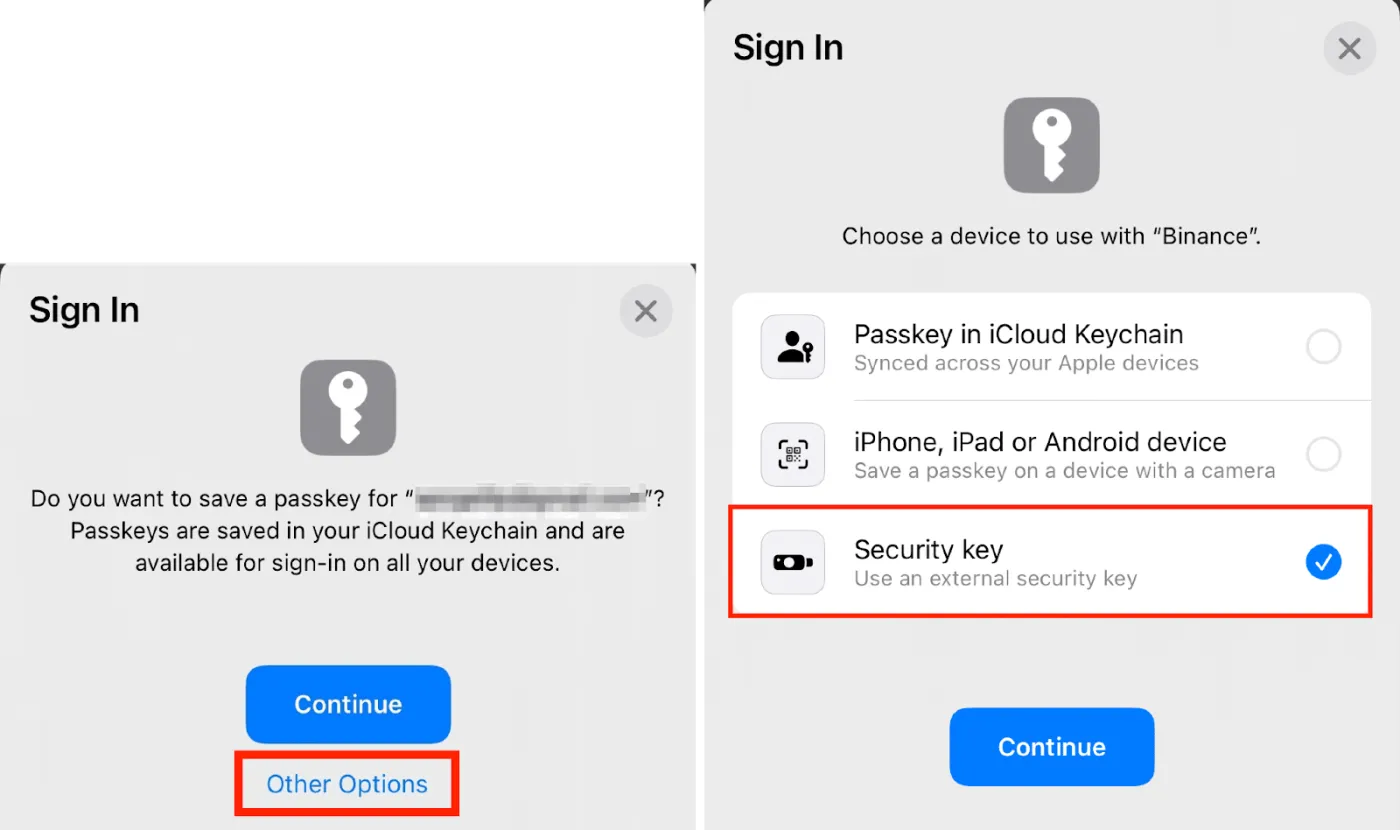
The last way is to use another device or a PIN. You can scan the QR code shown in the pop-up window, or activate the passkey with a PIN on the device you're using.
How to Add a Passkey in a Web Browser
Here's how to add a passkey in a web browser. First, to use passkeys, we recommend updating to the latest version of Chrome or Safari.
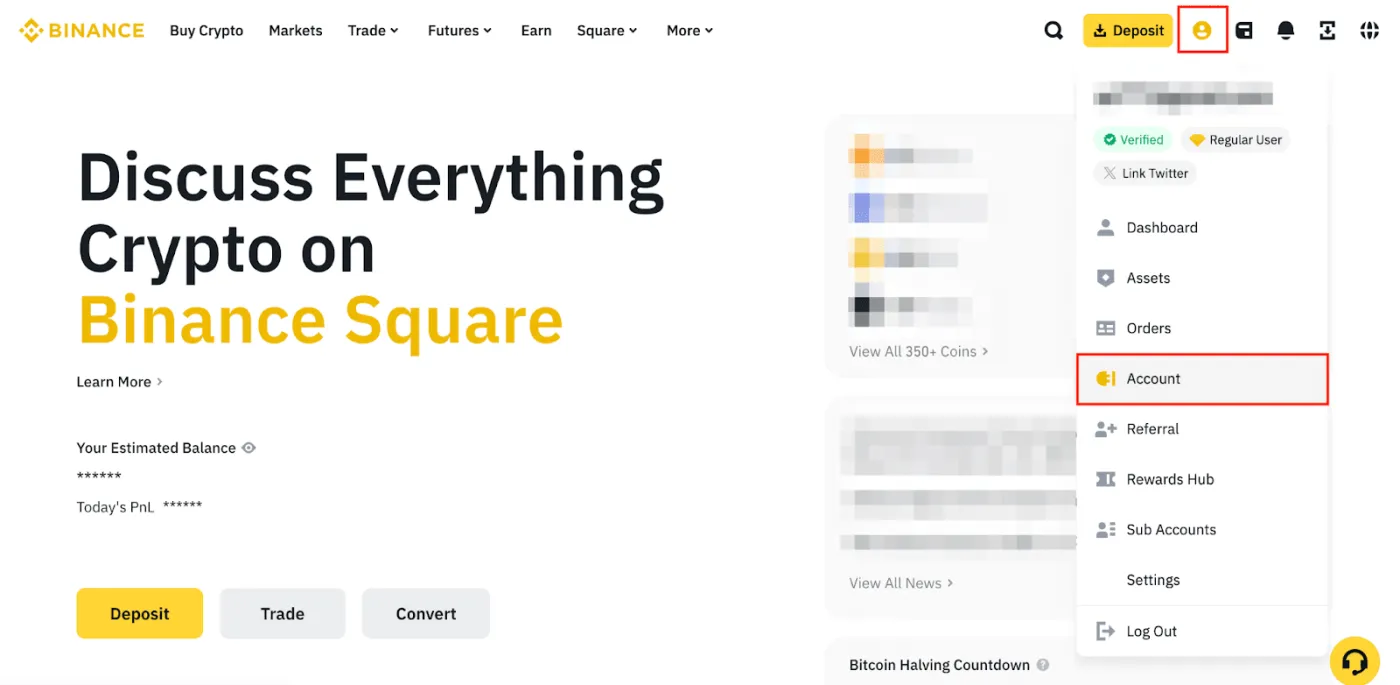
1. Log in to the Binance website, then click the profile icon and go to the Account tab.
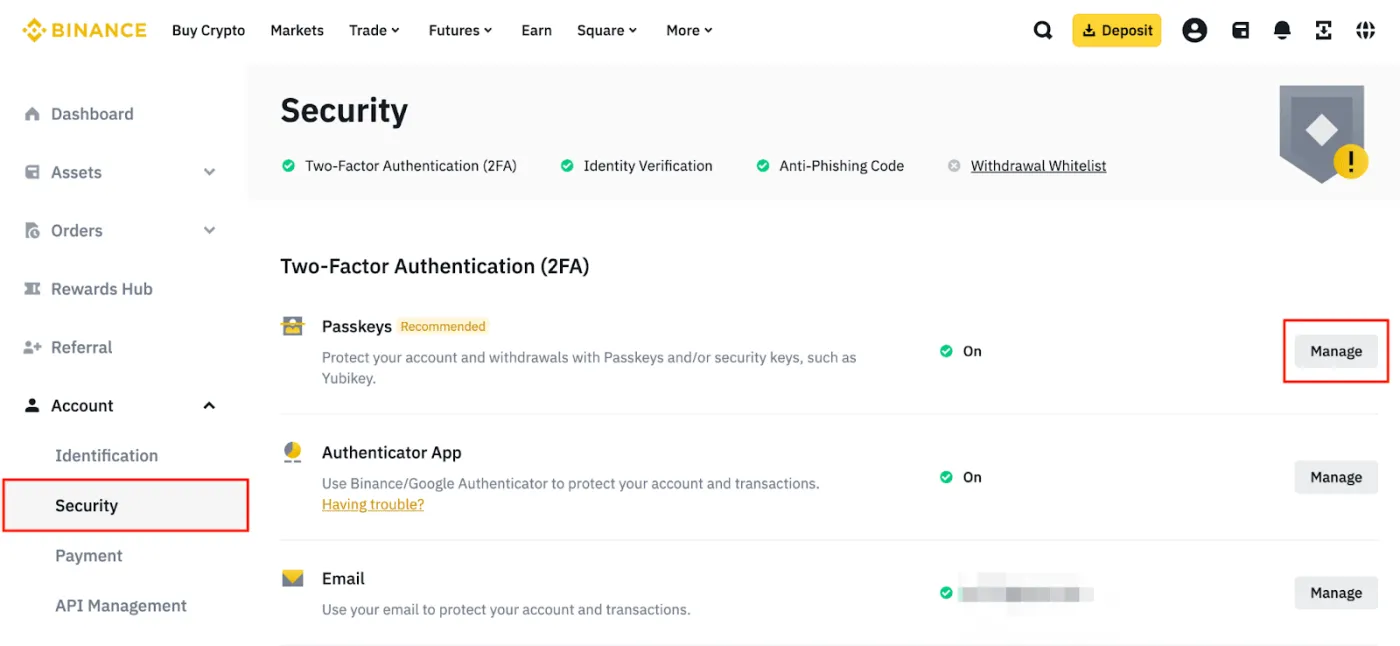
2. In the Security menu, click the Manage button next to Passkeys.
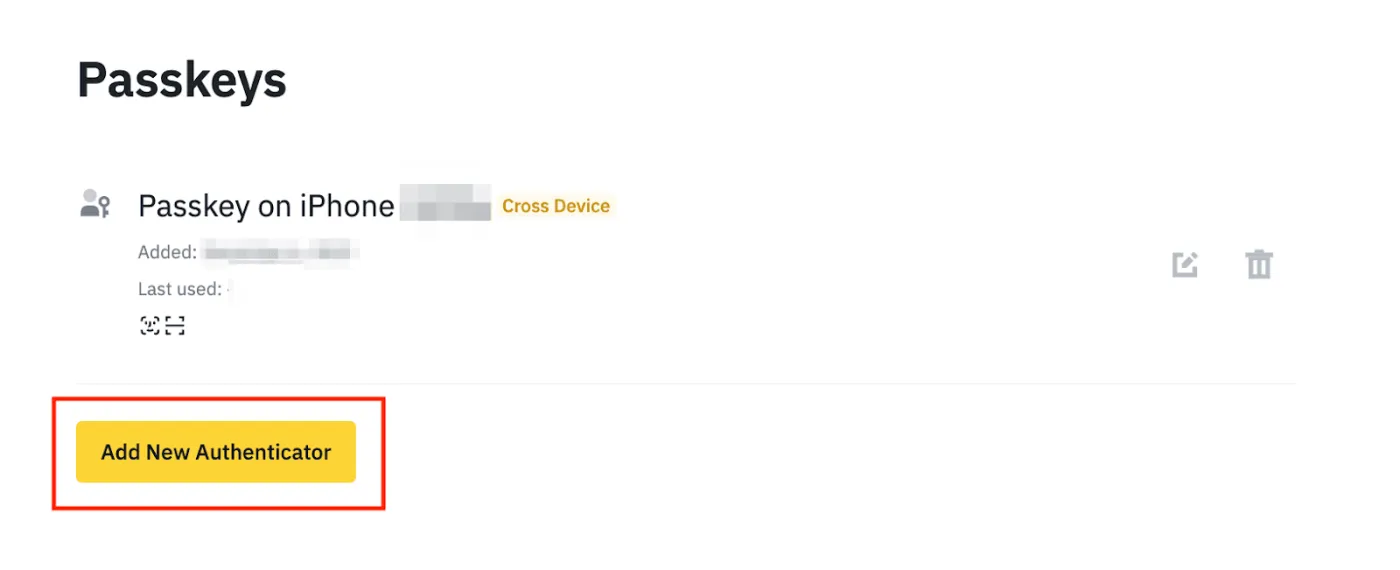
3. Select Add New Authenticator, then click Continue.
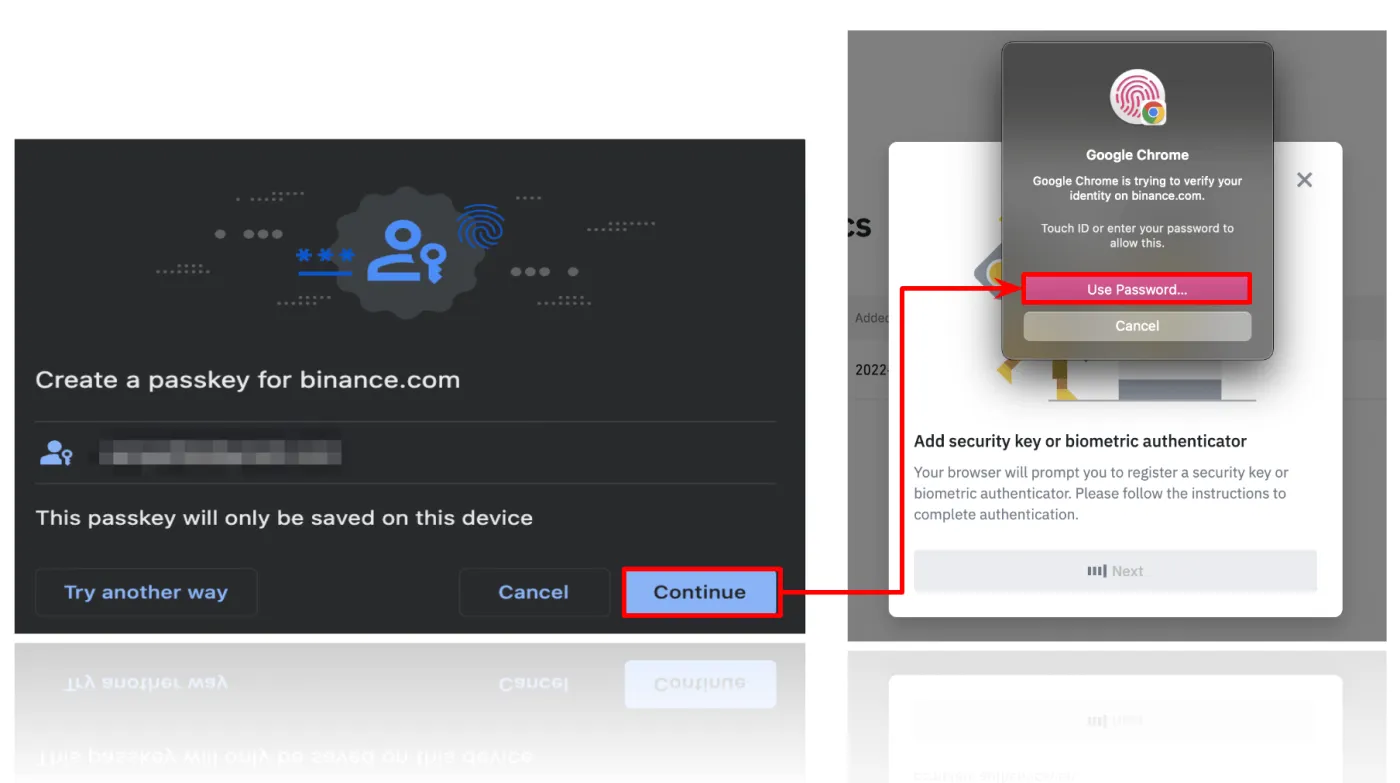
4. When the pop-up window appears, click the Continue button to set up the passkey with your computer's password or biometrics (such as Touch). If you'd prefer another method, click [Try another way] and use a USB security key or another device instead.
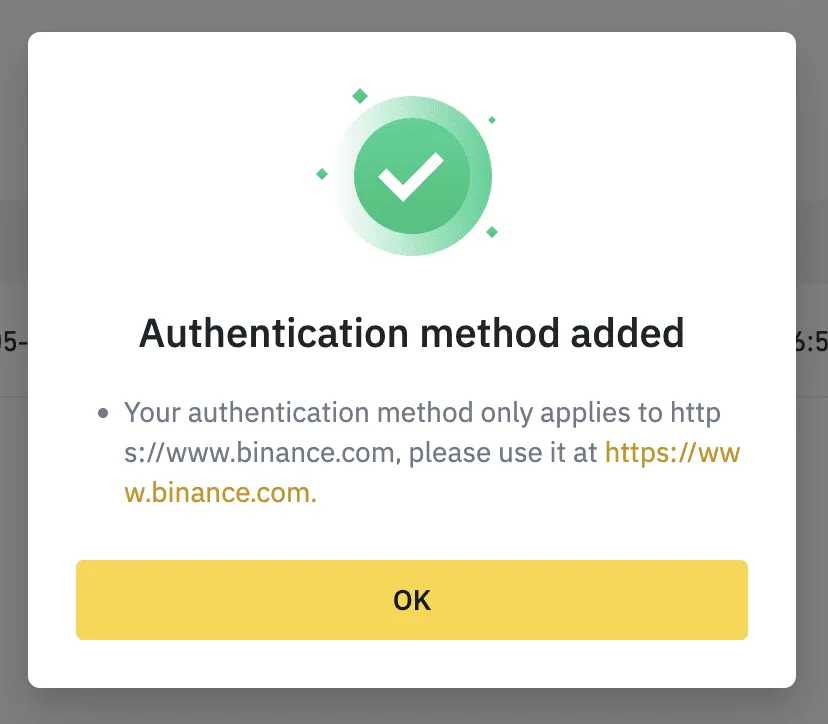
5. Once everything is set up, you'll see a passkey activation window like the one below.
Wrapping Up
If you trade on Binance, the world's largest exchange, or store crypto assets like Bitcoin there, we strongly recommend activating a passkey.
A passkey is a safer way to authenticate than typing in your password, and it's convenient at the same time. Activate your passkey right now and keep your account even more secure.