How to Sign Up and Verify Your Identity on Bybit (20% Fee Discount)
4 min read · · Korean original
Contents 9
- Step 1: Go to the Bybit Exchange
- Step 2: Enter Your Email or Mobile Phone Number
- Step 3: Solve the Verification Puzzle
- Step 4: Enter the Email Verification Code
- Step 5: Verify Your Identity
- Step 6: Log In and Start Verification
- Step 7: Select Your Nationality and ID Document
- Step 8: Take the Photos
- Step 9: Confirm Your KYC Verification Is Complete
Hello, this is Bitpunk. Today, we'll walk through how to sign up for the Bybit exchange and how to complete identity verification.
We'll also show you how to enter the referral code 7889 when signing up for Bybit to get a 20% trading fee discount and up to $600 in bonus rewards.
Step 1: Go to the Bybit Exchange
Go to the Bybit exchange through the link below. It takes you straight to the sign-up page with the 20% fee discount applied.
- Sign up for Bybit (20% fee discount): https://www.bybit.com/register/?affiliate_id=7889&language=en-US&group_id=0&group_type=1
Step 2: Enter Your Email or Mobile Phone Number
Once you're on the Bybit sign-up page, you'll see a window like the one below. Enter the email you want to use in the [Email] field, and set your [Password].
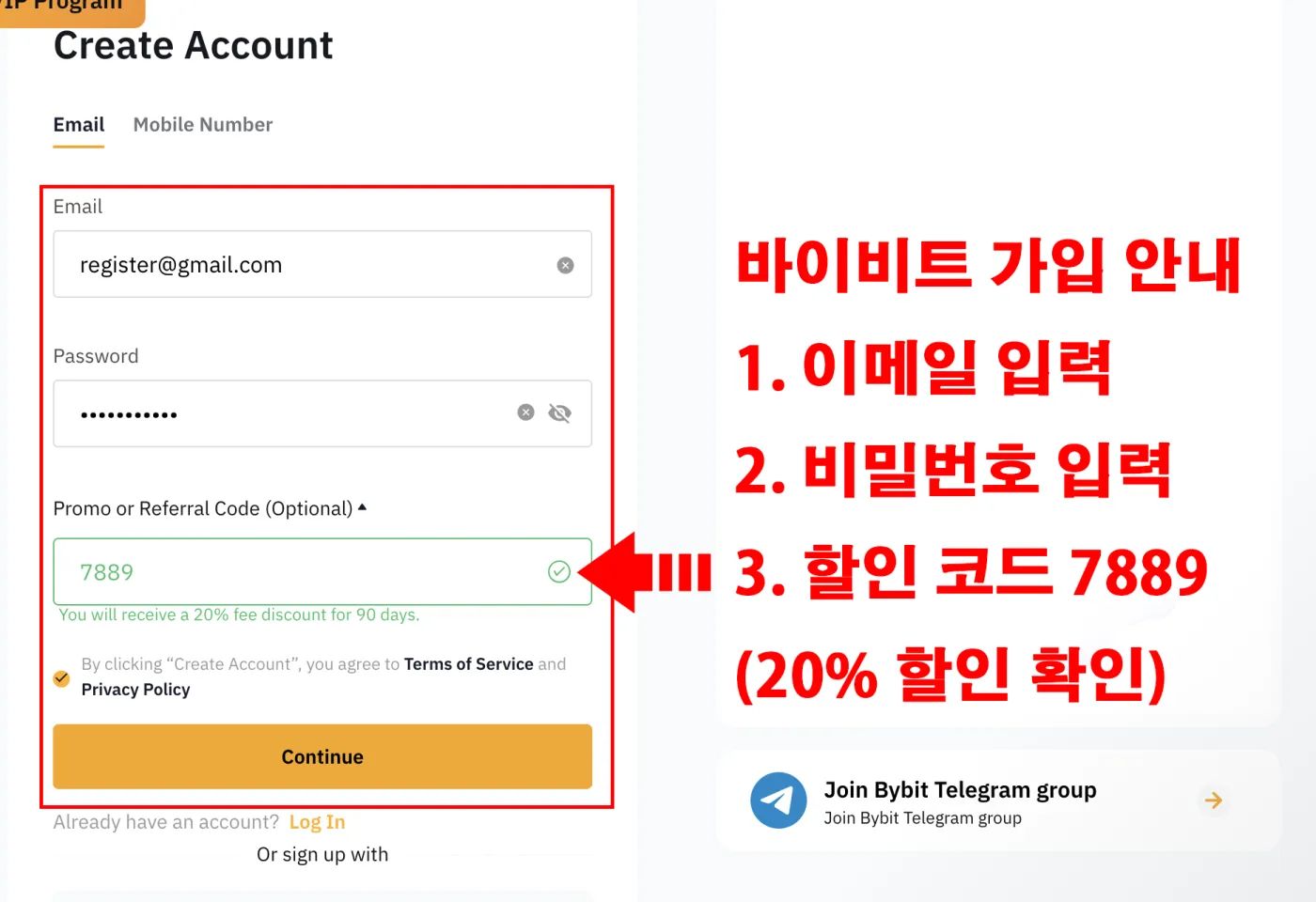
Your password should be a strong one of at least 8 characters, combining lowercase letters, uppercase letters, special characters and so on. For security, it's a good idea to make it different from the password of the email account you use.
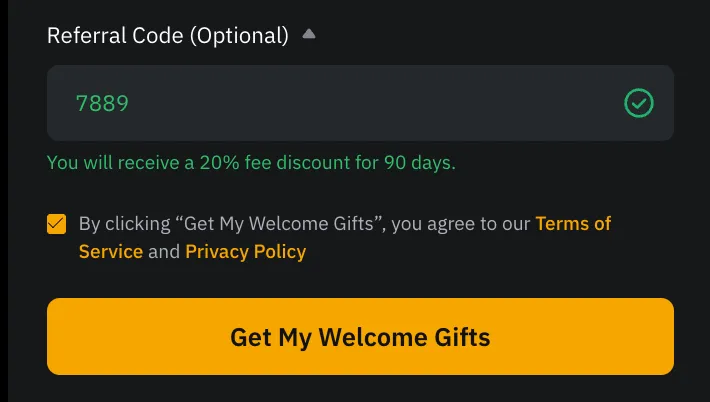
Next, check that the Bybit referral code 7889 has been entered correctly in the [Referral Code] field. If, as in the screen below, the message 'You will receive a 20% fee discount for 90 days appears in green below the referral code, you're all set.
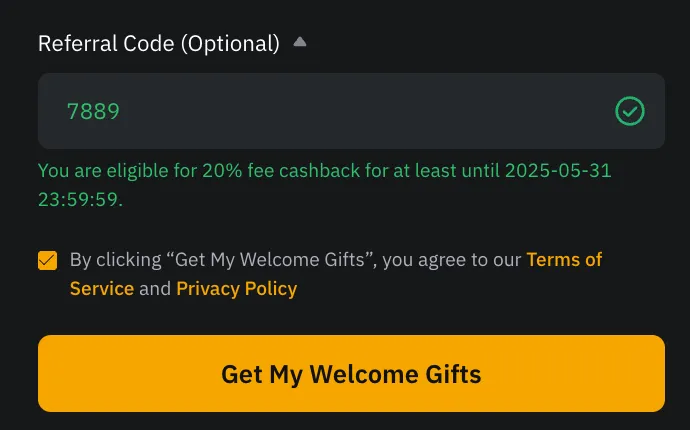
Alternatively, a slightly different cashback message, 'You are eligible for 20% fee cashback', may appear as shown below. What matters is checking that the discount rate '20%' is shown in the promotion message.
If everything is correct, agree to the terms of use and tap the yellow [Get My Welcome Gifts] or [Continue] button at the bottom.
Step 3: Solve the Verification Puzzle
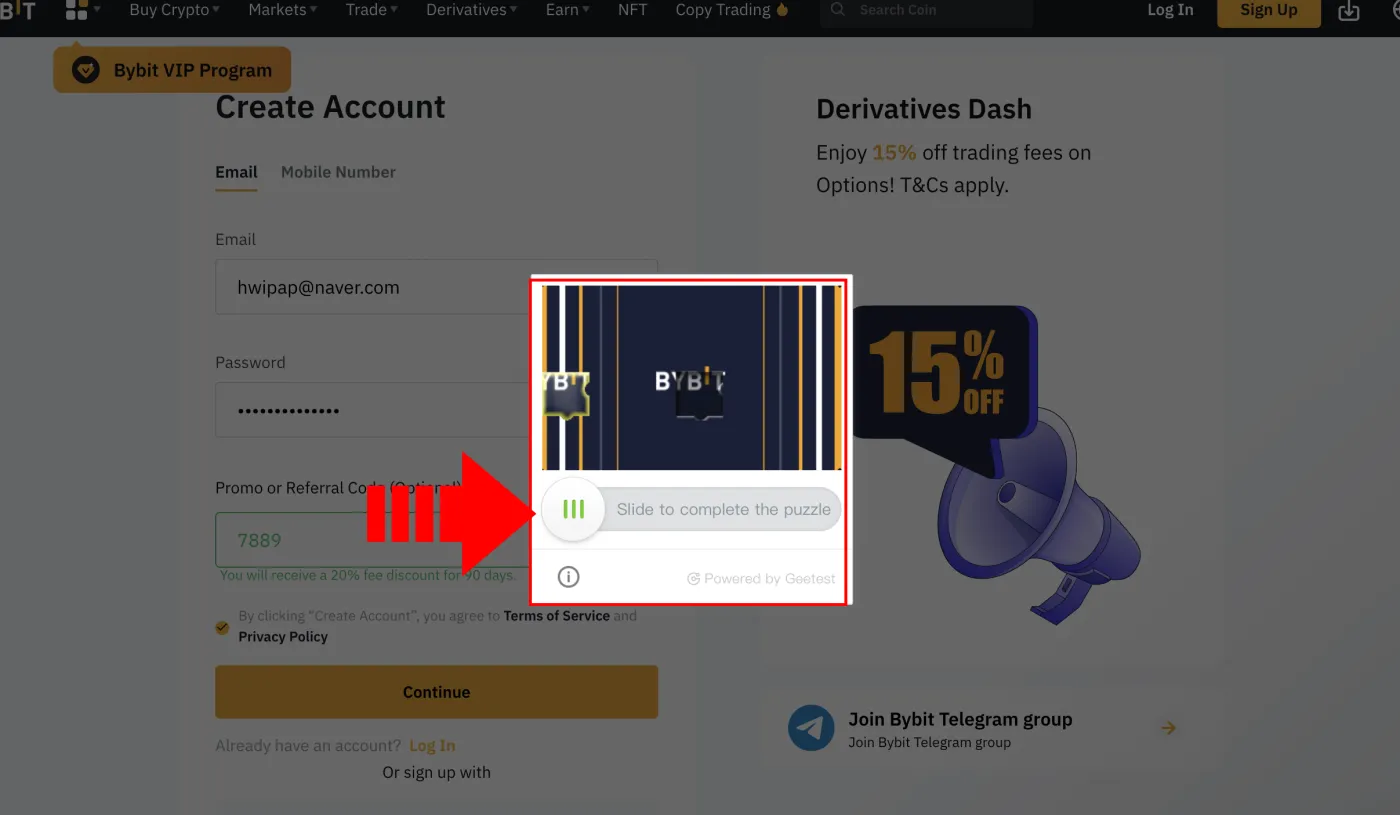
Now it's time to solve the verification puzzle. Drag the round button below to fit the puzzle piece into the empty spot. If it doesn't work, take a deep breath and try moving the puzzle again slowly.
Step 4: Enter the Email Verification Code
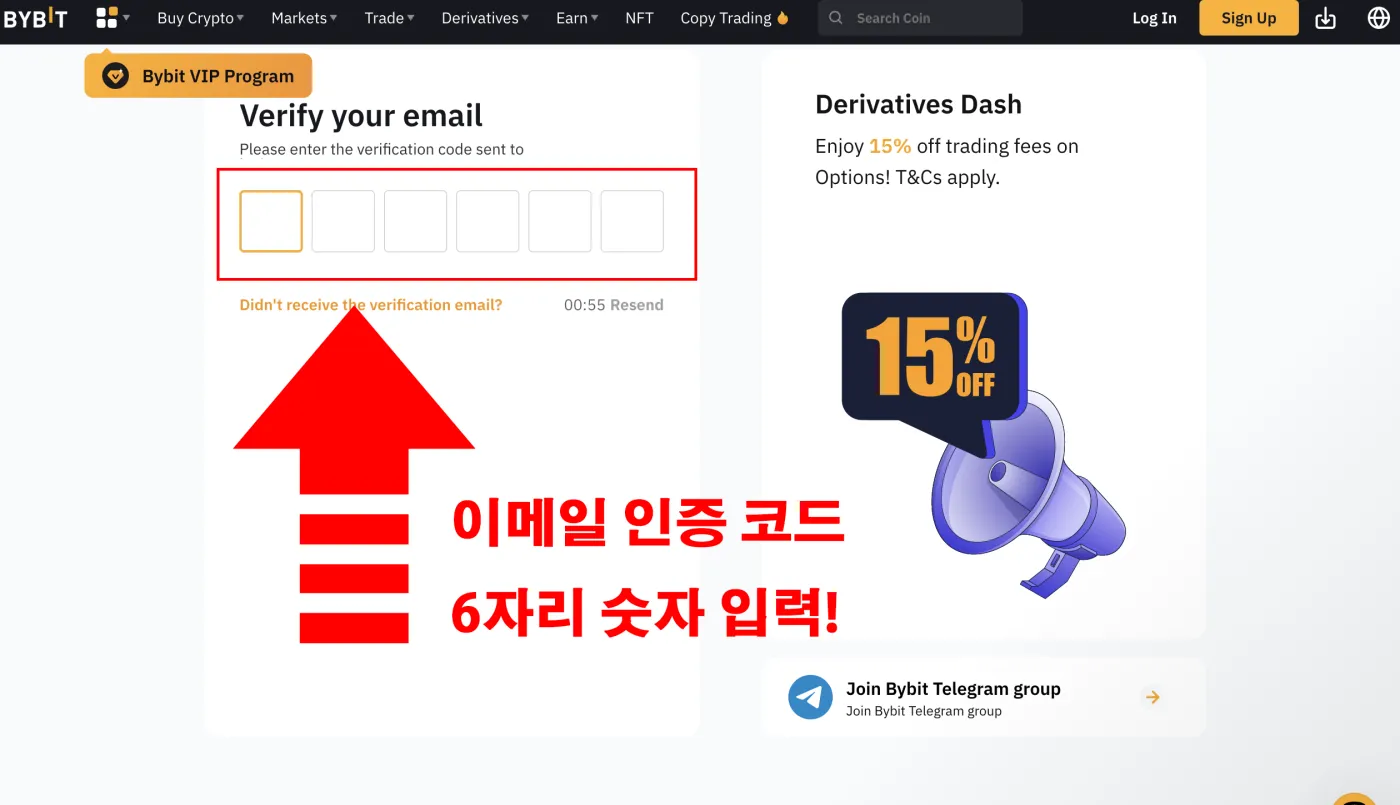
When you open the email account you used to sign up, you'll find a verification email from Bybit. Find the 6-digit code and enter it on the verification page, and your Bybit sign-up is complete.
Step 5: Verify Your Identity
Your Bybit exchange sign-up is complete, but to use the exchange smoothly, you need to verify your identity. Identity verification requires a camera, so it's best to do it in the mobile app.
Go to your app store and download the Bybit app, or download the official Bybit app through the links below.
Step 6: Log In and Start Verification
Open the Bybit app and log in with the details you just signed up with. When logging in, you may need to enter a verification code sent to your email once again.
Have you logged in? Now, tap the 'Verify Now' button at the top of the screen. Next, tap 'Proof of Identity' to start the identity verification process.
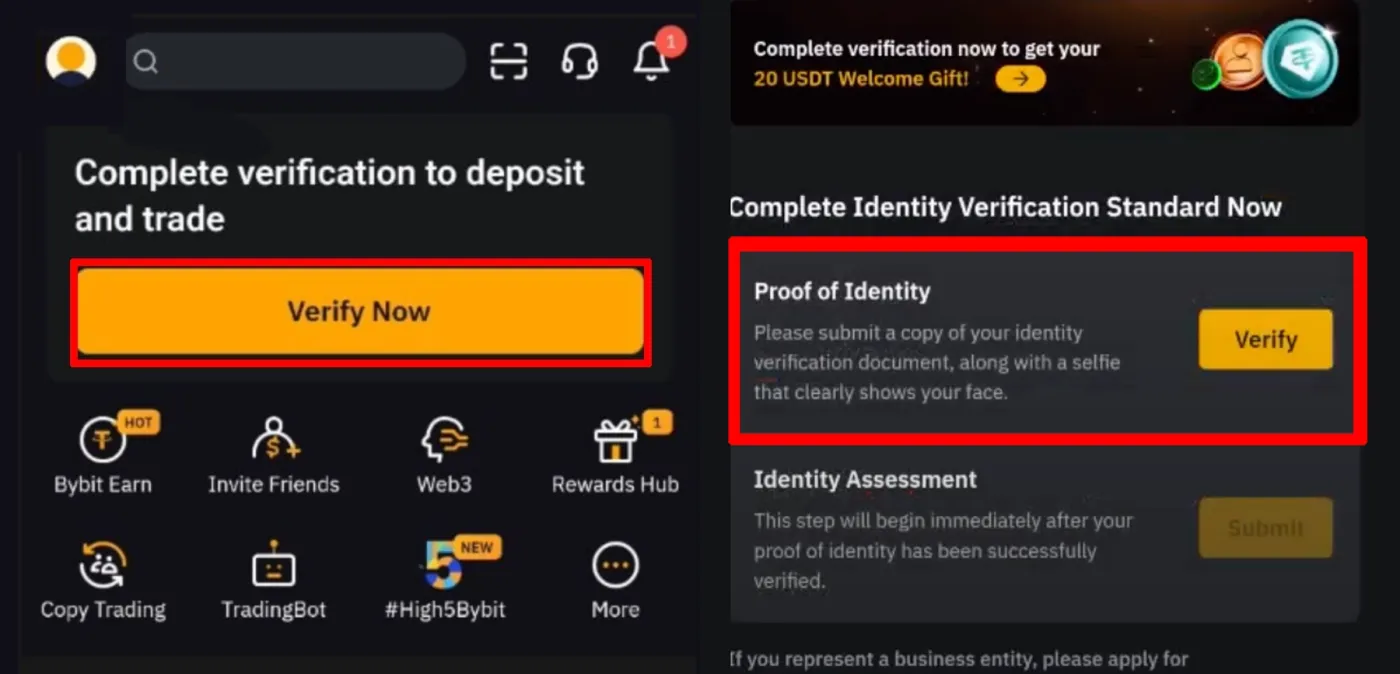
Don't see the verification screen? In that case, you can tap the profile icon in the top left to go to the verification window. The rest of the process is exactly the same as below.
Step 7: Select Your Nationality and ID Document
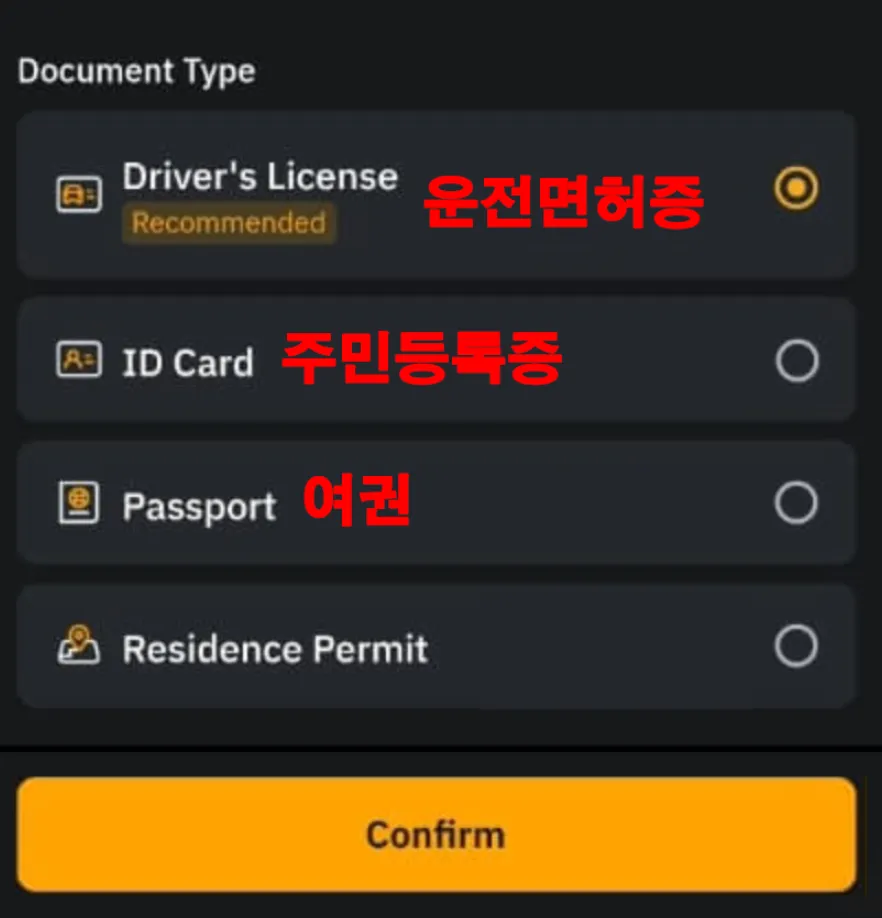
Select the country of your nationality, choose an ID document you can use, and tap [Confirm]. For ID verification, you can use a driver's license, a resident registration card or a passport.
Step 8: Take the Photos
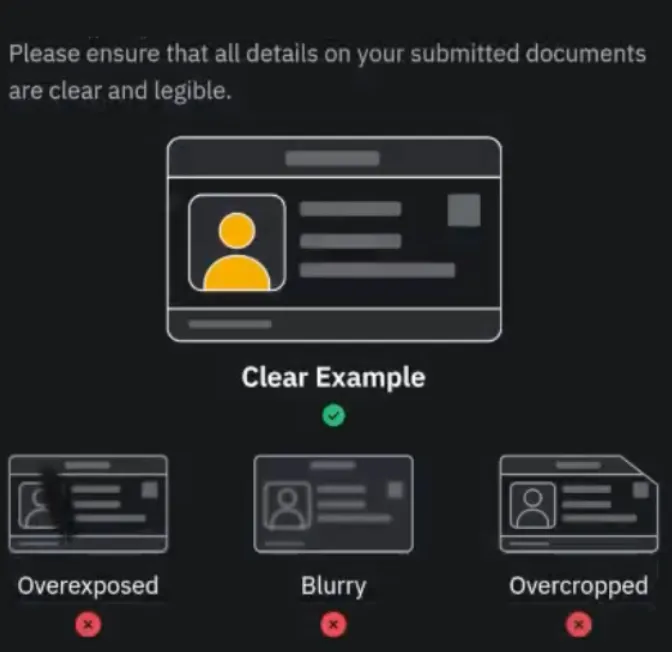
Instructions for taking the photo will be shown. The photo shouldn't be too bright or too dark, and it should be a clean shot in which the whole ID is visible. Tap [Confirm] to go ahead and take the photo.
After photographing your ID, you need to take a selfie. Fit your face neatly within the frame on the screen, then move your head slightly as instructed, and face verification will be complete.
Step 9: Confirm Your KYC Verification Is Complete
If you've made it this far, you've completed the entire KYC verification process on the Bybit exchange. Now just wait about 5 minutes and the review will be done.
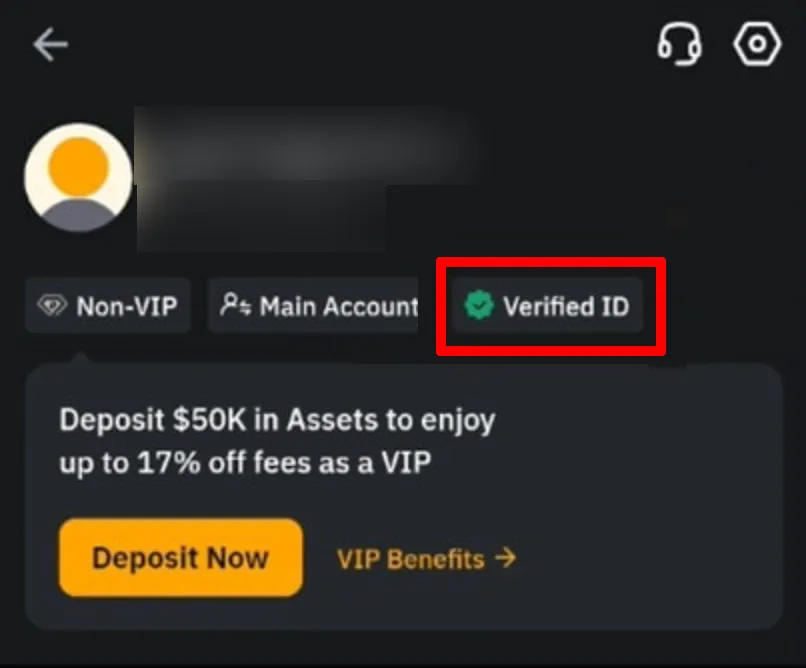
Here's how to check whether your KYC verification went through. In the Bybit app, tap the person-shaped avatar in the top left. If you see 'Verified ID' in green below your profile, your sign-up and verification have both been completed successfully.
Congratulations! In this post, we've looked at how to sign up for the Bybit exchange and complete KYC verification. We've also covered how to enter the Bybit referral code 7889 to get a 20% fee discount.