How to Set Up Two-Factor Authentication on Bybit (Enabling Google Authenticator OTP)
3 min read · · Korean original
Contents 4
Now that you've signed up for Bybit, it's time to set up your security settings to keep your assets safe. In this post, we'll look at the essential account security settings and how to enable two-factor Google authentication.
1. Check Your Current Password
Before setting up two-factor authentication on the Bybit exchange, the first step to protecting your account and assets is setting a strong password.
When people think of security settings, they usually think of things like Google authentication or SMS verification, but the best place to start is setting a long, hard-to-guess password.
Create a long password using uppercase and lowercase letters, numbers, and special characters. Be careful not to include your birthday, address, or anything related to your phone number in your password.
2. How to Set Up Google Two-Factor Authentication (Web)
Now let's look at how to set up two-factor Google authentication on the Bybit exchange.
Two-factor authentication means going through an extra verification step when you perform asset-related actions such as logging in or making a withdrawal. The most widely used tool for two-factor authentication is Google's Google Authenticator app.
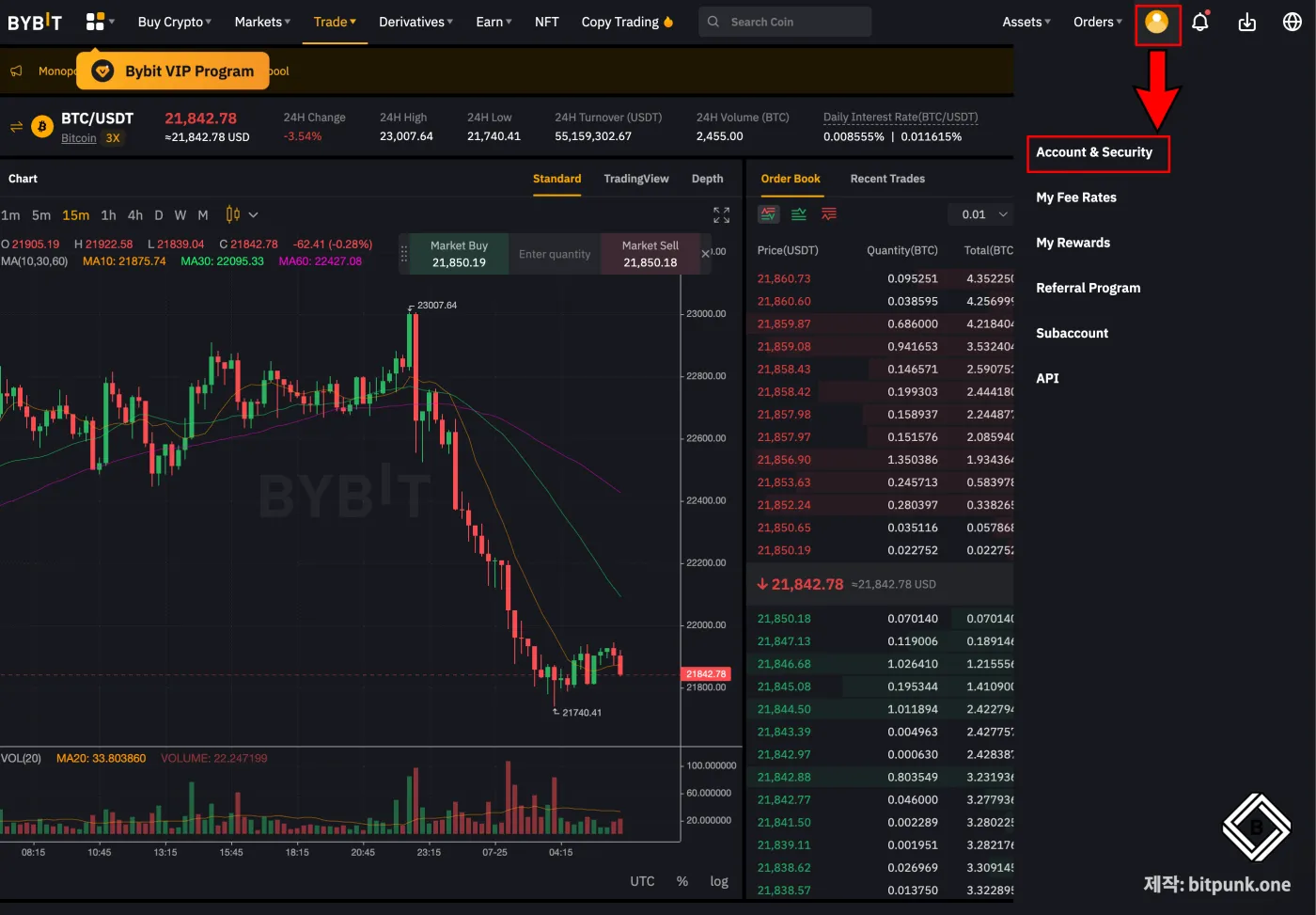
Here's how to set up two-factor security on the Bybit website. After logging in to your account, go to Account & Security in the top right corner.
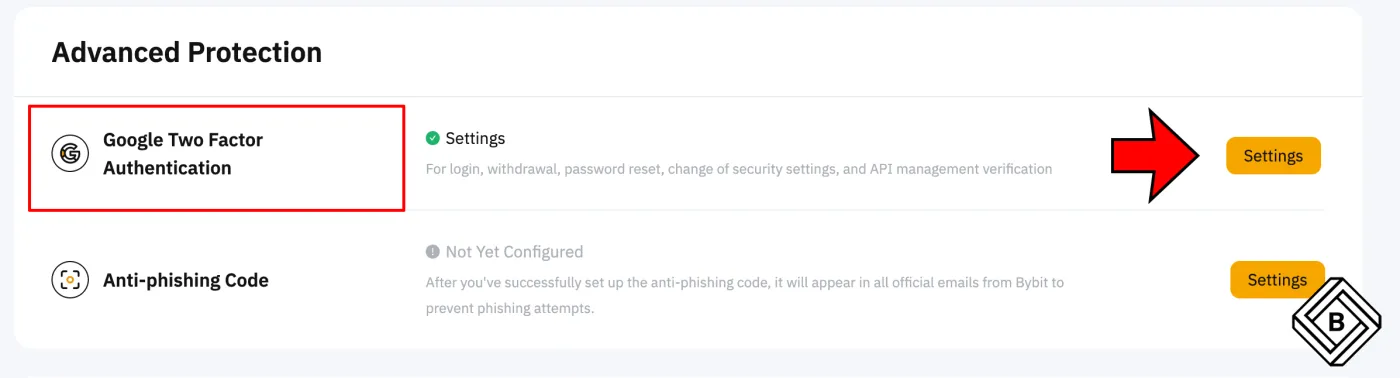
Next, under Settings, click Google Two-Factor.
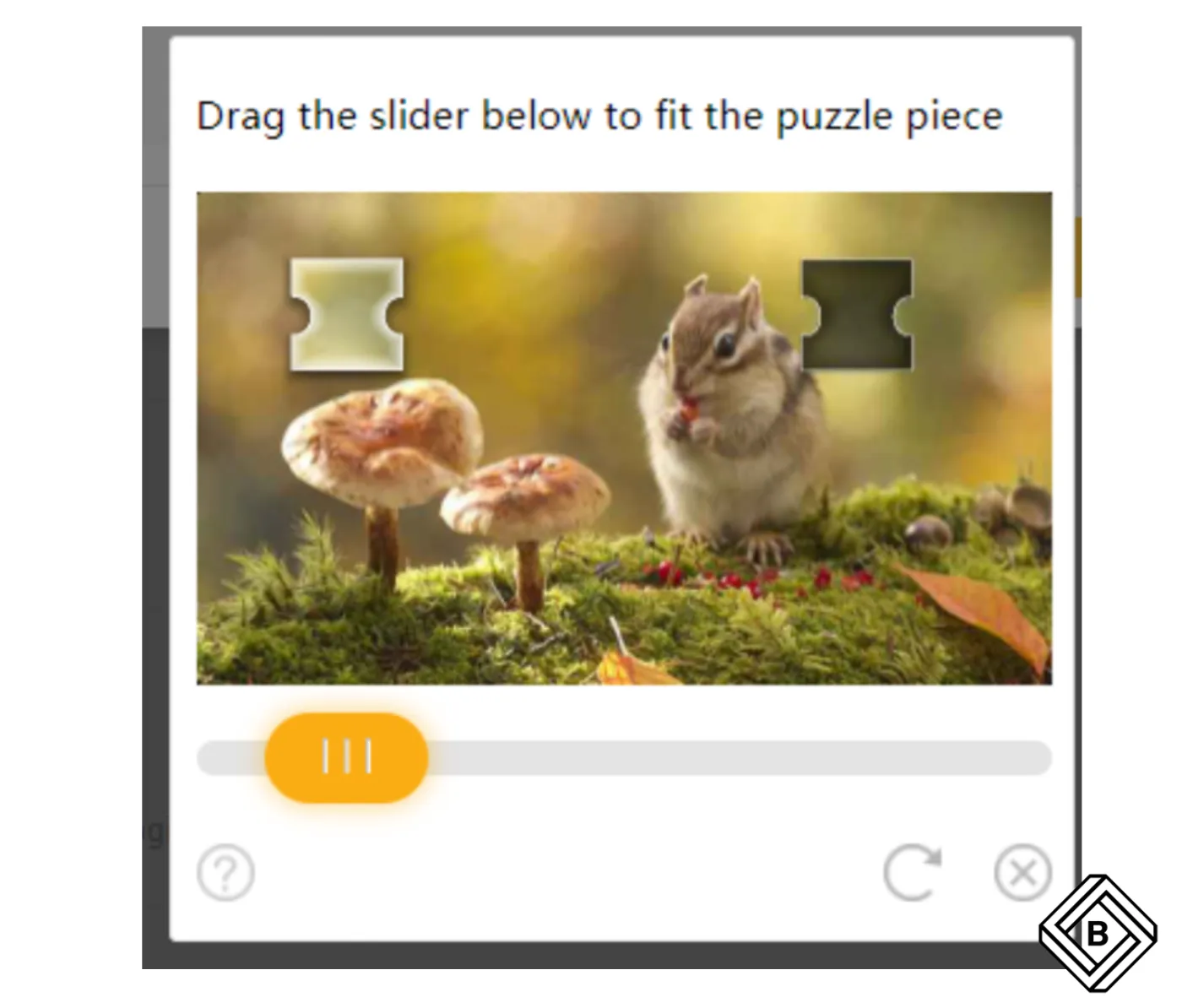
A settings window will appear. Click “Send Verification Code” and complete the check by moving the slider to the right.
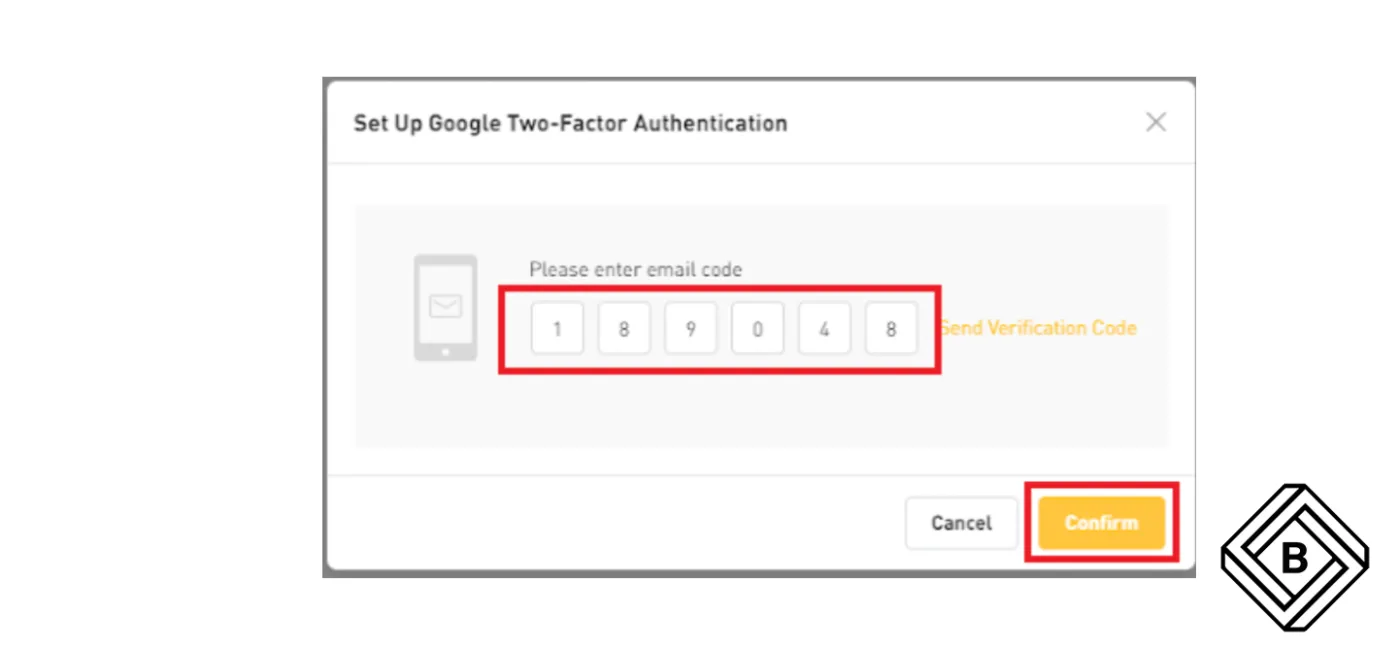
You should receive a 6-digit code at your registered email address or phone. Enter it and click Confirm.
Now it's time to link Google Authenticator to Bybit. Here's how:
- Open the Google Authenticator app and tap the “+” at the bottom to get ready to scan the QR code.
- Once you scan the QR code, a 6-digit number will automatically appear in the Google Authenticator app. It changes to a new random number every 60 seconds.
- Before finishing setup, please write down the secret key shown below the QR code and keep it offline on paper. If you lose your phone, you can use this key to restore Google Authenticator.
- Enter the 6-digit number on the Bybit website and click Confirm to complete the setup.
3. How to Set Up Google Two-Factor Authentication (App)
Here's how to set up two-factor security in the Bybit app.
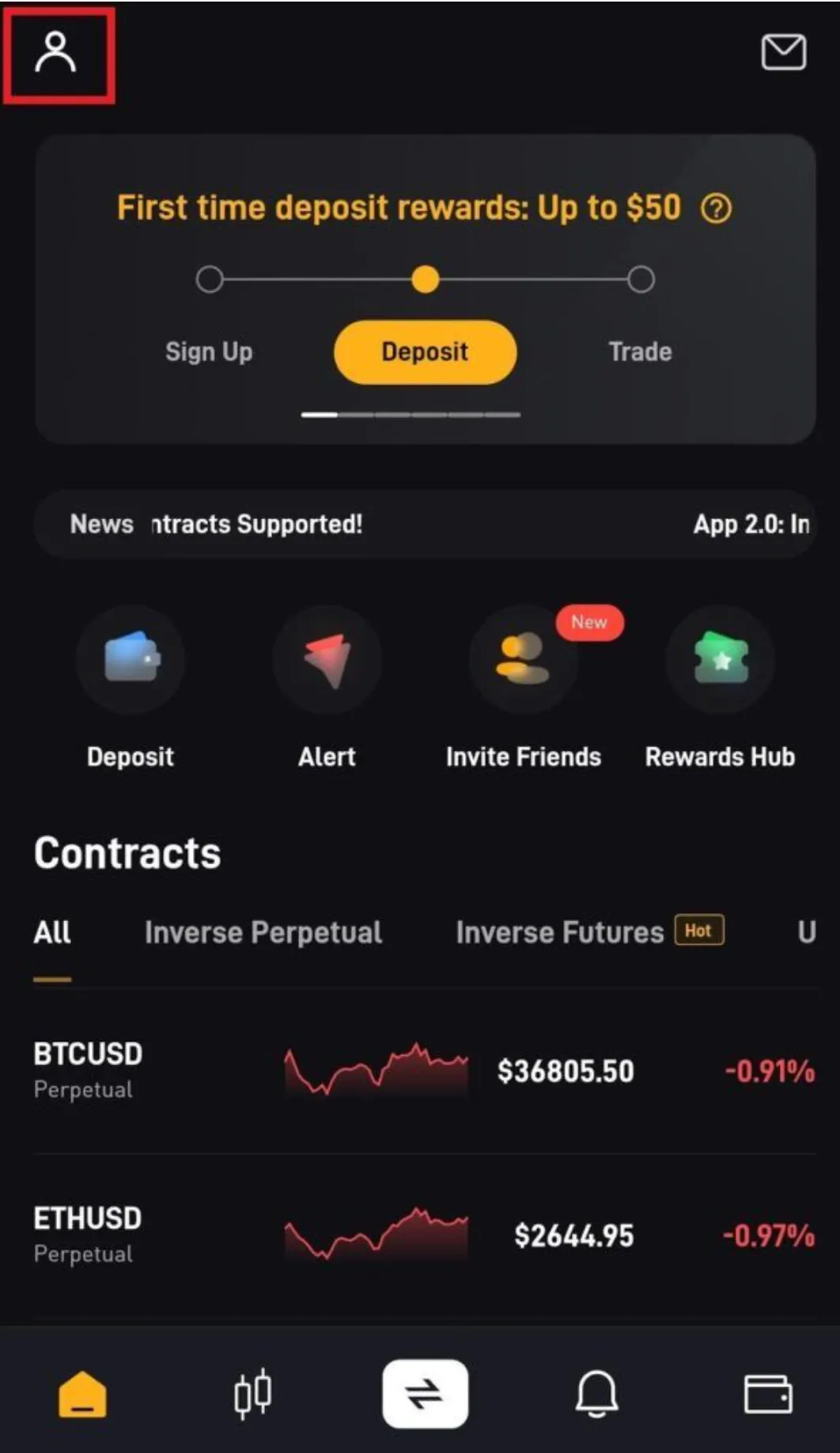
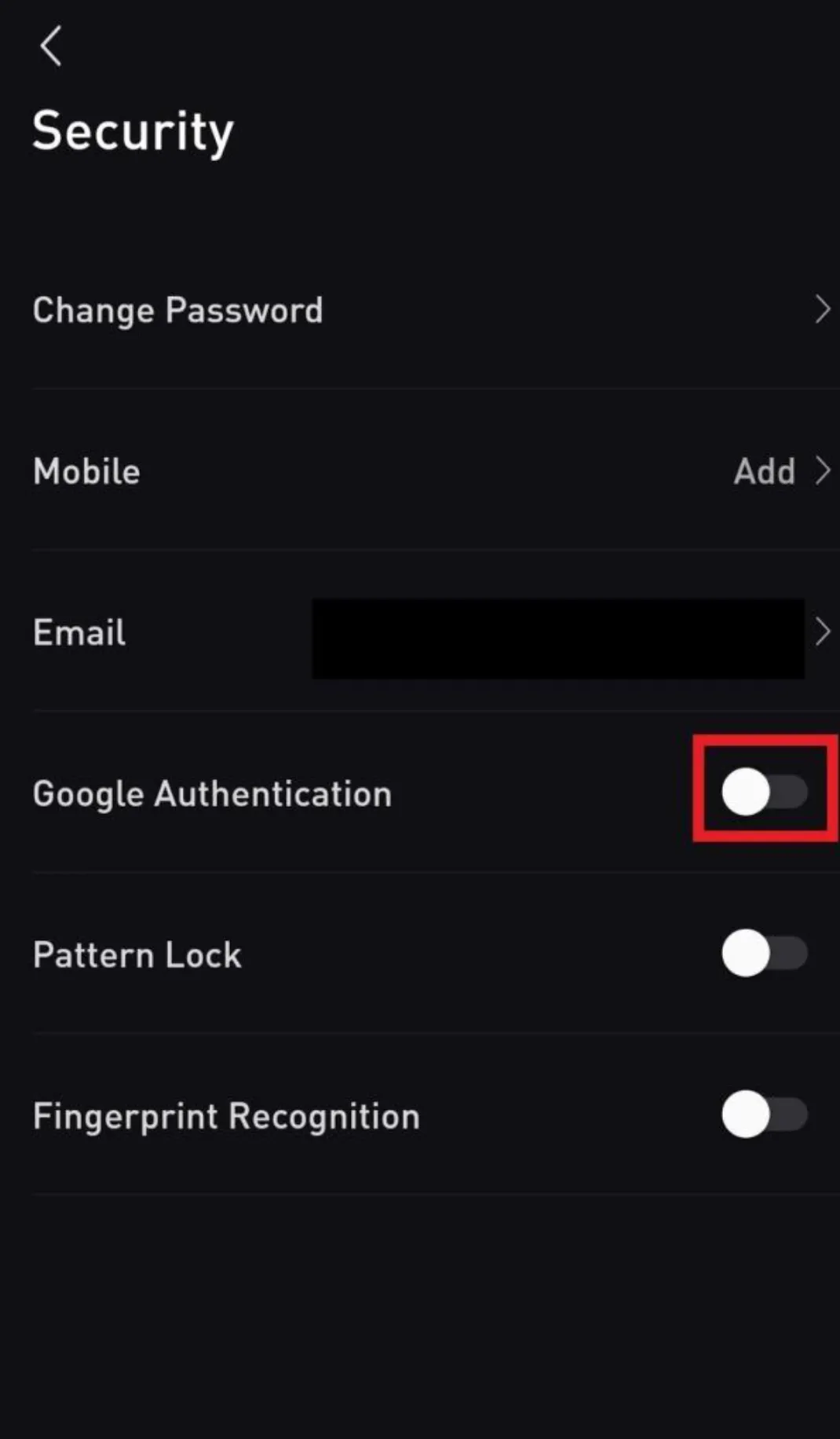
- Open the Bybit app and go to your account.
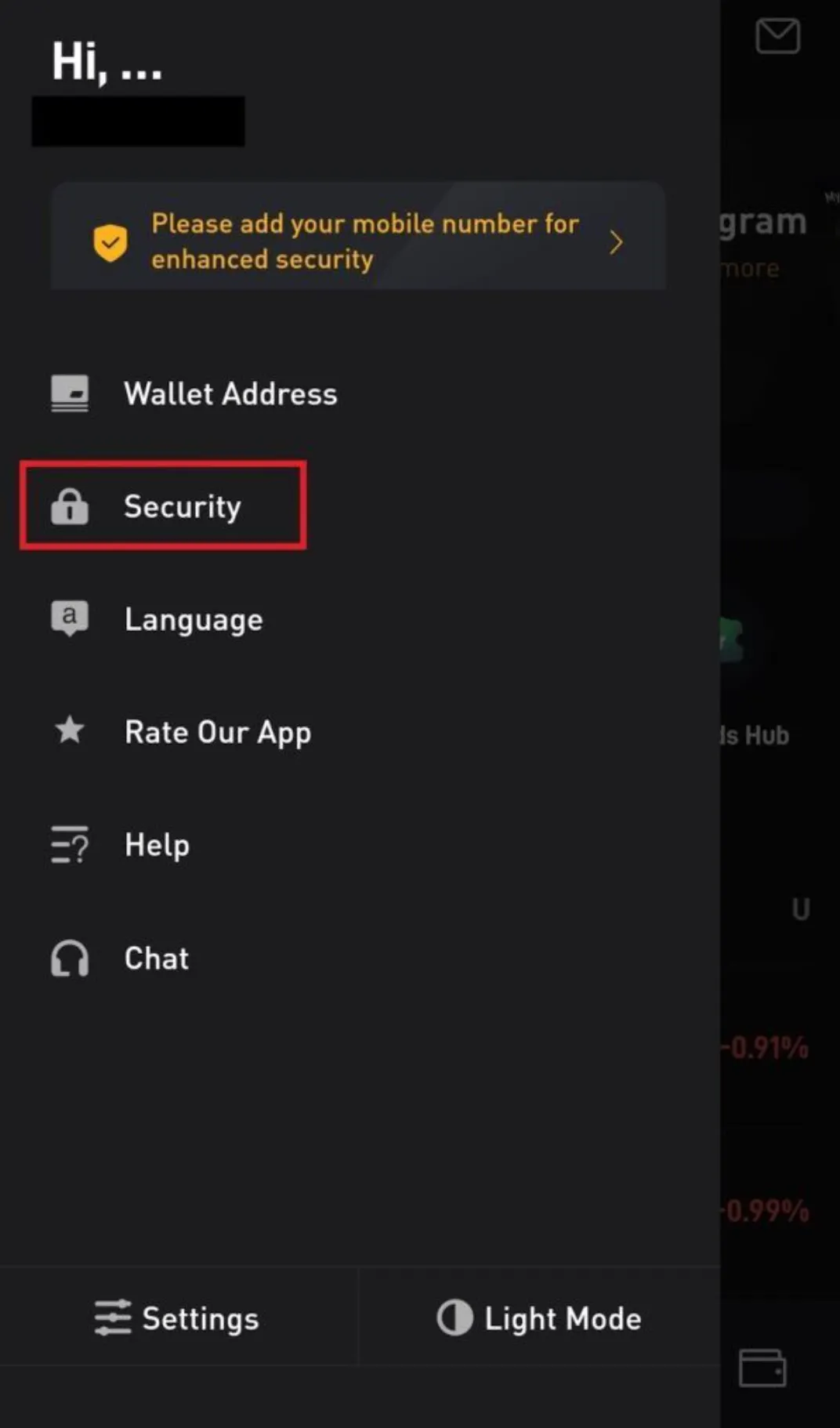
- Next, go to [Security].
- Tap [Google Authentication].
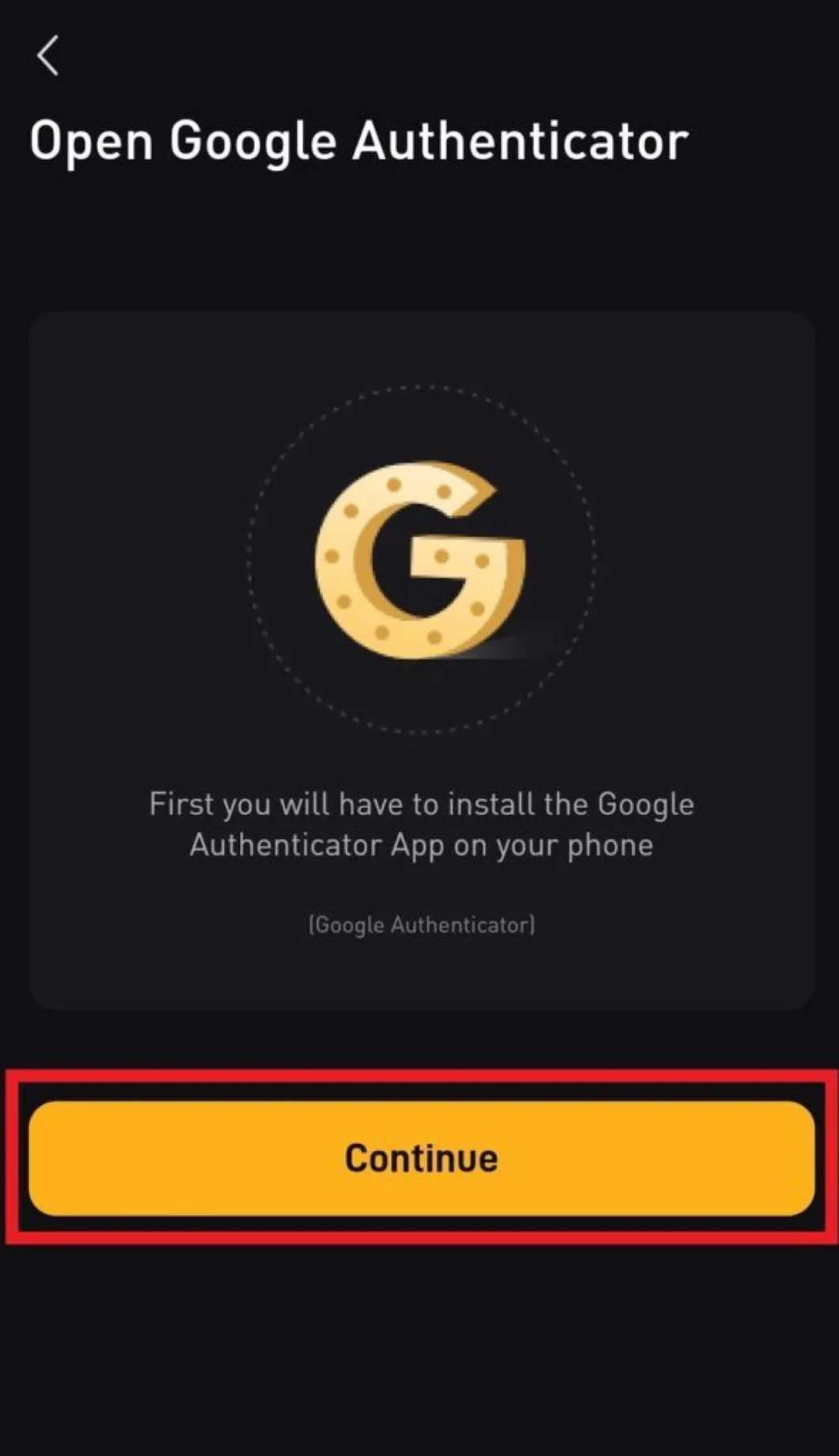
- Tap [Continue].
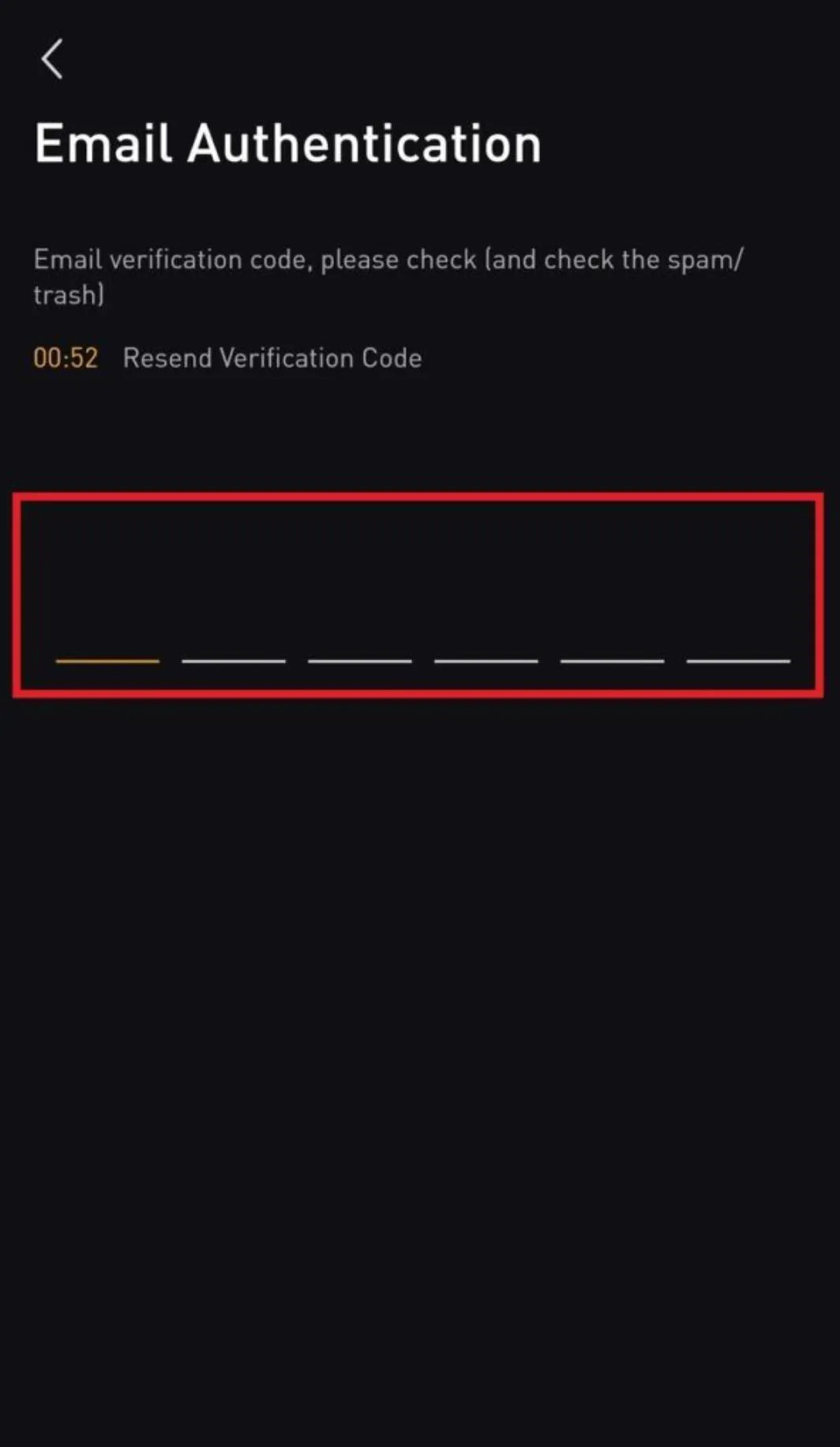
- Enter the 6-digit code sent to your email to complete the setup.
Wrapping Up
To keep your account safe on a Bitcoin exchange like Bybit, it's a good idea to always enable two-factor Google authentication. By setting a strong password and adding an extra layer of security to your account, you can protect it from hackers and malicious attackers.