
How to Add the WEMIX Network to MetaMask and Send WEMIX
3 min read · · Korean original
Contents 4
In this post, we'll look at how to add and configure the WEMIX mainnet network in your MetaMask wallet. MetaMask supports the Ethereum network by default, but with a custom setup you can also use it as a WEMIX mainnet wallet.
- Step 1: Install MetaMask
- Step 2: Launch MetaMask
- Step 3: Add the WEMIX 3.0 network information
- Step 4: Send WEMIX coins
Step 1: Install MetaMask
Download MetaMask from the extension store for Google's Chrome browser. You can also use the download link provided on the official MetaMask website.
Step 2: Launch MetaMask
Once MetaMask is installed, you'll find it under the [Extensions Tab] at the top right of your browser. Click the MetaMask icon to launch MetaMask.
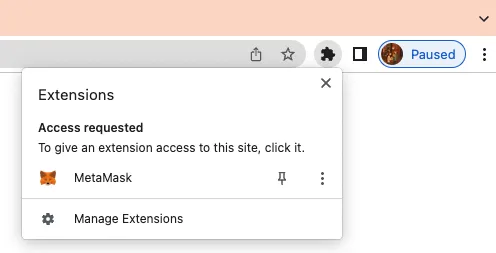
If you already have a wallet, select [Import Wallet] and bring it in using the secret phrase/secret key you backed up. If this is your first time using a wallet, click [Create Wallet] to create a new one.
Next, you'll need to enter a password for MetaMask. This is a secondary password used to log in to MetaMask, so it's important to keep it safe.
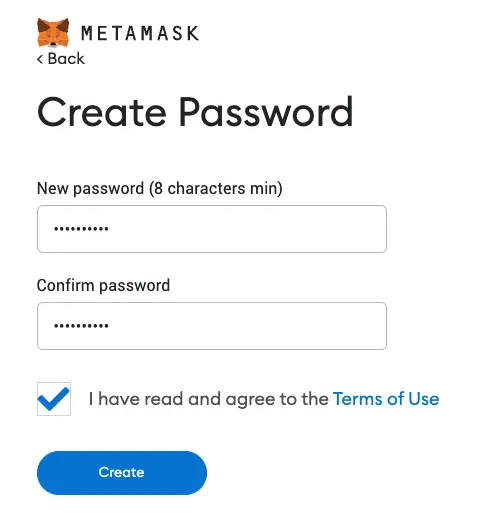
When you create a wallet, a 12-word secret seed phrase (Secret Recovery Phrase) is generated, as shown below. These 12 words are the secret key that controls your wallet, so be sure to back up the seed phrase safely offline.
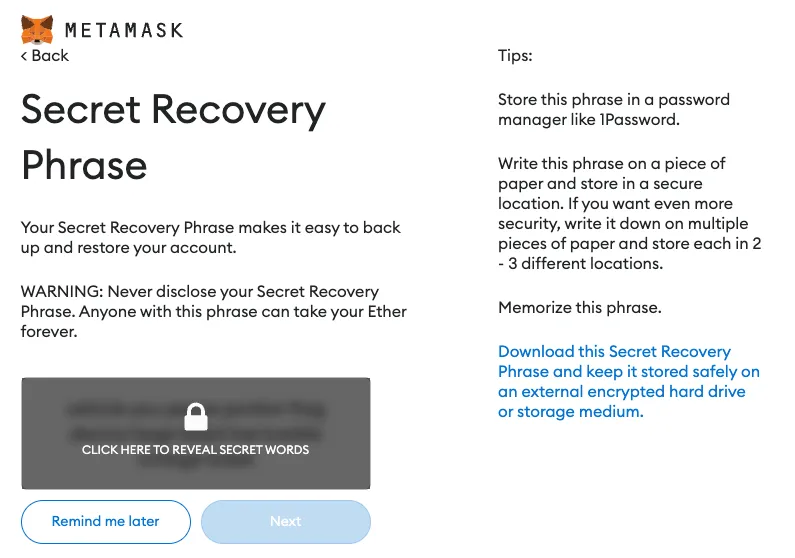
Step 3: Add the WEMIX 3.0 network information
MetaMask will now show a screen like the one below. You can see the current network, Ethereum Mainnet, along with your account name and address.
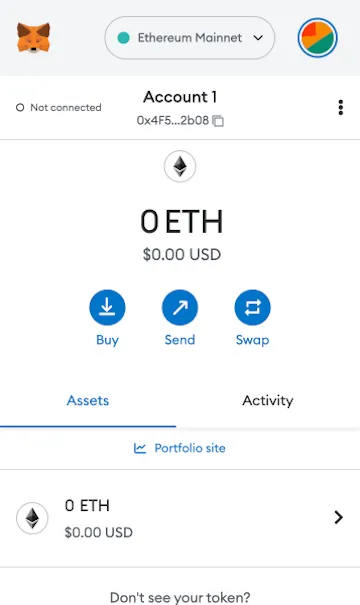
Now let's switch this to the WEMIX 3.0 network. Click the settings icon (the three dots) next to your account name, then go to [Settings].
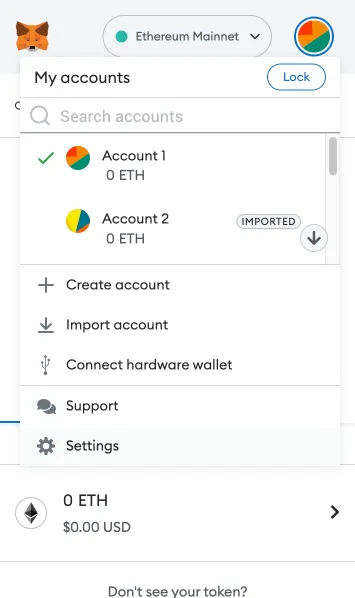
Next, click the [Networks] menu and then click [Add a Network]. A window where you can configure a MetaMask network will appear, as shown below.
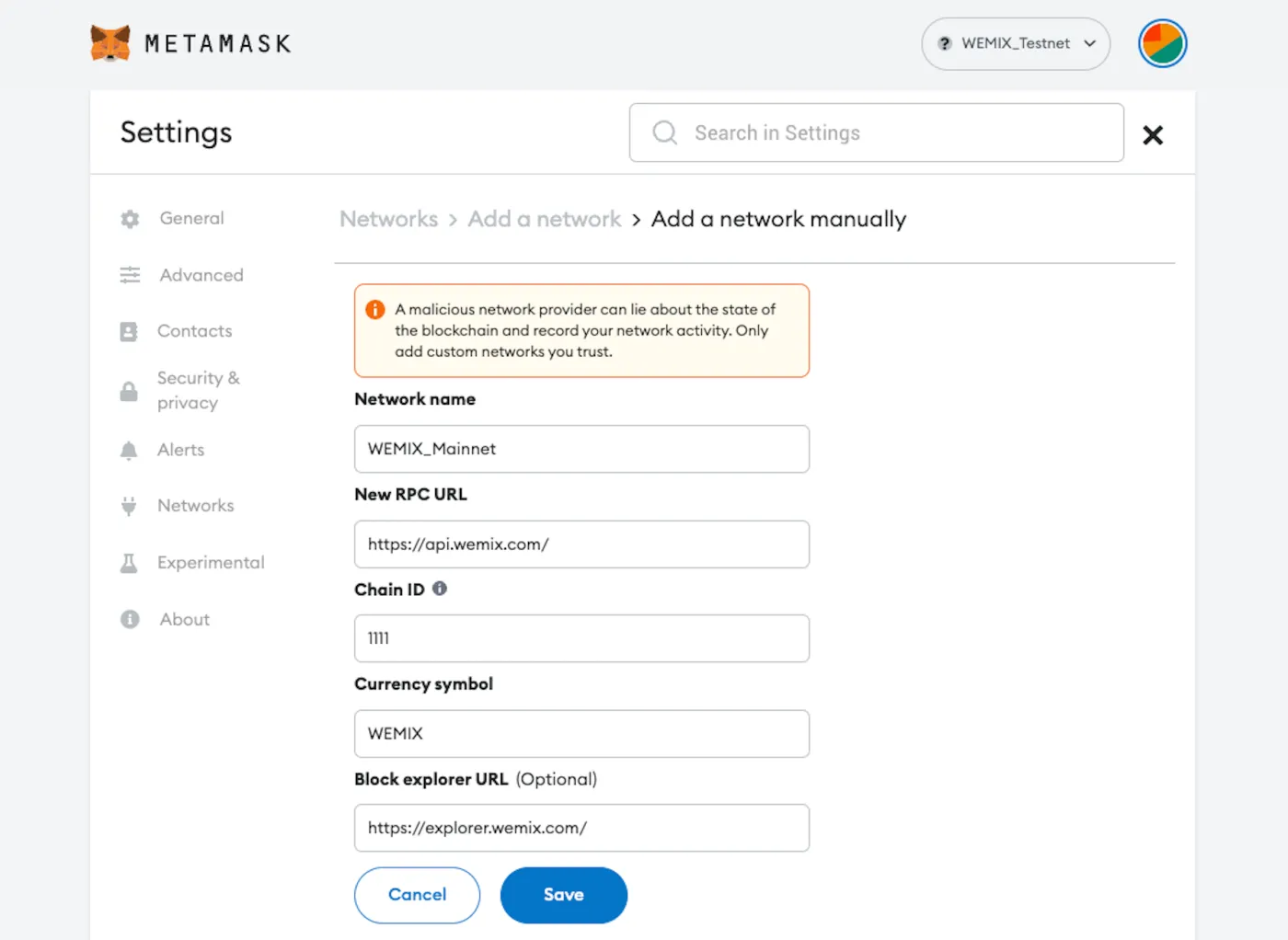
The settings for adding the WEMIX mainnet are as follows. Referring to the screenshot above, enter each value exactly in its corresponding field.
- Network Name: WEMIX_Mainnet
- New RPC URL: https://api.wemix.com/
- ChainID: 1111
- Symbol: WEMIX
- Block Explorer URL: https://explorer.wemix.com/
Then save these settings and relaunch MetaMask. You're all set once WEMIX_Mainnet appears as the network (depending on the version, it may be shown as a "W" at the top left, for example) and your asset value is displayed in WEMIX, as shown below.
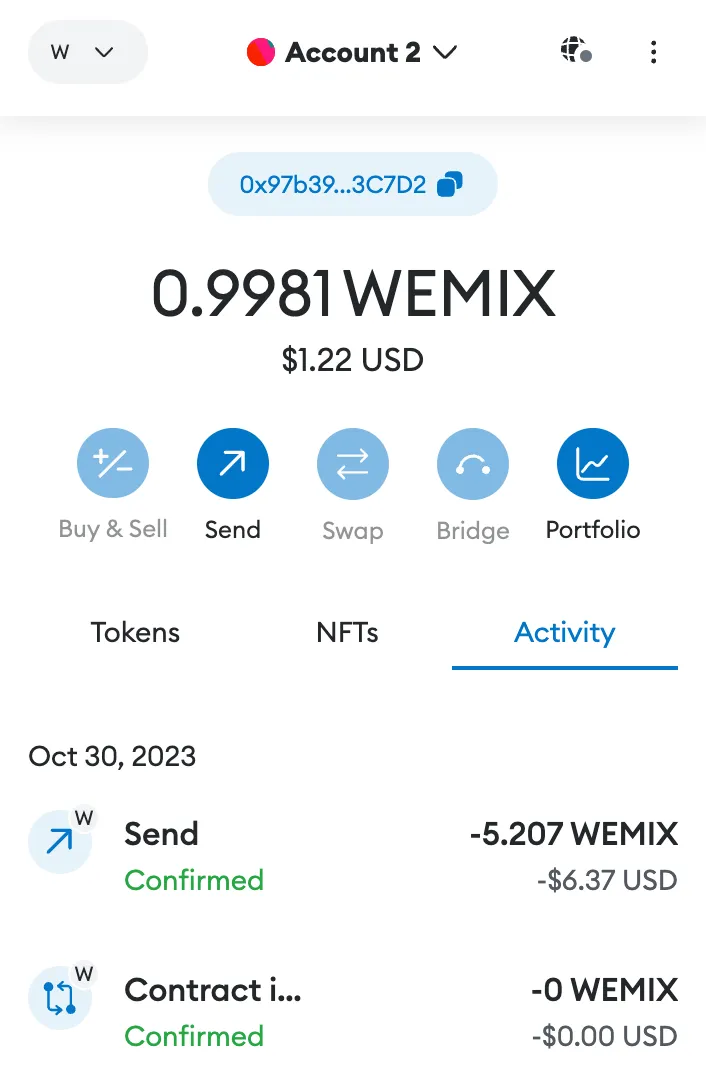
Step 4: Send WEMIX coins
To send WEMIX coins, click the [Send] button and enter the address. Next, enter the amount to send, and double-check that the address is correct.
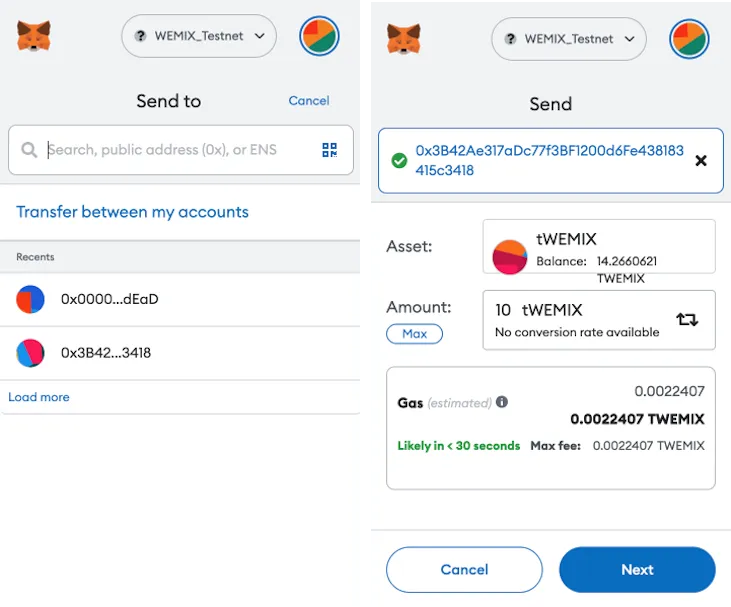
Now click [Next] to continue, and you'll see a gas fee set based on Ethereum. To make sure your transfer goes through smoothly on the WEMIX network, change this to [Market].
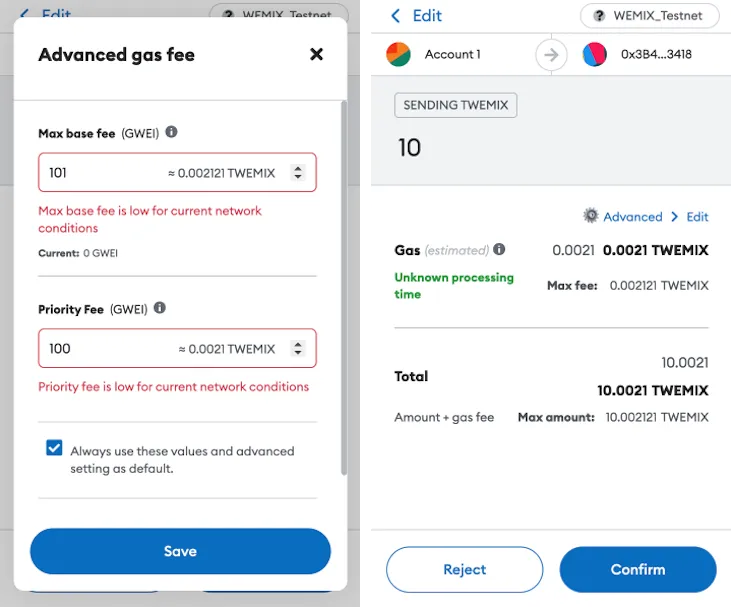
Alternatively, you can click [Advanced], as shown below, to set the minimum and maximum gas fees yourself. Once you've finished all the settings, click [Confirm] to complete the transaction.