How to Set Up a Passkey on the OKX Exchange
5 min read · · Korean original
Contents 6
OKX recently introduced a new security feature called passkeys. With a passkey, you no longer need to remember a password; you can log in to your account easily and securely using biometric authentication (fingerprint, face recognition) on your smartphone or PC, or with a USB security key.
In this post, I'll walk you through how to set up and use a passkey on the OKX exchange, split into 1) the mobile version and 2) the web browser version, in a very simple way. It's not difficult, so just follow along step by step!
- A passkey is a way to log in securely without a password, developed based on the FIDO2 standard.
- You can easily set up a passkey in the OKX mobile app and in a PC web browser.
- Using a passkey lets you log in to your account faster and more securely.
Setting Up a Passkey in the OKX Mobile App
1) Check What You Need
Here's what you should check before setting up a passkey. Once you've confirmed these two things, you're ready to go.
- Make sure you're using a smartphone running iOS 16.0 or later, or Android 7.0 or later.
- If you'd like to use a security key, also check that you have a USB security key that supports FIDO2.
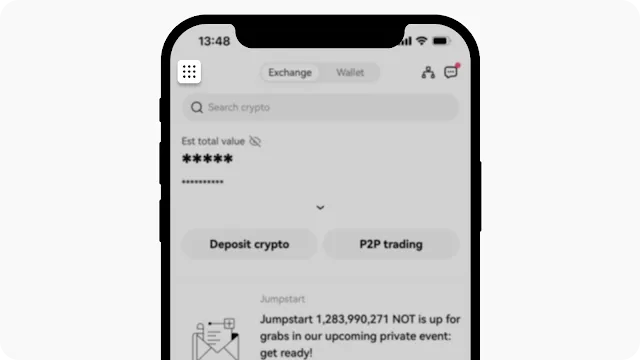
2) Open the OKX App and Go to the Settings Menu
Open the OKX app on your smartphone, then go to Profile and settings from the menu in the top left.
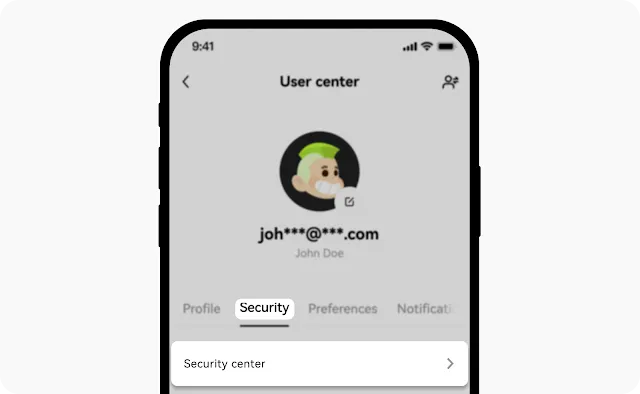
3) Go to Security Settings
At the top of the settings menu, select the Security tab and go to the verification center.
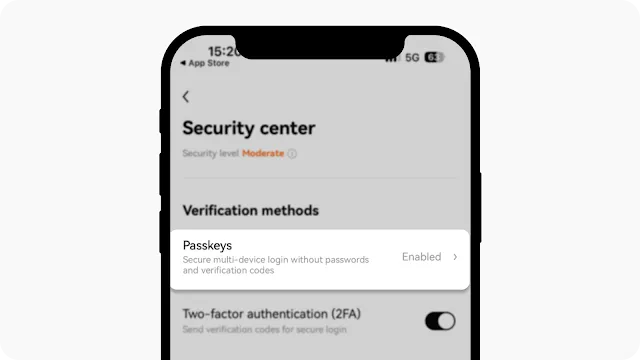
4) Click Enable Passkey
Find the Passkeys item and click Enable. At this point, you'll need to complete the two-factor authentication registered on your account.
5) Create a Passkey on Your Device
The passkey setup window will appear. If you want to create a passkey on the smartphone you're currently using, tap the Continue button, and once you complete authentication with your fingerprint or face recognition, the passkey will be created.
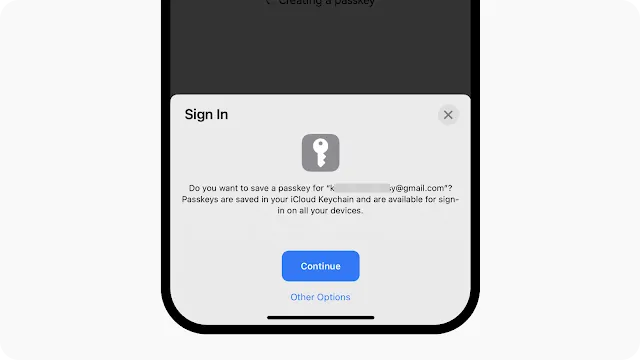
6) Create a Passkey on Another Device
Or would you like to create a passkey on a different device? In the passkey setup window, select Other Options, then scan the QR code or complete authentication another way. For example, if you want to add another iPhone or Android device, you can scan the QR code and then complete authentication.
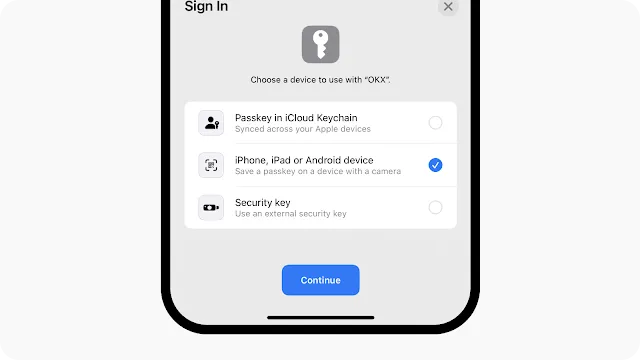
Setting Up an OKX Passkey in a Web Browser
Now let's look at how to set up a passkey on your OKX account using a web browser on your computer.
1) Check What You Need
Before setting up a passkey on your computer, please make sure the following two conditions are met.
- Make sure you're using Windows 10 or later, or macOS Ventura or later.
- Check that you have a USB security key that supports the FIDO2 protocol.
2) Check That You're Using a Supported Browser
You need an up-to-date browser to create a passkey. Make sure you're using one of the following browser versions or later.
- Chrome 109 or later / Safari 16 or later / Edge 109 or later
3) Log In to Your OKX Account and Go to Security Settings
After logging in to the OKX website, go to [Profile] > [Security] in the top right.
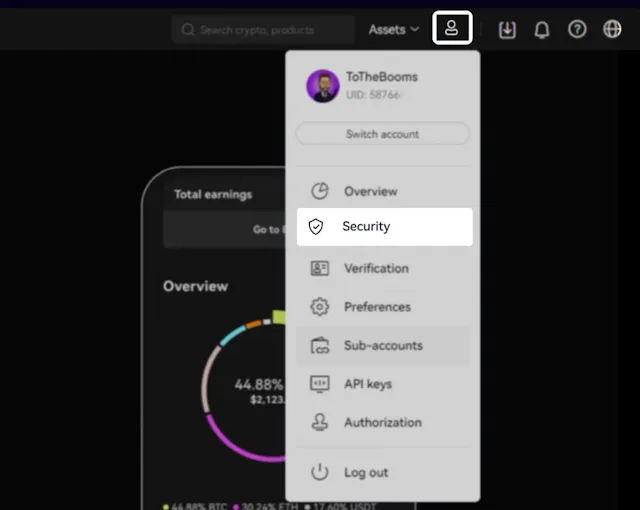
4) Set Up a Passkey
Under the security center, you can choose from several security options. Select the Passkeys item, then click the Create or Manage button. To add a new passkey, you must have completed two-factor authentication.
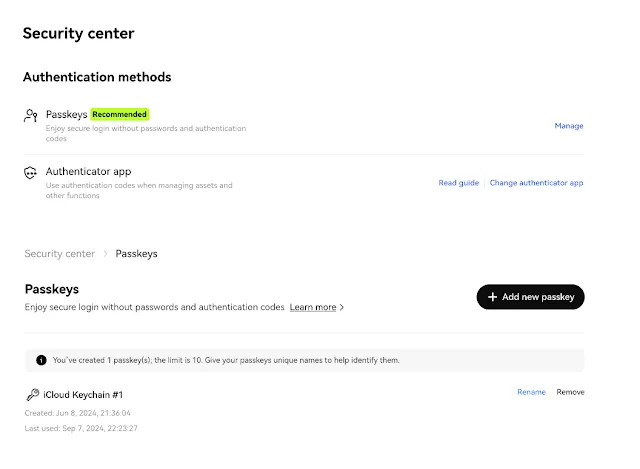
5) Choose a Passkey Creation Option
You can create a passkey on the device you're currently using, or use another device or a USB security key. After choosing the option you want, you can create the passkey using biometric authentication or a PIN code.
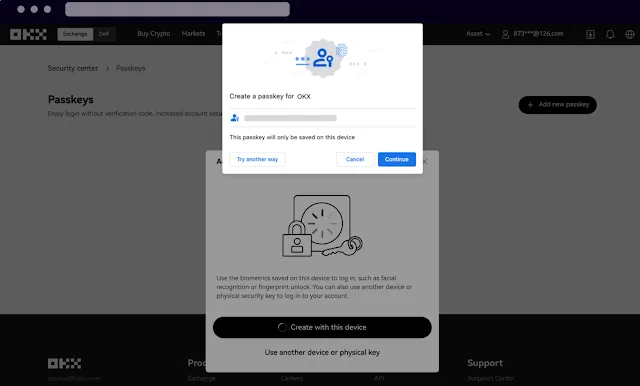
6) Use Another Device or a Security Key
If you're using another device, you can scan the QR code to complete authentication, or insert a USB security key and create the passkey.
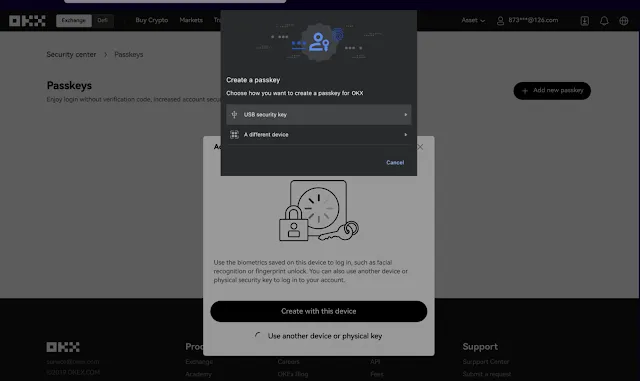
How to Log In with a Passkey
Once you've finished creating a passkey, you can now log in to the OKX exchange easily using it. When logging in, simply use biometric authentication or a security key instead of your usual password.
1) Log In with Your Current Device
If you're logging in on the device you're currently using, you can log in easily with biometric authentication (face or fingerprint, etc.).
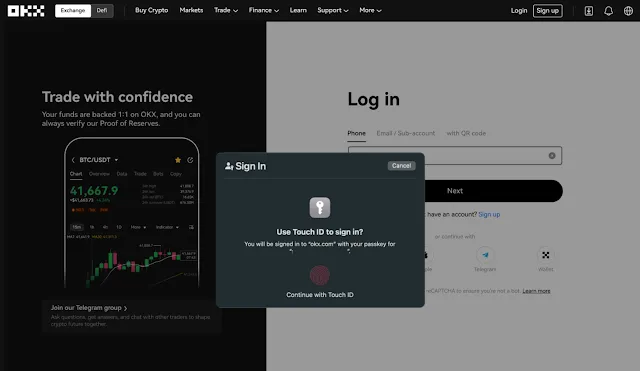
2) Log In with Another Device
If you're using another device, you can scan the QR code to complete passkey authentication and log in.
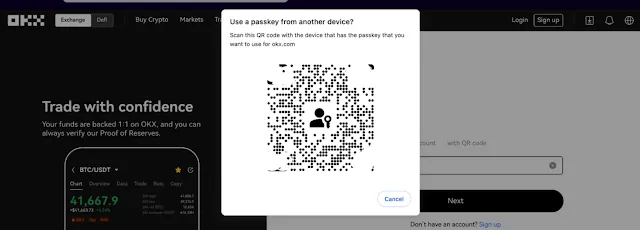
How to Manage and Rename Passkeys
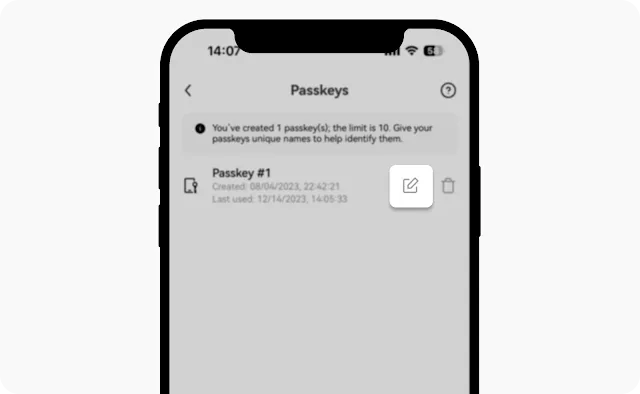
If you've registered multiple passkeys, you can rename them to tell them apart more easily. Go to the security center in the OKX app or on the web, then tap the edit icon next to the passkey to change its name.
How to Remove a Passkey
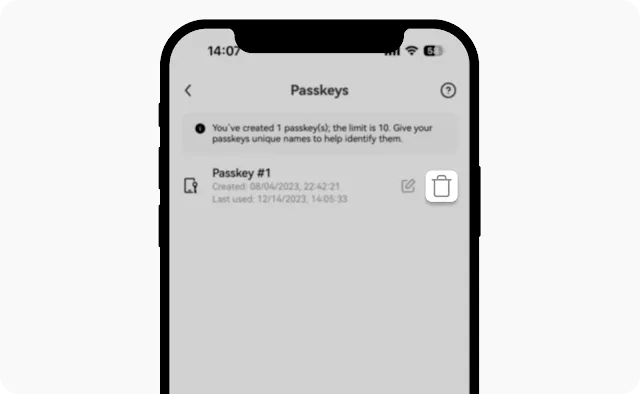
If you have many passkeys and need to tidy them up, you can remove the ones you don't use. Tap the trash can icon next to the passkey to delete it.
Wrapping Up
Setting up a passkey on the OKX exchange lets you log in to your account safely and quickly without a password. For anyone who has found managing passwords a hassle, passkeys will be a very useful feature. From now on, try managing your OKX account with FIDO passkeys, which offer both convenience and strong security!