How to Sign Up for OKX: 20% Fee Discount Referral Code
4 min read · · Korean original
Contents 8
Hello, this is Bitpunk. In this post, we'll walk through how to sign up for the OKX exchange and how to get up to a 20% discount on trading fees.
The OKX 20% fee discount referral code is BITPUNK. Enter it exactly when you sign up to get the maximum discount. You can also use the link provided below, which takes you to a sign-up page with the discount code already applied.
Step 1: Go to the OKX Website
To sign up for the OKX exchange, you first need to visit the official website. Click the link below to go to a sign-up page with the 20% referral fee discount applied automatically.
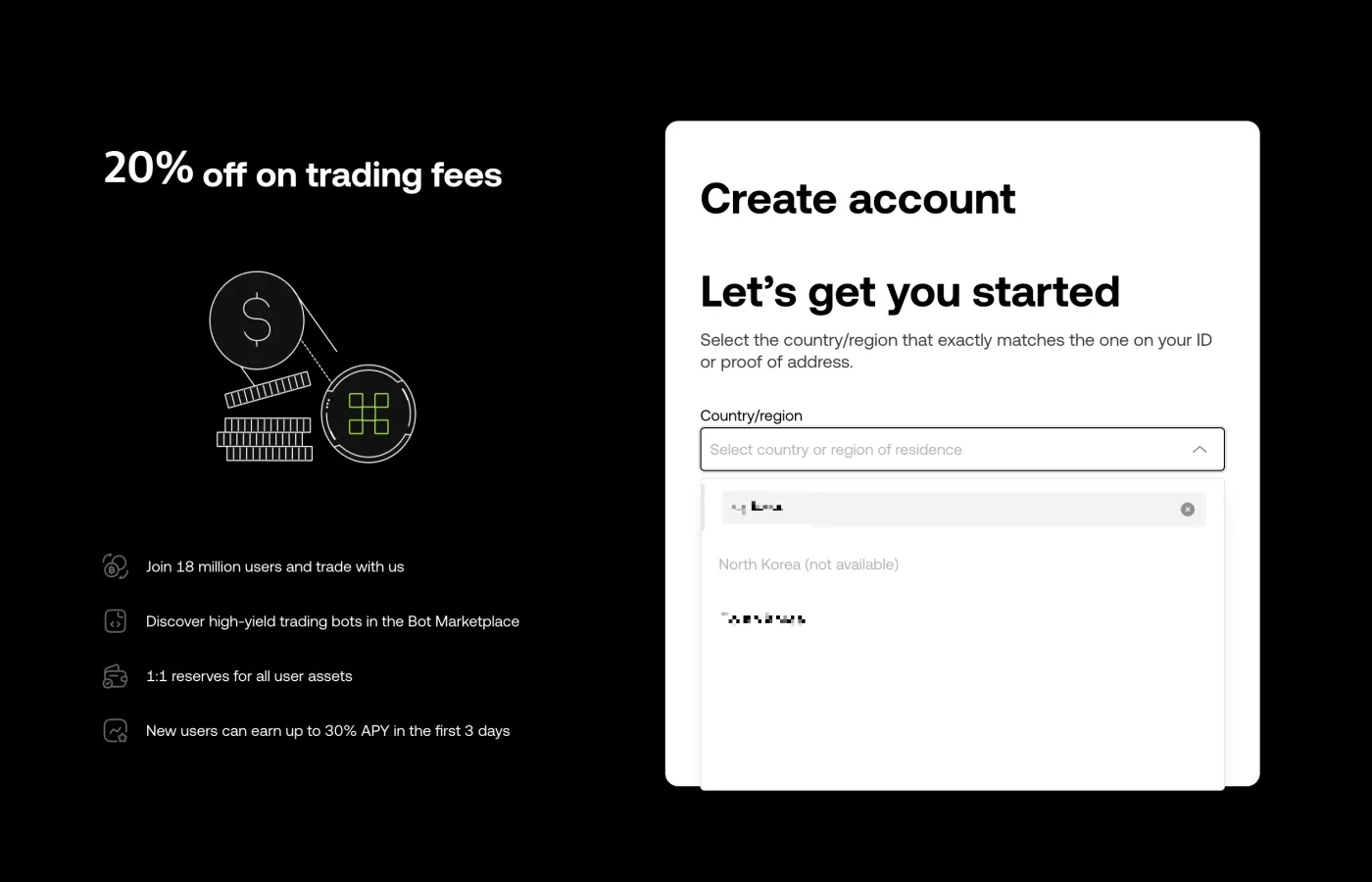
When you open the link, you'll see a screen asking you to select your country or region. Type in your country of residence, then find it in the list and select it. Next, click the button to agree to the terms of service and move on to Step 2.
Step 2: Enter Your Email Address
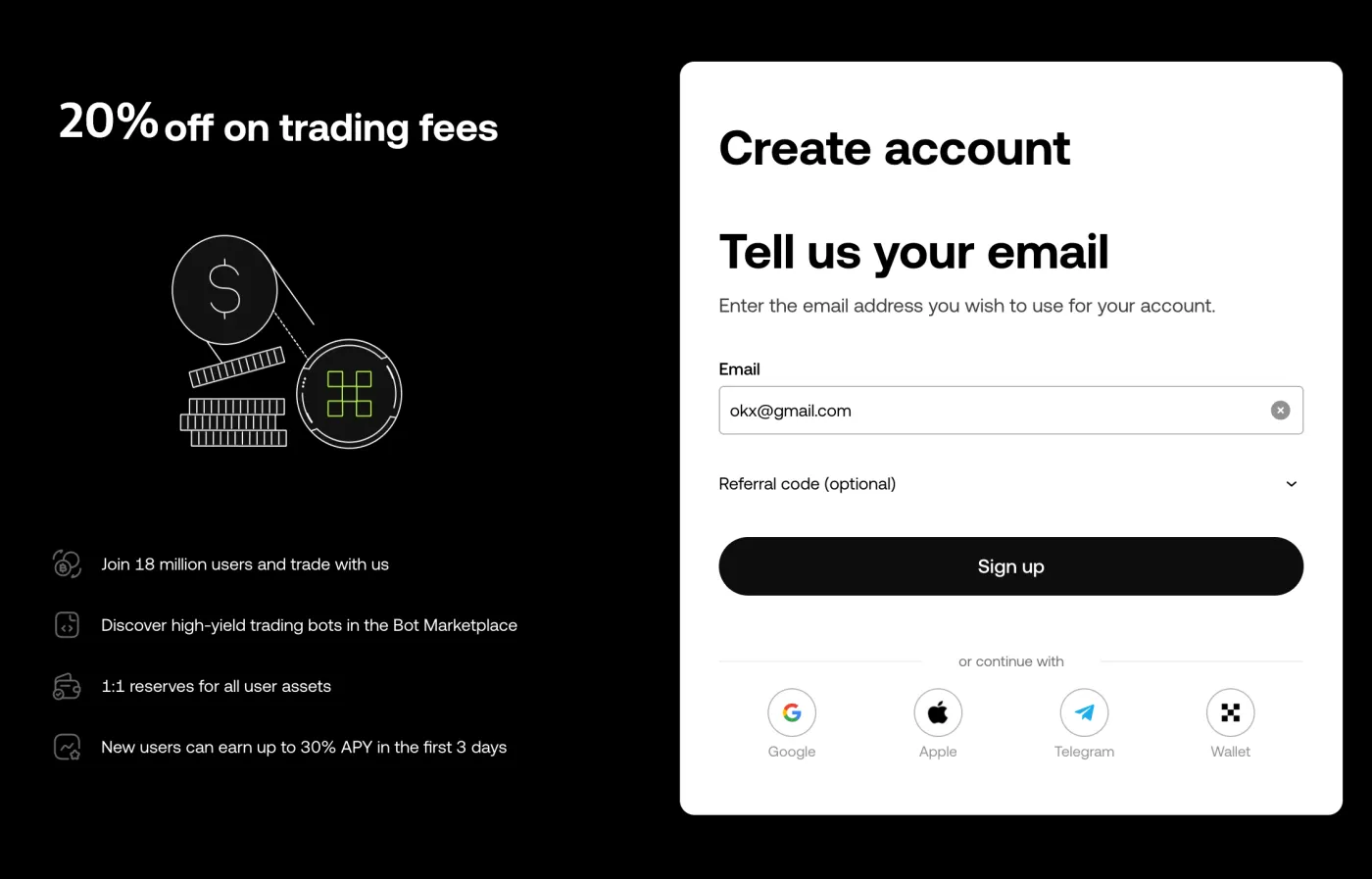
Enter the email address you want to use for the OKX exchange. At this point, don't click the 'Sign up' button right away. You must first check that the 20% fee discount code has been applied correctly. Move on to Step 3.
Step 3: Check the Referral Code and 20% Fee Discount
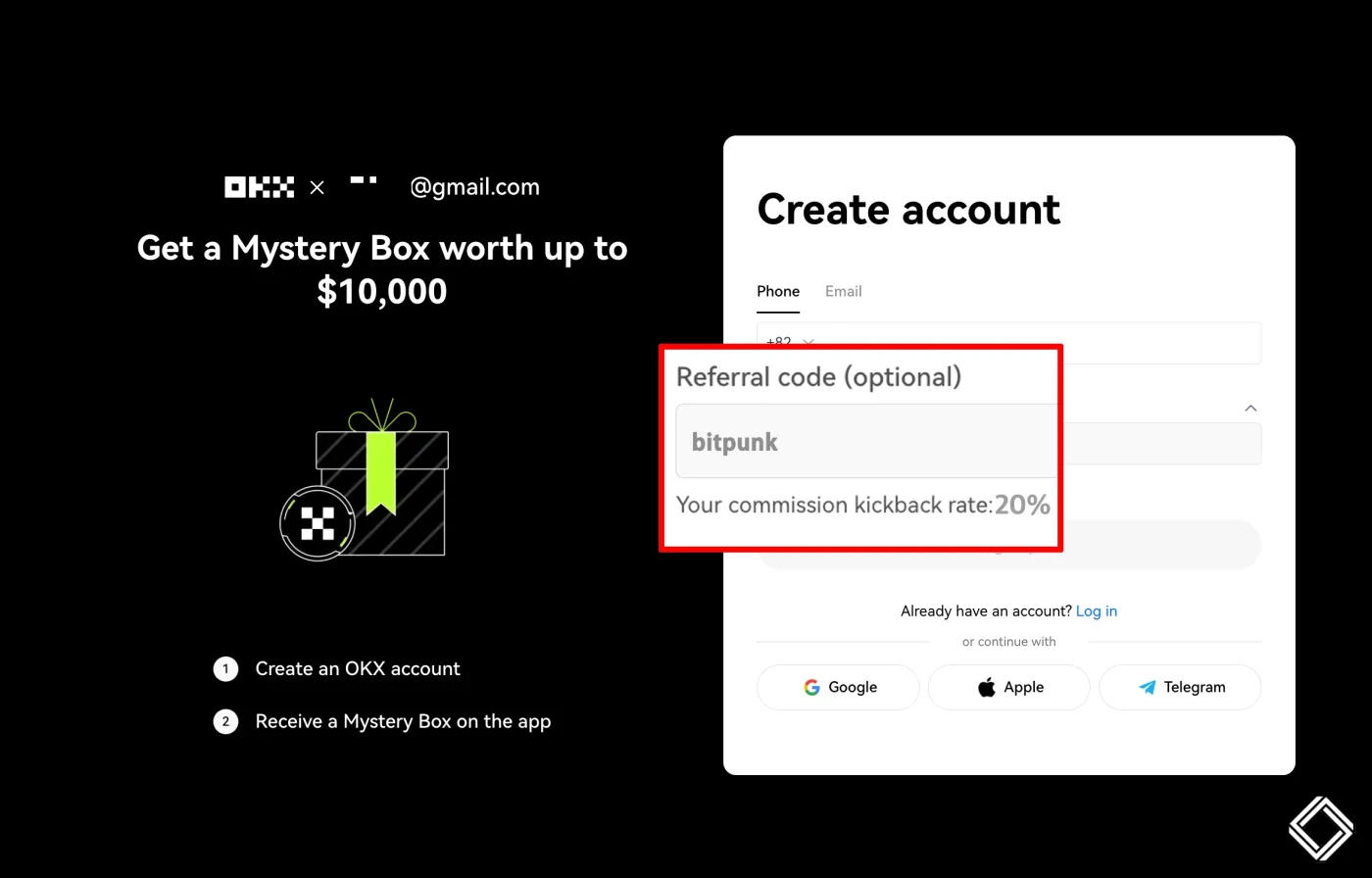
Do you see the arrow to the right of 'Referral code (optional)'? Click the downward arrow ▽ button and double-check that the maximum 20% discount has been applied.
Be sure to look for the text 'Your commission kickback rate: 20%' below the referral code! If this text isn't there, it's a scam code that gives you a 0% fee discount, and if it says 10% or 5%, you're not getting the maximum discount.
If a different code has been entered and you want to change it, you can't do so manually. Be sure to open the link provided above again. The referral code field should show BITPUNK entered exactly, as shown below.
For reference, a referral code can only be entered once, when you sign up. That's why it's important to enter the correct referral ID when you first sign up for the OKX exchange so you get the maximum discount.
Once you complete your OKX sign-up with the referral code provided above, your fee payback will be automatically credited to your account once every hour.
Is everything correct? Now click the [Sign Up] button to continue!
Step 4: Human Verification
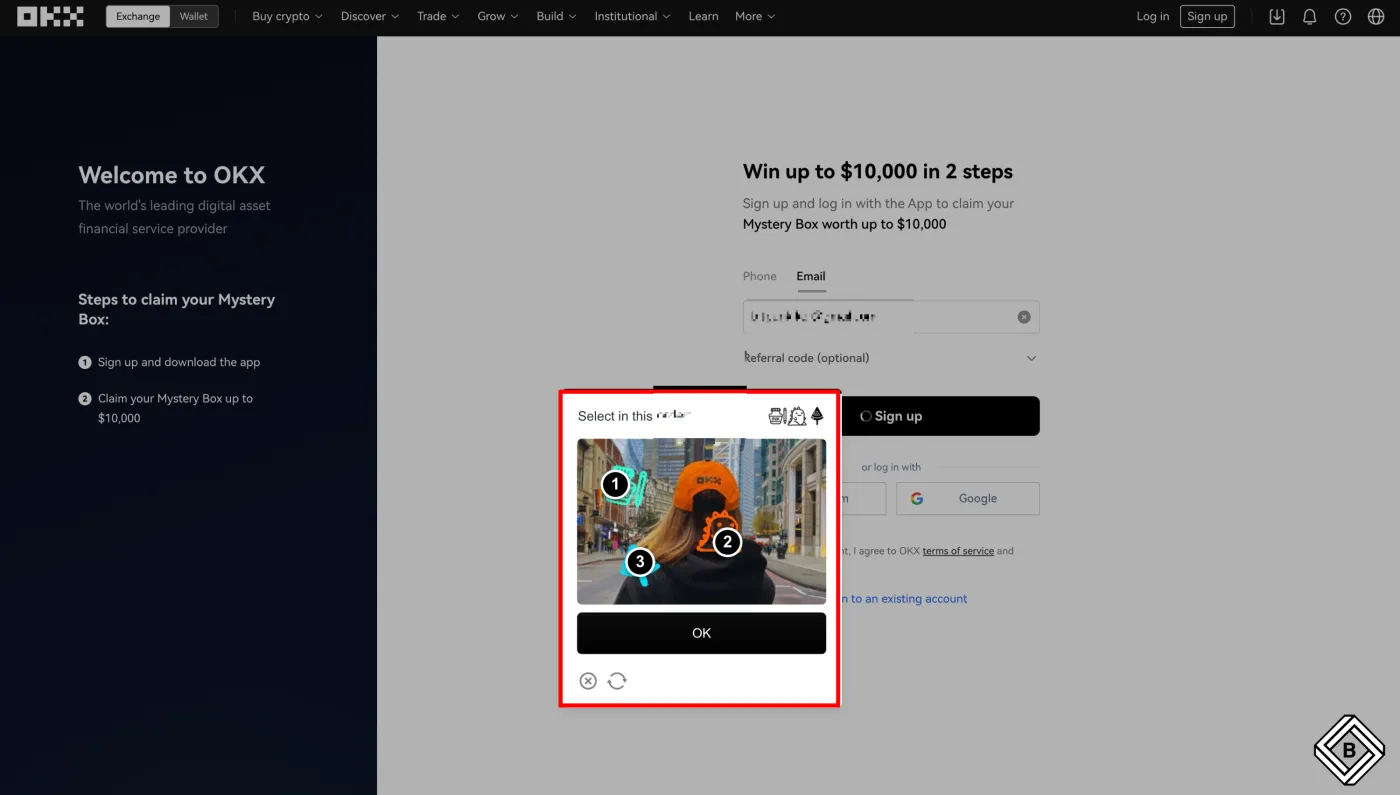
A human verification screen will appear to check that you're a person. Following the order of the pictures in the top right of the pop-up window, click each picture shown in the window once.
For example, in the image below, you can see a black-and-white ink bottle, dinosaur, and tree in the top right, right? Now just click the ink bottle, dinosaur, and tree in that order in the color image below.
Step 5: Enter the 6-Digit Verification Code
Now it's time to verify your email. If you open your email inbox, you should find a sign-up email [Sign-up Email] from OKX containing a 6-digit code.
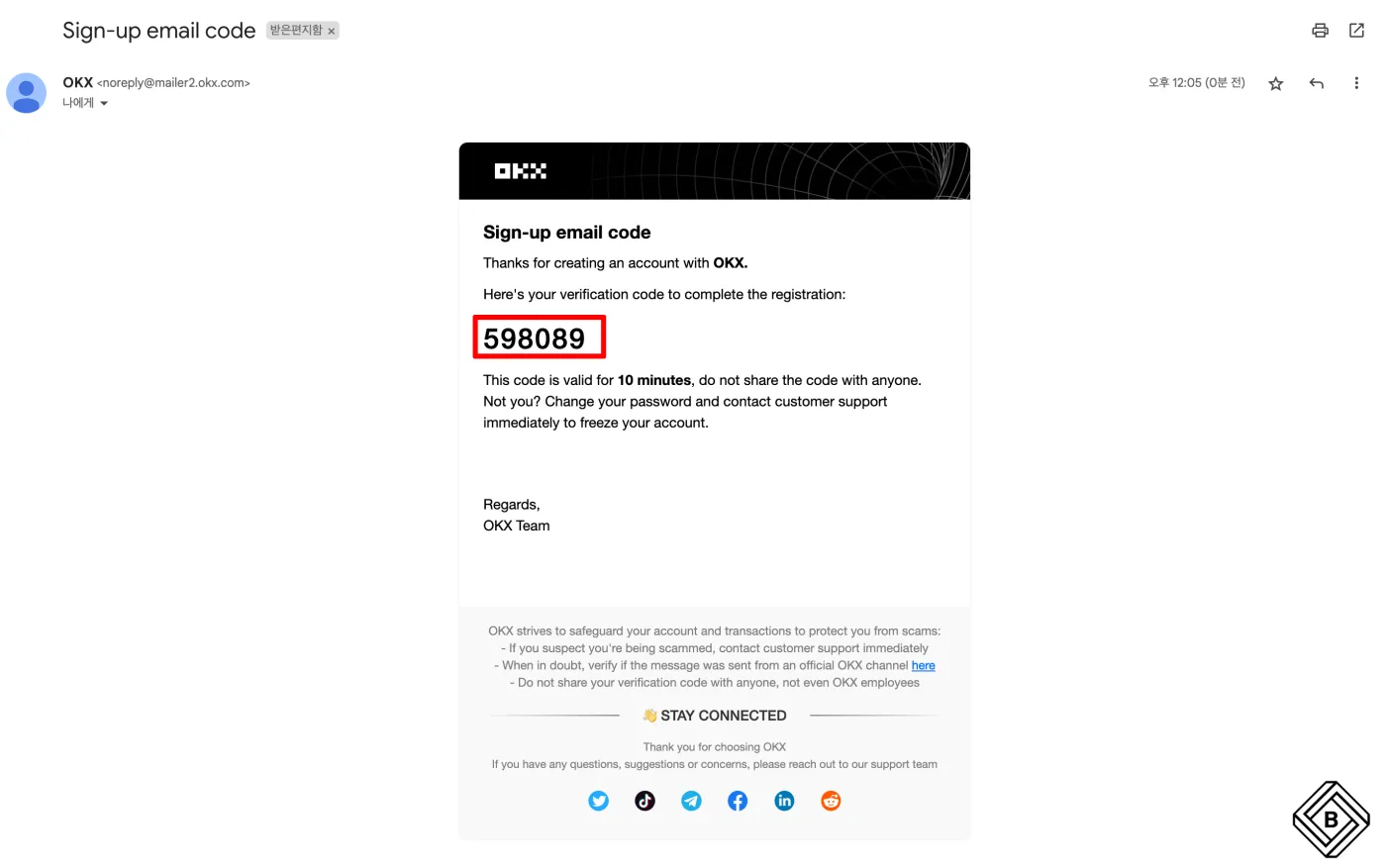
Enter the 6-digit registration code on the OKX sign-up page shown below. Note that the code is valid for 10 minutes. When you're done, click [Next]. You're almost there!
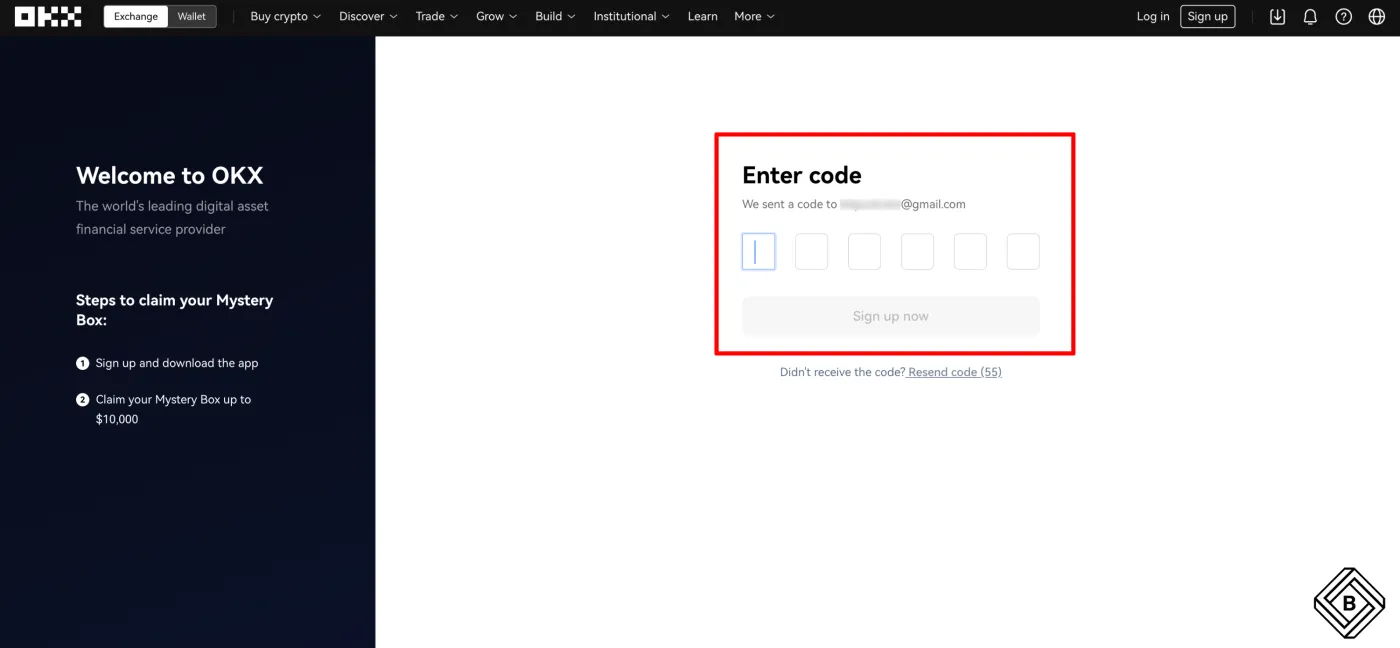
Step 6: Set Your Password
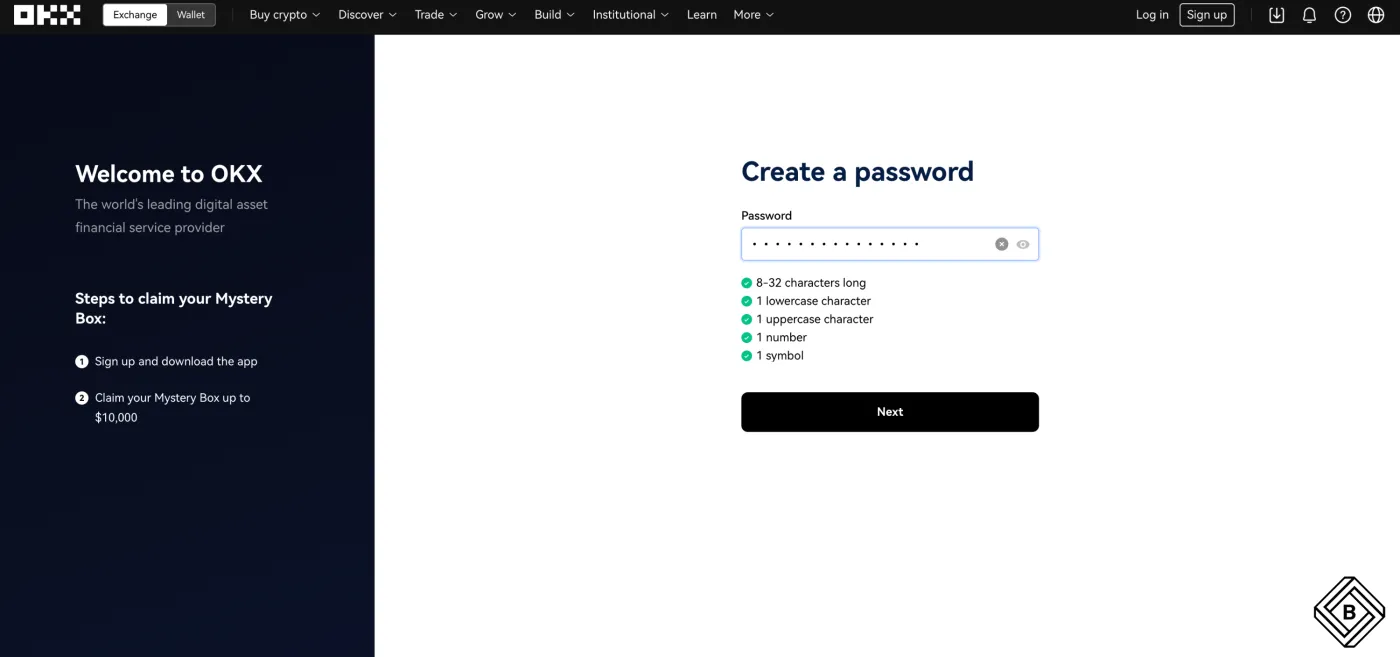
Now it's time to set a strong password to protect your account. Create a password using a combination of uppercase letters, lowercase letters, numbers, special characters, and so on.
For better security down the road, it's safer to set a new password just for the OKX exchange that's different from the one you use for your email account.
Step 7: Log In to Your Account and Start Trading
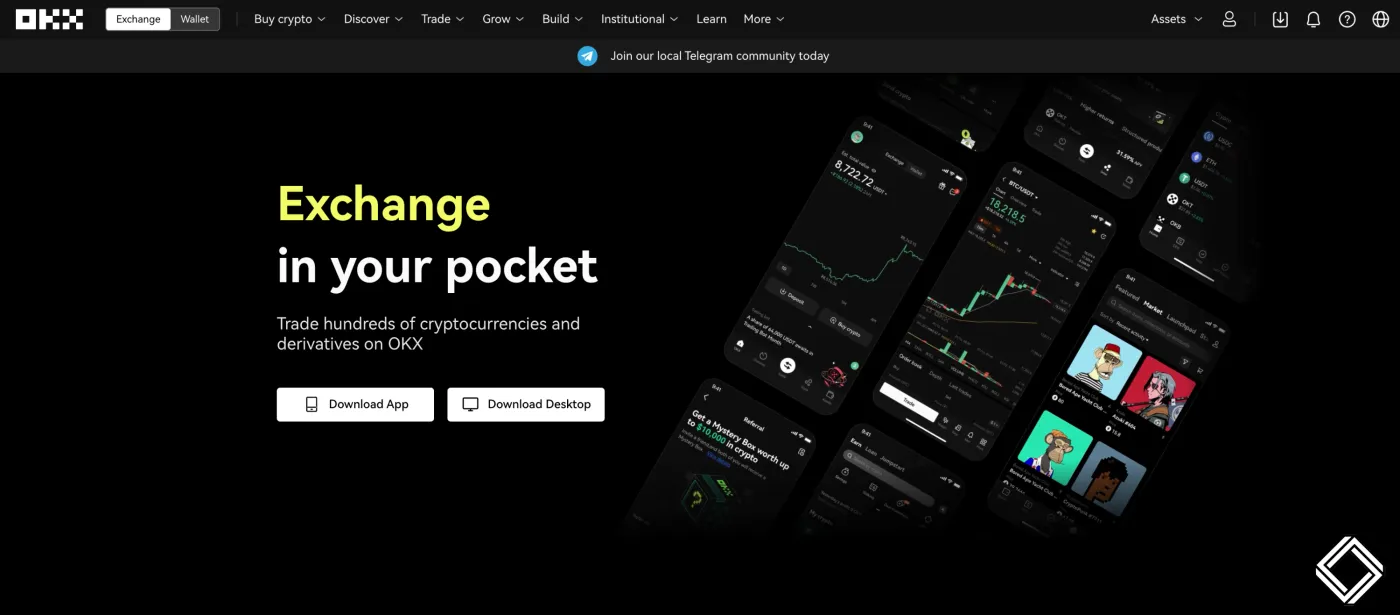
Congratulations! Your OKX account has now been created. You can now log in to the OKX exchange website and use its services.
Wrapping Up
That's our guide to signing up for OKX, the overseas Bitcoin exchange. If you found this post helpful, please tap the heart below and share it widely. Thank you.