
Binance Quick Order: How to Place an Order from the Chart with a Single Click
3 min read · · Korean original
Contents 6
Hello, this is Bitpunk. In this post, we'll look at how to place an order on the Binance exchange quickly and easily, with a single click while watching the chart.
This is sometimes called "chart click ordering." Follow the tutorial below to submit orders and check your order history right from the Binance chart window.
1. Log in to your Binance account and go to the trading screen
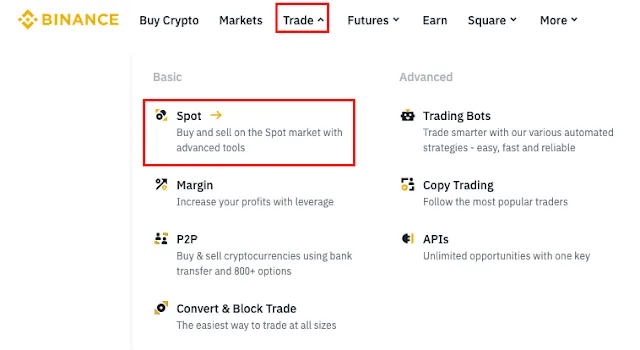
First, log in to the official Binance website and go to spot trading. From the top menu, select [Trade] → [Spot].
2. Select a trading pair and set up the chart
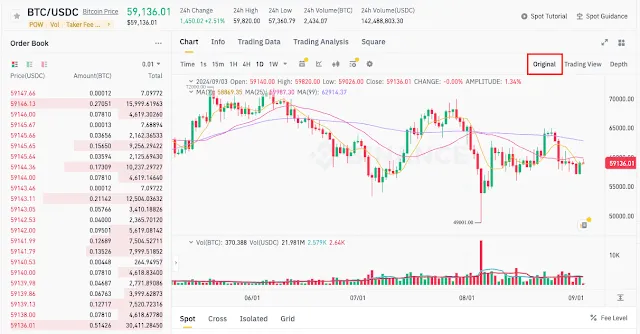
Select the pair you want to trade (e.g., BTC/USDC). After selecting the pair, change the chart type to [Original] on the right.
3. Submit a quick order from the chart
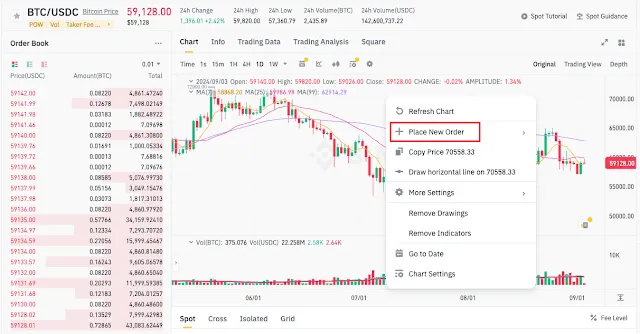
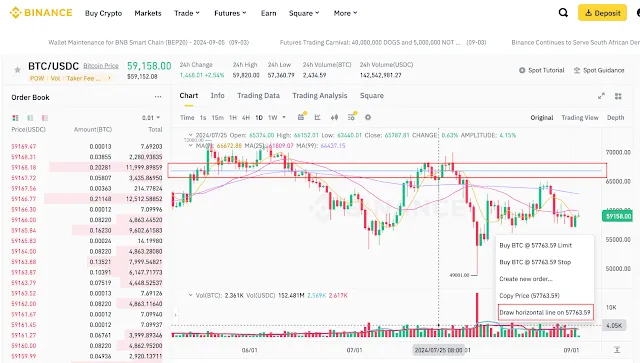
Right-click on the chart and a few menu options will appear. Select [Place New Order] to place a buy or sell order.
When you move your cursor over a price on the chart, a [+] button appears on the right. Click the [+] button, and a pop-up menu for placing an order will open.
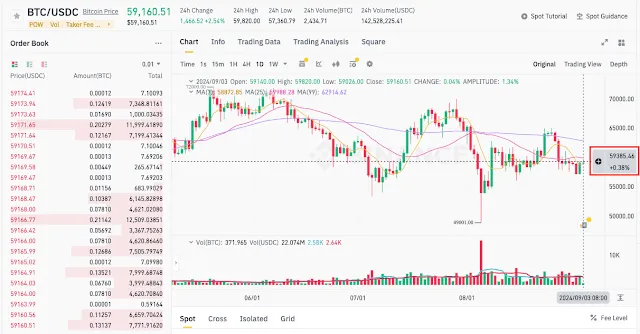
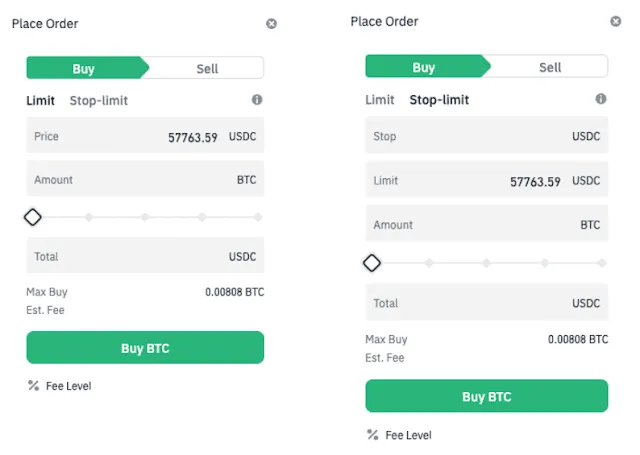
As shown below, an order window opens with the price you selected on the chart already filled in, and you can then enter the trade amount or total. After entering it, click the [Buy] or [Sell] button to complete the order. During this step, you can also choose between a limit order and a stop-limit order.
4. Check and manage your orders
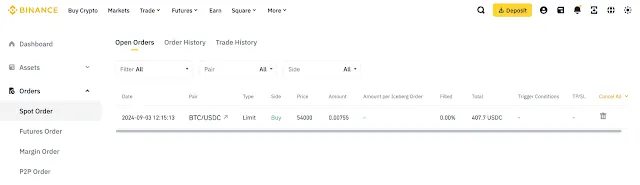
You can find the orders you've submitted in the [Open Orders] section. Here you can check the status of pending, unfilled orders and edit or cancel them.

Alternatively, go to [Orders] → [Spot Order] → [Open Orders] from the top menu to see more details about your open orders.
5. Bonus tip: Drawing a horizontal line
Right-click on the trading chart. Click [Draw Horizontal Line] to mark a horizontal line at a specific price. This lets you see a particular price range at a glance and can help when setting conditional orders (e.g., a stop loss).
- Stop Loss: Automatically locks in a loss if the price falls to or below a certain level.
- Take Profit: Automatically locks in a profit when the price reaches your target.
Wrapping up
That covers how to complete spot trades quickly using the quick order feature on the Binance exchange. The advantage of this method is its convenience: you can watch the chart move in real time and submit an order directly from the chart with a single click.