How to Set Up TradingView Charts on Binance
4 min read · · Korean original
Contents 4
Hello, this is Bitpunk. Today we'll look at how to enable TradingView charts on Binance, along with the basic chart settings and how to use the technical analysis tools.
What is TradingView?
TradingView is a handy trading tool that provides candlesticks, charts, technical analysis tools and more for almost every financial asset, including Bitcoin.
Most professional traders use TradingView. Binance has its own charts, but with TradingView you can save and reuse your preferred chart settings.
How to use TradingView
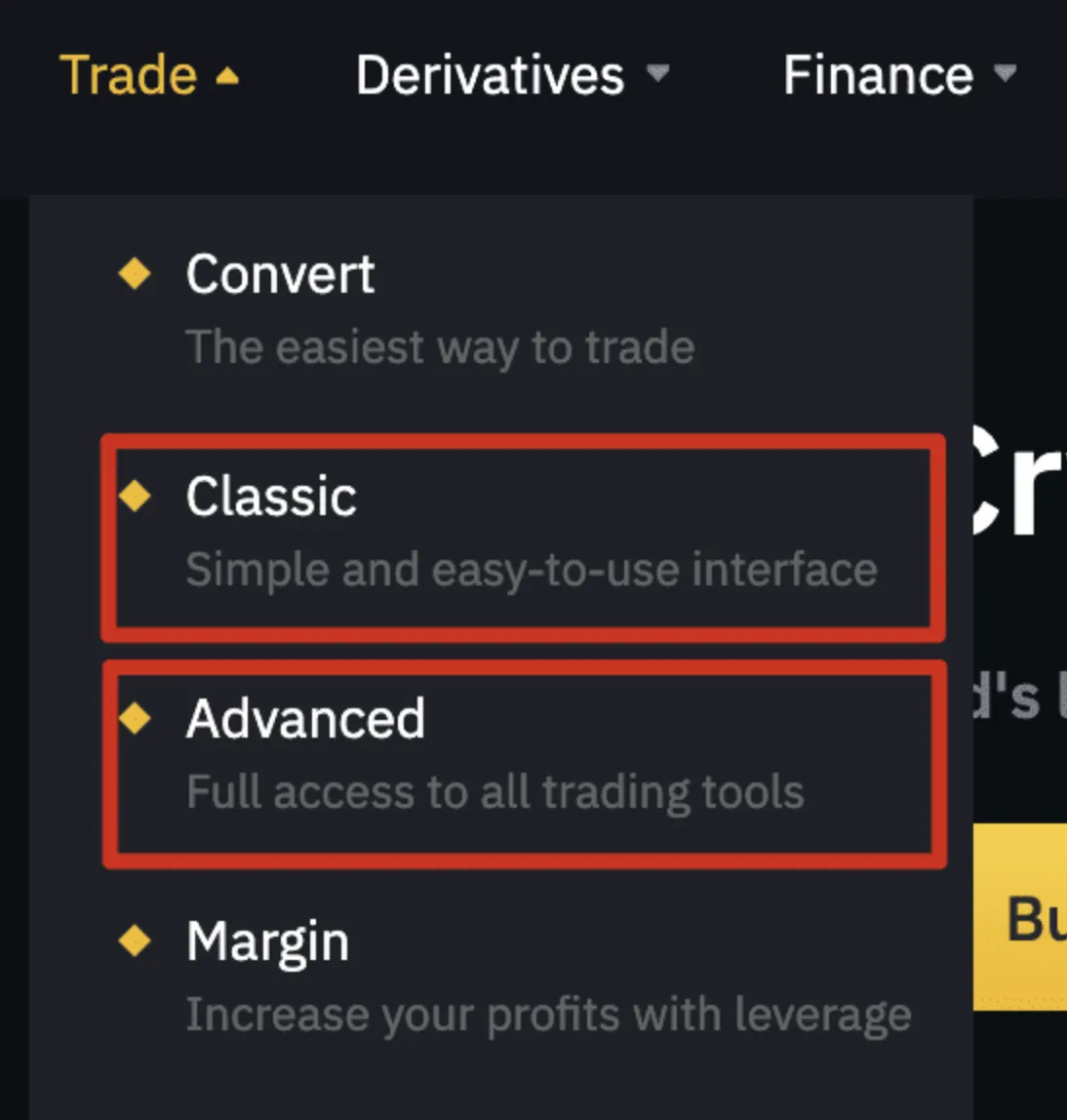
On Binance, you can set up TradingView in both Classic and Advanced mode.
1. Log in to your Binance account and go to the [Trade] tab. Next, select [Classic] or [Advanced].
2. Select [TradingView] at the top of the chart, and the TradingView chart will be enabled.
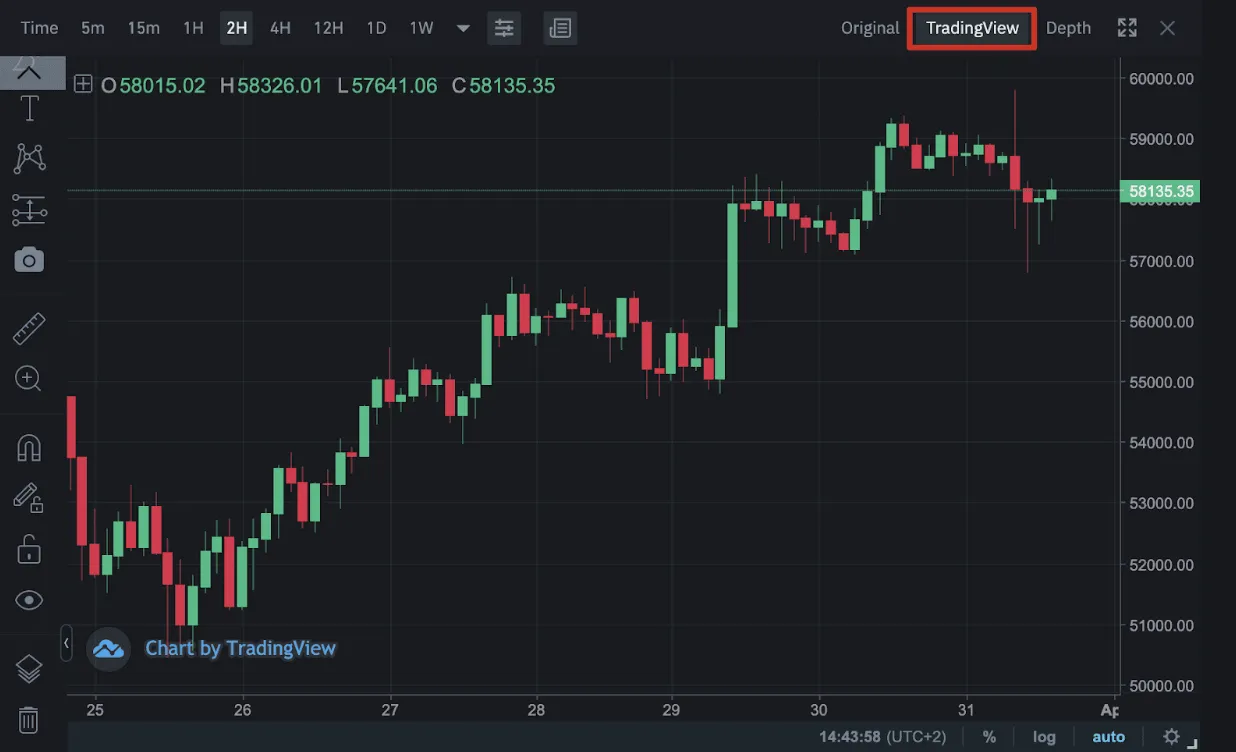
Basic TradingView settings
Now that TradingView is enabled, let's go through the basic settings. Here, we'll focus on the tools that are used most often in TradingView.
1. Setting up moving averages
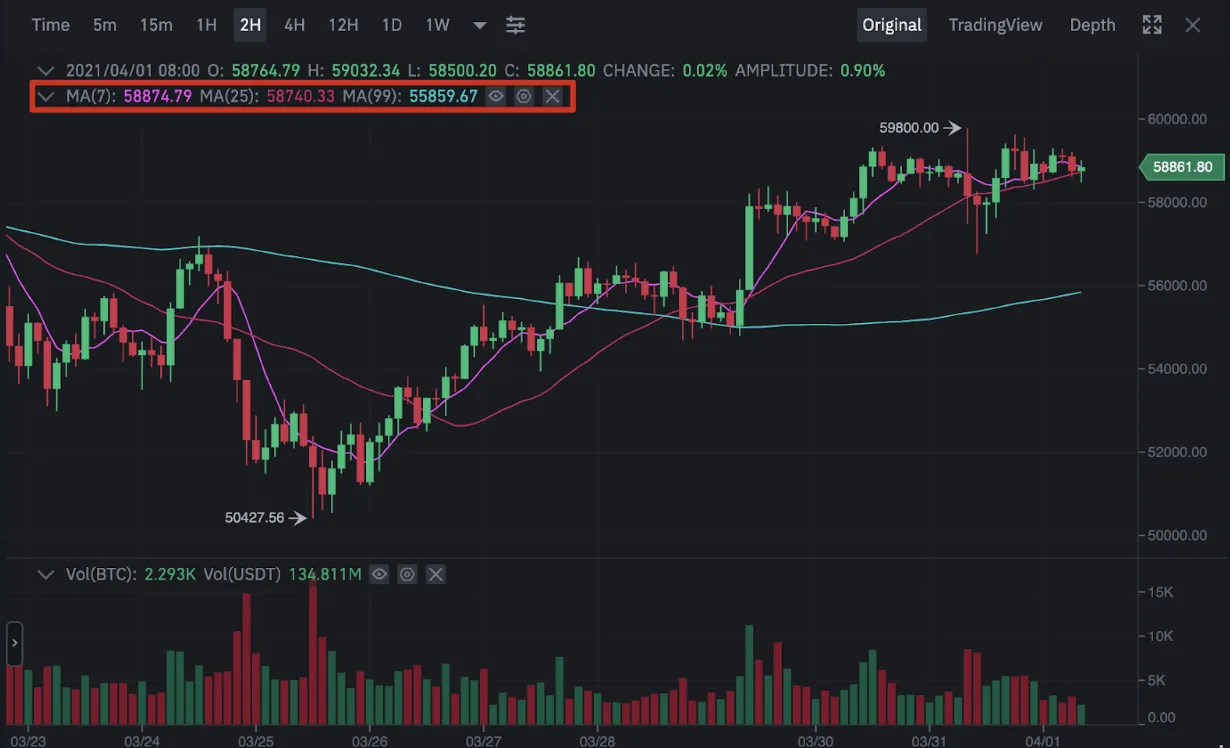
Once TradingView is enabled, you'll see that moving averages (MA) are already turned on automatically, as shown below. The moving average is an indicator used by almost every trader, and you can set the moving average values in [Settings].
- Purple - Moving average (7)
- Red - Moving average (25)
- Sky blue - Moving average (99)
If you add a moving average (200) here, it will help you judge the long-term trend.
2. Setting up candlesticks
Next up are candlesticks. Candlesticks visualize an asset's price movement as candles. Each candlestick contains the open, close, high and low prices, and from these you can try to anticipate market trends and price movements.
To set up the candlesticks, just double-click a candlestick in TradingView. The settings window will then appear, as shown below.
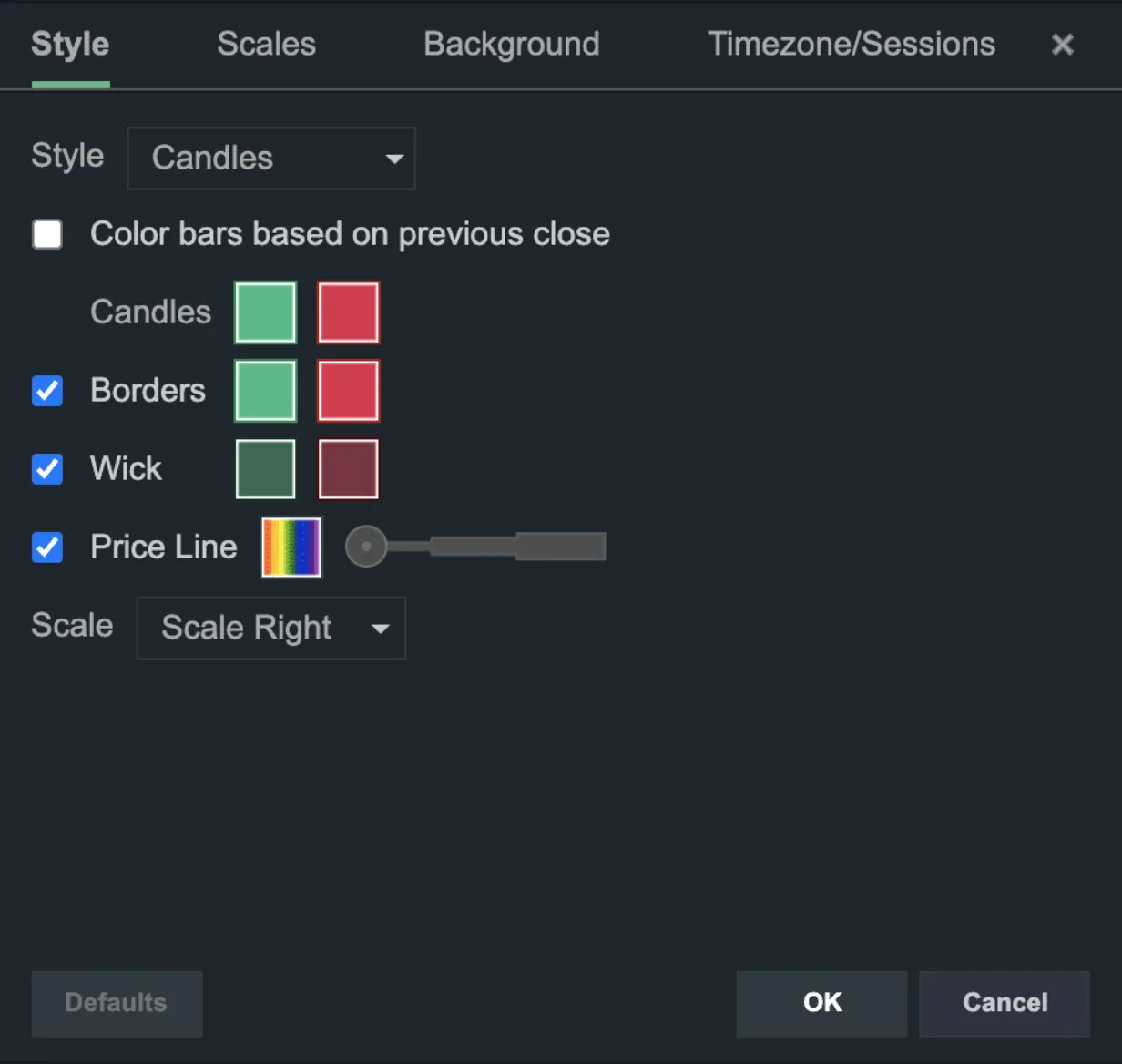
- [Style] - Lets you change the look of the candlesticks.
- [Scale] - Lets you set various candlestick scale options, such as auto scale, log scale and percentage scale.
- [Background] - Lets you change the background of the candlestick chart.
- [Timezone/Sessions] - Lets you set the time zone you want.
3. Setting the candlestick time frame
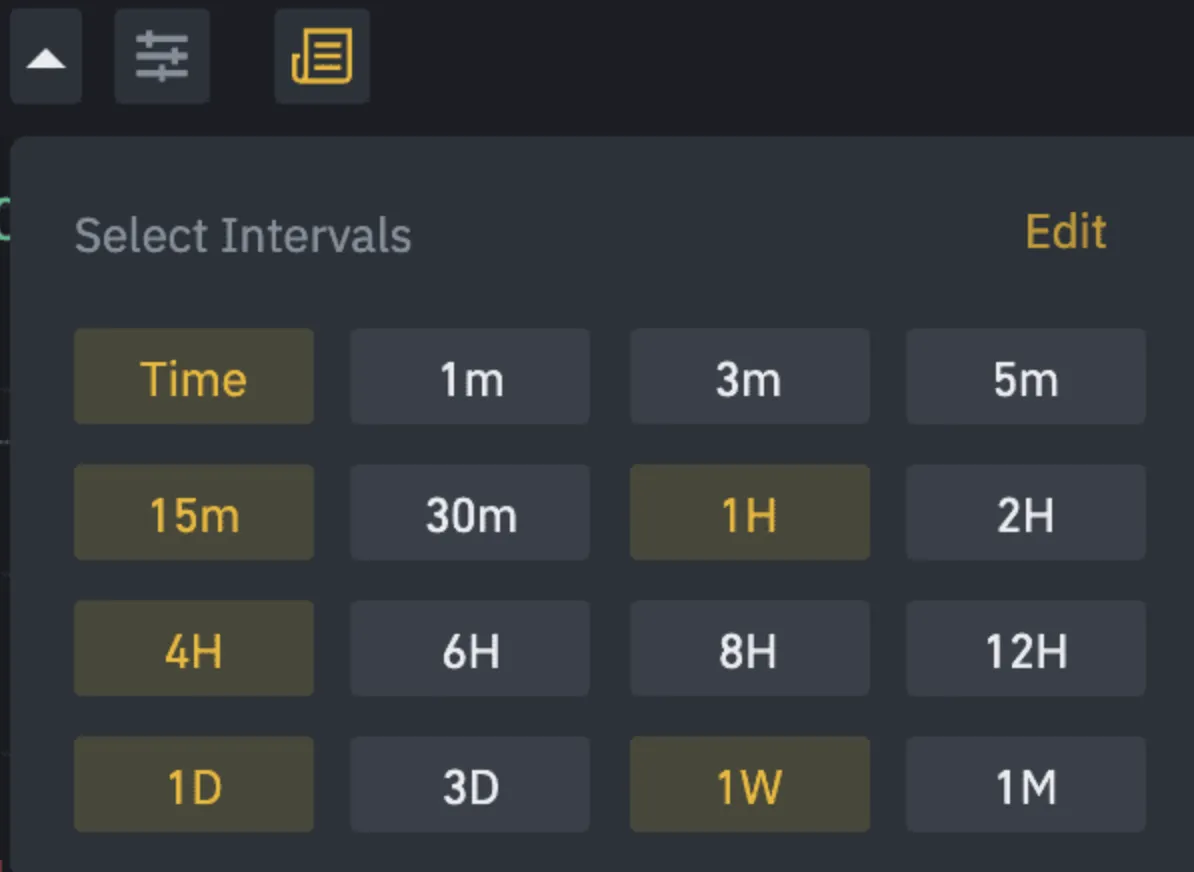
The time frame is the interval at which each candlestick is drawn. 1m means 1 minute, 15m means 15 minutes, 1h means 1 hour, and 1d means 1 day. In other words, a new candlestick appears every 1 minute / 15 minutes / 1 hour / 1 day.

If you want an interval other than the default time frames, click the arrow on the right. You can set any time frame interval you like.
4. Drawing tools
On the left side of the chart you'll find a variety of drawing tools. You can use them to draw on the chart and analyze an asset's price movement. Right-click each tool to see more tool options.
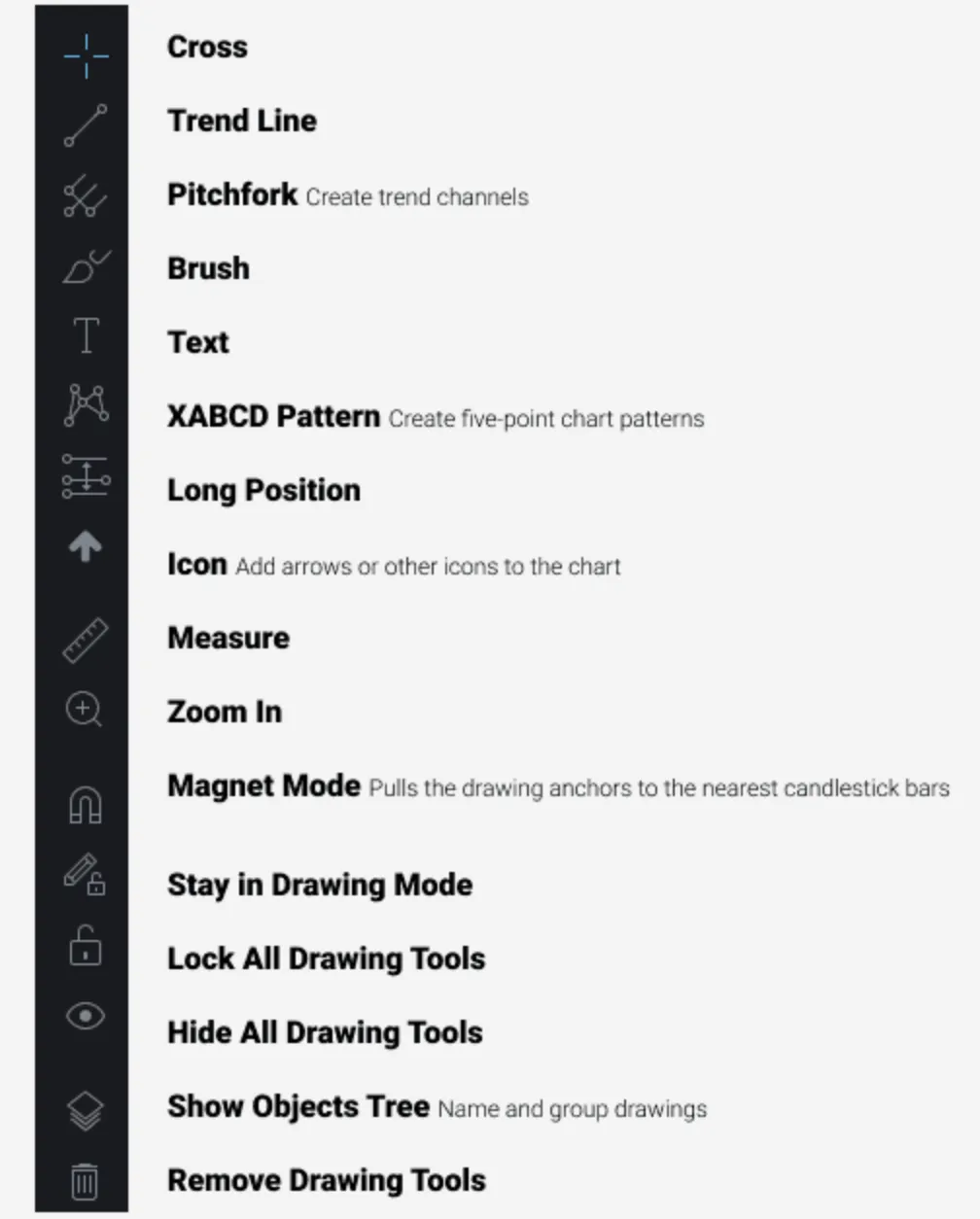
(1) Long/Short Position tool
The Long/Short Position tool is a popular tool for gauging the profit and loss of a trading position. You can set your entry price, take-profit price and stop loss yourself and check the risk/reward ratio of the trade.
With the Long/Short Position tool, you can trade in a planned and steady way. If you're curious about how to survive in the risky futures market, check out the link.
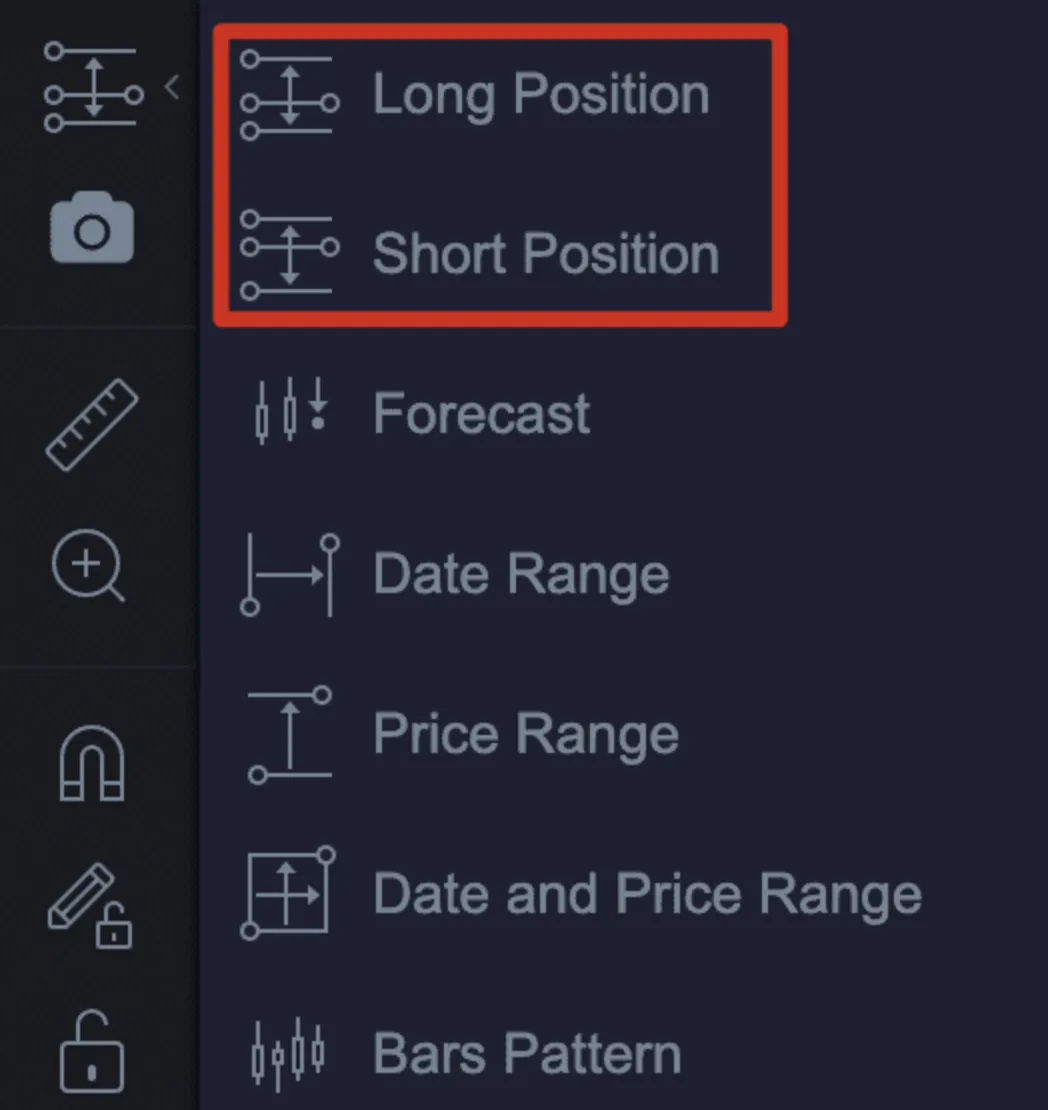
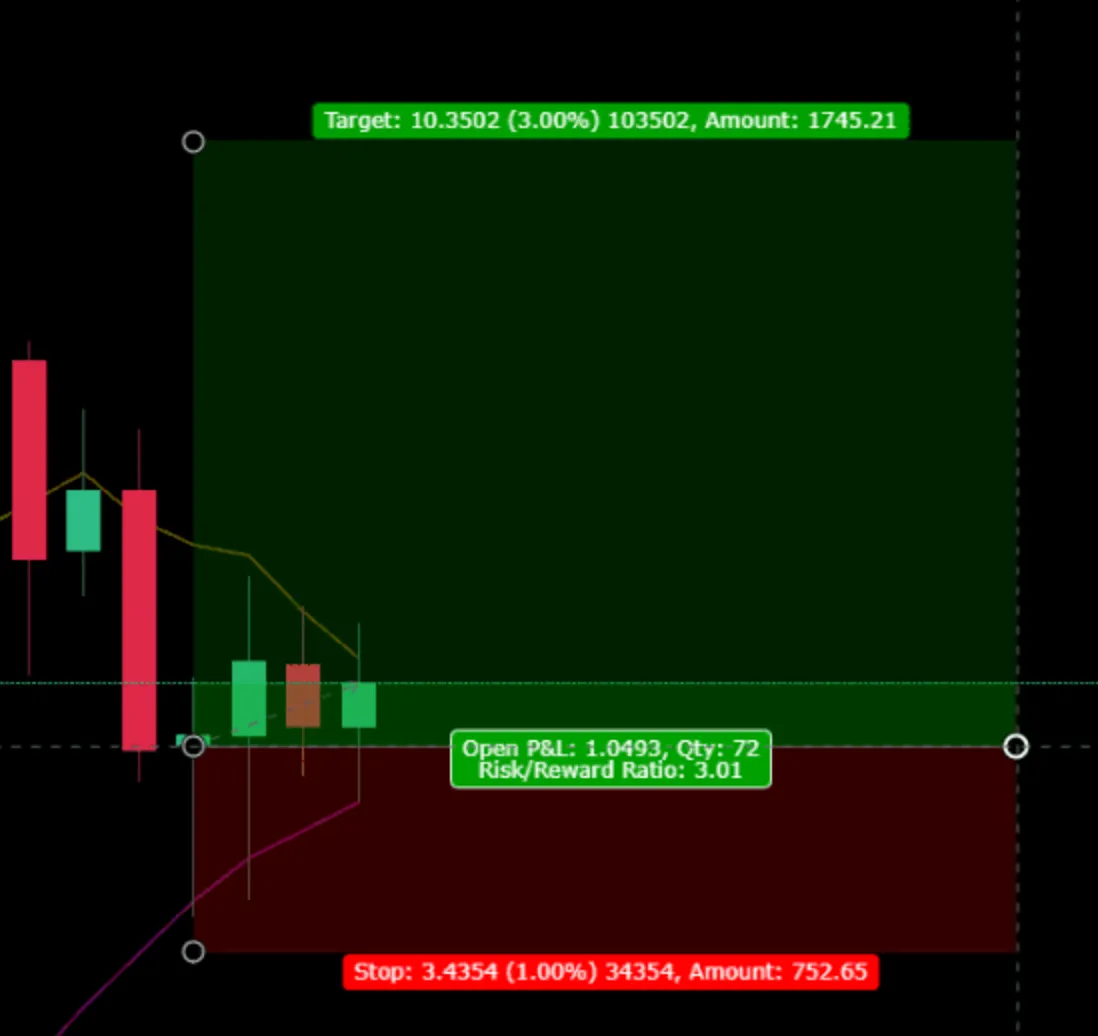
To use the Long/Short Position tool, select either the [Long Position] or [Short Position] tool. Then click on the chart to display the profit and loss of the long/short position.
The green area shows the target price (potential profit), and the red area shows the stop loss (potential loss). The risk/reward ratio is shown in the middle.
Once you've finished drawing with the Long/Short Position tool, use the risk/reward calculation method I shared earlier to check whether the risk/reward ratio is right for you.
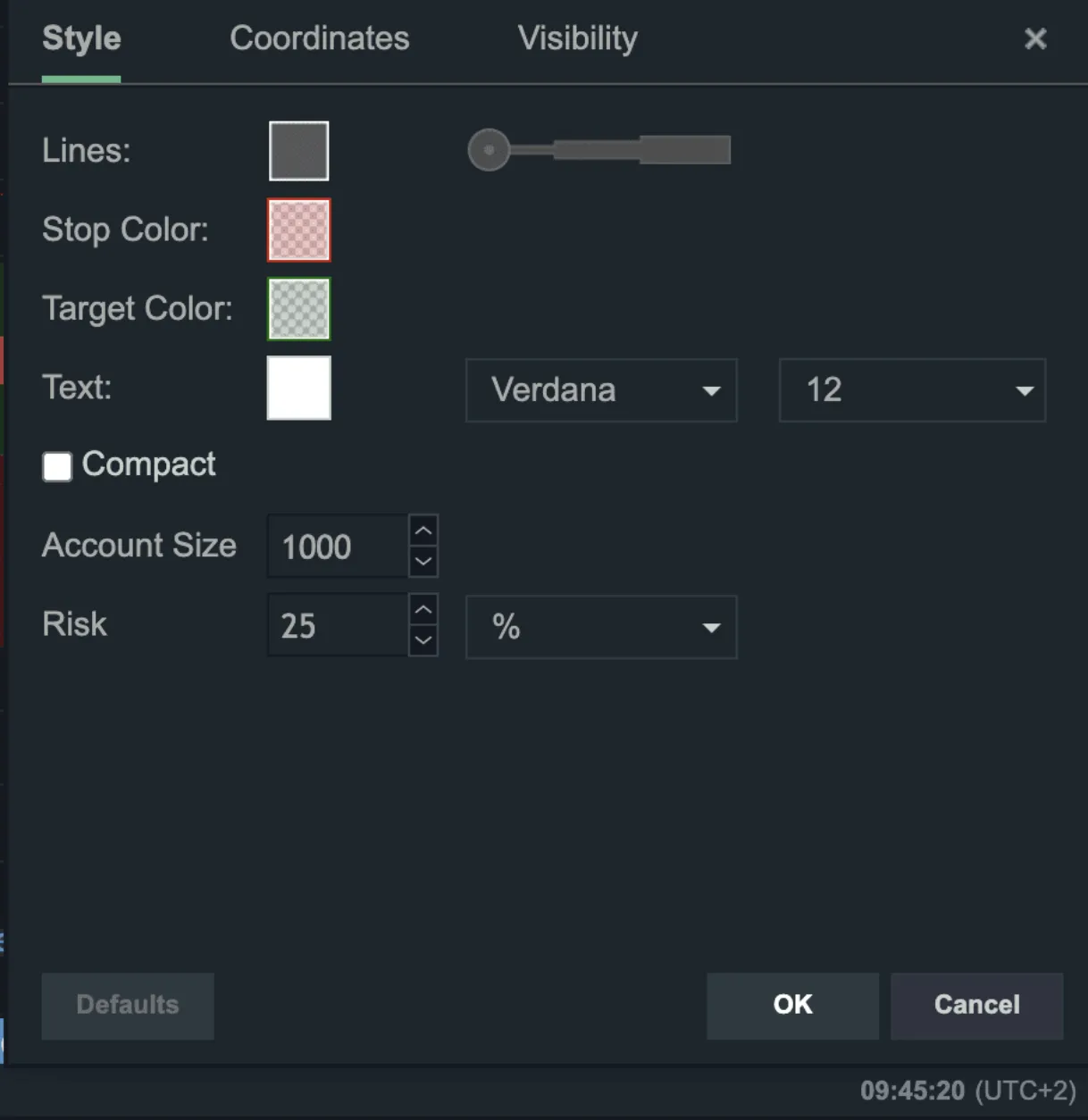
If you double-click the long/short position drawing, you can further change the position size, risk percentage and more, as shown below.
(2) Drawing trend lines
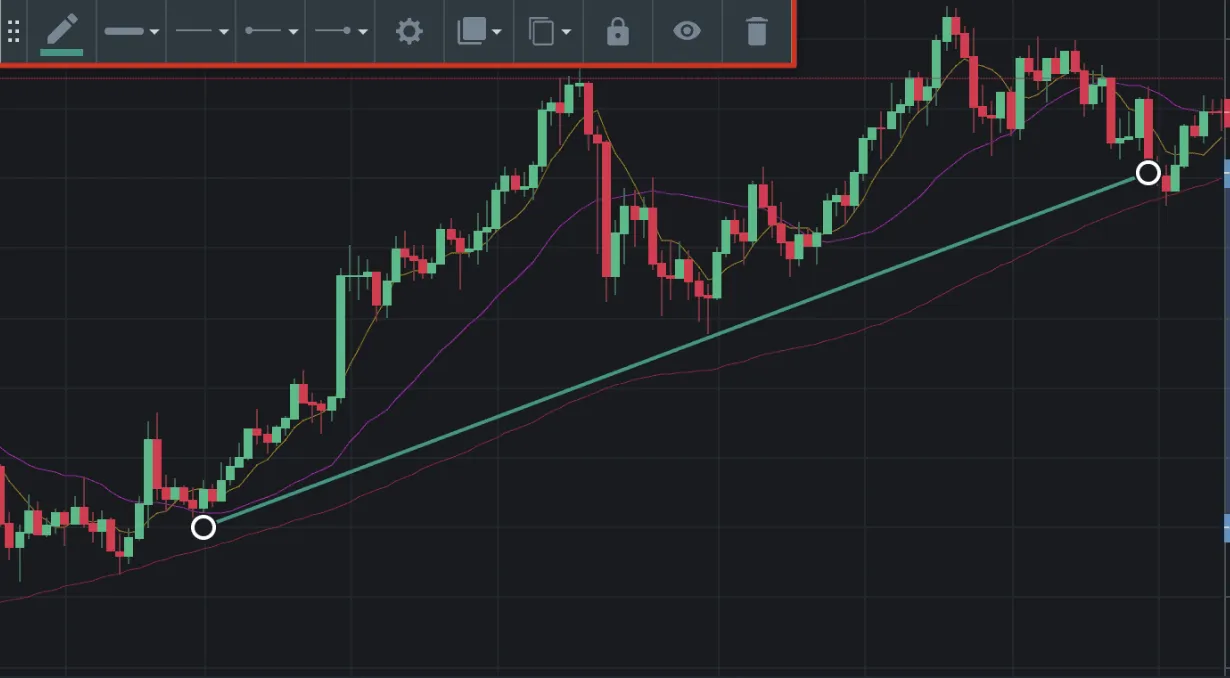
To draw a trend line in TradingView, select [Trend Line] from the tools on the left. Then click once on the starting point and once on the end point of the trend.
As in the chart below, you can simply draw a trend line and look for a good time to enter the market. To change the trend line's color and other options, click the trend line once and the options will appear.
(3) Adding technical indicators
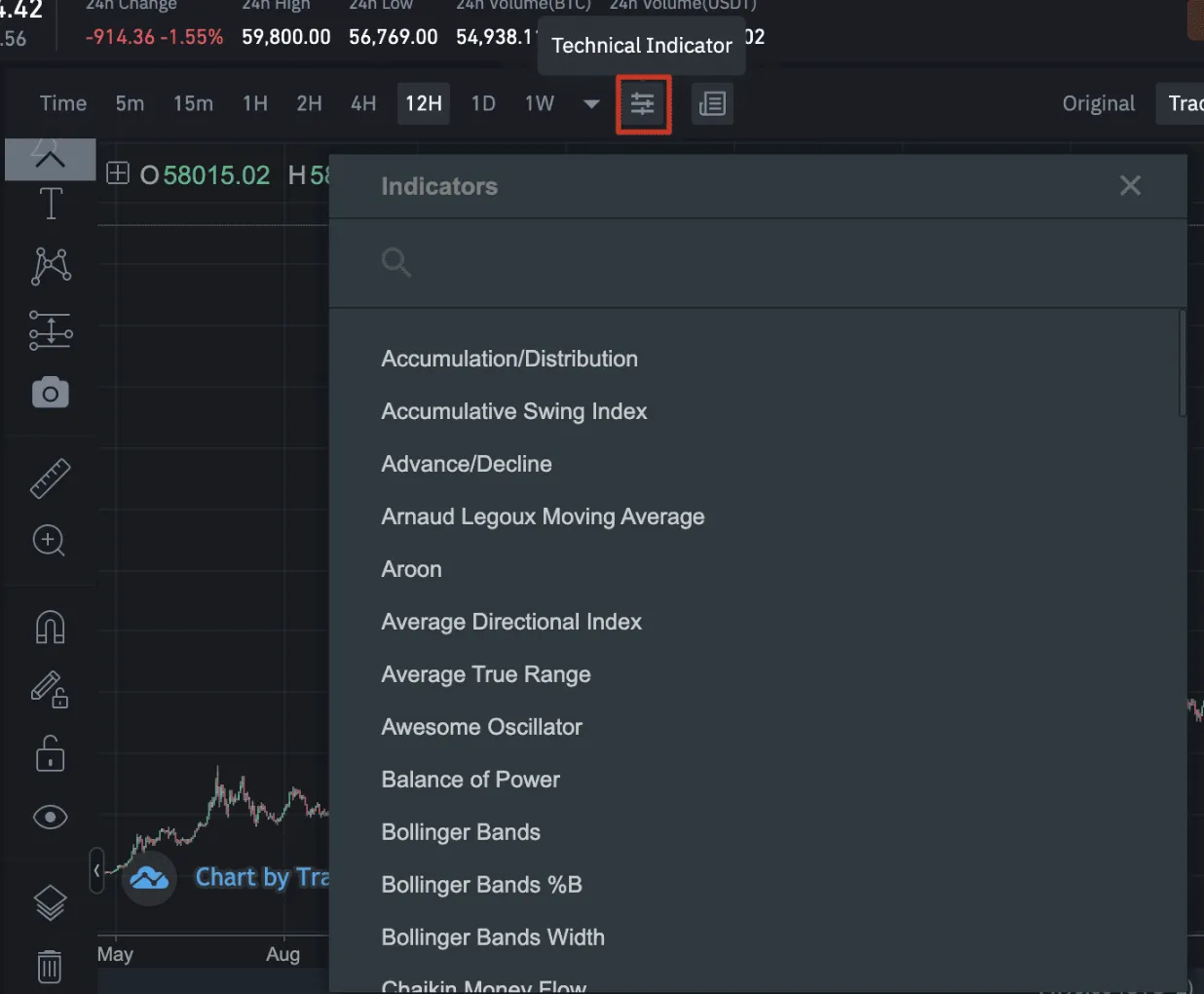
If you want to add various indicators such as Bollinger Bands, volume and MACD to your TradingView chart, click the icon below [Technical Indicator], next to the time frame settings. Here you can add the technical indicators you want.
Resetting the TradingView chart
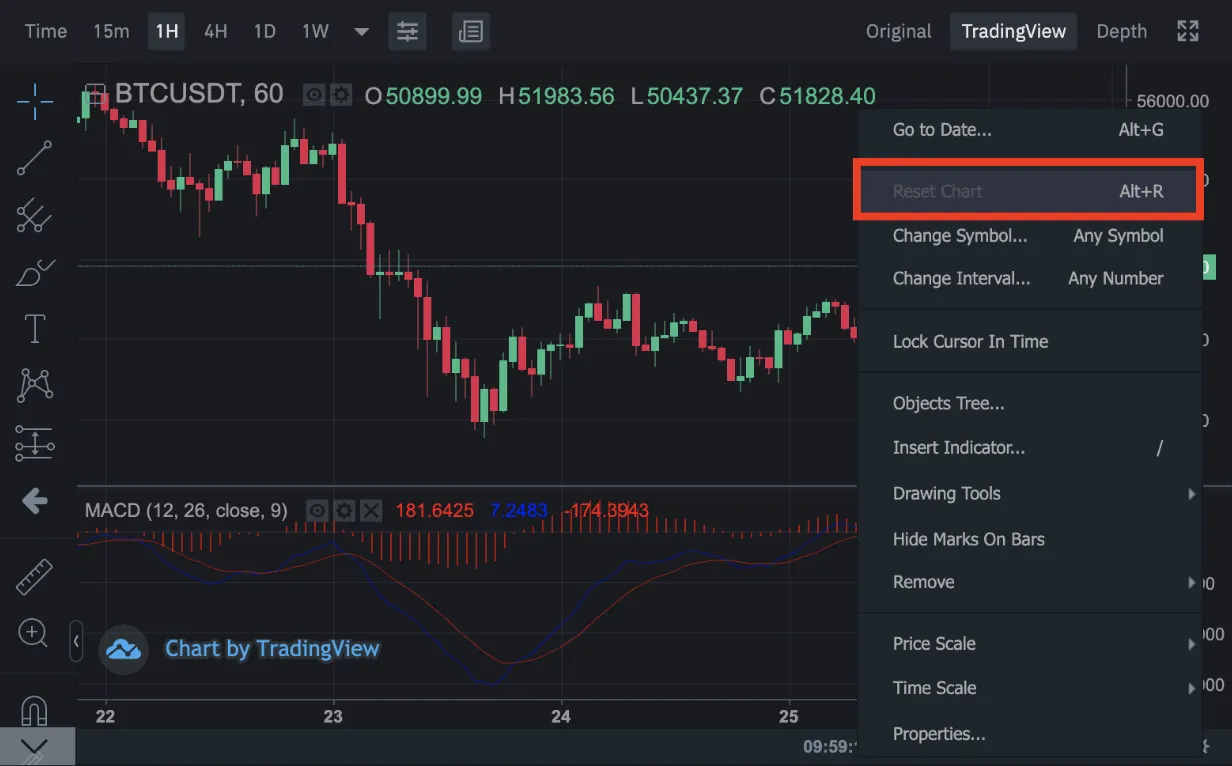
To delete an indicator or a drawing in TradingView, click the indicator or drawing once and then click the trash can icon. If you want to reset the whole chart, right-click an empty area of the chart and click [Reset Chart], or press the shortcut [Alt + R].
That wraps up how to enable TradingView on Binance and how to add and customize basic indicators.