How to Generate and Download Your Transaction History Statement on Binance
2 min read · · Korean original
Contents 5
If you need to check your futures or spot trading history on Binance, or need to settle your accounts, you can use the Binance account statement. In this post, we'll walk through how to generate and download an account statement.

1. Log In and Go to the Transaction Page
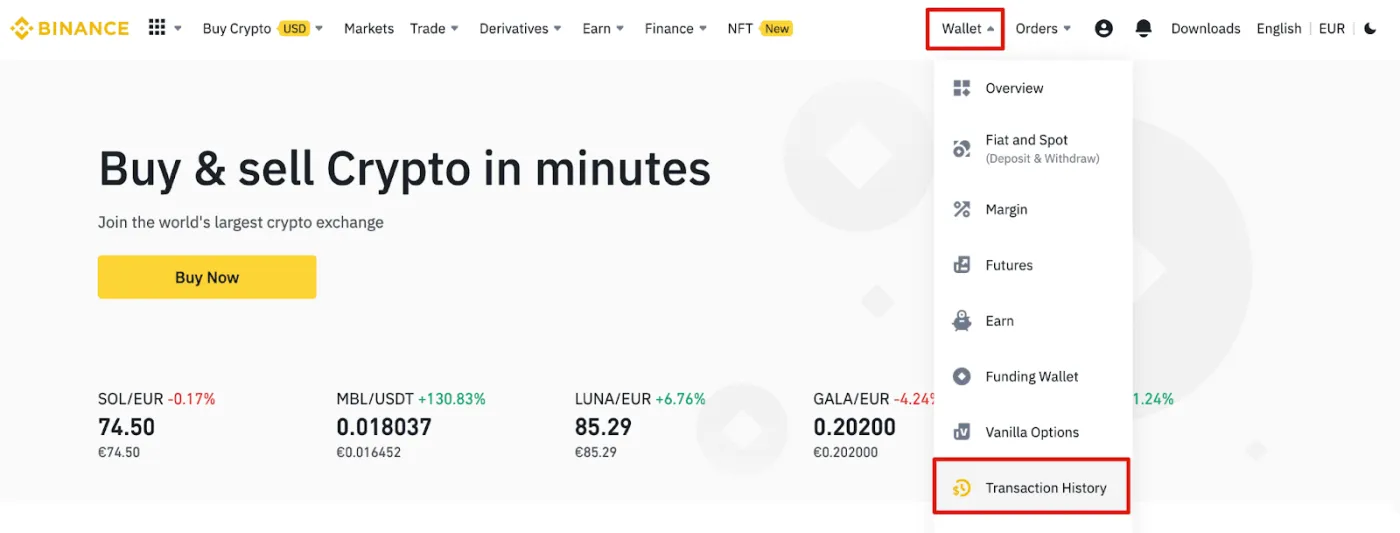
Log in to your Binance account and click [Wallet] -[Transaction History].
2. Generate a Transaction History Statement
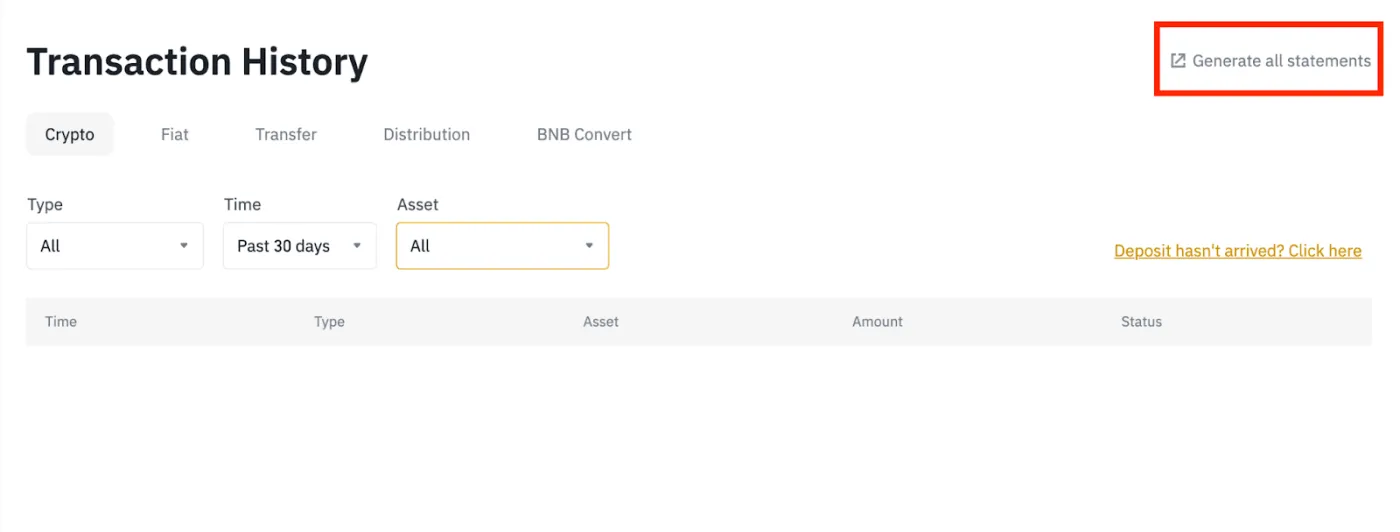
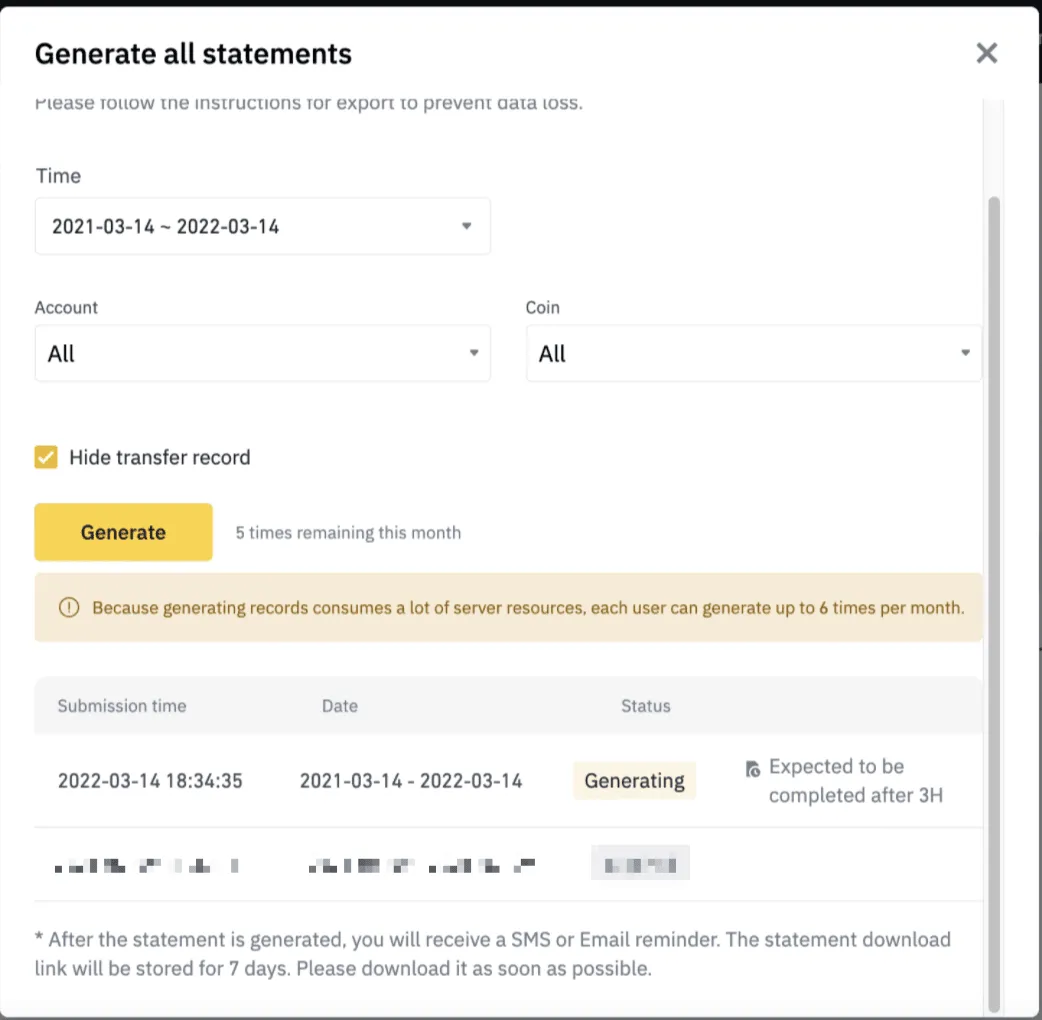
To generate all statements, click [Generate all statements].
3. Set the Statement Period
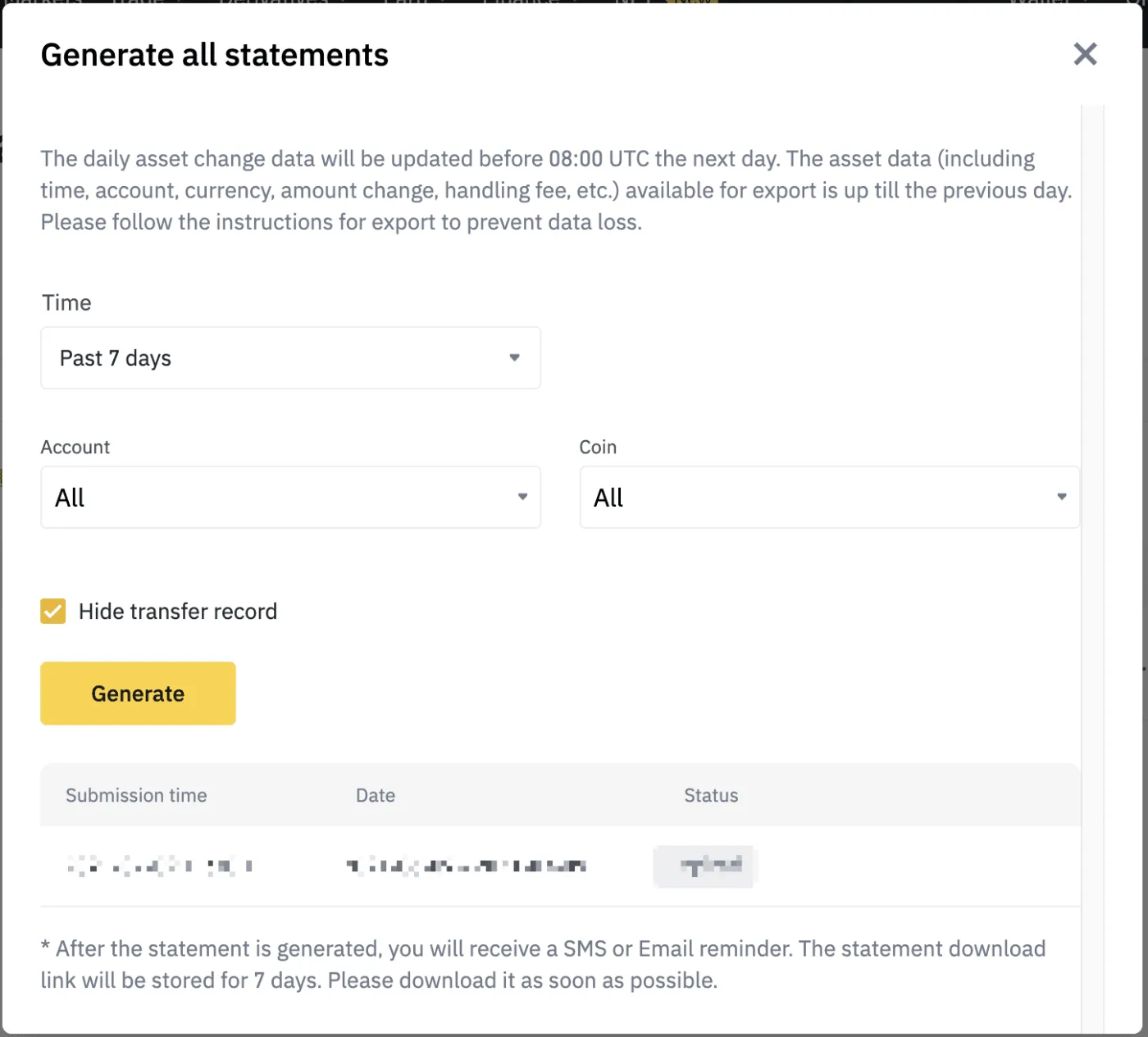
Select the period, account and coins to include in the statement, then click [Generate]. Because generating records uses server resources, each user can generate statements up to 6 times per month.
4. Complete Statement Generation
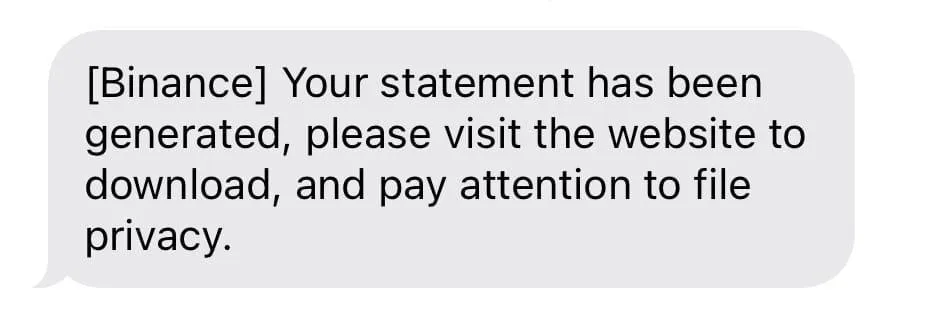
Your statement will be ready in about 5 to 10 minutes, and you'll receive an SMS or email notification. If you have a lot of transaction history, it can take up to 1 hour.
5. Download the Statement
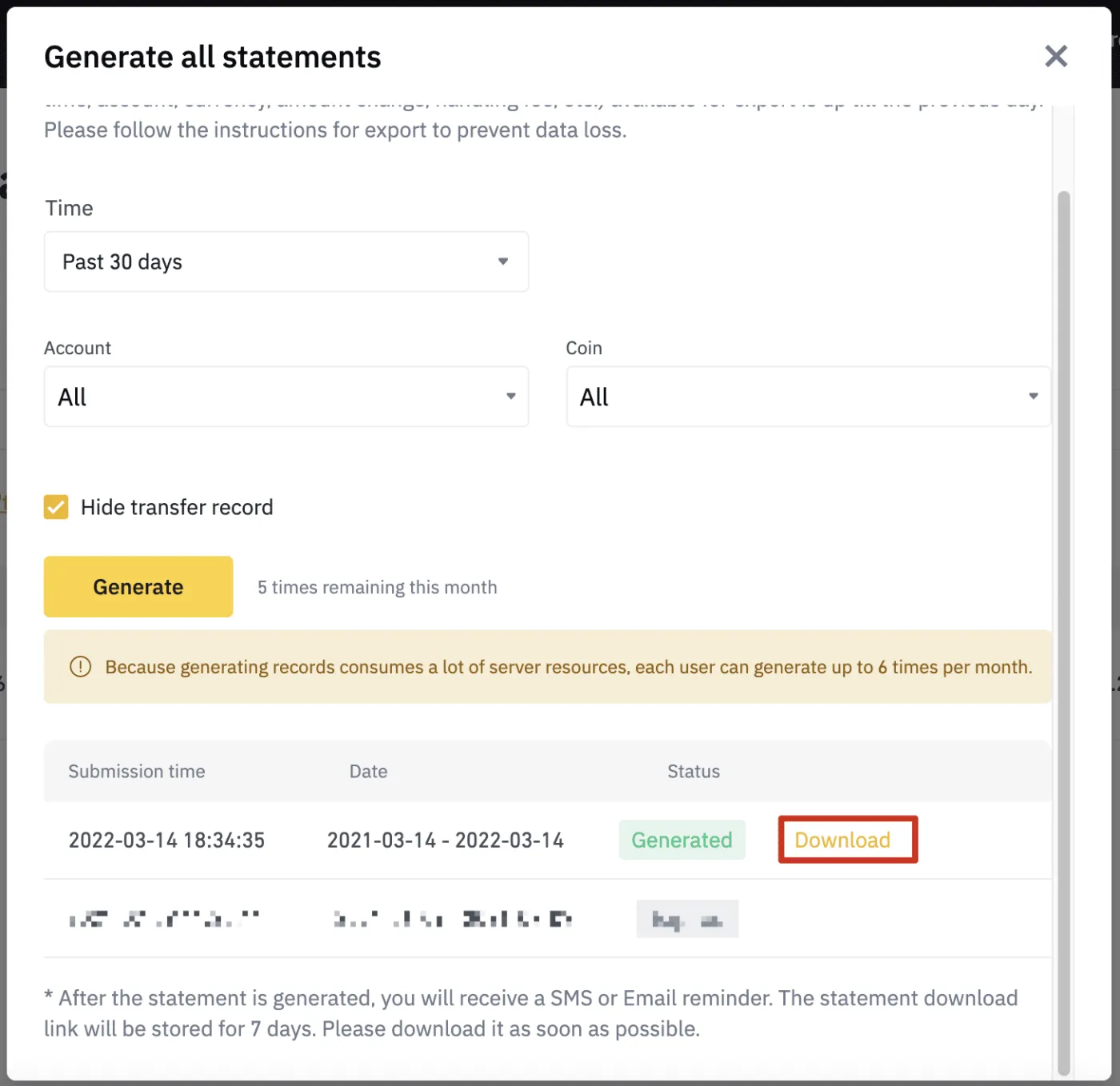
Now go to [Transaction History] - [Generate all statements]. You can download your statement by clicking [Download] next to the generated statement. The statement download link is valid for 7 days, so please download it as soon as possible.