How to Use the Multichain Bridge (Complete Guide)
2 min read · · Korean original
Contents 4
Multichain is a bridge that lets you move assets between different blockchain networks. For example, with the Multichain bridge you can easily move assets on the Ethereum network to the Klaytn network.

1. Accessing Multichain
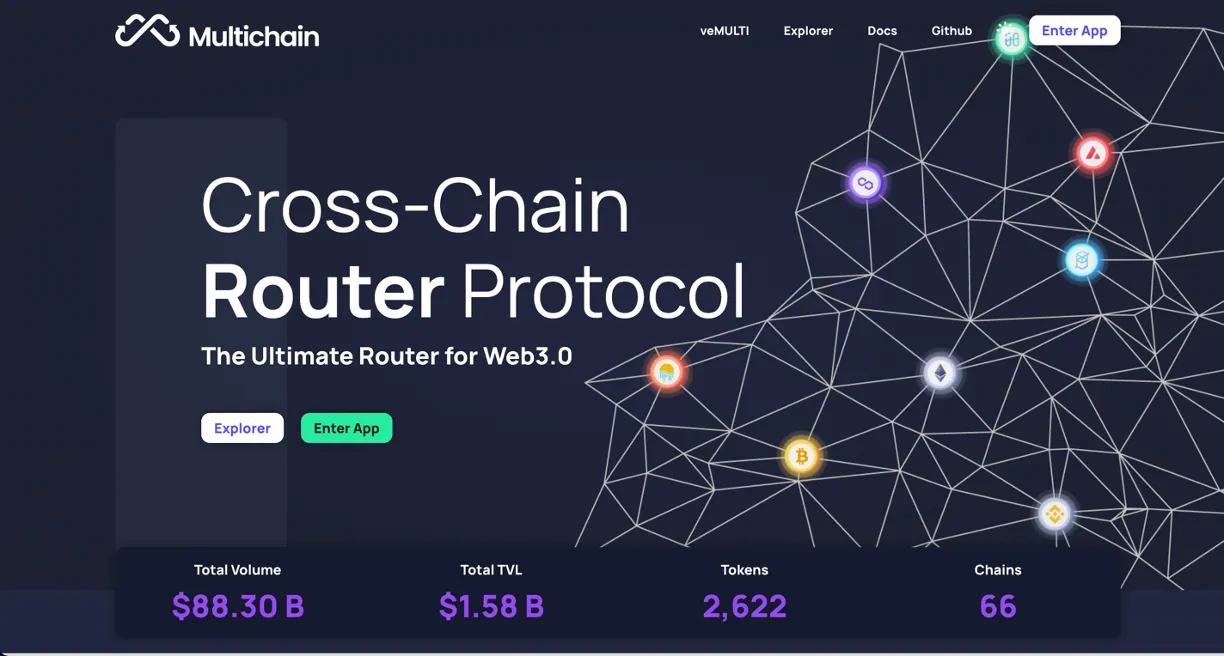
Go to the official Multichain website at https://multichain.org/. Once you're on the site, click [Enter App] in the top right corner to launch the bridge. At this point, please double-check that the URL you're on is correct. Make sure it's the official website and not a scam or phishing site.
2. Connecting MetaMask
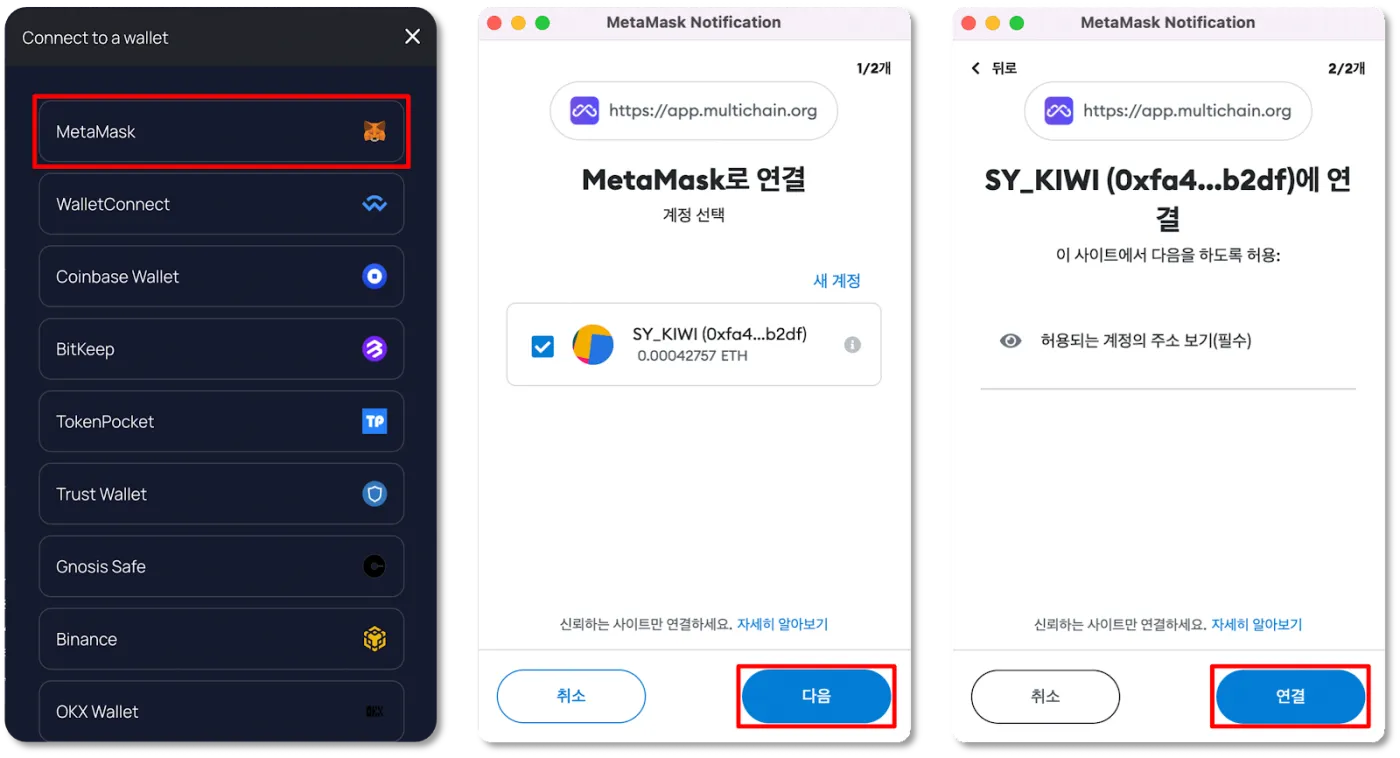
After launching the bridge, click the [Collect Wallet] tab to connect your personal wallet. Among the many wallets available, it's best to use MetaMask, which supports switching between various networks. If you're curious about how to install and use MetaMask, please refer to the link.
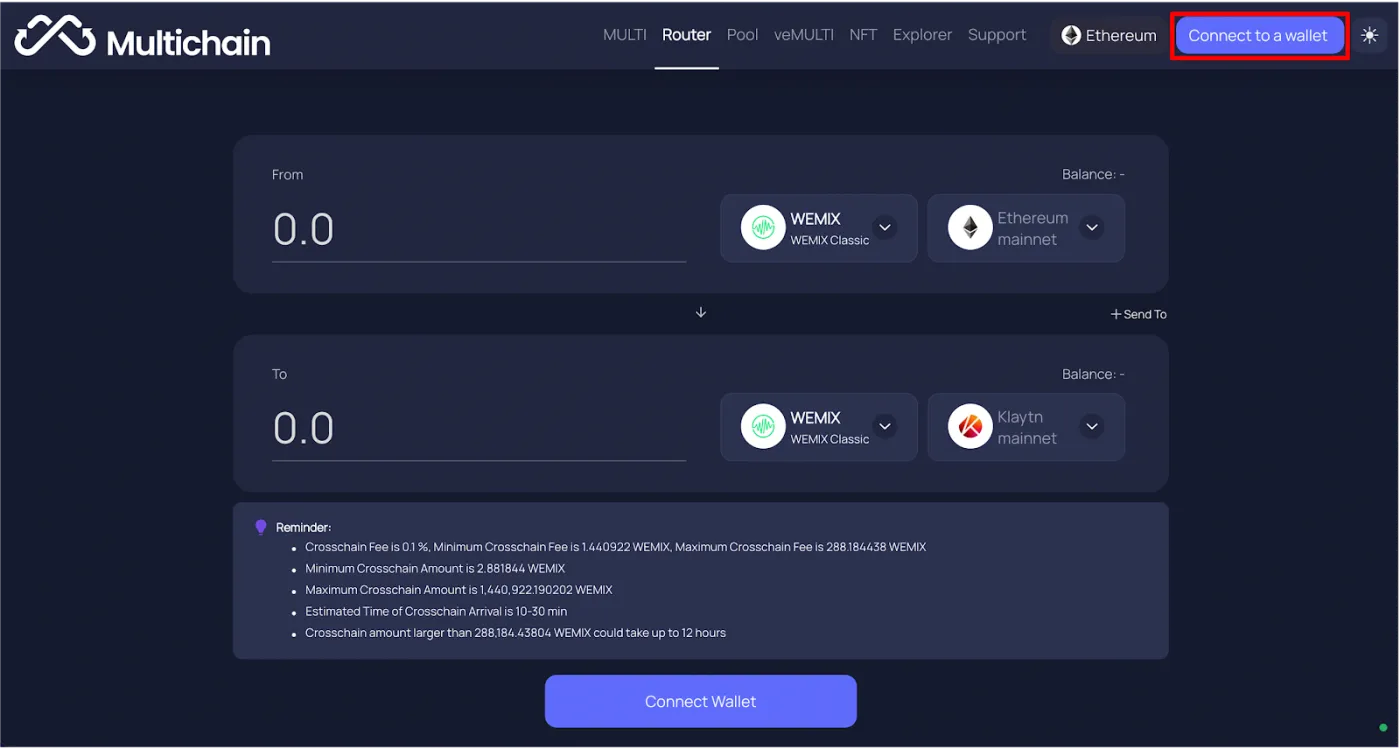
When you connect MetaMask to Multichain for the first time, you need to go through the one-time initial approval process shown below.
3. Selecting a Network and Converting Assets
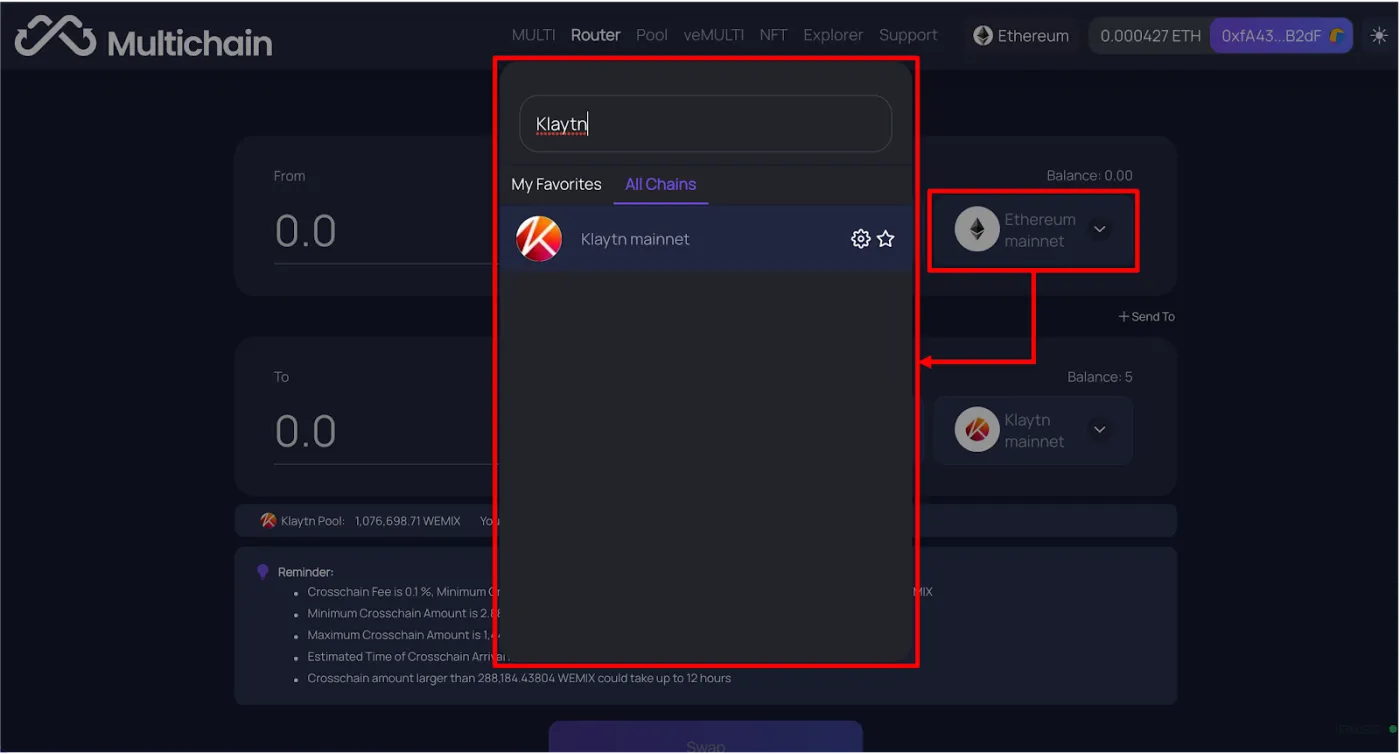
Once you connect MetaMask to Multichain, Ethereum is set as the default sending network. You can change the network you send assets from to whichever one you like, and doing so requires one more MetaMask approval.
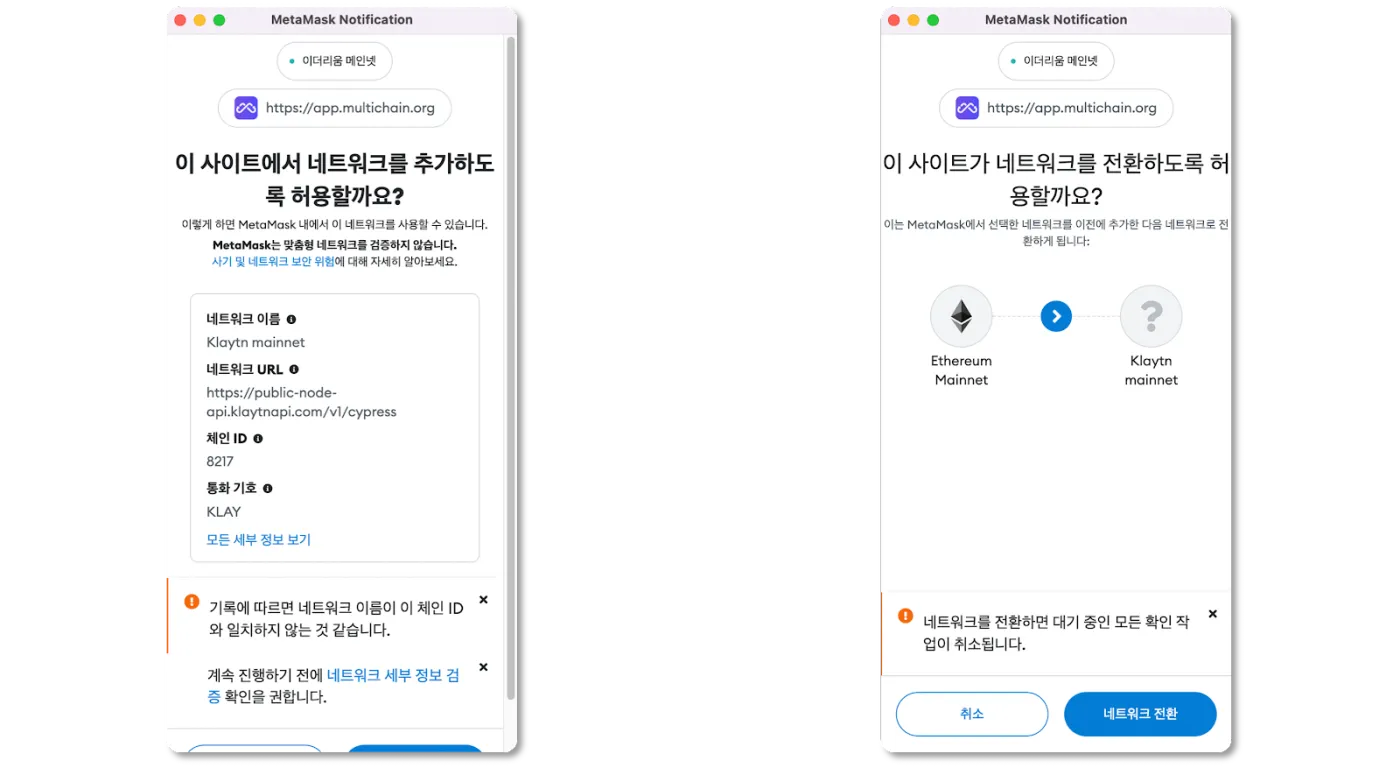
When you change the network, a message asking you to add and switch networks will appear, as shown below. Click to confirm.
Now select the sending network, then choose the asset you want to use on the Multichain bridge.
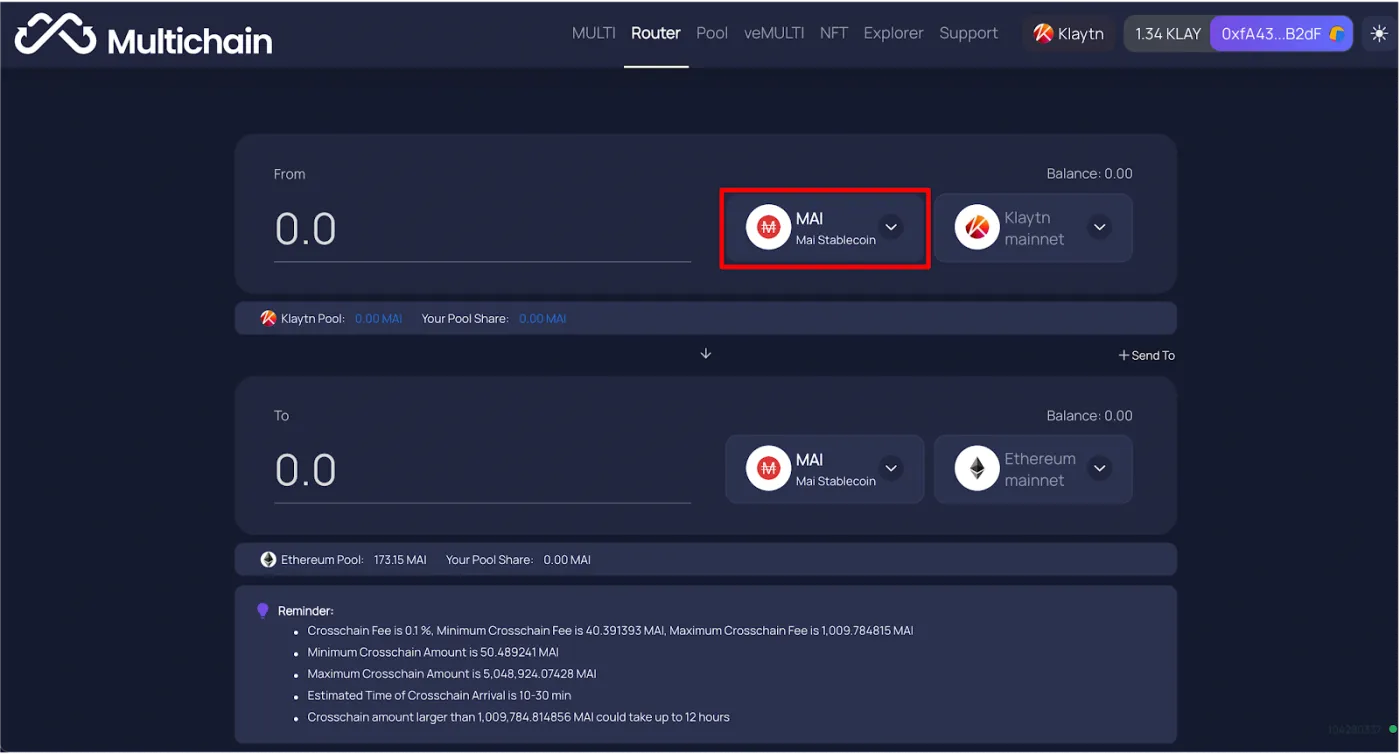
Next, select the network on which you'll receive the asset and choose the asset to convert to.
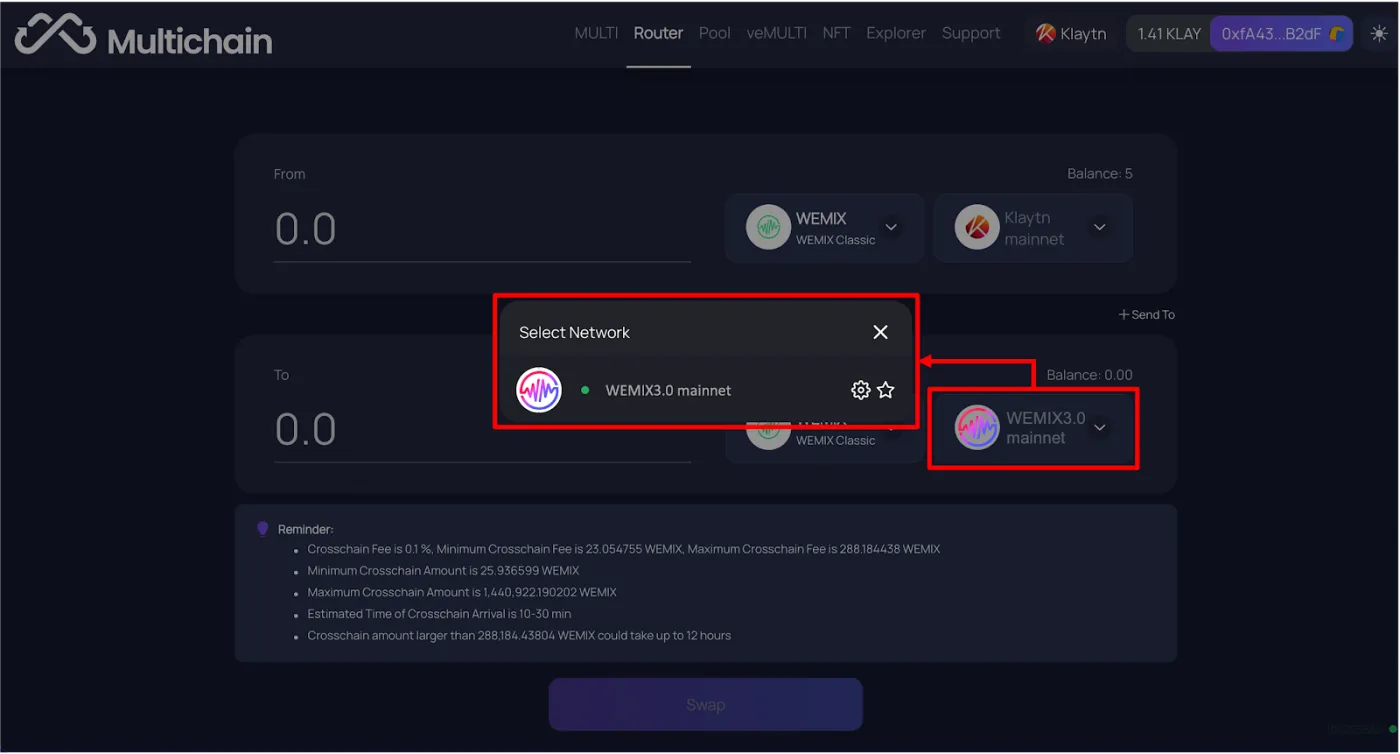
Finally, enter the amount of the asset you're sending, and the converted amount will be calculated automatically. The final amount you receive has the bridge fee and transaction costs deducted, so it may differ slightly from the calculated amount.
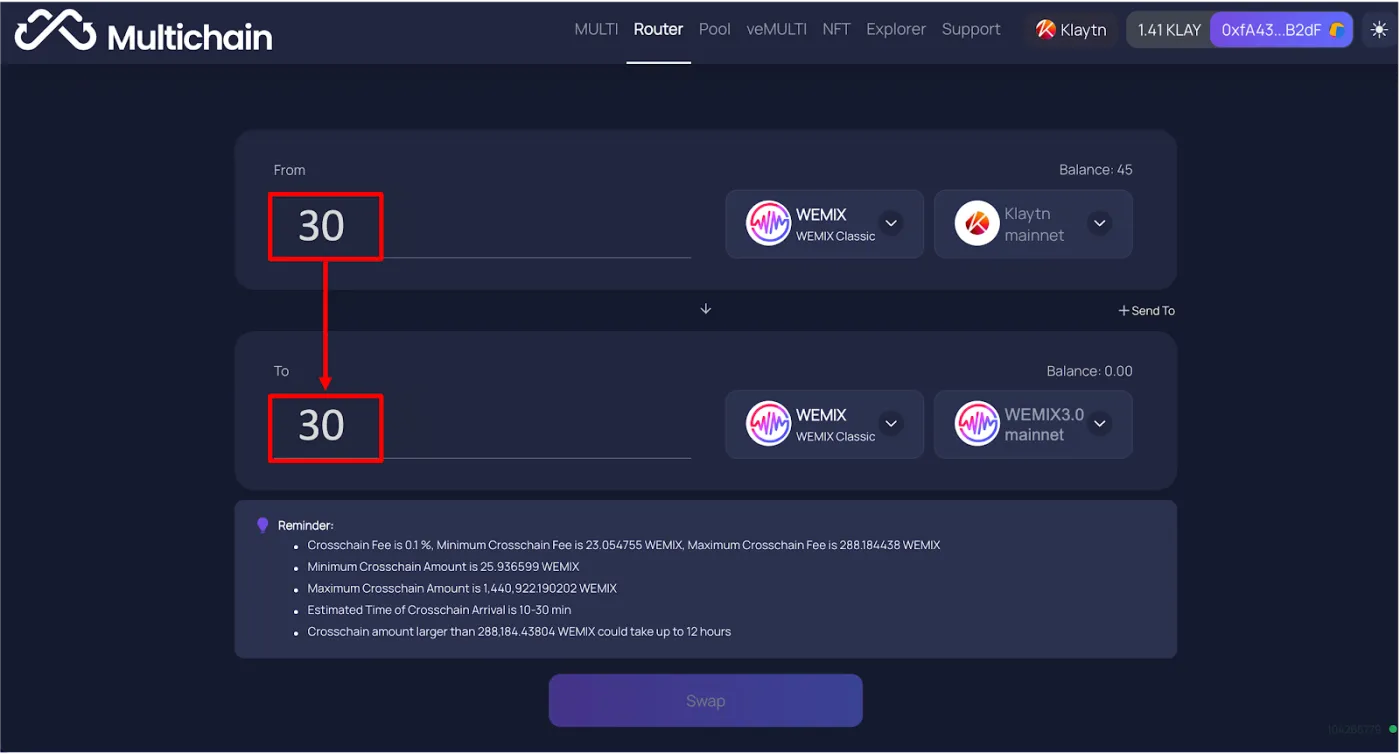
Approving the Transaction and Checking Its History
If everything is correct, you can now send the transaction by clicking the [Send] - [Confirm] buttons. If this is your first time using Multichain, you'll need to grant transaction permission once, just like before.
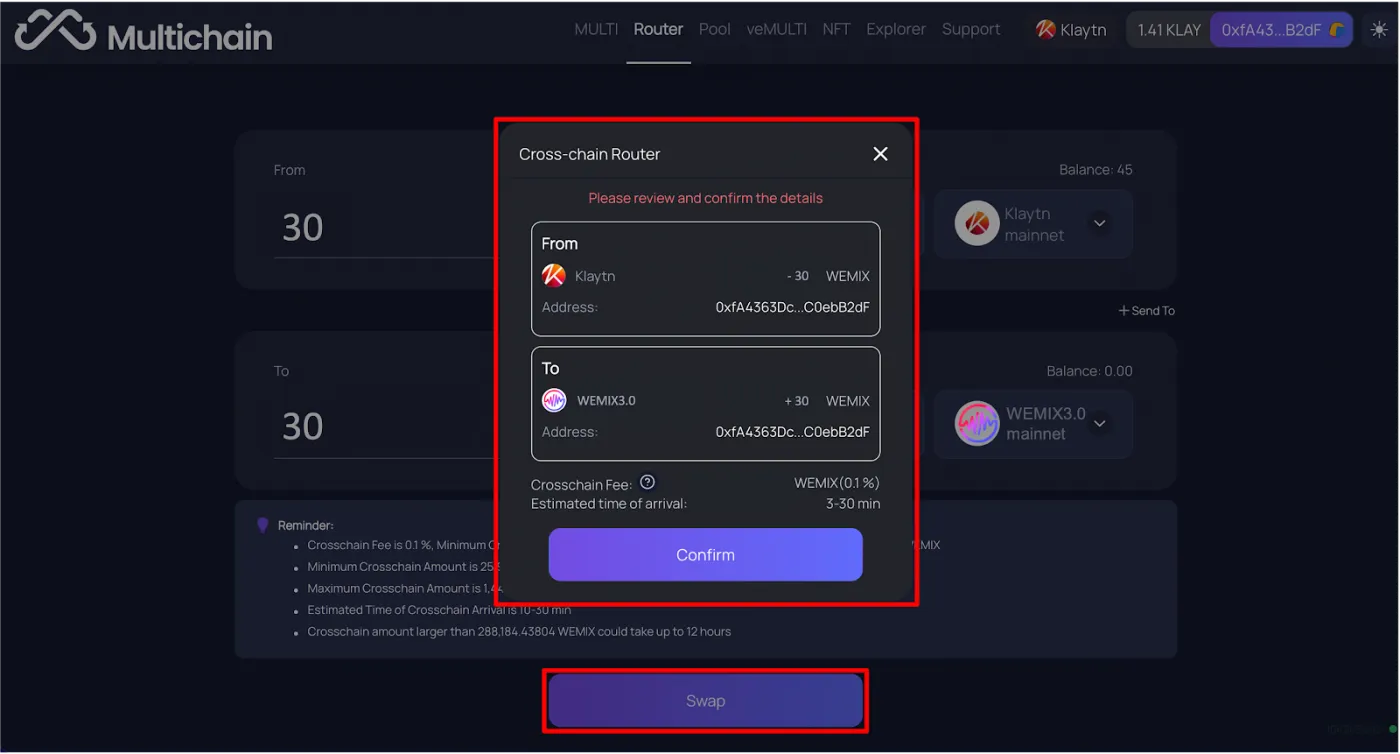
The estimated gas fee and the final transaction details will be displayed, as shown below. If everything is correct, click Confirm to finish the process.
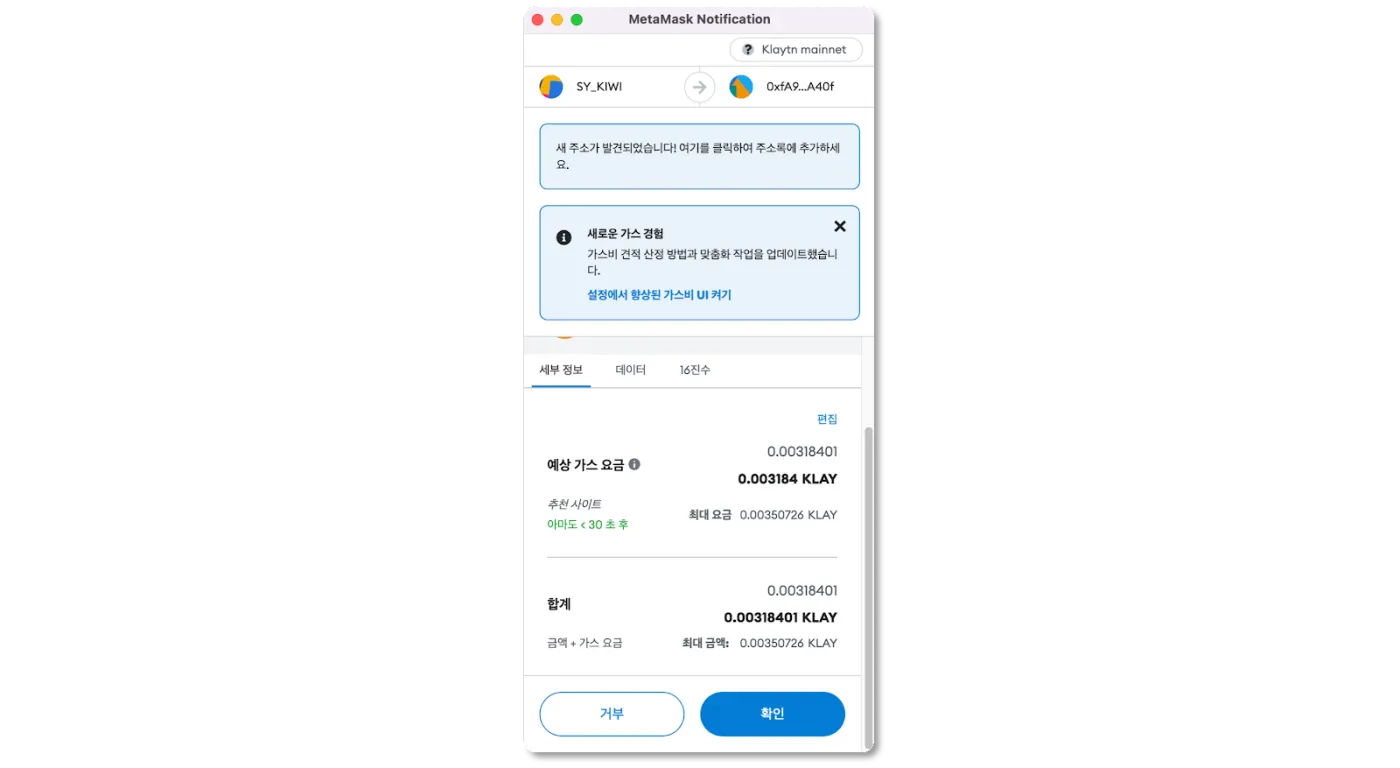
Your asset conversion using the Multichain bridge is now complete. Within 1 to 10 minutes, the conversion between the selected networks will finish, and the withdrawal and deposit will be completed. That wraps up our look at converting assets with the Multichain bridge.