OKX 2-Step Verification Is a Must: How to Set Up Your Account Security
2 min read · · Korean original
Hello, this is Bitpunk. Today, we'll look at how to protect your account more securely by linking a 2-step verification app, such as Google Authenticator, to the OKX exchange.

How to link a 2-step verification app on mobile
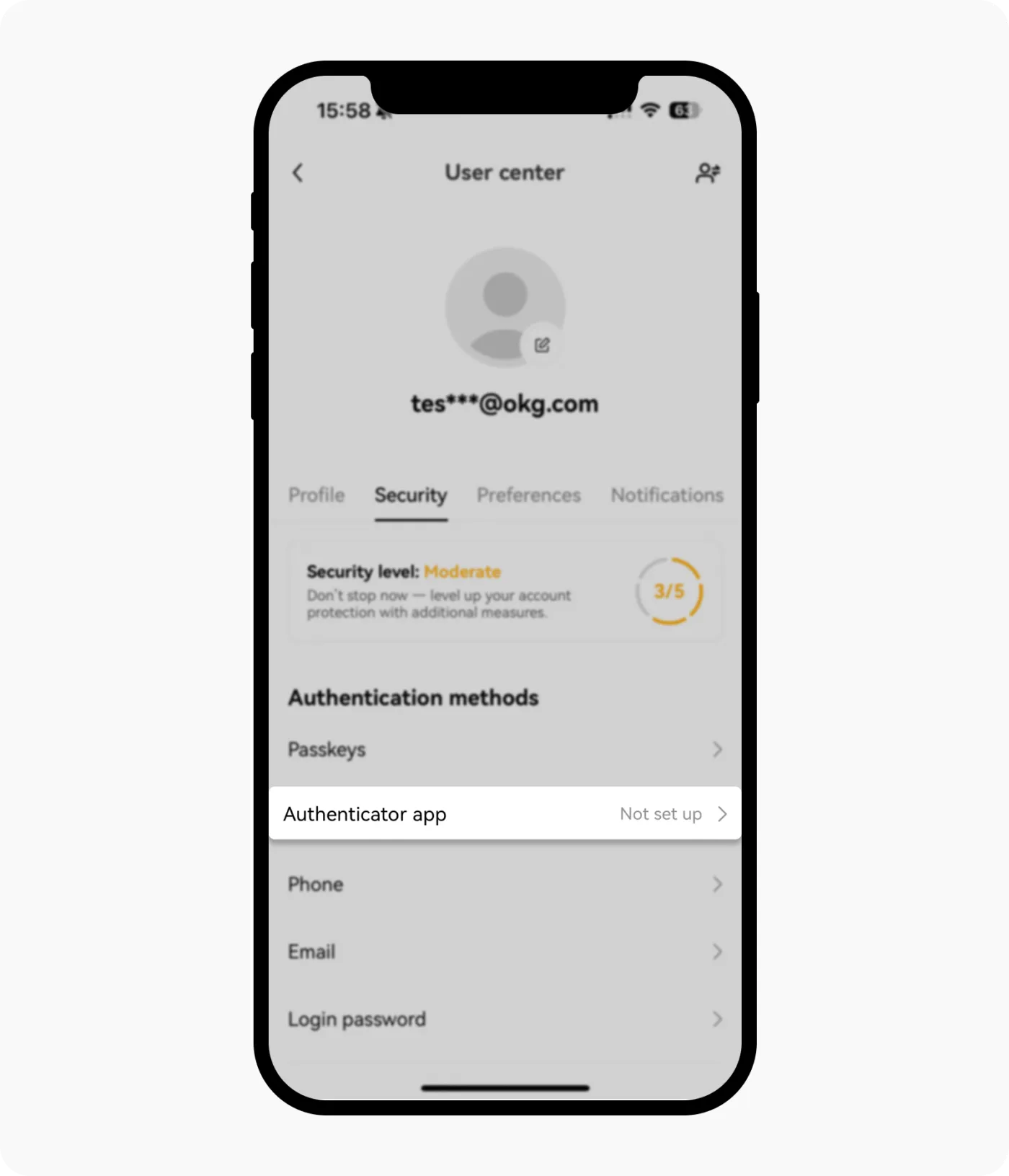
Launch the OKX app and go to 'Profile and Settings'. Next, select 'Authenticator App' in the 'Security' tab.
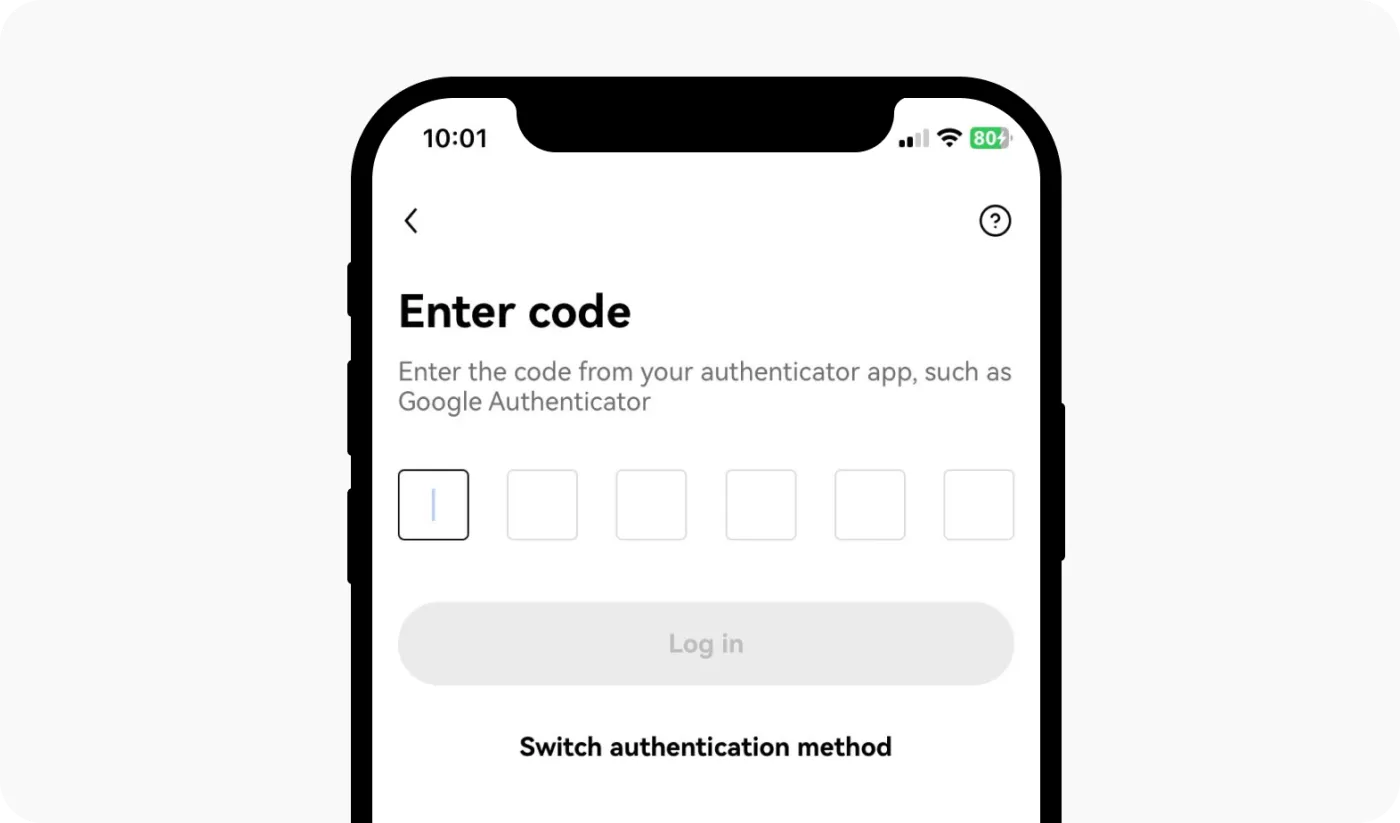
Before linking the 2-step verification app, you'll be prompted to verify your phone number or email address. Enter the 6-digit verification code sent to that contact.
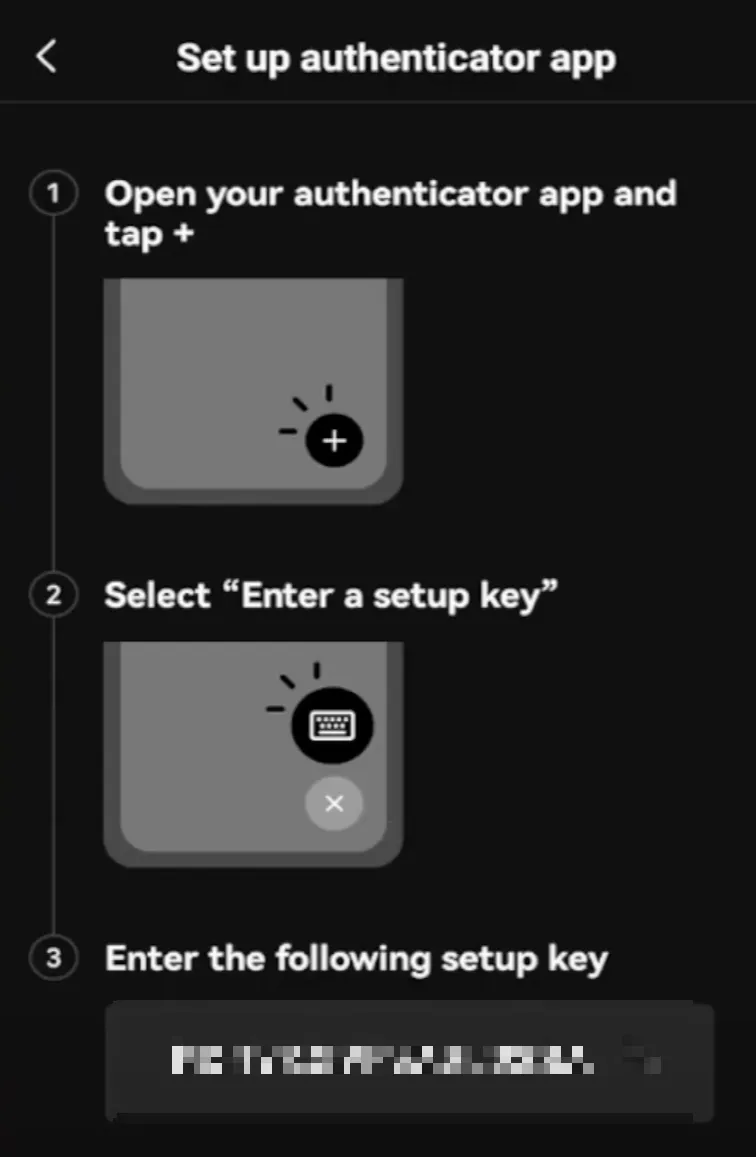
Now it's time to link the 2-step verification app. Open your authenticator app and scan the QR code shown on the screen, or copy and paste the verification code. For Google Authenticator, tap the '+' button at the bottom, and then you can enter the verification code.
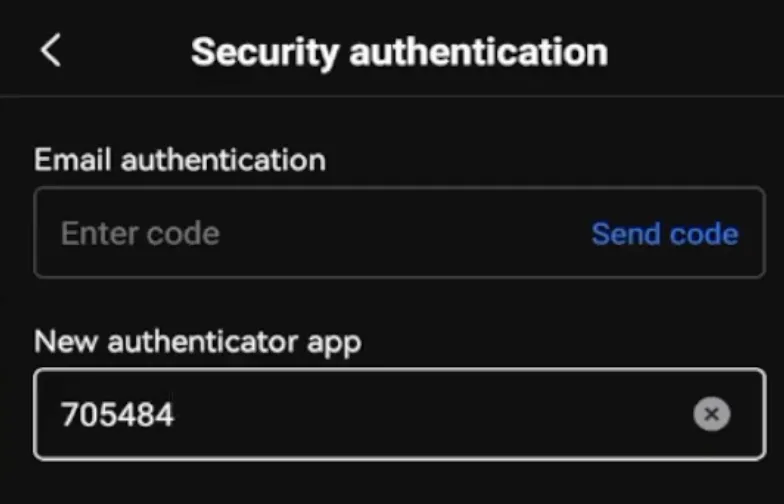
A temporary 6-digit verification code will appear in your authenticator app. Enter it in the OKX app. If the code is correct, the 2-step verification app will be successfully linked.
How to link an authenticator app on PC
Here's how to link a 2-step verification app from your computer or browser. Log in to the OKX exchange and go to 'Security Center'. Next, in 'Security Center', select the 'Set up' button next to 'Authenticator App'.
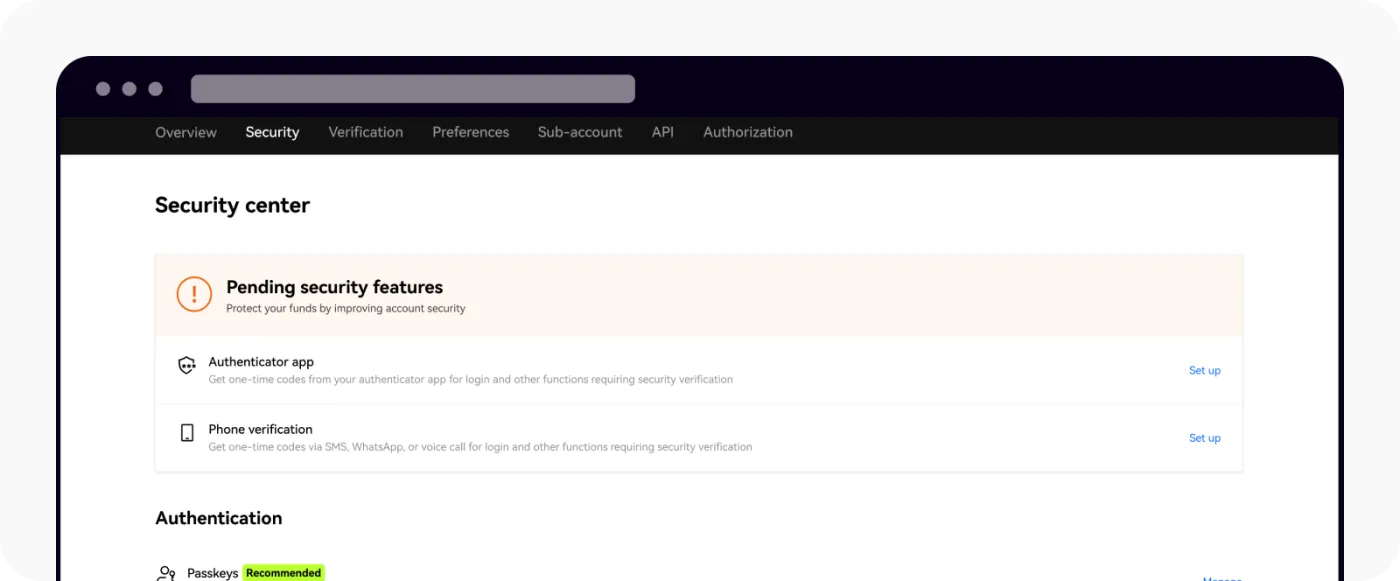
Next, a manual code and a QR code for linking your authenticator app will appear, as shown below. Launch a 2-step verification app such as Google Authenticator, then scan the code. Alternatively, you can copy and paste the setup code directly.
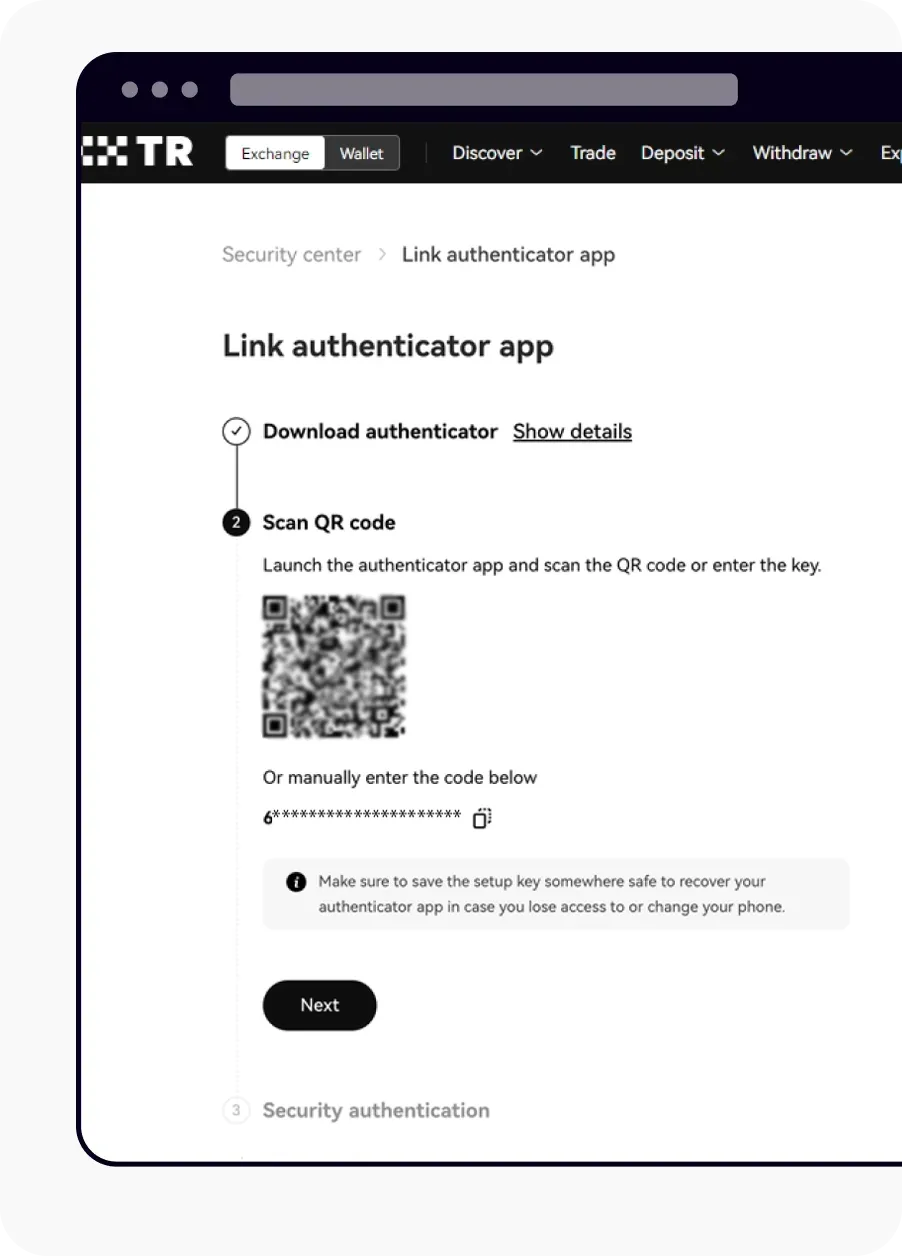
Enter the 6-digit verification code shown in your authenticator app into OKX once more. If all the information is correct, the 2-step verification app setup will be complete. Also, for a more secure setup, don't forget to 'disable cloud sync' in your authenticator app.