How to Check Your OKX Fee Discount and Payback
7 min read · · Korean original
Contents 7
Hello, this is Bitpunk. In this post, we'll look at how to check whether an OKX fee discount has been applied and how to view your payback history. These benefits depend on your account's VIP level and the referral code you entered when signing up.
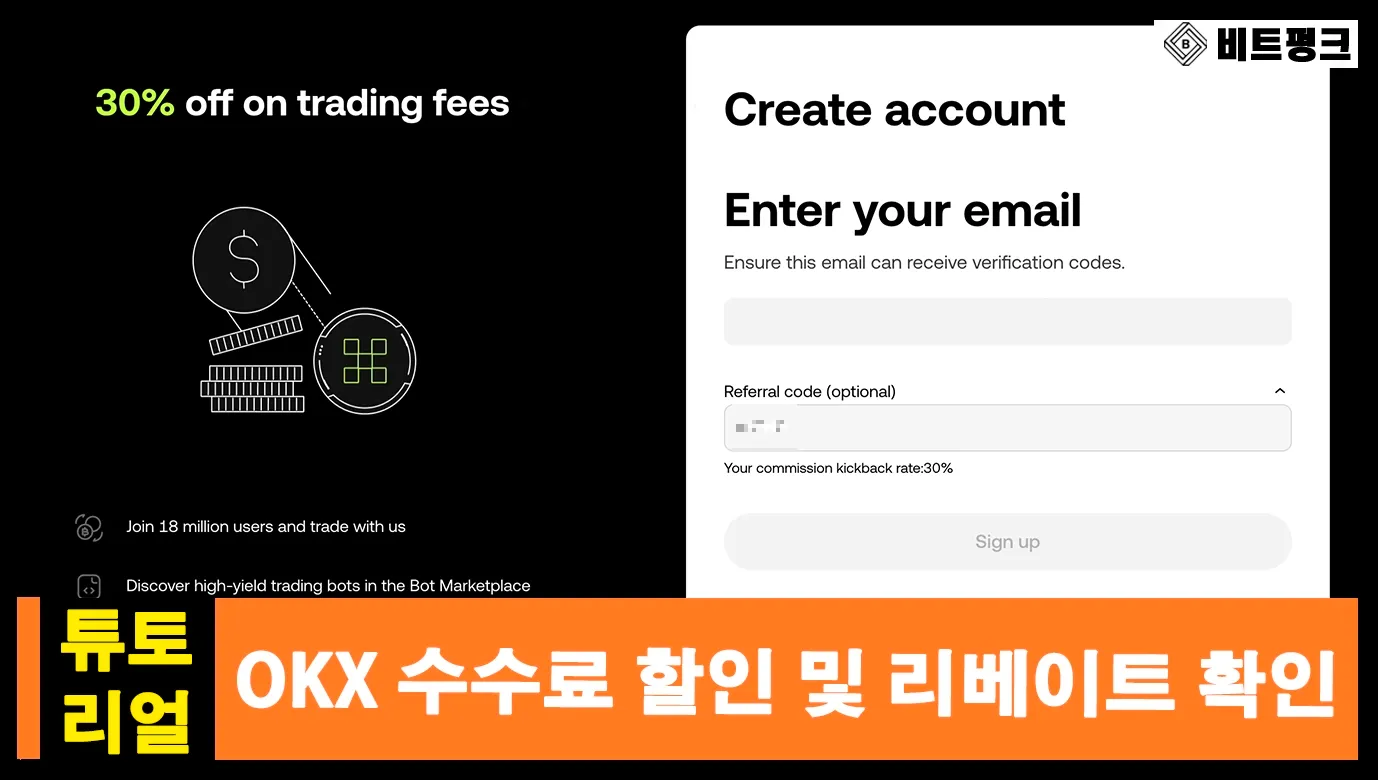
The maximum discount and payback rate you can get right at sign-up is currently 20%. When signing up for the OKX exchange, use the link below or enter the referral code BITPUNK yourself.
- Sign up for OKX: https://www.okx.com/join/bitpunk
After signing up through the link above, once you reach VIP Level 1 on the OKX exchange, you can get an additional fee discount of close to 50%. Combined with the base 20% payback, this gives you a fee discount of up to 80%.
1. What is OKX's fee structure?
On OKX, different maker and taker fees apply depending on how you trade.
| Maker | Limit order | 0.08% (spot) / 0.02% (futures) |
| Taker | Market order | 0.10% (spot) / 0.05% (futures) |
For example, buying 1 BTC at market price → taker fee: 0.10% → a fee worth 0.001 BTC is charged. Conversely, selling 1 BTC with a limit order → maker fee: 0.08% → a fee worth 0.0008 BTC is charged.
2. How much of a discount do you get at VIP Level 1?
Once you reach VIP Level 1 after signing up for the OKX exchange, you can get about a 50% discount compared to the standard fees.
| Regular user | 0.08% | 0.10% | 0.02% | 0.05% | – |
| VIP 1 | 0.045% | 0.050% | 0.01% | 0.03% | About 50% ↓ |
To reach VIP Level 1, you need to meet one of the following: assets of USD 100,000 or more as of the previous day, spot trading volume of USD 5 million or more over the last 30 days, or futures trading volume of USD 50 million or more.
In short, from VIP Level 1 and up, fee discounts apply to all products, and you can trade at up to 50% off the standard fees.
3. How do you check your current fee tier?
OKX applies different fee tiers based on each user's trading volume and asset holdings. You can check your current fee tier and the fee rates actually applied to you at the path below.
■ How to check on the web/PC
Here's how to check your fee tier on the OKX website. Log in → go to [Assets] in the top menu → [My trading fees].
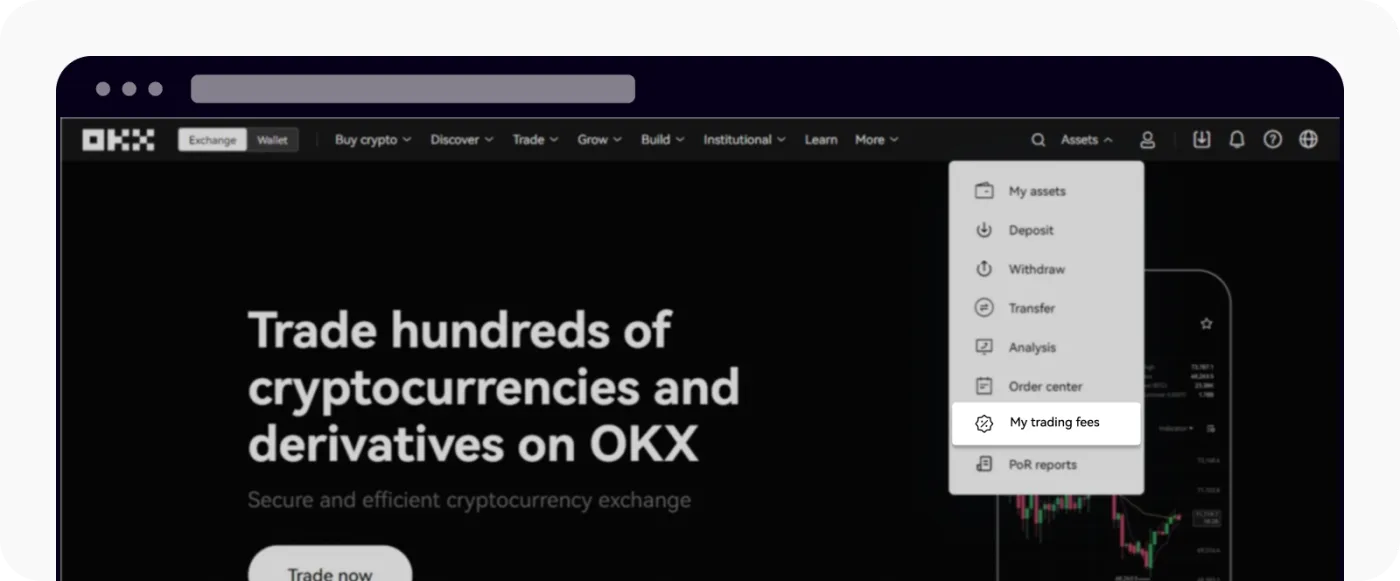
Here you can see your current fee tier and the fee rate for each type of trade. Different fee tiers apply depending on your VIP level, and your tier is upgraded automatically once you meet the trading volume or asset requirements.
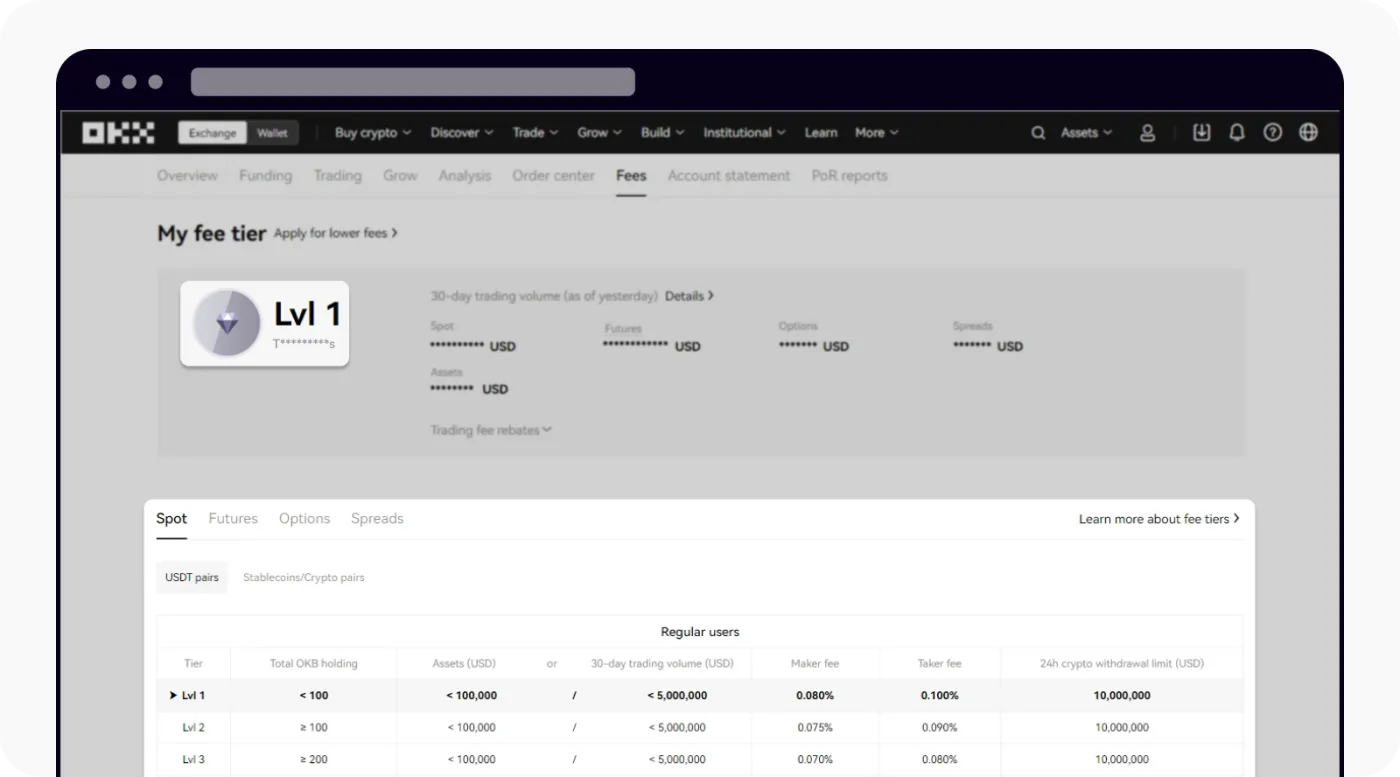
These criteria may change at any time according to OKX's policies. Don't forget to regularly check OKX's latest announcements along with the latest trading fee schedule.
■ How to check in the OKX app
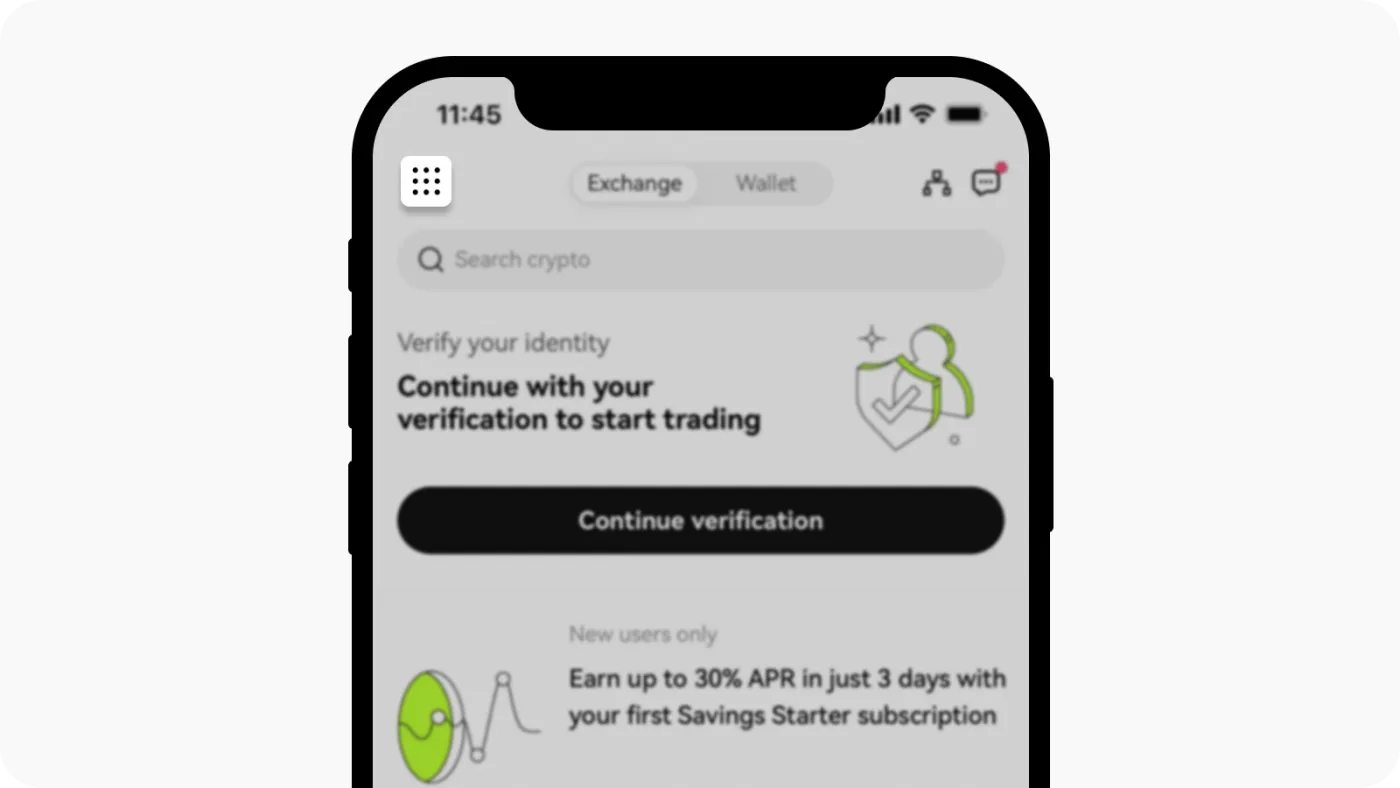
Here's how to check your fees in the OKX app. After logging in, go to [User center] from the menu in the top left.
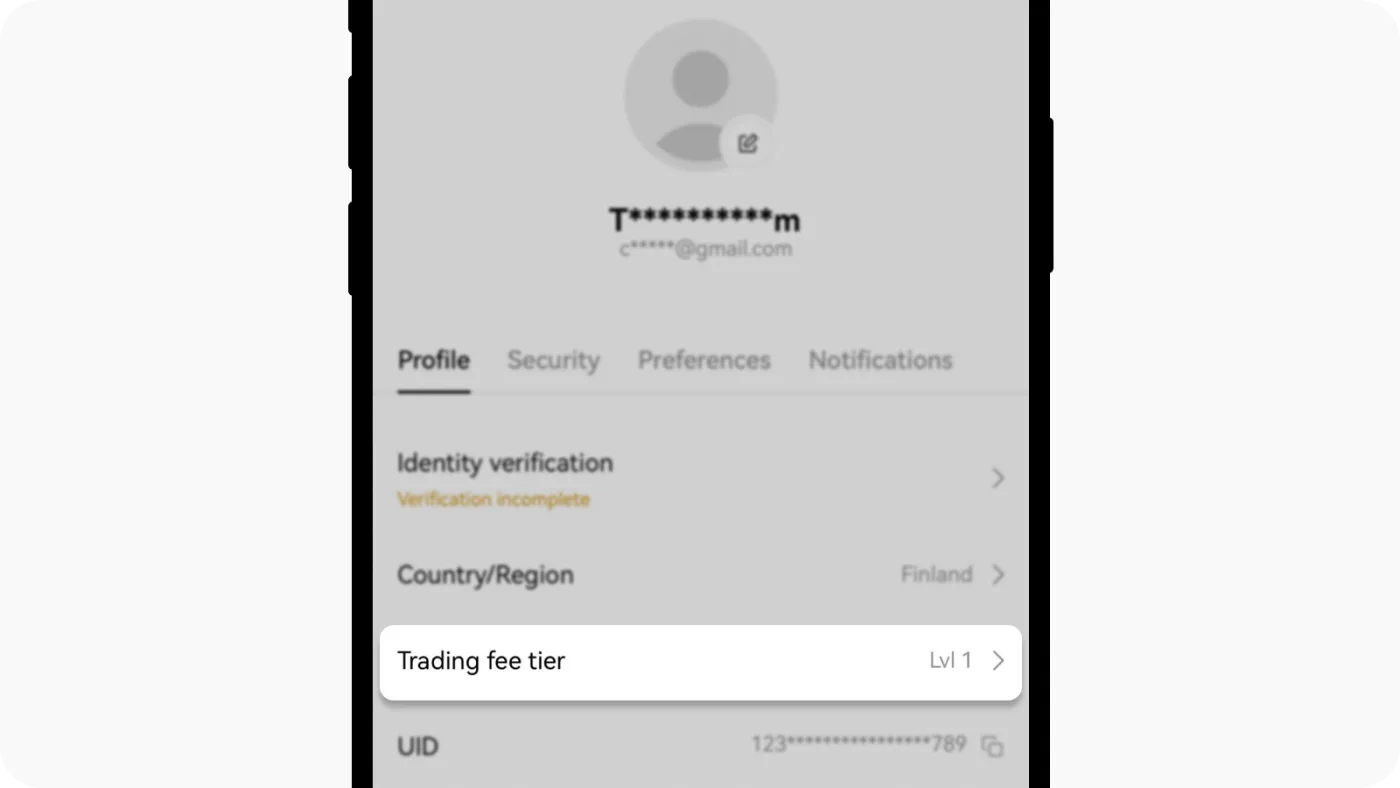
As shown below, go to the [Profile & settings] → [Trading fee tier] section, and you can see exactly which fee structure is currently applied to your account.
4. How to check your fee payback and referral code
OKX gives a certain percentage of fee payback (rebate) to users who sign up with specific referral codes. Along with that rebate rate, you can also check exactly whether the referral invite code you entered at sign-up was actually applied.
The path differs depending on the device you use, so we'll walk you through the PC web version and the mobile app version separately below.
■ How to check on the web/PC
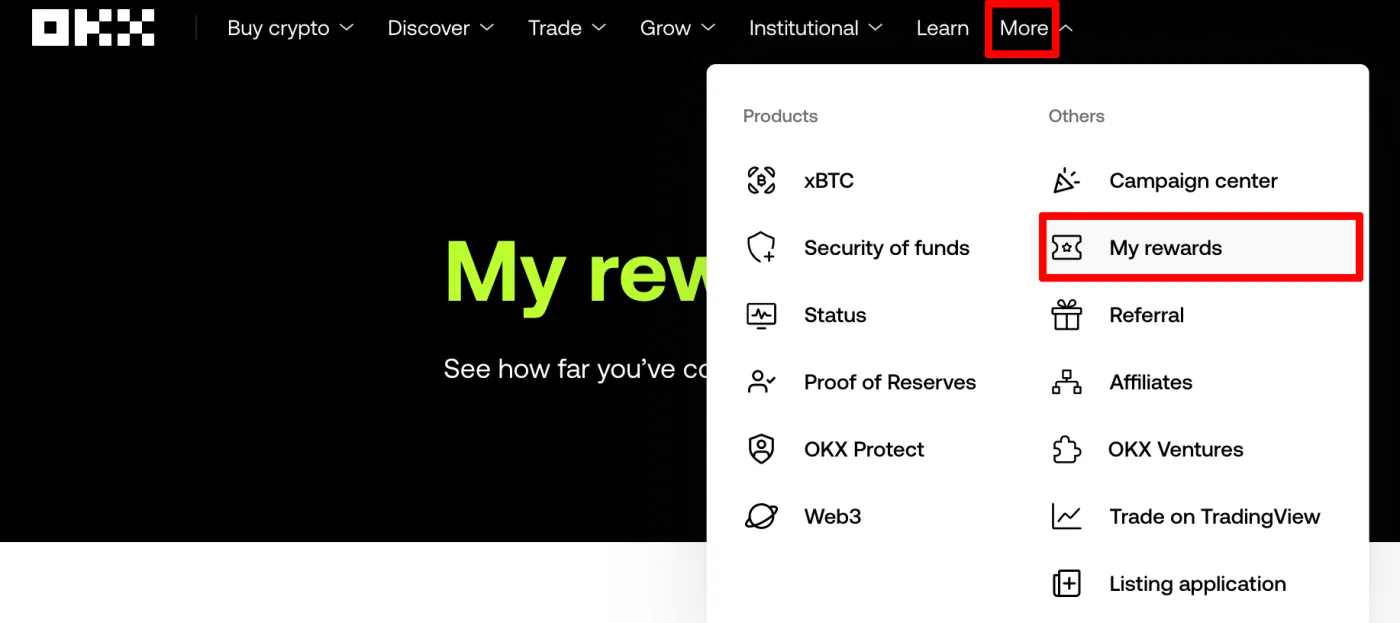
- Go to the OKX website and log in
- From the top menu, go to [More] → [My Reward]
- Under [My Perks] at the bottom of that screen, check your currently applied rebate (fee payback) rate
- When you click the ‘More’ button, the following is shown:
- The referral invite code you entered at sign-up
- The fee rebate rate for that code
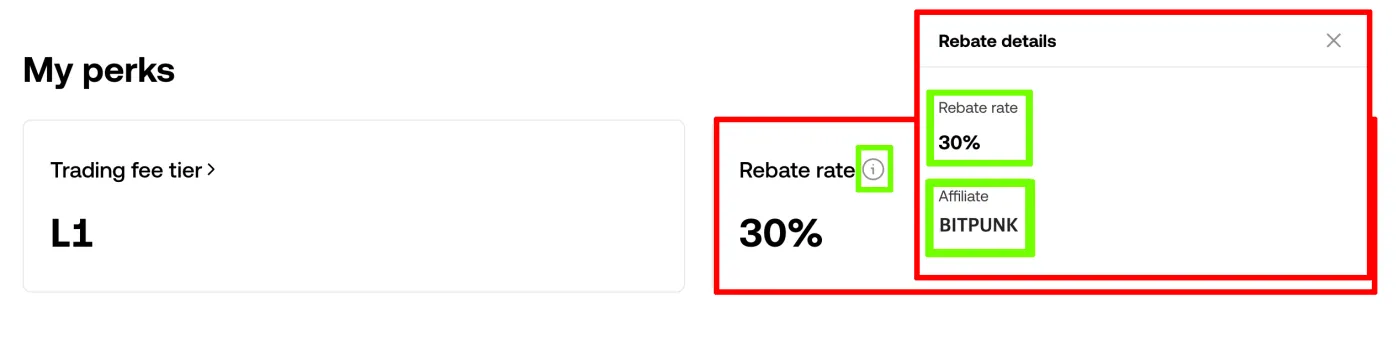
If this screen shows a different code with no discount, or a rebate rate of 0%, you aren't receiving any benefit at all. The maximum rebate rate is 20%, and you can only get it by entering the correct code when you sign up.
■ How to check in the mobile app
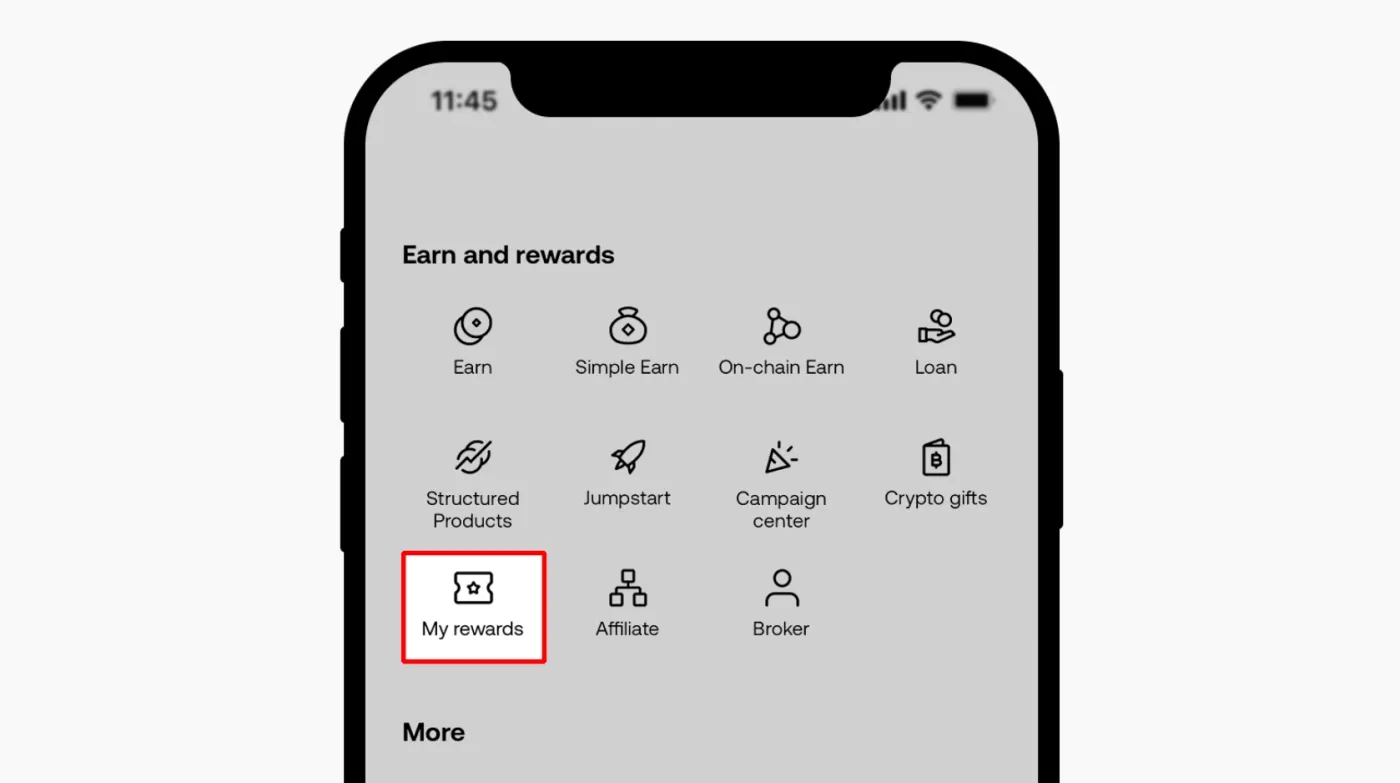
- Open the OKX app and log in
- In the menu tab, go to the 'Earn and Rewards' section
- Select [My Rewards]
- At the bottom, you can check the applied rebate rate and your invite code information
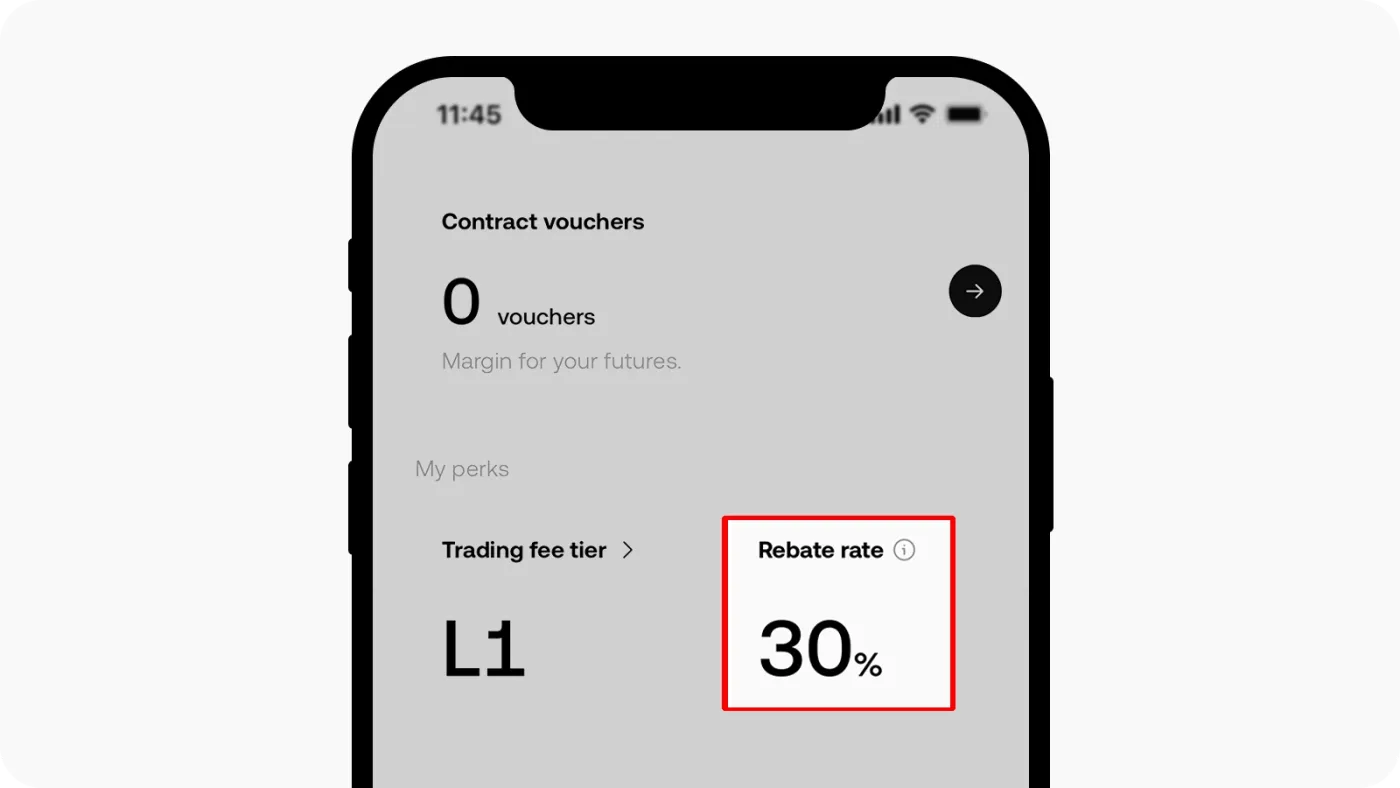
5. How to change your referral code (after signing up)
If the code you entered at sign-up was wrong, or you want to use a code with better benefits, the only way is to close your existing account and sign up again. The steps are as follows.
- Move all assets out of your existing account
- Request account closure under [Security] → [Close Account]
- After a certain period, the account is completely deleted
- Sign up again with a new email/phone number
- At this point, enter the maximum-discount referral code BITPUNK
Keep in mind that it may take at least a week or more between closing your account and signing up again. Also, a deleted account is difficult to recover, so decide carefully.
6. How to check the fees you've actually paid
On OKX, you can easily check the fees charged on your past trades. Beyond just viewing your trade history, you can even see how each fee was calculated.
■ Checking your fee history on the PC web
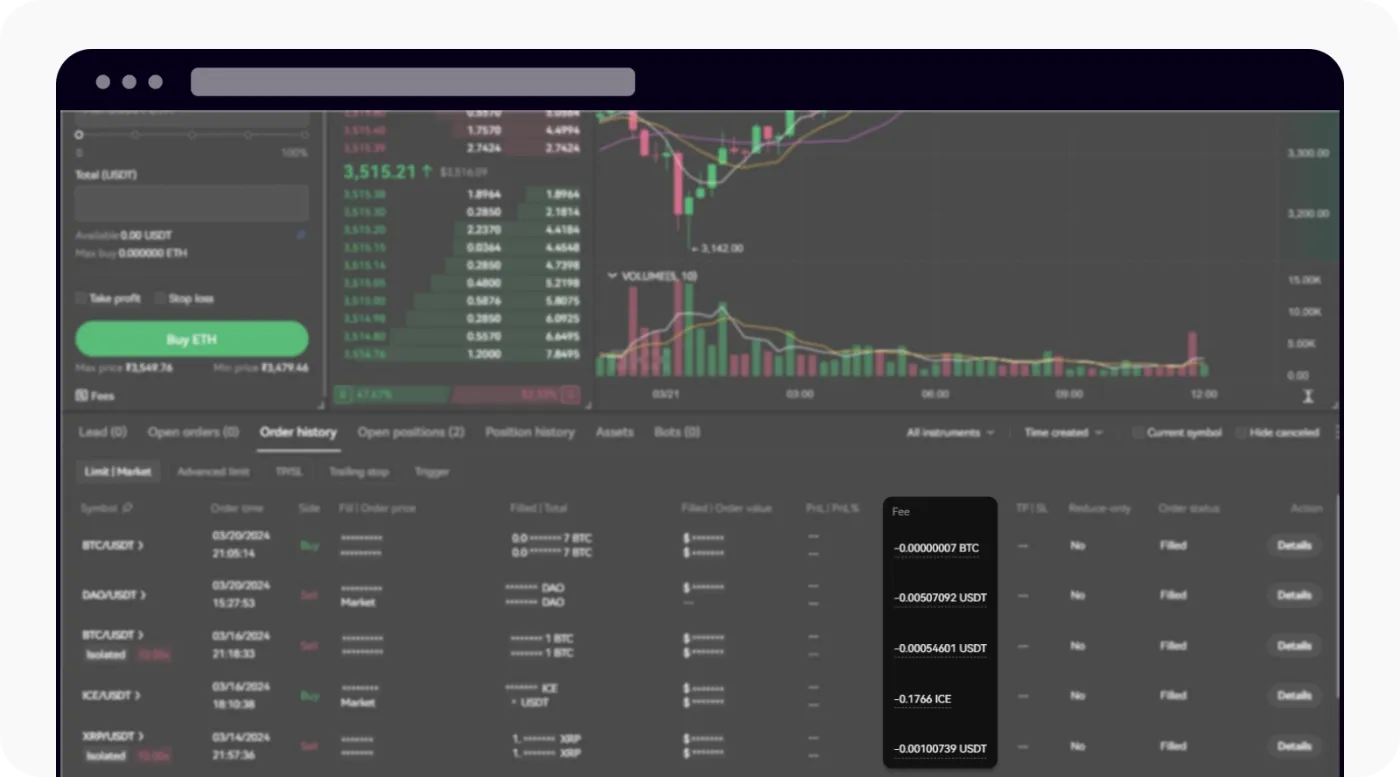
1. After logging in to OKX, click [Trade] > [Order History] in the menu, and the fee amount for each filled trade is shown right away.
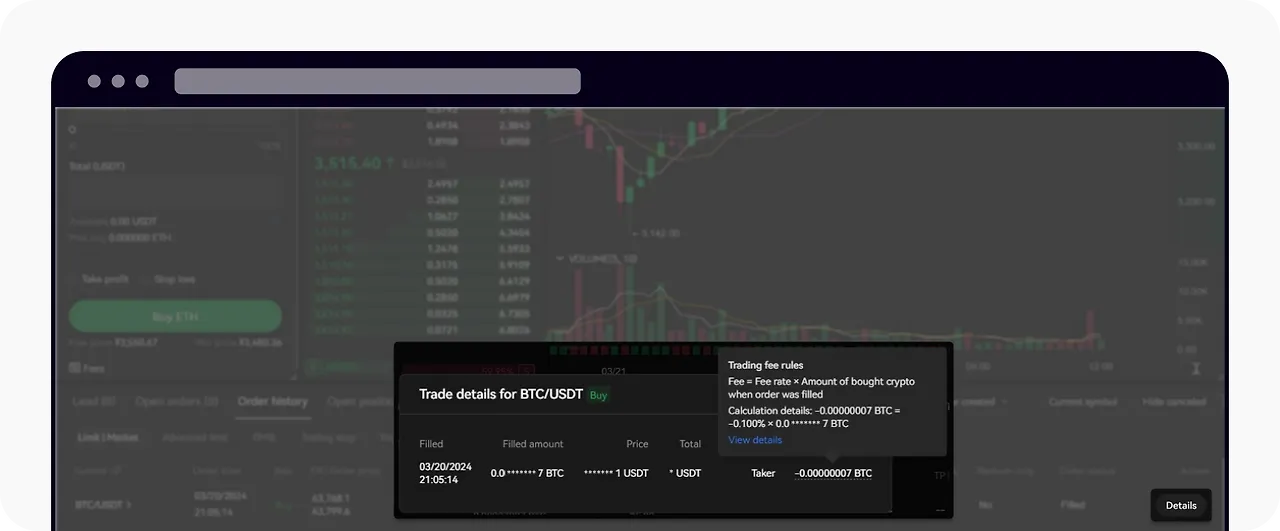
2. Click [Details] next to the fee field to see the fee calculation method for that trade. You can also hover your mouse over the fee figure to see the detailed calculation in a tooltip.
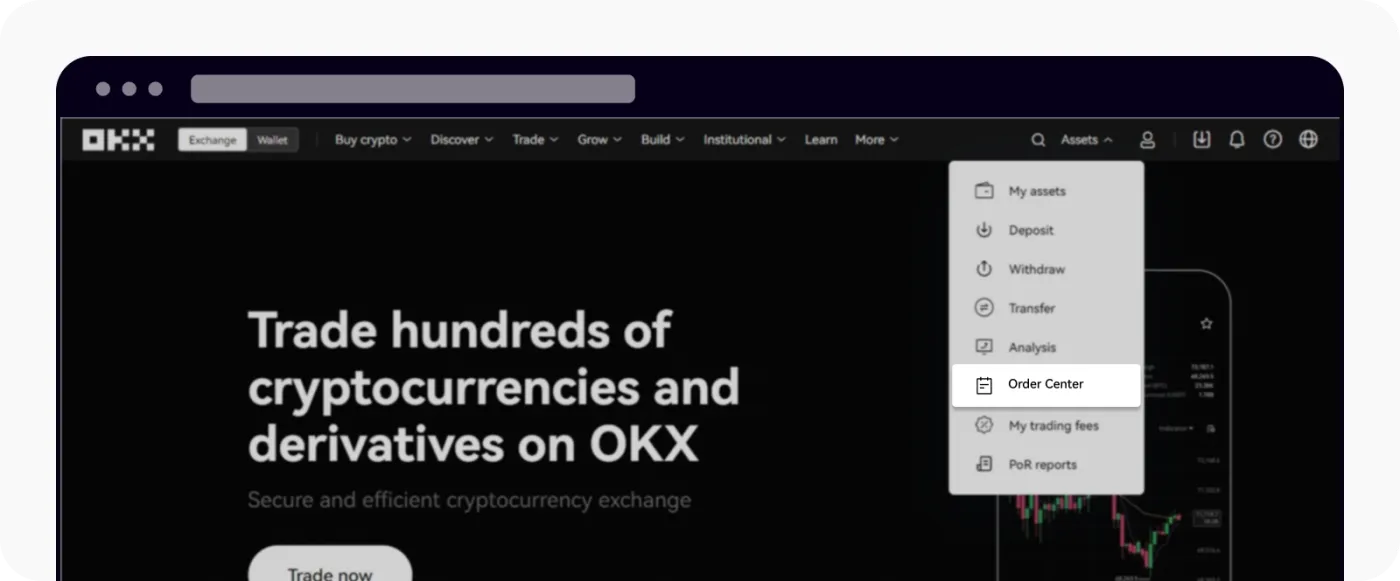
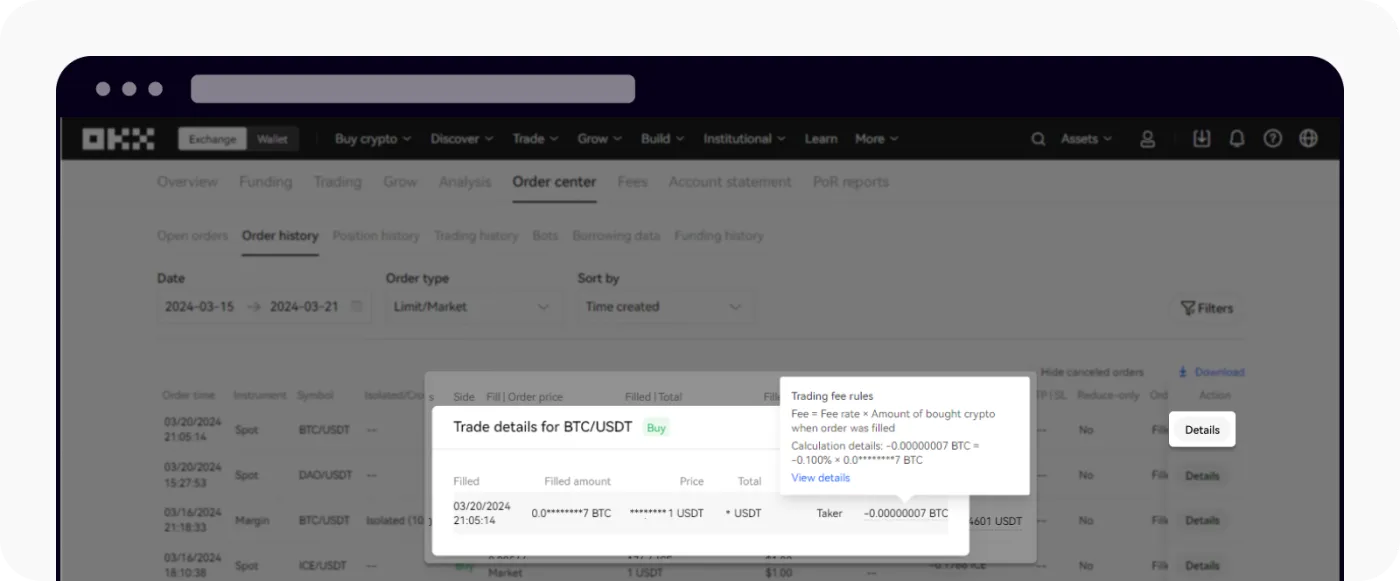
3. If you want to see your entire trade history to date, go to [Order Center] > [Order History].
Here, using the [Details] button, you can accurately check the full fee history of every trade completed so far.
4. For futures trades, check the [Position history] tab at the bottom to see the PNL, funding, and trading fees for each position in detail.
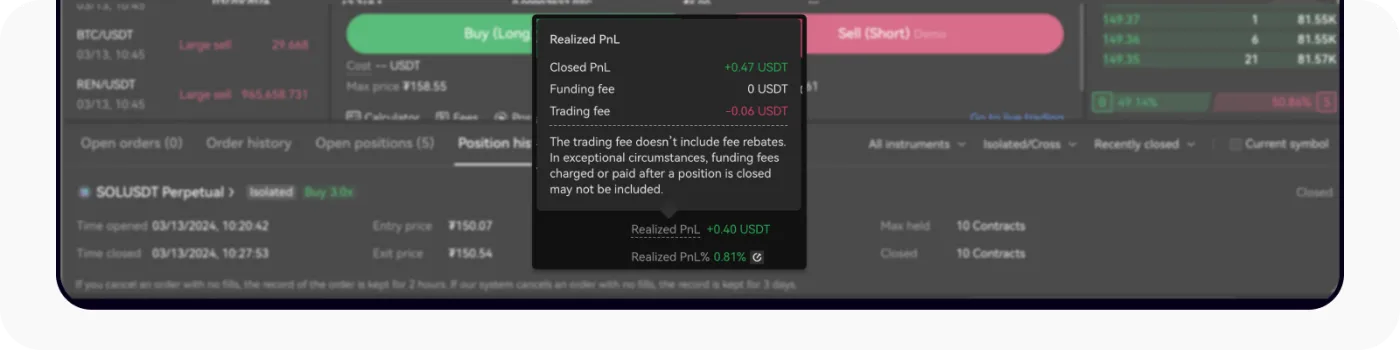
■ Checking your fee history in the mobile app
1. After logging in to the OKX app, select the [Trade] tab in the bottom menu.
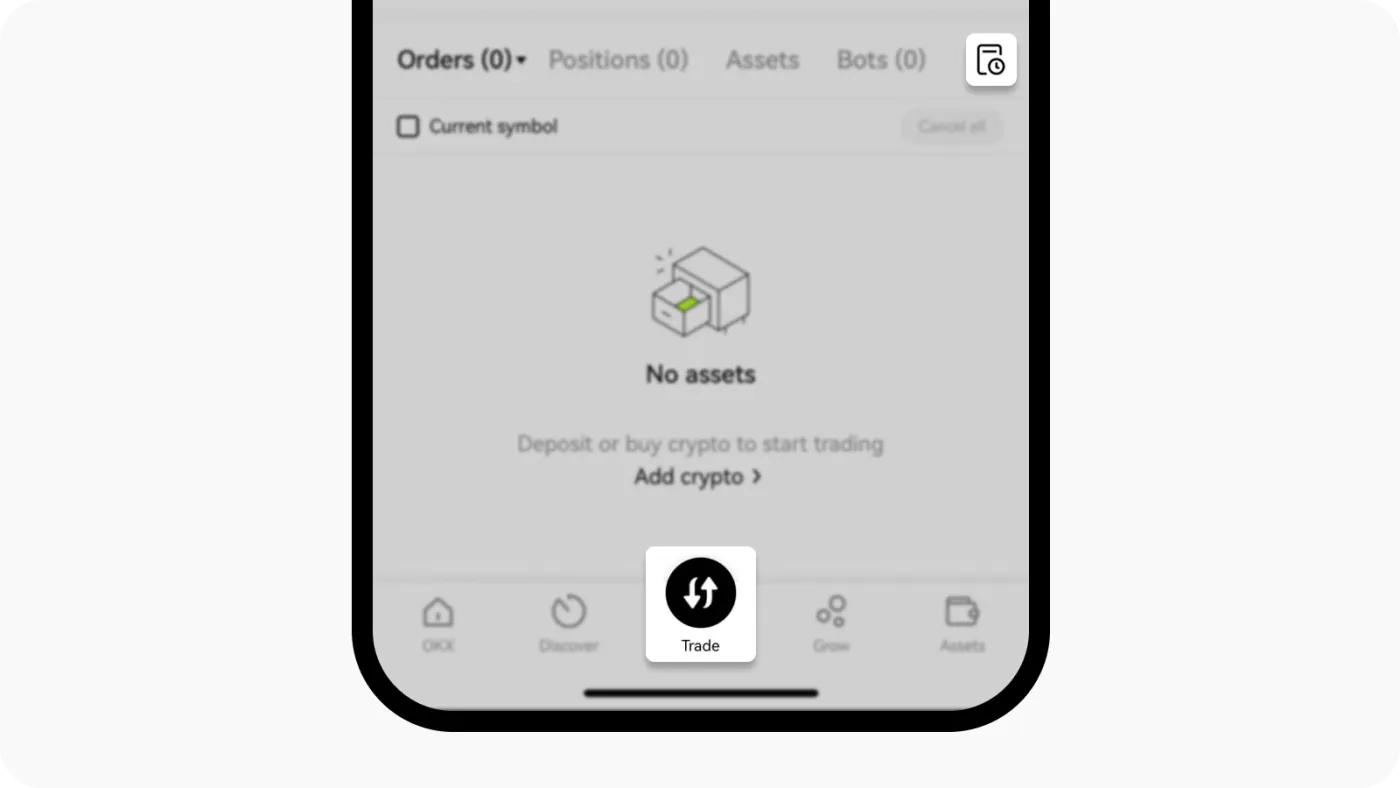
From the top menu, go to [My Trades] > [Order History]. Click [Fill Details] next to each trade to see the fee amount applied to that trade.
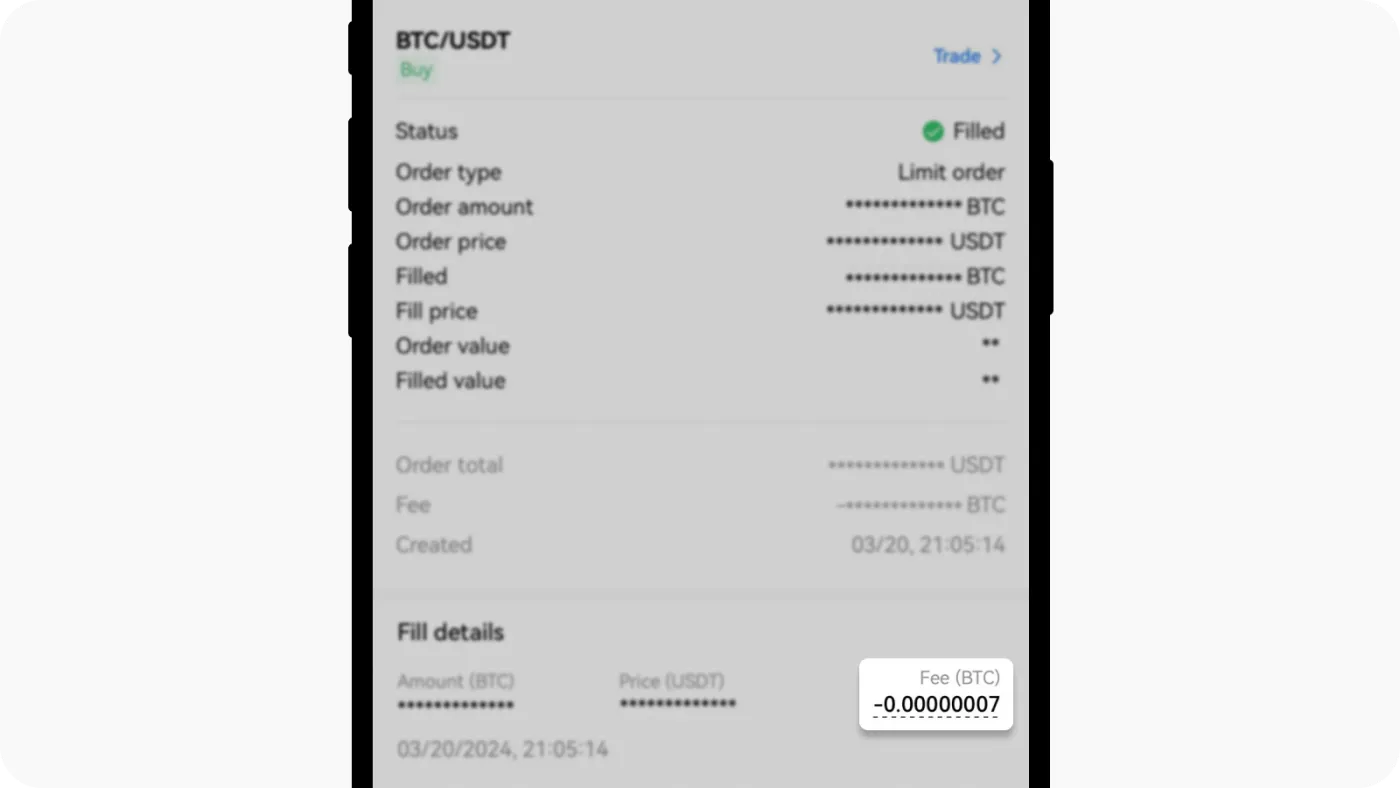
Tap the fee field to see the calculation, showing on what basis the fee was charged.
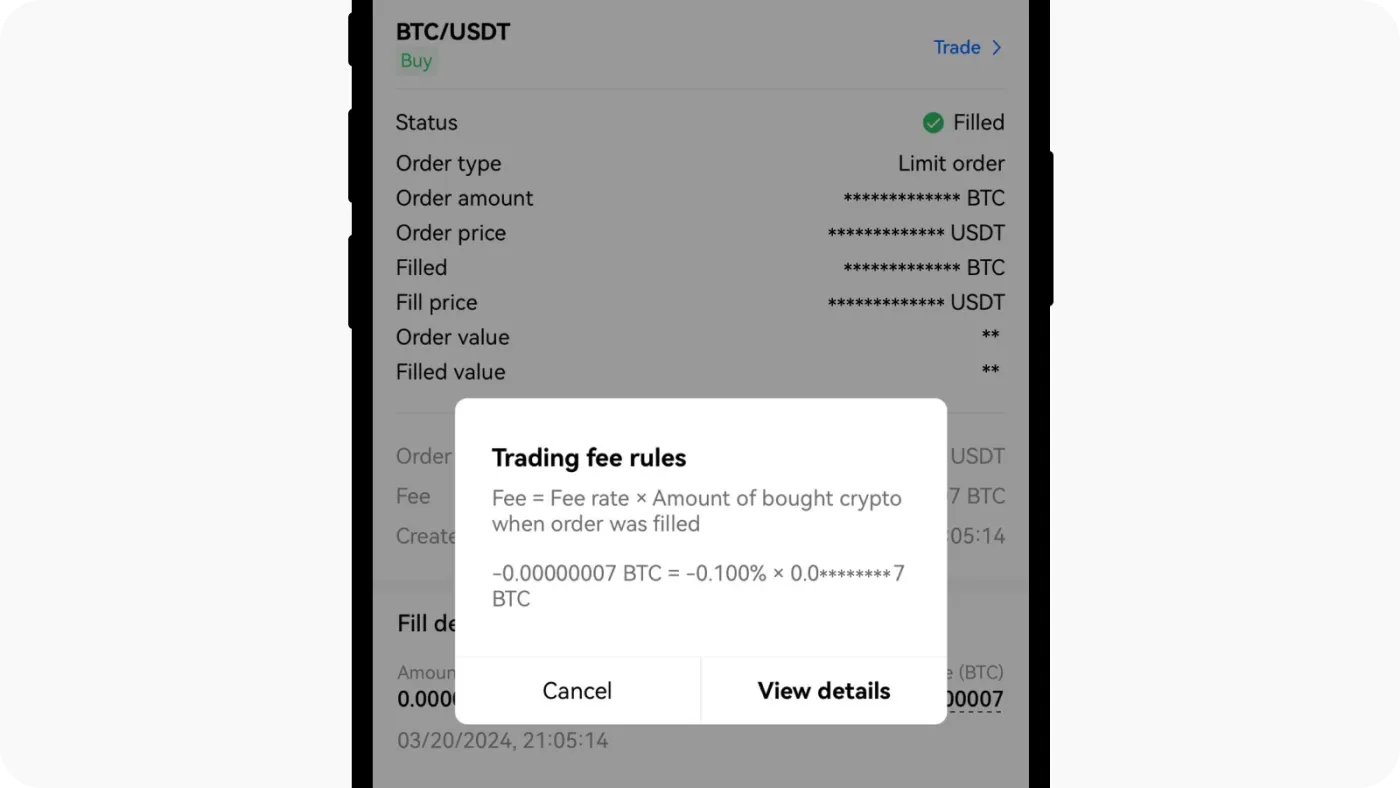
As you can see, OKX transparently provides both your fee history and how fees are calculated, which is useful if you want an accurate picture of your trading costs. Whenever you wonder why a fee came out the way it did, just follow the paths above to check right away.
Wrapping up
That covers how to check your OKX fee discount and rebate rate. In summary, raising your tier to VIP Level 1 gets you a fee discount of close to 50%.
On top of that, if you enter a referral code with benefits when signing up, you can get up to 20% of your fees paid back. Together, this works out to a total fee discount of 80%.
For reference, OKX fee payback (rebate) amounts aren't credited instantly; they are usually settled every hour after trades are completed and paid into your account.