How to Show Your Order History on the OKX Exchange Chart
3 min read · · Korean original
Contents 4
When you trade on the OKX exchange, you sometimes wonder, "When did I buy this?" or "When did I sell this?" You can check each of those trades one by one in your OKX trade history, but you can also display them right on the chart to see them faster.
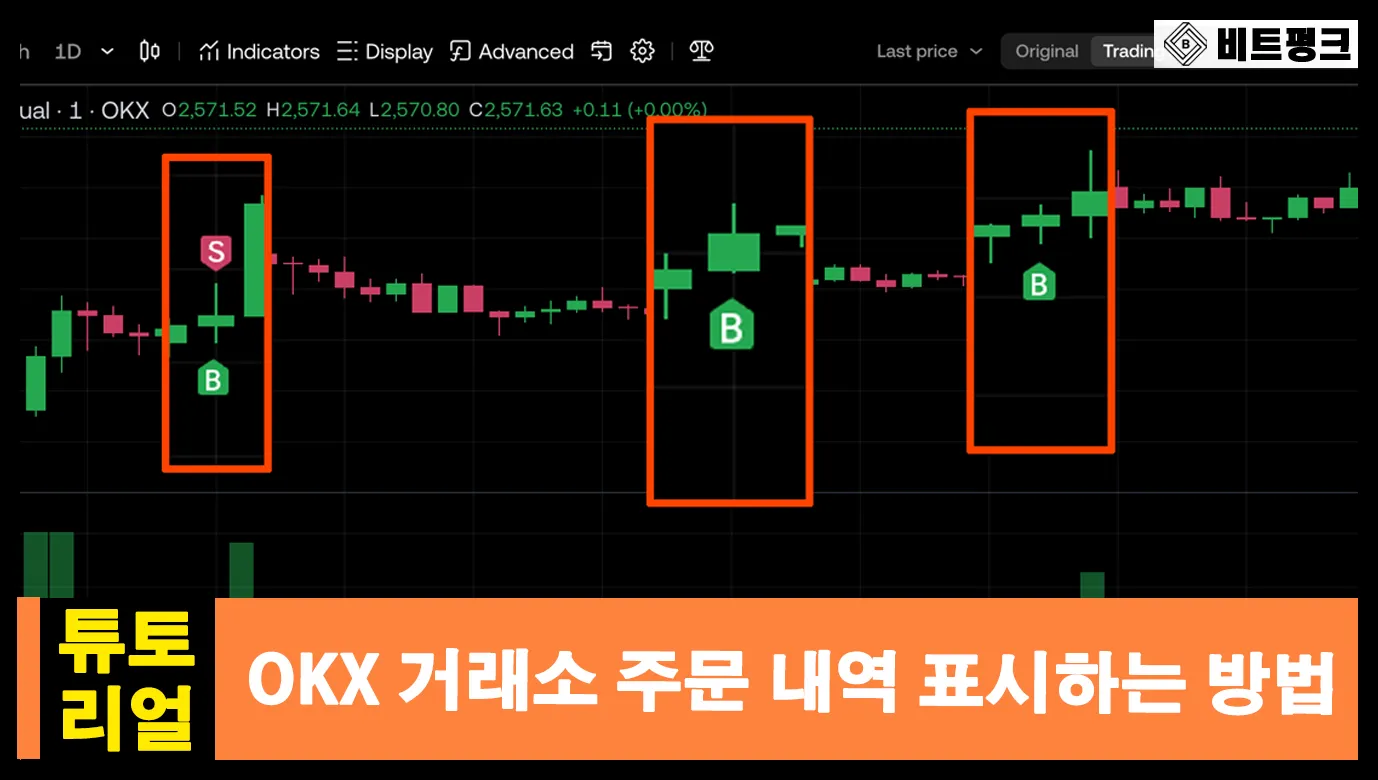
In this post, we'll look at how to show your "historical orders" on the OKX exchange chart. For futures trading in particular, this history can help you check whether your entry timing was right and spot repeated patterns and behaviors.
What is the historical orders display feature?
The OKX exchange offers a tool that visually shows "the price and quantity of orders filled in the past." Buy (B) and sell (S) points are usually marked with arrows or dots, and you can hover your mouse over them to see the details.
How do you show order history on the chart?
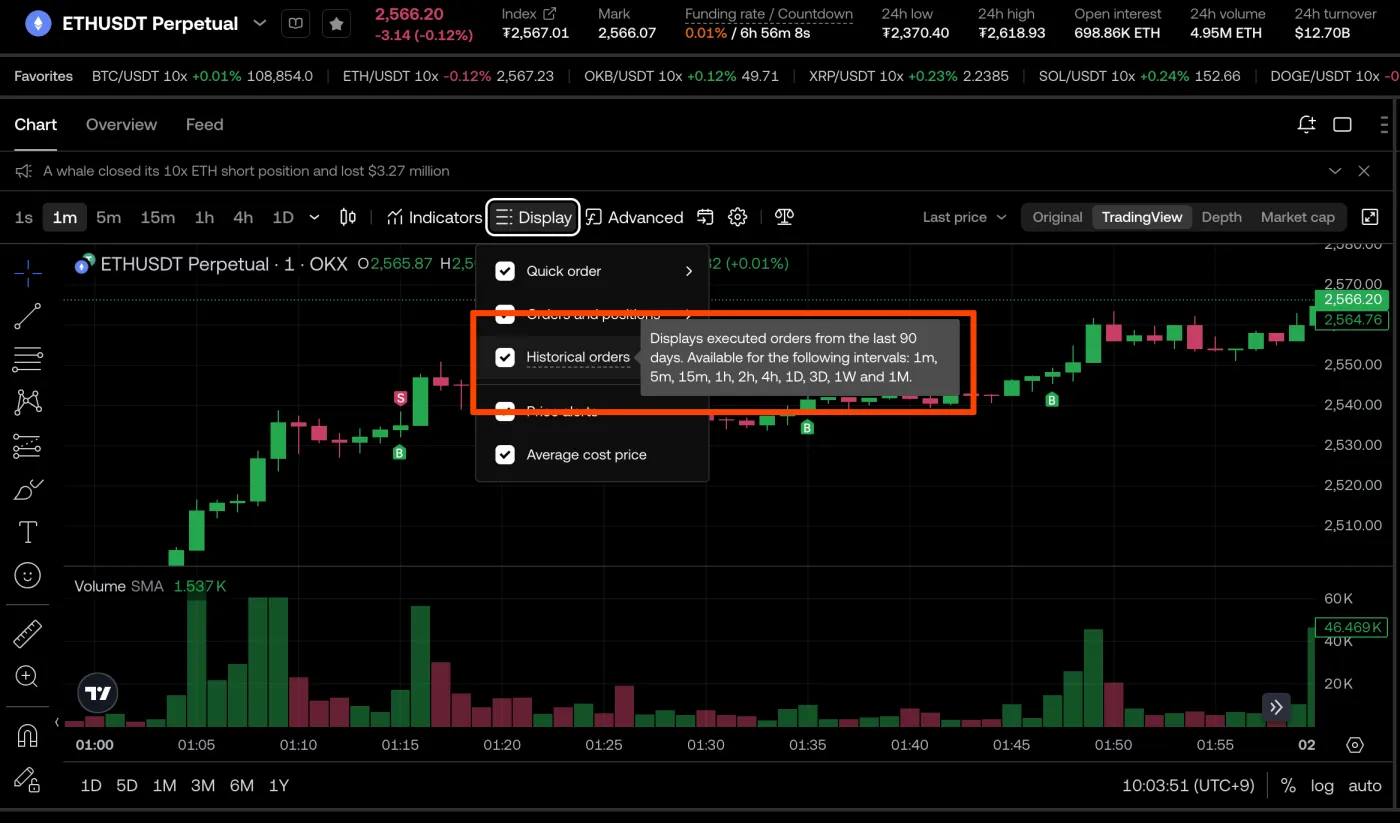
Here's how to display your order history. After logging in to the OKX exchange, go to the trading pair whose history you want to check. For example, you can go to the ETHUSDT perpetual futures. Next, select "Display" in the chart settings at the top.
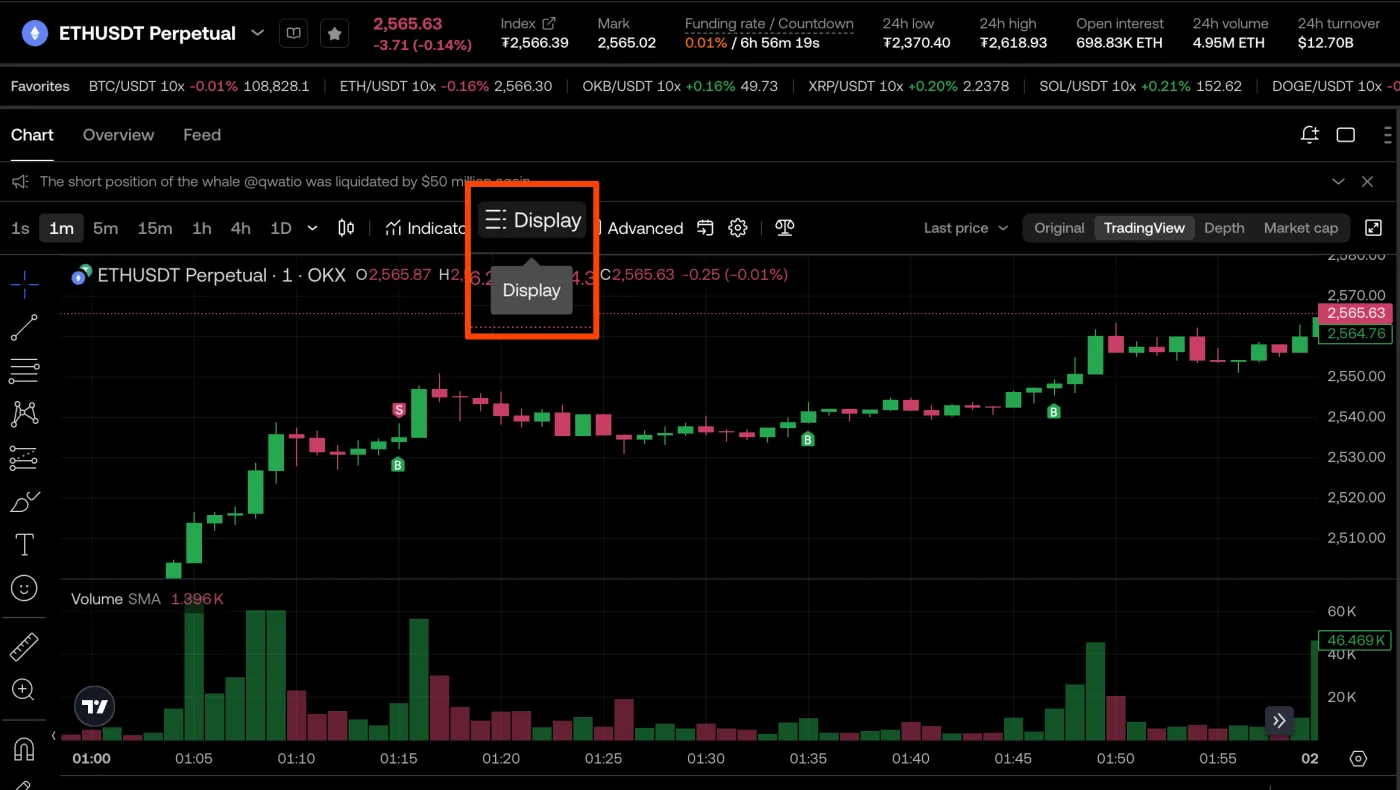
Then check the "Historical orders" box. Once you do, all of your trades from the past 90 days will be shown on the chart.
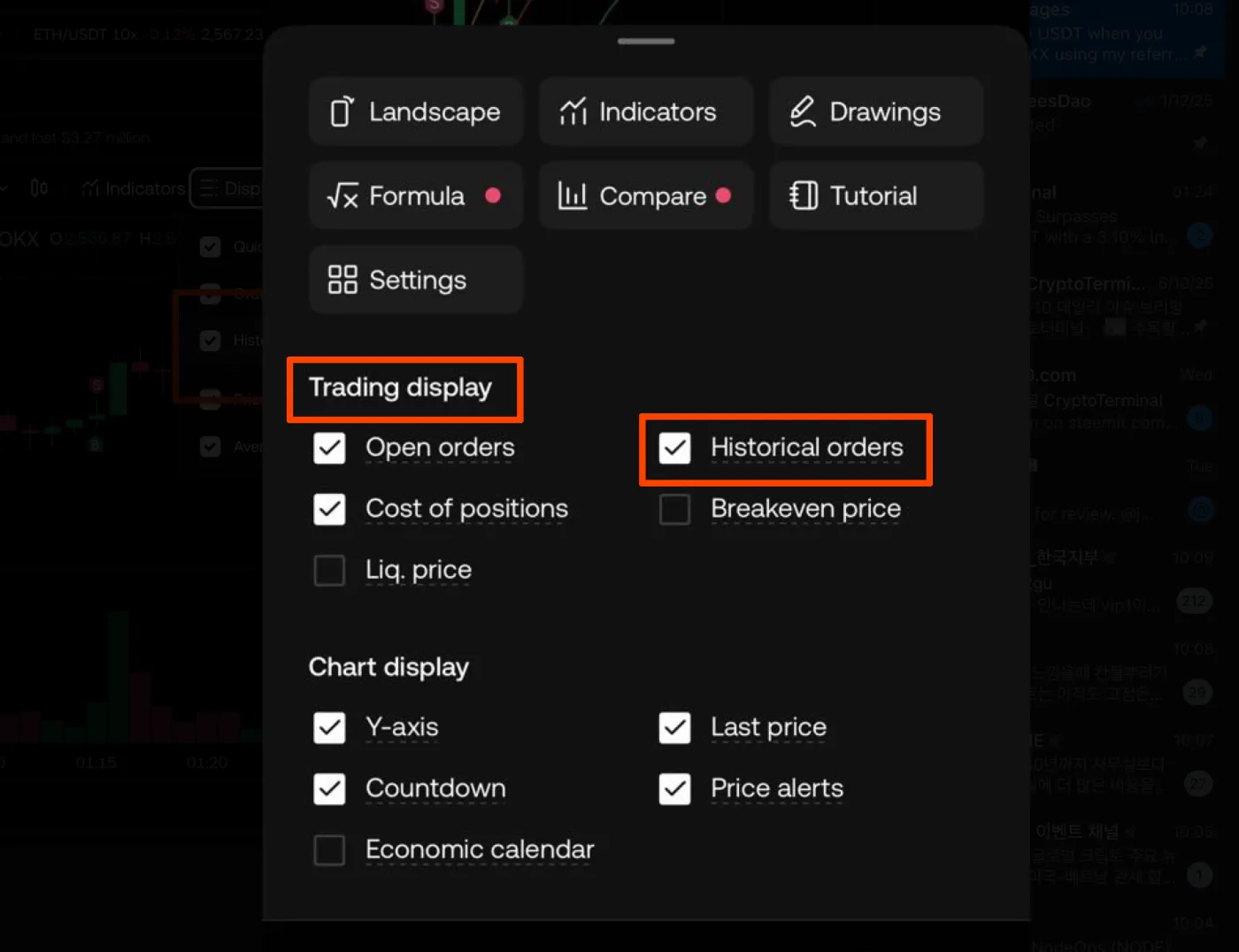
On mobile, open the trading page and tap the gear-shaped "Settings ⚙️" icon in the top right corner. Check the "Trading display" - "Historical orders" box, and your trade history will appear on the mobile chart.
How can you use the order history feature?
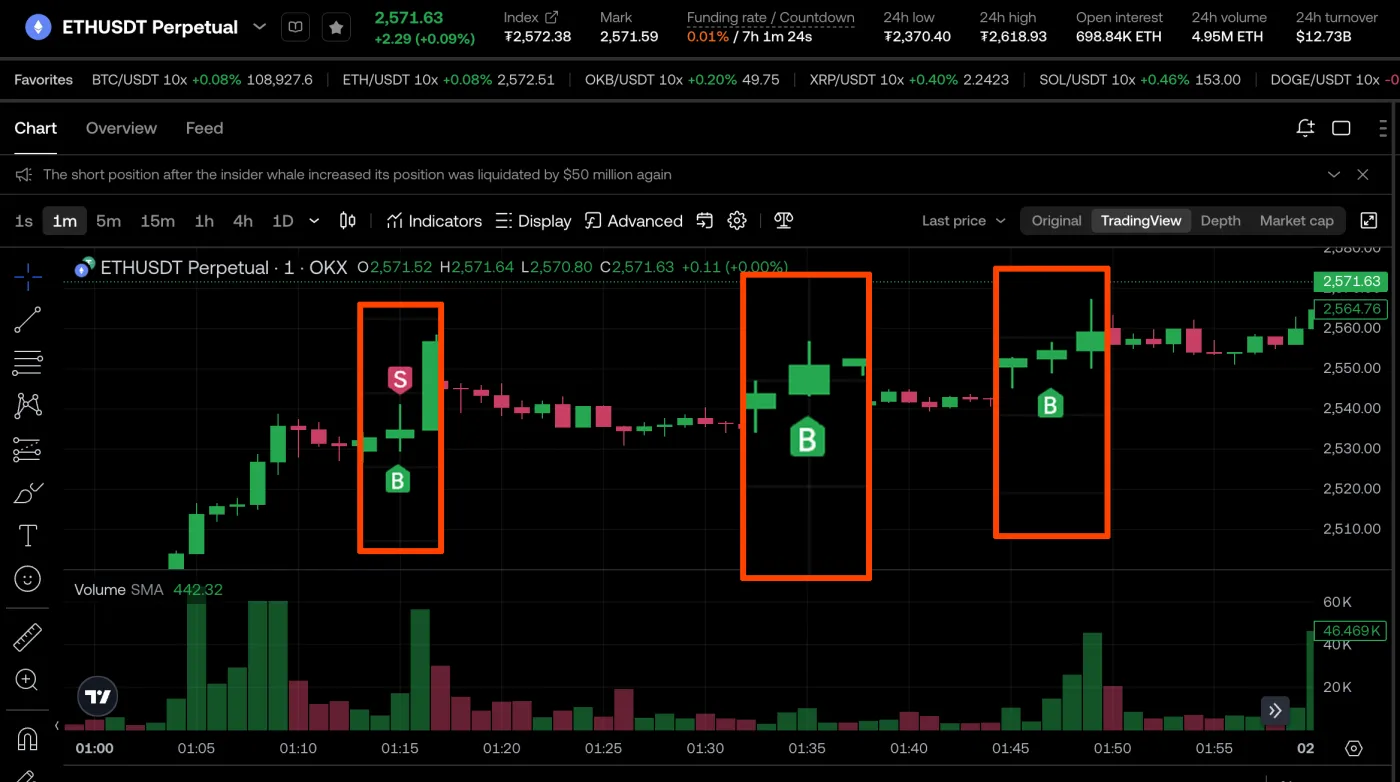
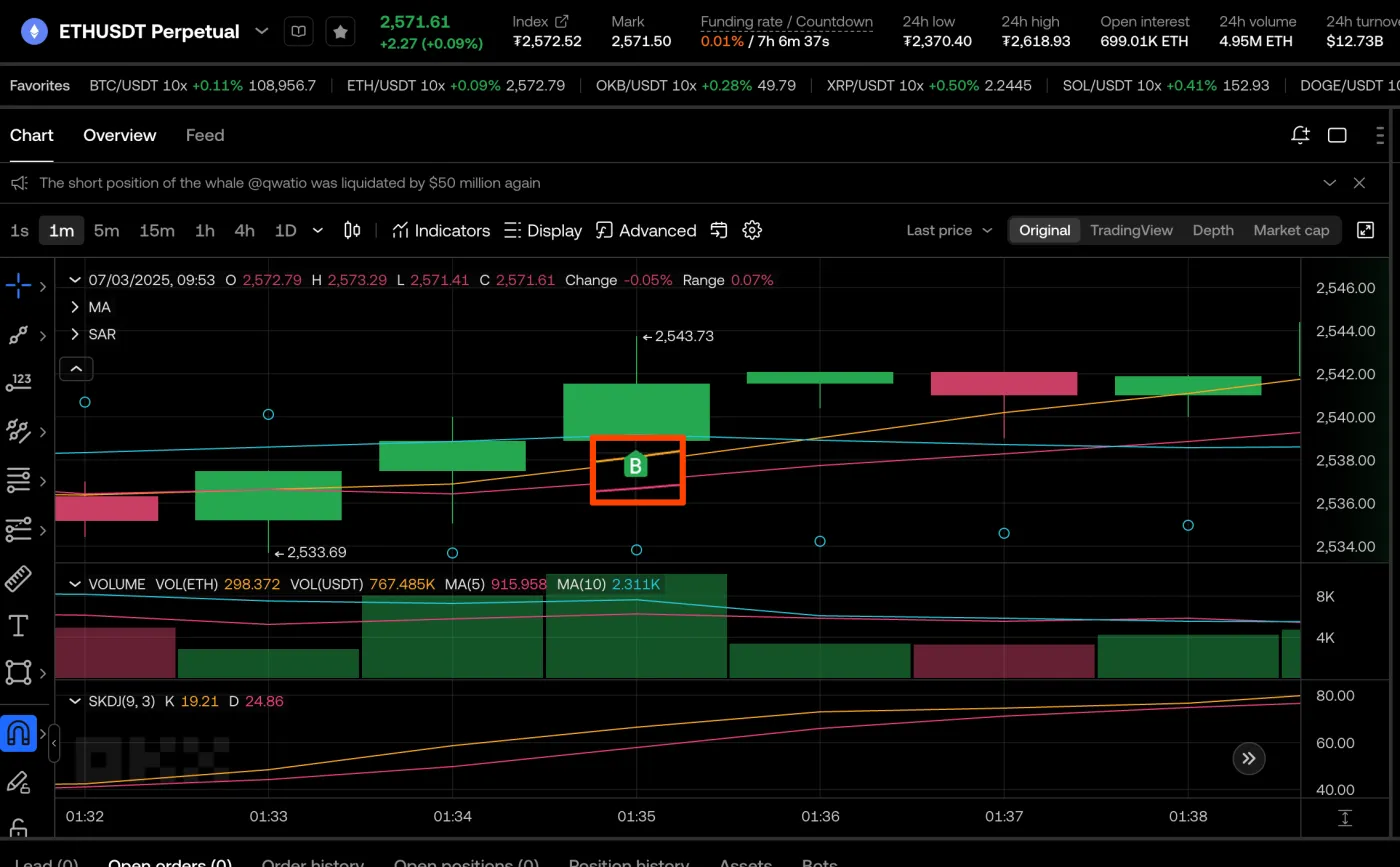
With the order history display turned on, a green "B" or a red "S" appears on the chart, as shown below. "B" stands for a filled "BUY" order, and "S" stands for a filled "SELL" order. In other words, you can see exactly when you bought and sold.
Hover your mouse over one of these markers to see more detailed order information. For example, the one below means a buy (LONG) trade was completed at an average price of $2,540.
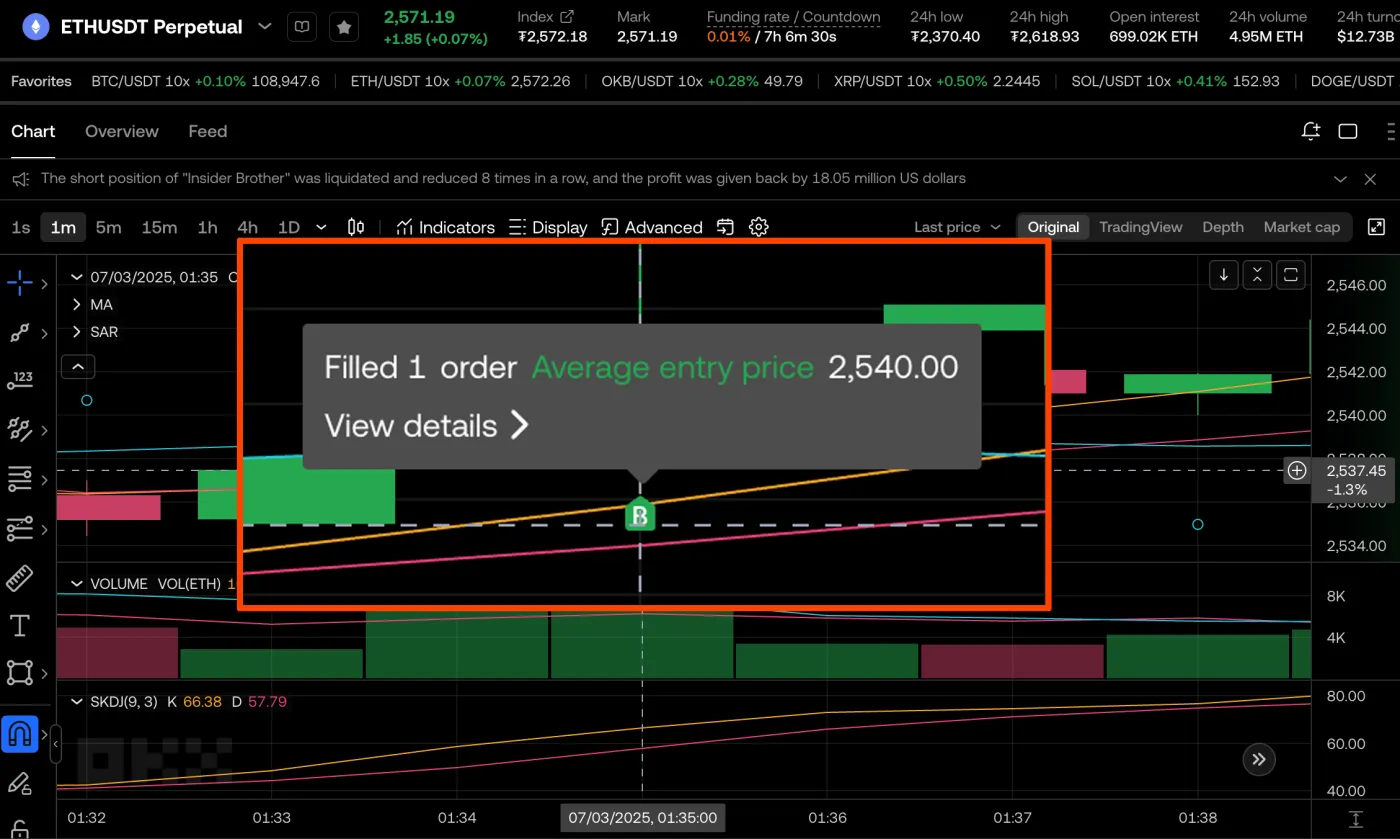
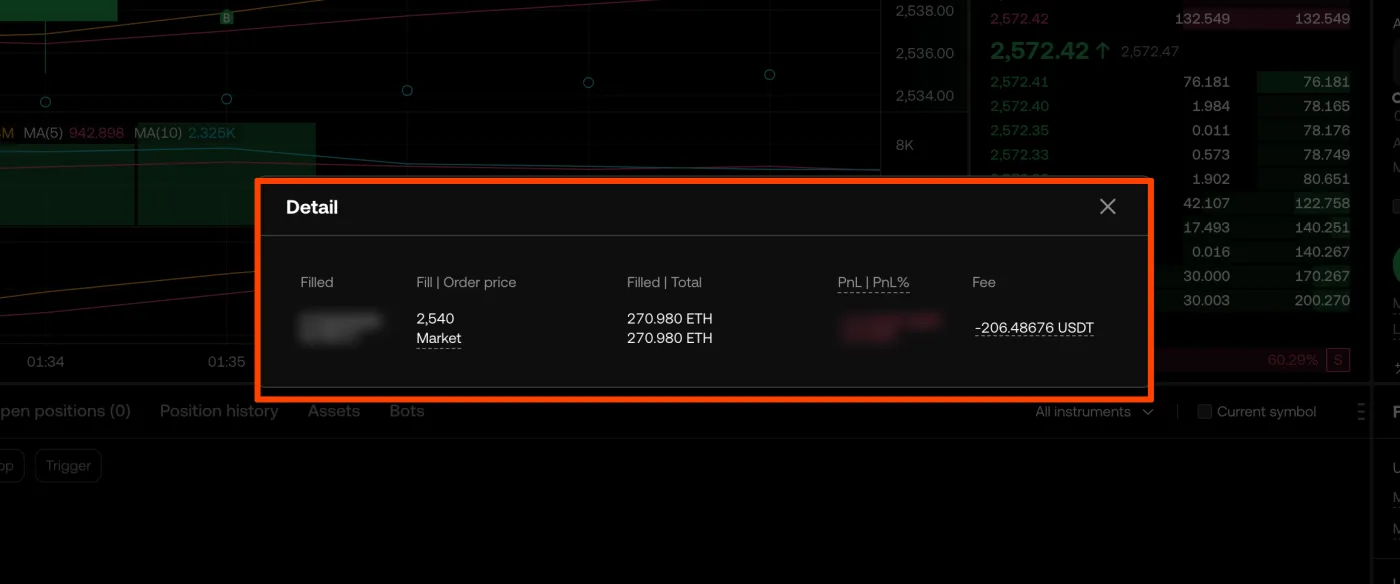
If you click "View details" here, you can see more information, such as the exact fill time, price, quantity, PnL, and fees, as shown below.
Wrapping up
That covers how to show your order history on the chart on the OKX exchange. With this feature turned on, you can review your past trades visually and much faster.
This feature works in every market, including spot, futures, and margin trading, and it only shows trades that were actually filled within the past 90 days.