How to View and Download Your OKX Trade History, Order History, and Account Statements
3 min read · · Korean original
Contents 5
Hello, this is Bitpunk. In this post, we'll look at how to download your spot and futures 'trade history' on the OKX exchange.

We'll also go over how to download your 'order history', which contains a record of every order you've submitted. Order history includes all filled, canceled, and expired orders.
- Trade history: orders that were actually filled and completed
- Order history: includes all submitted orders, including canceled and expired ones
Finally, we'll also cover how to view and download your 'account statement', which shows the balance you hold in your OKX account.
How do you view and download your trade history?
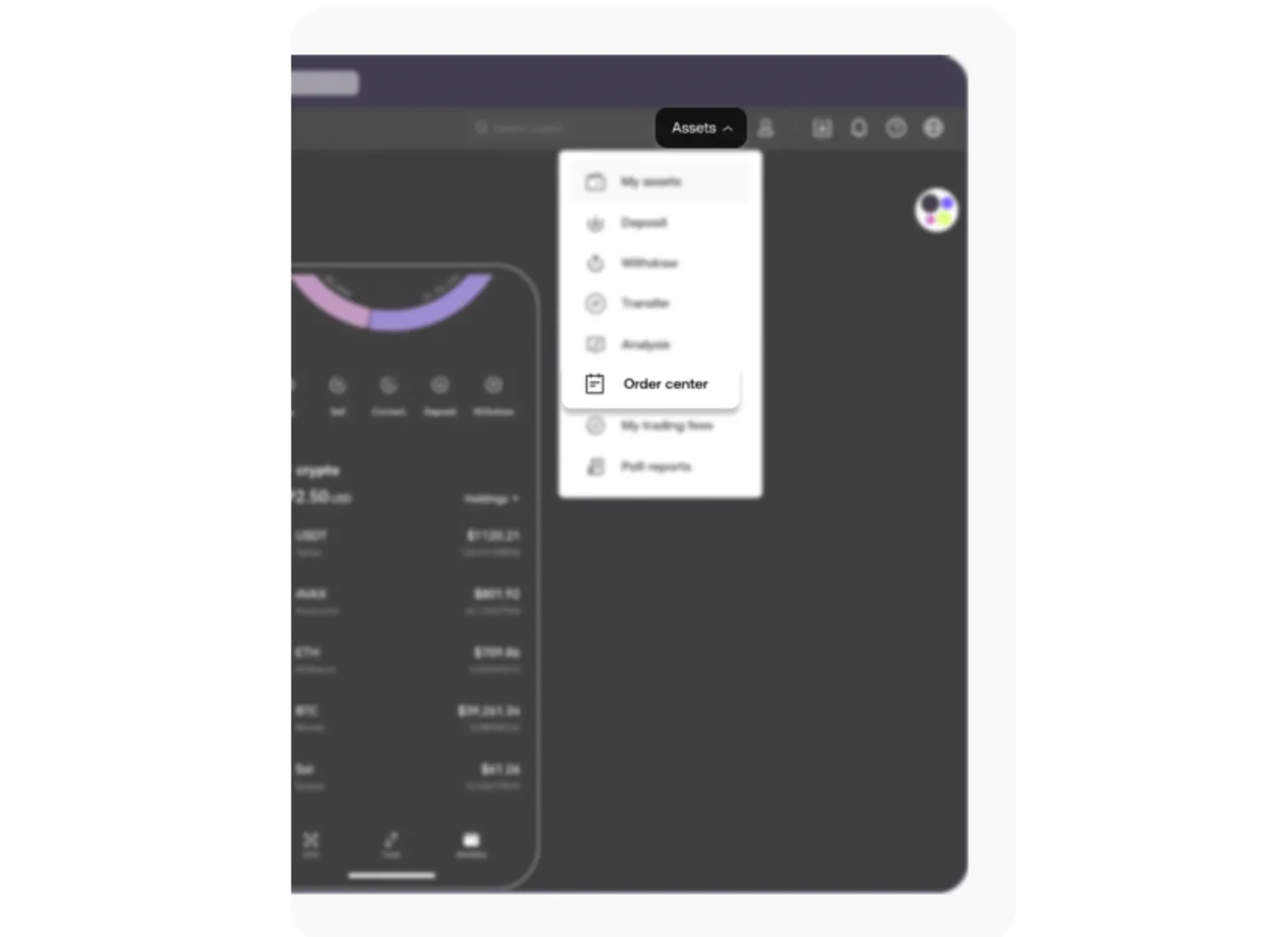
Log in to your OKX account and go to [Assets]. When the pop-up appears, go to the [Order Center] menu.
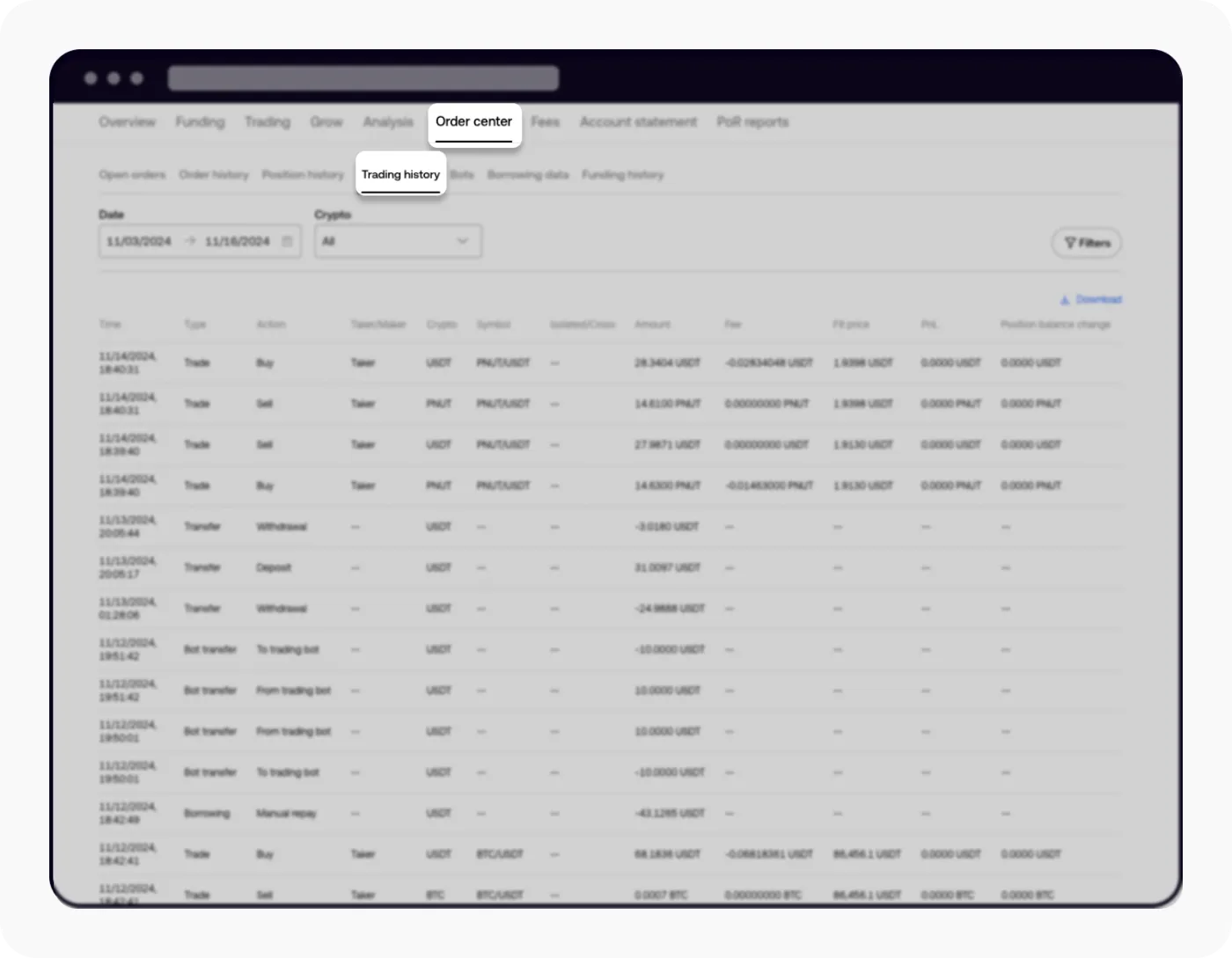
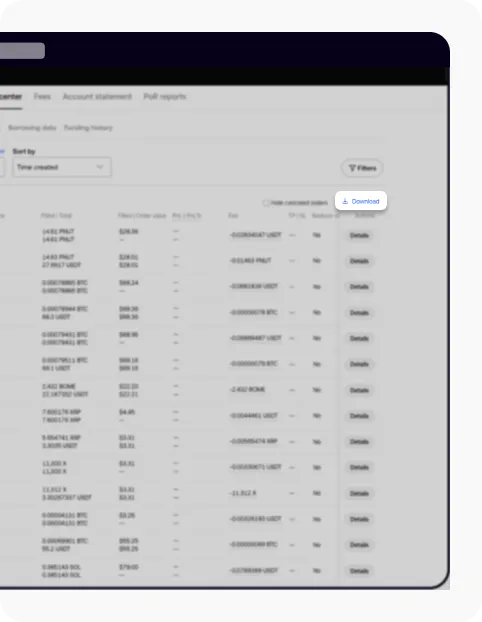
Click [Trading History] and your data from the past 90 days will be displayed. If you click the download button in the upper right, you can download your trade history as an Excel file.
How do you view and download your order history?
Log in to your OKX account and go to [Assets]. When the pop-up appears, go to the [Order Center] menu.
Select the [Order History] menu and the orders you've submitted over the past 90 days will be displayed. Order history includes every order-related request you've made, such as filled, unfilled, canceled, and expired orders.
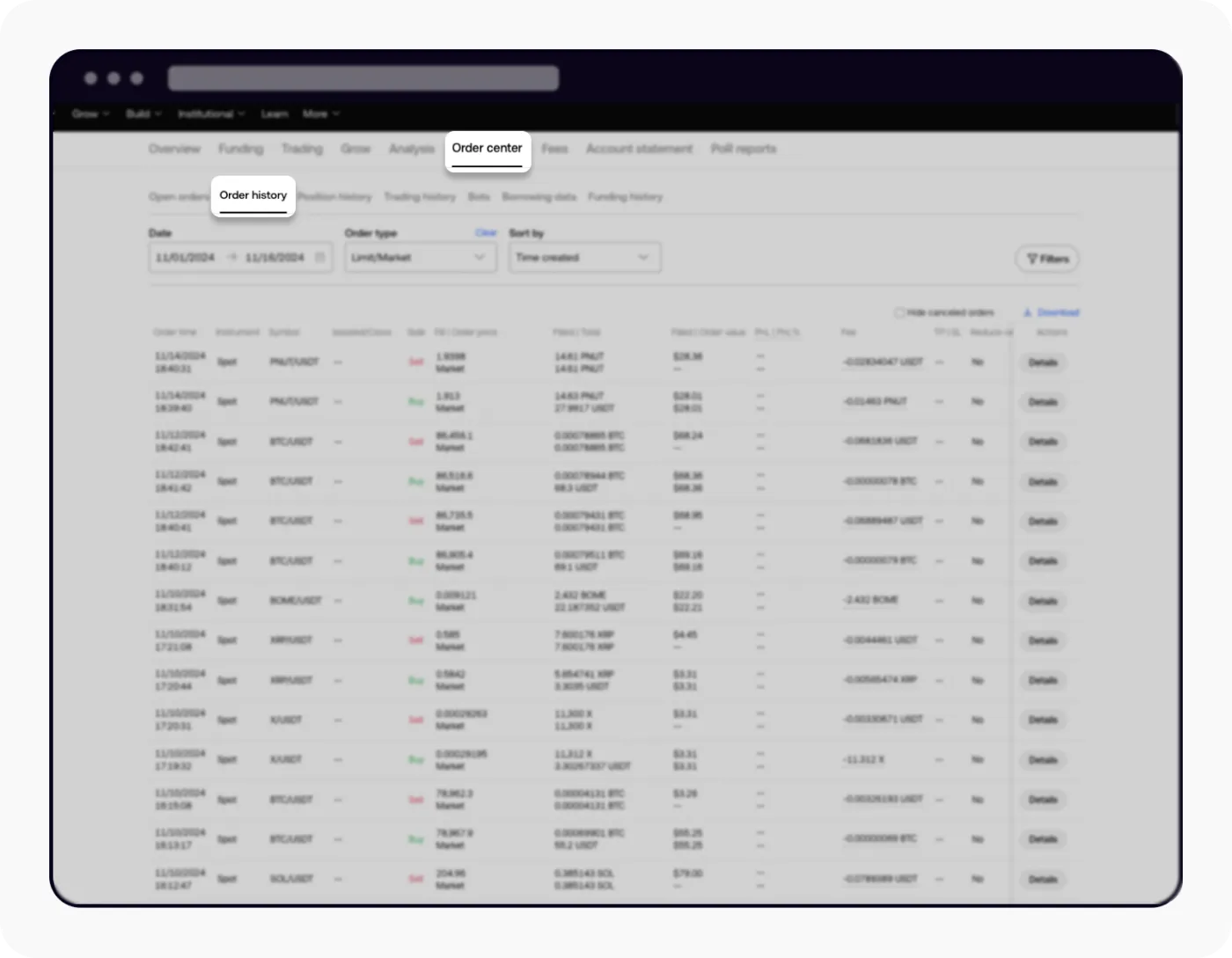
If you'd like to download this history as a file, click the download button in the upper right. You can download all of your order history from the past 90 days as an Excel file.
How do you download data older than 90 days?
By default, the OKX exchange only shows your history for the most recent 90 days. So what should you do if you want to download all of your order and trade history beyond 90 days? In this case, you need to set the date range and then go through the [Export] process.
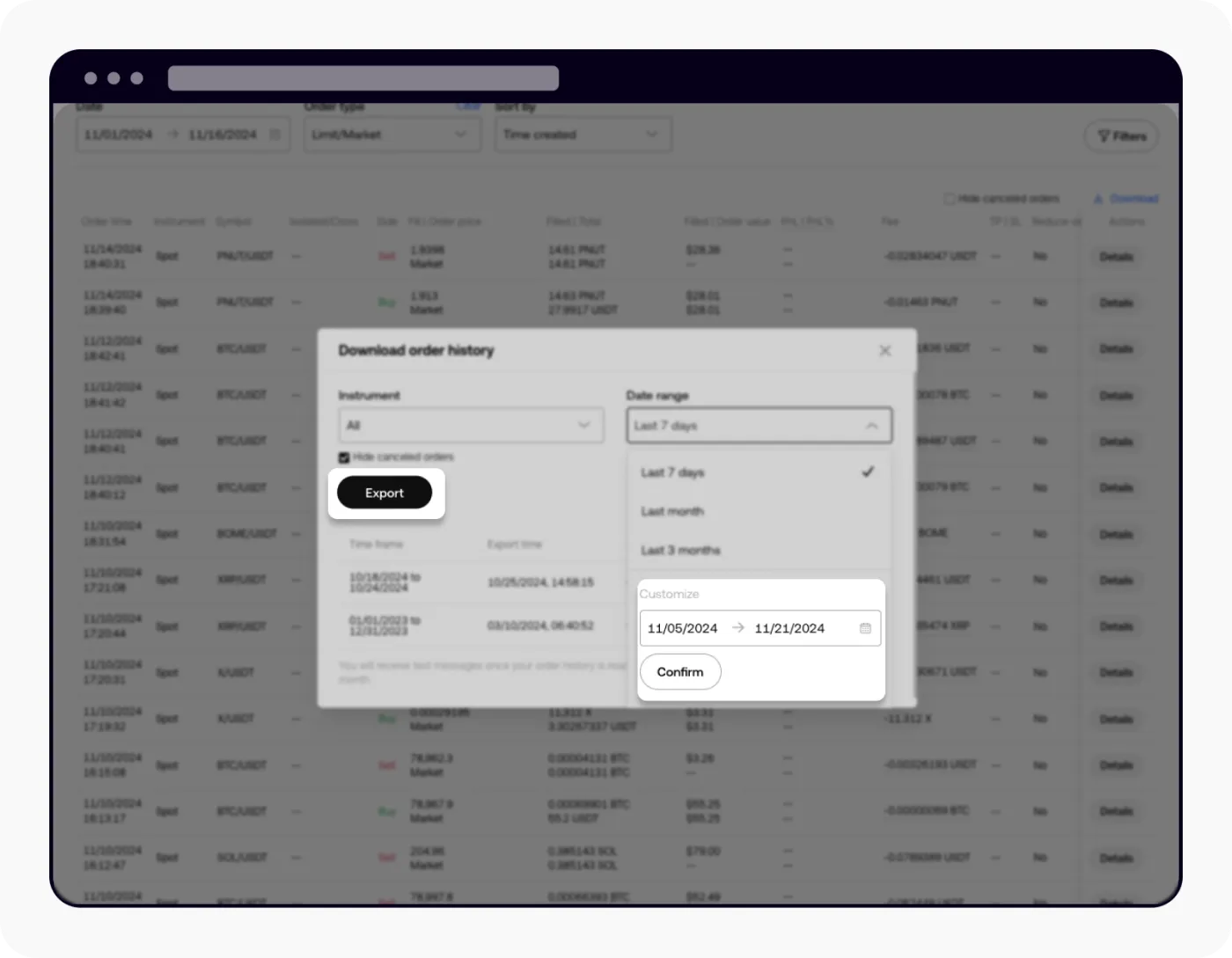
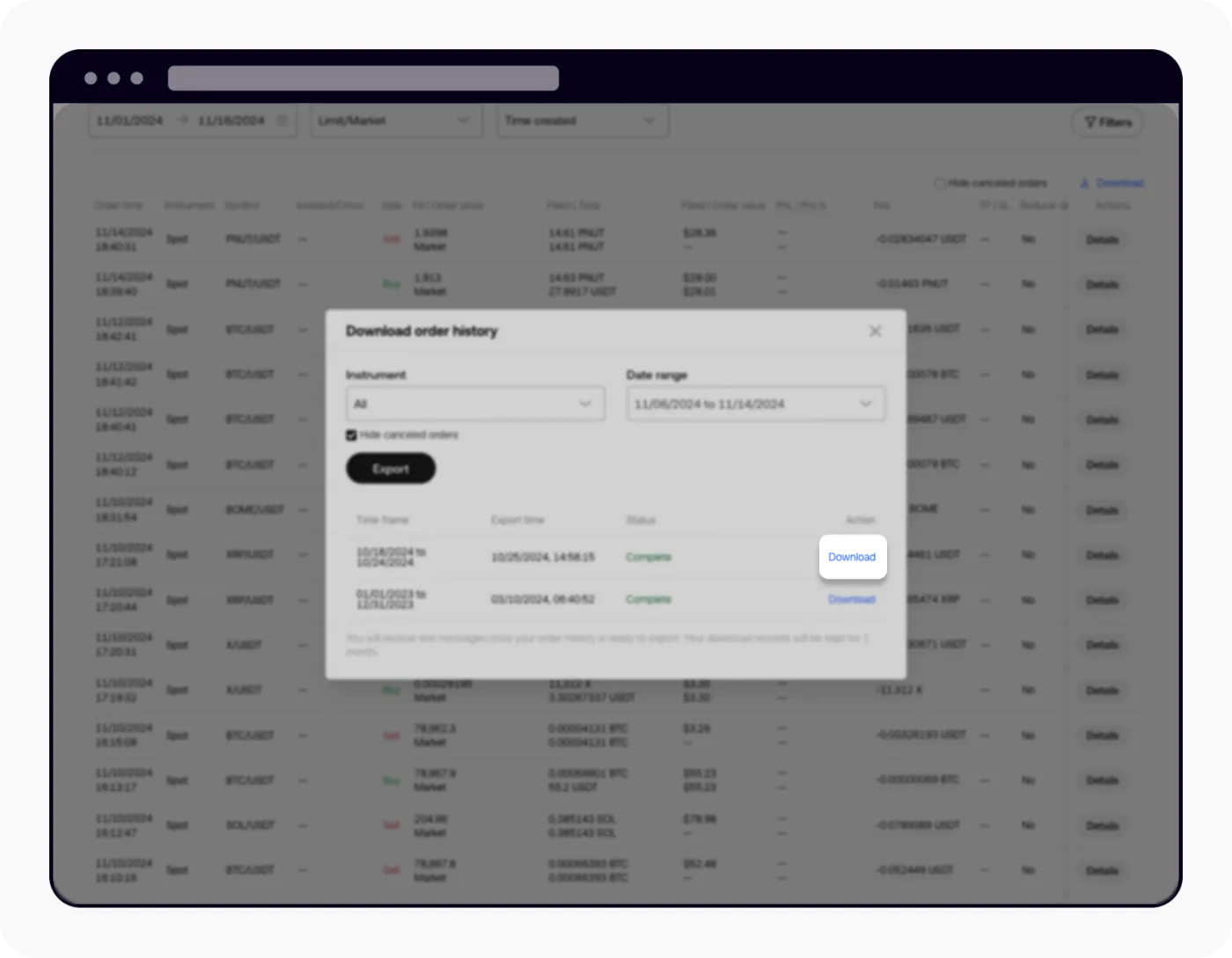
When you click the download button, a pop-up like the one above appears where you can set the dates you want. It's set to 90 days by default, but you can change it to the date range you want and generate the statement.
If you have a lot of order and trade history, it may take some time for the file to be generated. It's usually all done within about an hour. Once it's ready, you'll receive a notification and the download button will become active.
How do you download your monthly account statement?
The OKX exchange provides detailed balance statements for the past year. If you go to [Account Statement] in the top menu bar, you can download statements covering your monthly balance changes.
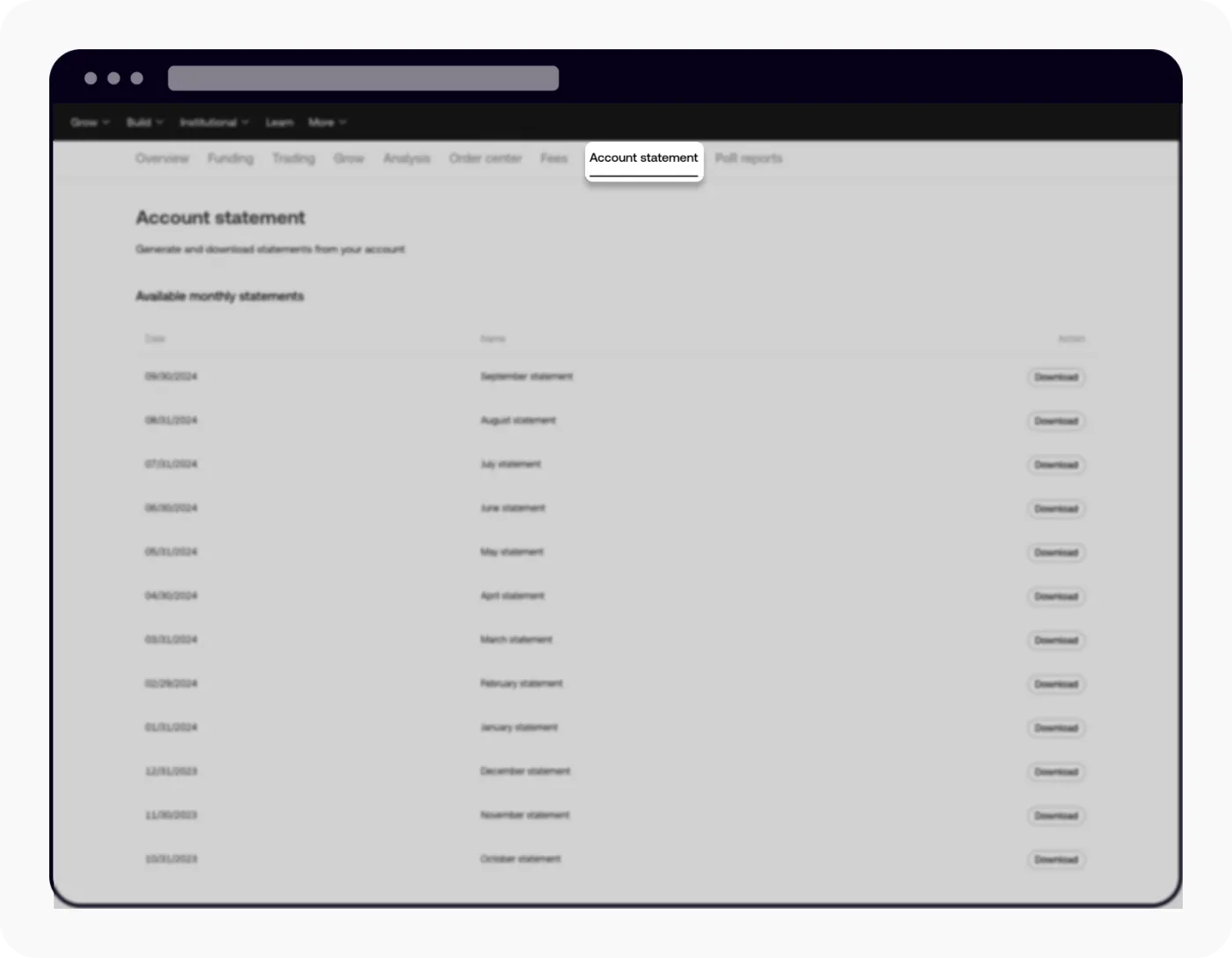
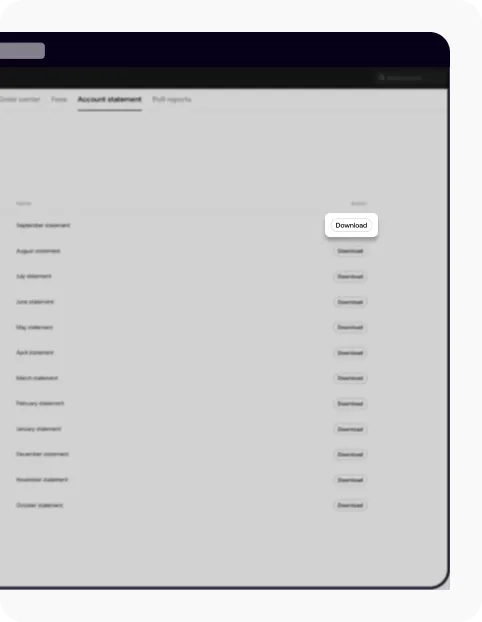
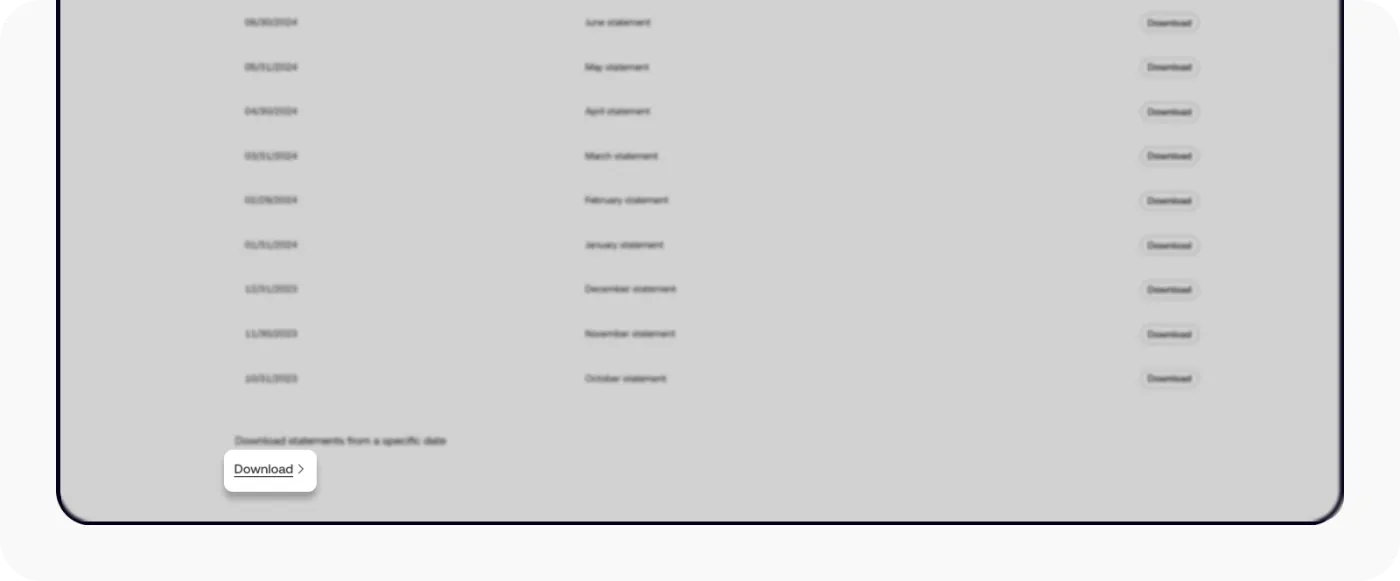
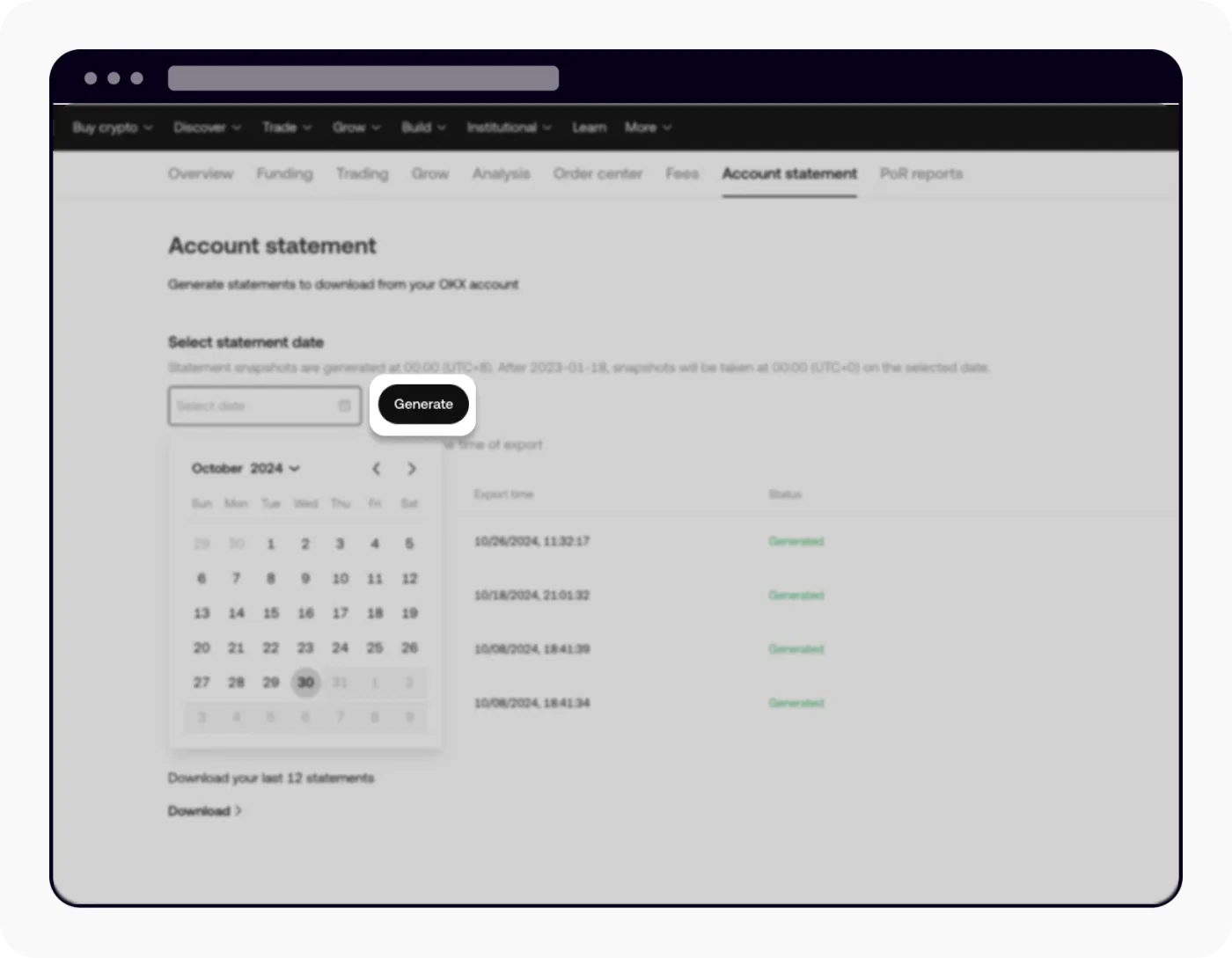
To download an account balance statement for a specific date, click the download button at the bottom. When the pop-up appears, you can choose a period within the last 2 months and download the statement.
Wrapping up
That covers how to download your trade and order history, as well as your account balance statements, on the OKX exchange. By default, data from within the last 90 days can be checked quickly on the web, while for anything older you need to set the dates and period, request the statement to be generated, and then download it.