How to Set Up Two-Factor Authentication on OKX (Google Authenticator)
2 min read · · Korean original
Contents 3
Hello, this is Bitpunk. In this post, we'll walk you through how to set up two-factor authentication on the OKX exchange. Two-factor authentication (2FA) adds an extra verification step on top of your password to better protect your OKX account.

The most widely used 2FA method is Google Authenticator. Follow this tutorial and you'll be able to set up Google Authenticator safely in both the OKX app and on the web.
How to Set Up Google Authenticator in the App
Open the OKX app and go to the profile and settings page in the top left. Next, you can link an [Authenticator App] from the [Security] tab.
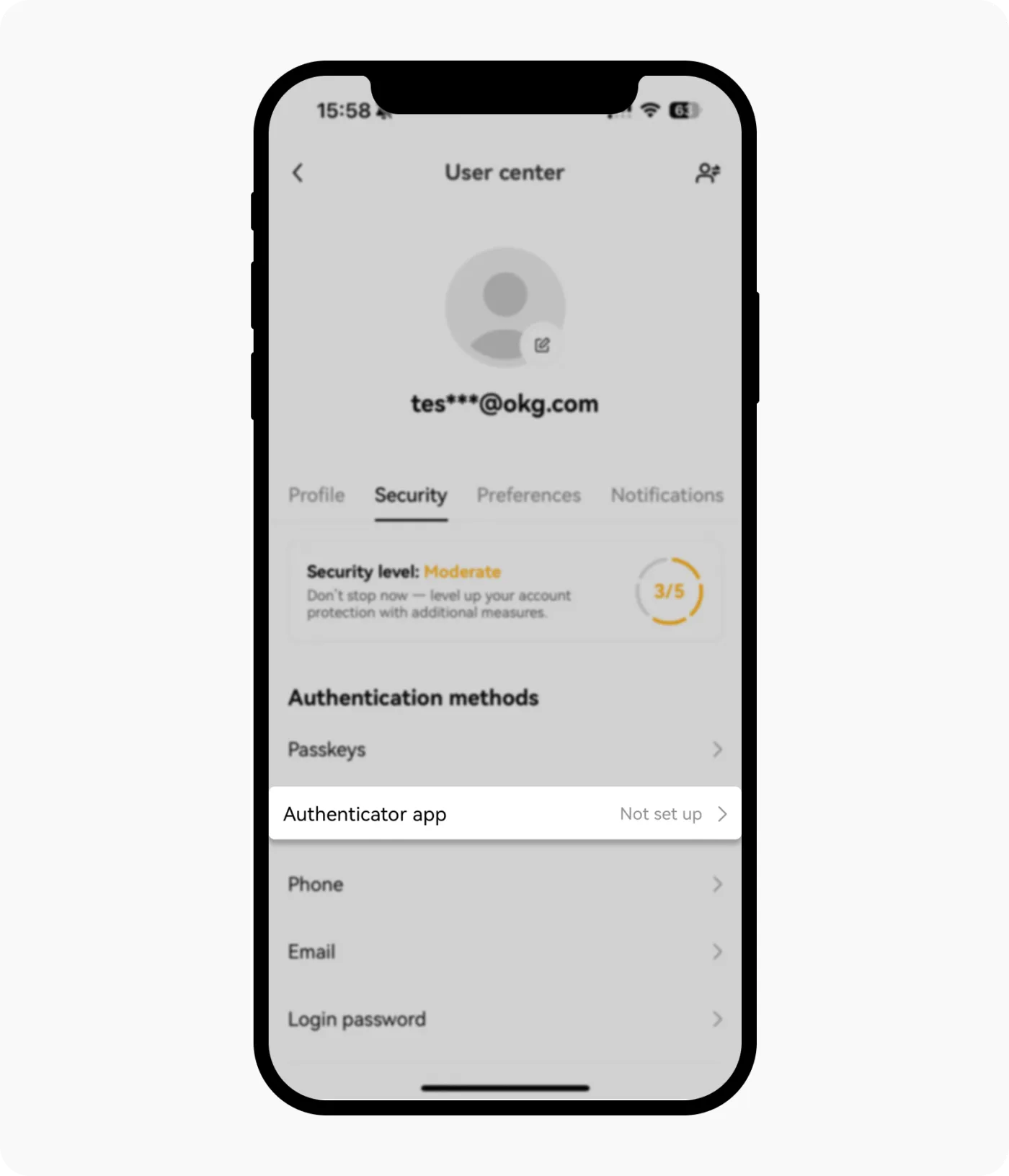
The OKX app will display a QR code and a key for setting up Google Authenticator. Open the Google Authenticator app and enter that information. Once you complete verification by entering the 6-digit OTP code, Google Authenticator will be linked to your OKX account.
For extra security, it's a good idea to turn off the 'cloud sync' feature. That way, the key is stored only on your local device and isn't synced to an online cloud.
How to Set Up Google Authenticator on the Web
After logging in to the OKX exchange, go to the [Security] page from your profile. Then click the [Set up] button next to [Authenticator App].
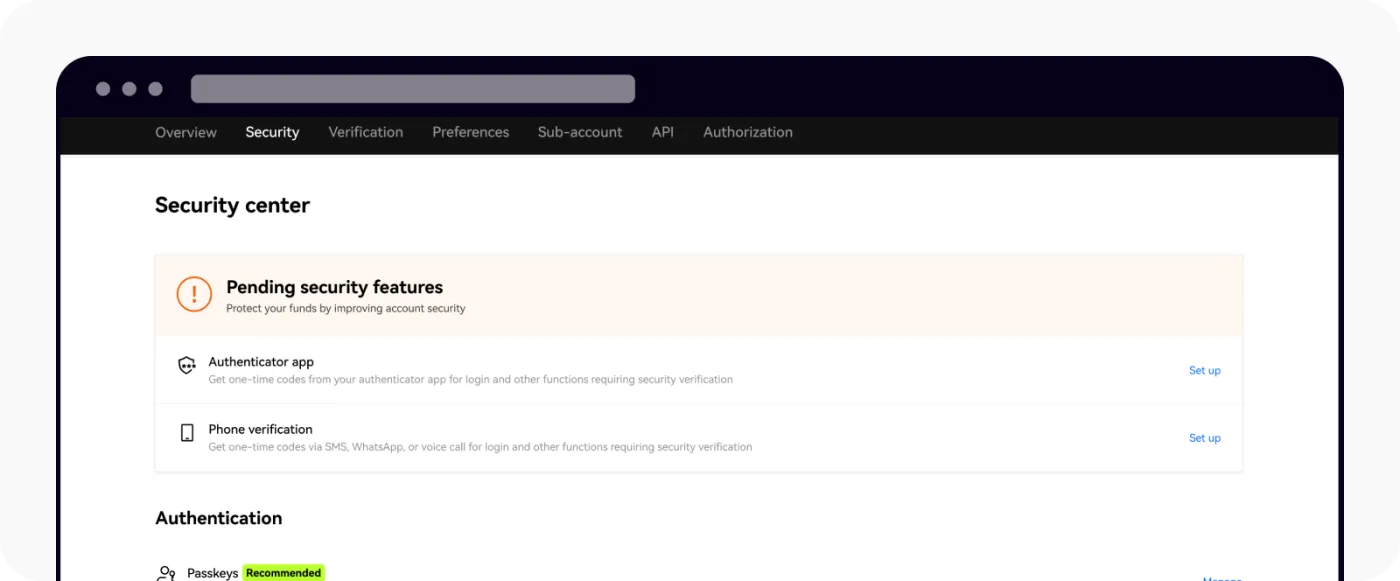
A guide screen for Google Authenticator will appear, as shown below. Install the Google Authenticator app through the official link, then enter the QR code and key shown to finish setting up two-factor authentication.
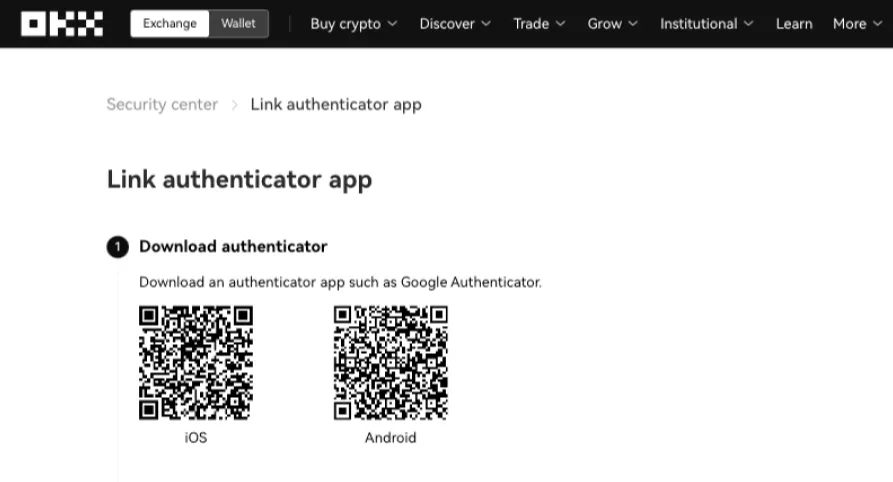
Always use an official app store when installing a new app. You should also check that the app is the official one. Downloading an unofficial or wrong app can put your account security at risk, so please be careful.
How to Set Up an OKX Passkey
In the early days, OTPs like Google Authenticator were widely used, but these days simpler and safer methods such as passkeys are preferred. For more details on setting up an OKX passkey, please refer to the tutorial below.
 How to Set Up a Passkey on the OKX Exchange5 min read