How to Transfer Funds to Your Binance Futures Account
4 min read · · Korean original
Contents 5
Hello, this is Bitpunk. In this post, we'll look at how to transfer funds to your futures wallet so you can start trading futures on Binance.

If you follow this tutorial step by step, you can safely transfer assets from your Binance Spot and Funding wallets to your Futures wallet.
Step 1: Start the Transfer
Log in to your Binance account and go to the futures trading page. In the bottom right corner of the trading interface, you'll see the [Account] section.
This is where you can manage your futures account settings and assets. Click the [Transfer] button at the very bottom to start the transfer.
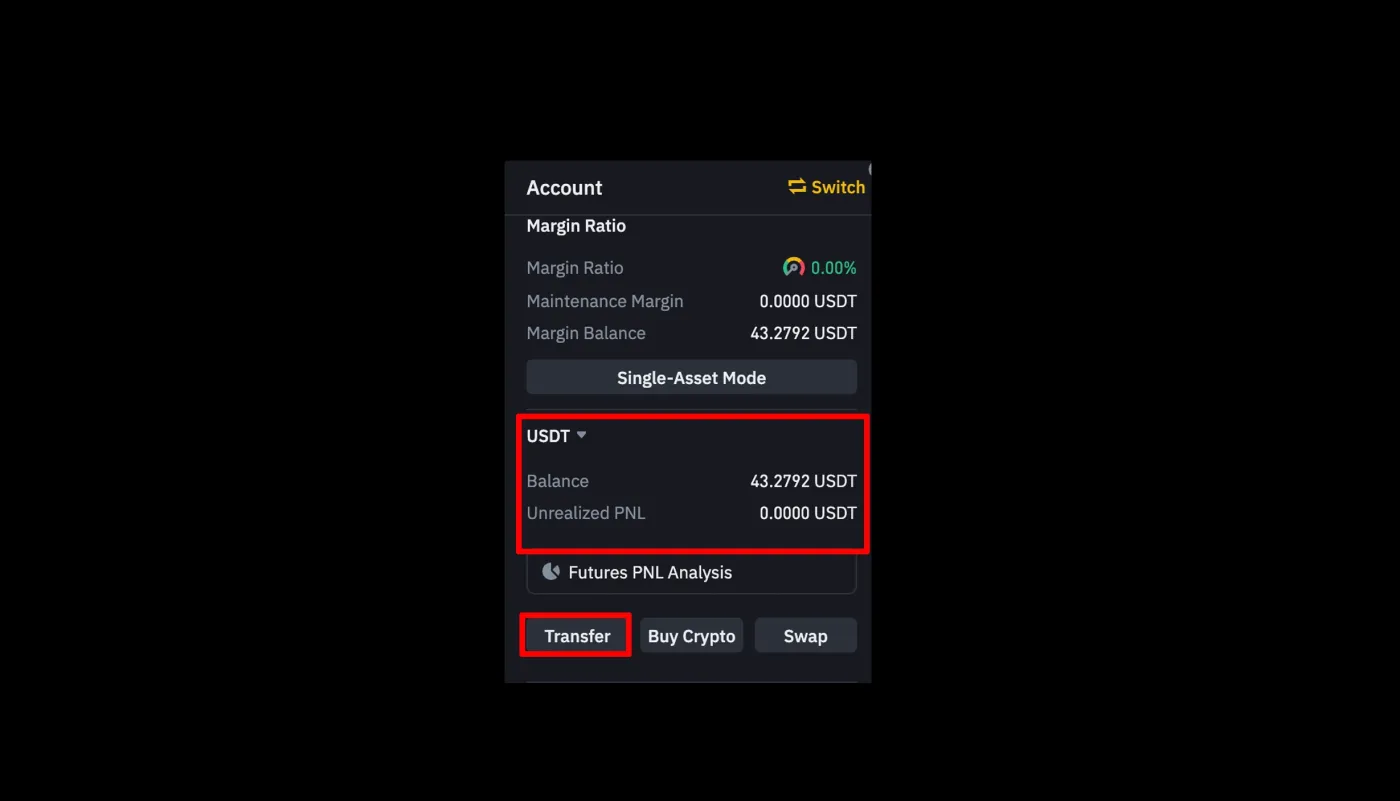
To transfer funds to your futures account, you first need to sign up for Binance and open a futures account. You also need to have already deposited a tradable asset such as USDT from an external exchange like Bithumb or Upbit. For more details, check out our post on USDT deposits and withdrawals.
Step 2: Choose the Wallets for the Transfer
When you click the [Transfer] button, a pop-up window like the one below will appear. Now it's time to choose the wallet and asset you want to transfer to your futures account.
For example, if you want to trade futures using USDT, you can set it up as shown in the image below.
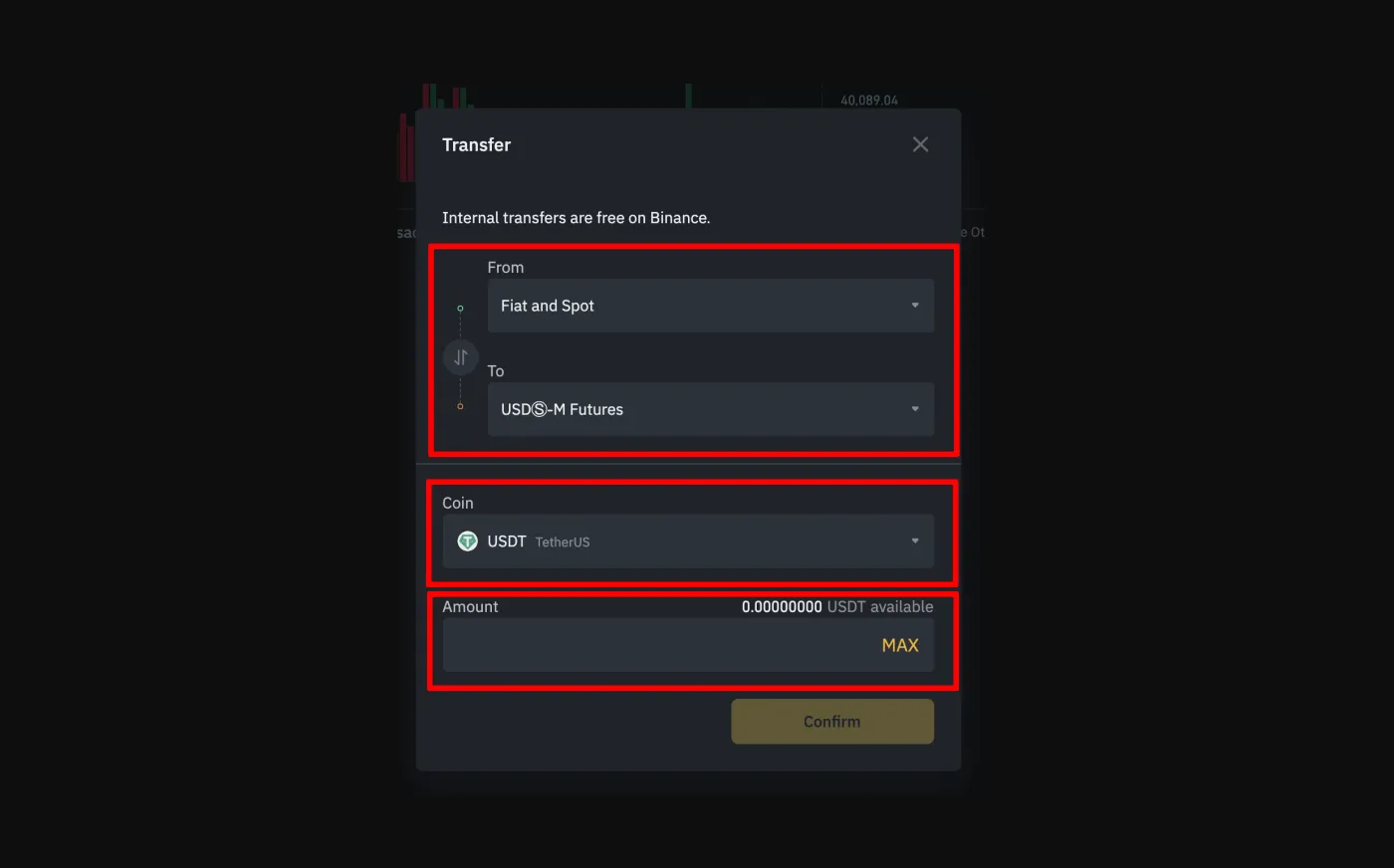
Here, 'From' is the wallet that sends the funds, and 'To' is the wallet that receives them. 'Fiat and Spot' refers to the fiat and spot wallet, while 'USD-M Futures' refers to the futures wallet.
Since we're transferring funds from the spot account to the futures account, make sure the route is set up correctly as shown below.
- 'From' - 'Fiat and Spot'
- 'To' - 'USDⓈ-M Futures'
Next, select USDT and enter the amount. If everything looks correct, click the 'Confirm' button.
The funds are transferred from your spot account to your futures account as soon as you submit the request, and since it's a transfer within your own account, there are no fees. Also note that the USDⓈ-M futures account and the COIN-M futures account are treated as separate wallets. So make sure you transfer funds to the one that matches the type of futures you want to trade.
Step 3: Check the Transferred Assets
Once the assets have been transferred, you can check your available balance under [Assets] - [Balance].
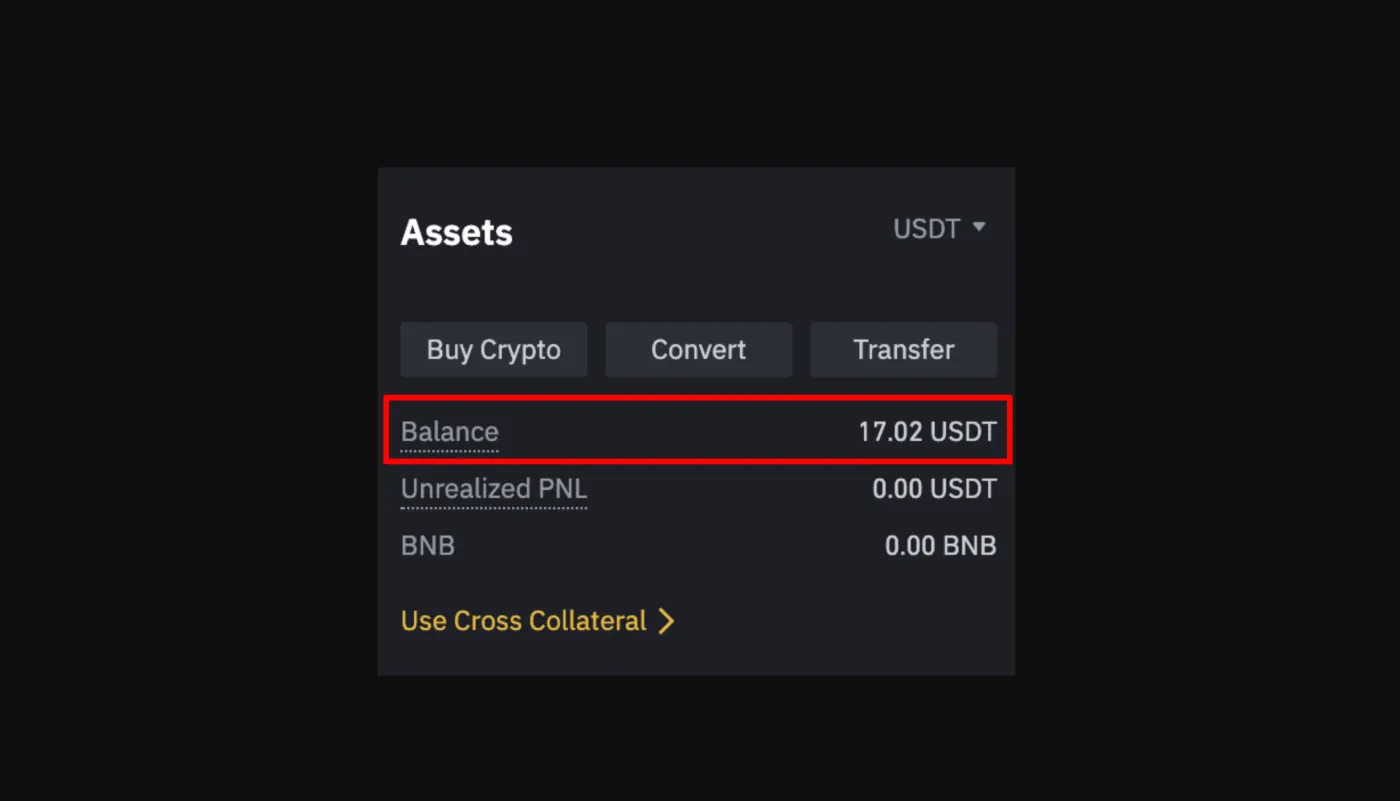
Besides USDT, you can also transfer other supported assets such as Bitcoin, Ethereum and BNB, and use them as collateral for futures trading. You can also turn on the BNB fee discount option to get an additional 25% off your trading fees.
Step 4: Transfer Back to Your Spot Account
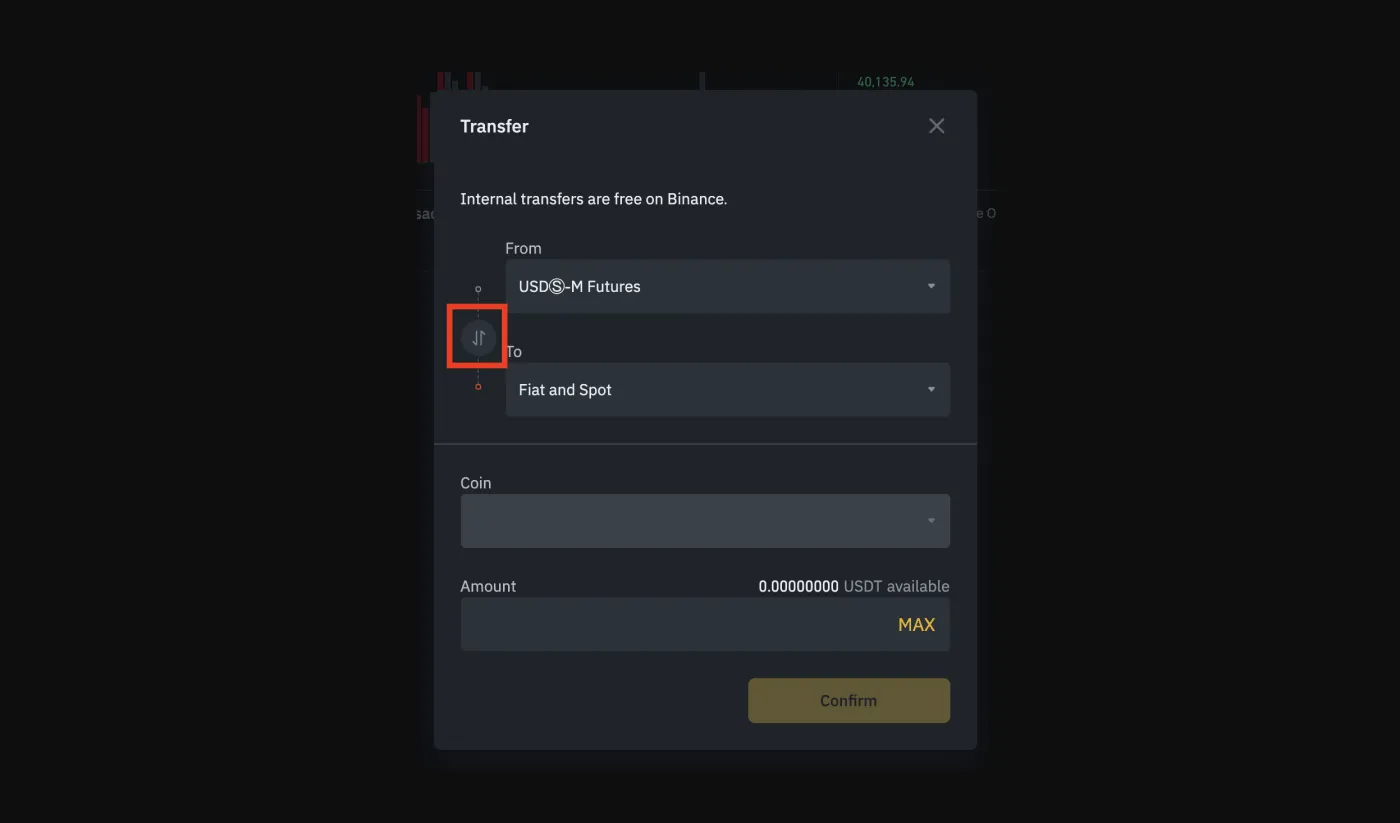
If you want to move funds from your futures account back to your spot account, click [Transfer] and set the route as shown below. Simply set it up in the opposite direction from when you deposited funds into your futures account.
- 'From' - 'USDⓈ-M Futures'
- 'To' - 'Fiat and Spot'
You have assets but can't transfer them? If you have assets in your wallet but they don't show up, check whether they're being used somewhere else. The most common causes are open orders or 'Auto Earn' being turned on. In that case, you'll need to cancel those orders, or go to the asset's 'Earn' tab and redeem it first.
Wrapping Up
That's how you transfer funds to your Binance futures account. Futures trading has the advantage of letting you use leverage to make your capital work more efficiently.
However, it comes with risks that spot trading doesn't have, such as liquidation. That's why it's important to prepare and test proper risk management strategies, such as setting stop-losses, to avoid big losses or liquidation.