How to Trade Spot on Binance (Mobile App/Website)
5 min read · · Korean original
Contents 4
Hello. In this tutorial, we'll look at how to trade spot on Binance. If you read this post to the end, you'll learn in detail how to trade spot on the latest Binance mobile app and website.

What Is Spot Trading?
Spot trading, as the name suggests, means buying and selling assets based on the current market price (Spot Price). Once a trade is executed, the asset immediately enters or leaves your account.
In spot trading, you can place an order at a price you set yourself, which is called a Limit order. You can also place an order instantly at the current market price, which is called a Market order.
How to Trade Spot (Mobile App)
(1) Select a Trading Pair in the Spot Market
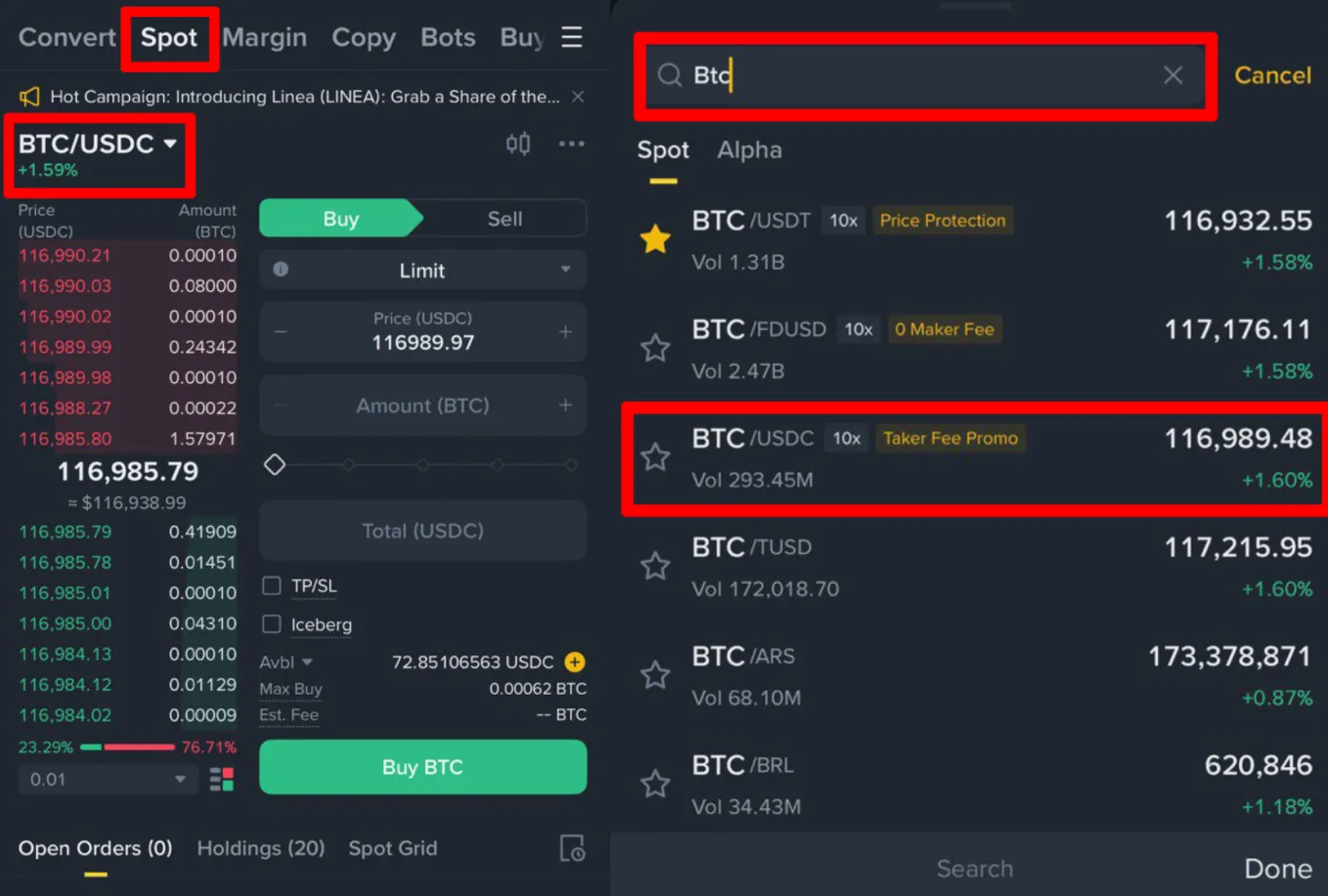
After logging in to the Binance app, select [Trade] → [Spot] from the bottom menu. For example, let's say you want to buy or sell Bitcoin. In this case, you can choose from various trading pairs. Typical options include BTC/USDT or BTC/USDC
'BTC/USDC' means you want to buy the crypto asset Bitcoin (BTC) using a currency called USDC. Bitcoin can be traded in many ways, such as BTC/USDT, BTC/BNB, and so on. A combination of two assets traded against each other like this is called a 'trading pair.'
For example, if you type BTC into the search bar, the available trading pairs will be displayed. Here, let's select BTC/USDC.
(2) Set the Order Type and Submit
When the trading screen appears, tap [Buy] → [Limit]. This is the setting for submitting a buy order at a limit price. Next, enter the price and amount you want to buy, and the final value (Total) will be filled in automatically.
For example, the following is a buy order for 0.00038 BTC at a price of 64,590 USDC. In the end, assets worth 24.5442 USDC will be purchased. If all the information is correct, you can tap 'Buy BTC' to submit the order.
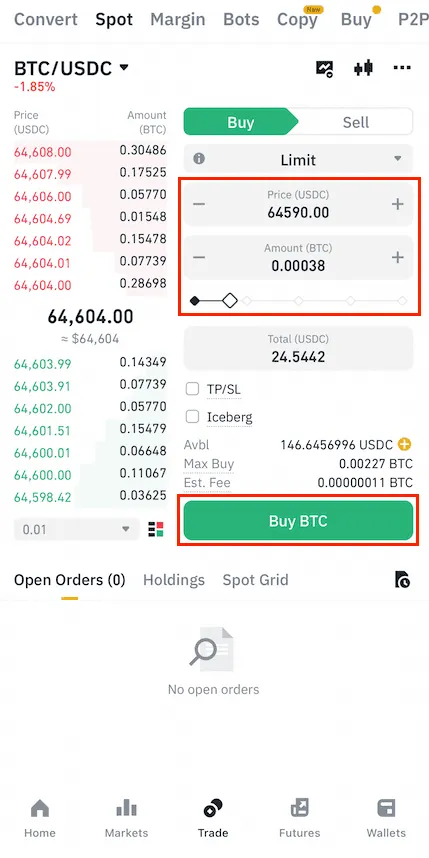
By sliding the % bar below Amount left or right, you can easily set what percentage of your available balance to use for buying or selling.
(3) Complete and Check the Order
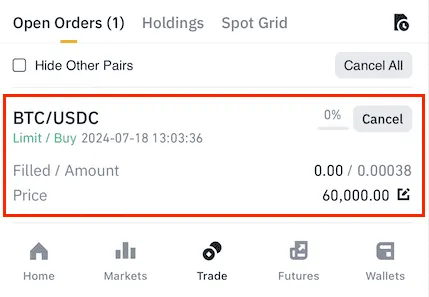
Once the order has been submitted, you can check your pending unfilled orders in the [Open Orders] tab. The order will remain pending until Bitcoin reaches your desired price.
For example, when Bitcoin reaches the price of the order you submitted, your USDC is converted into BTC and reflected in your spot wallet. Conversely, when selling, your BTC is converted into USDC and reflected.
Market orders are filled immediately at the current price, so there are no unfilled orders. Market orders are fast, but fees are higher and slippage can be large, so be careful.
How to Trade Spot (Website)
(1) Go to the Spot Market
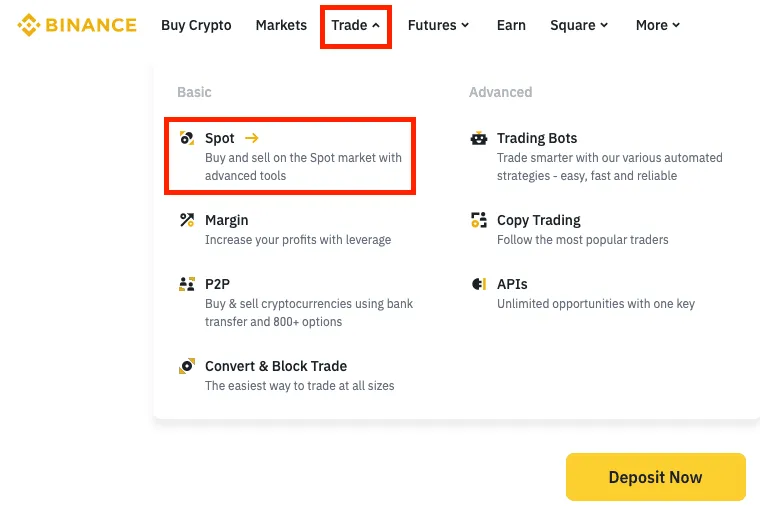
After logging in to the Binance exchange, go to [Trade] - [Spot]. Here you can view and trade all spot trading pairs supported on Binance.
(2) Select a Trading Pair
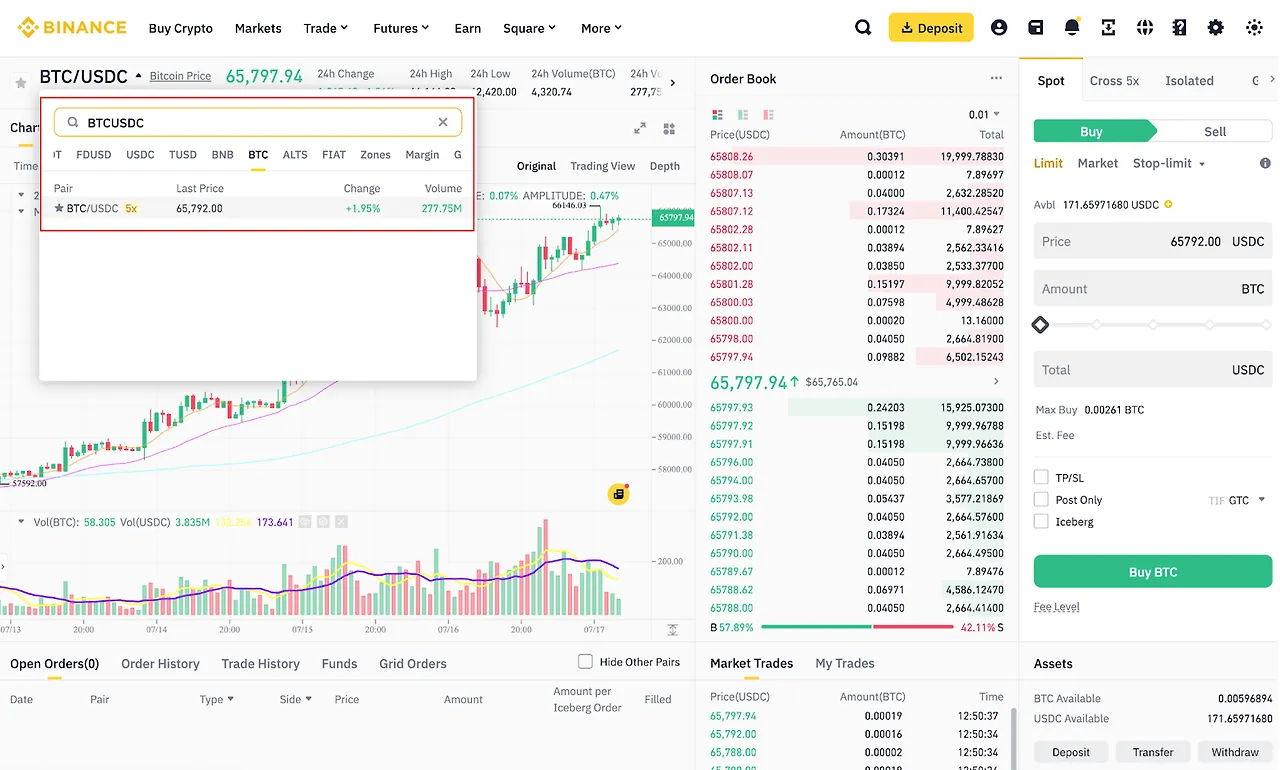
For example, let's look at the case of trading Bitcoin on the spot market. If you type BTC into the search bar, the tradable pairs will be displayed. Here, we'll look at how to buy and sell Bitcoin with the USDC stablecoin.
(3) Submit an Order
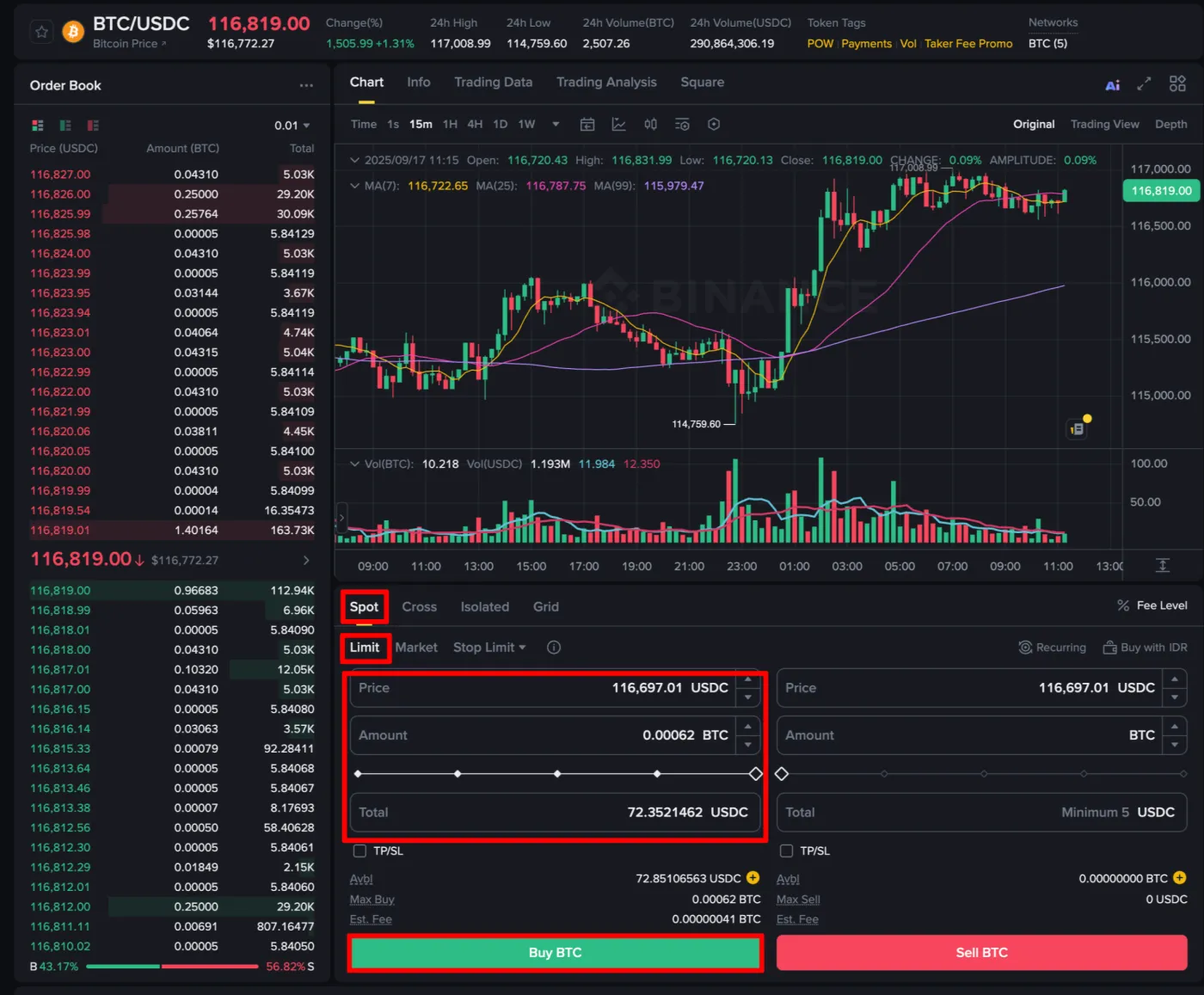
In the trading panel at the top right or bottom, click [Spot] → [Limit]. A limit order is set by default, and you can change it to a market order, stop-limit order, and so on.
- Limit order (Limit): An order placed by entering your desired price yourself.
- Market order (Market): Filled immediately at the current market price.
- Stop-limit order (Stop-limit): An order triggered when a condition is met.
Next, you can enter the price and amount directly, or adjust the bar (%) below the amount field to allocate a certain percentage of your balance. The final amount is then filled in automatically in the [Total] field.
If all the information is correct, click the [Buy BTC] button. Your order to buy Bitcoin will be submitted, and for a limit order, a pending order will be placed on the order book.
Even when using a limit order, if you place a buy order at a price higher than the current price, or a sell order at a price lower than the current price, the order may be filled immediately at the market price.
(4) Complete and Check the Order
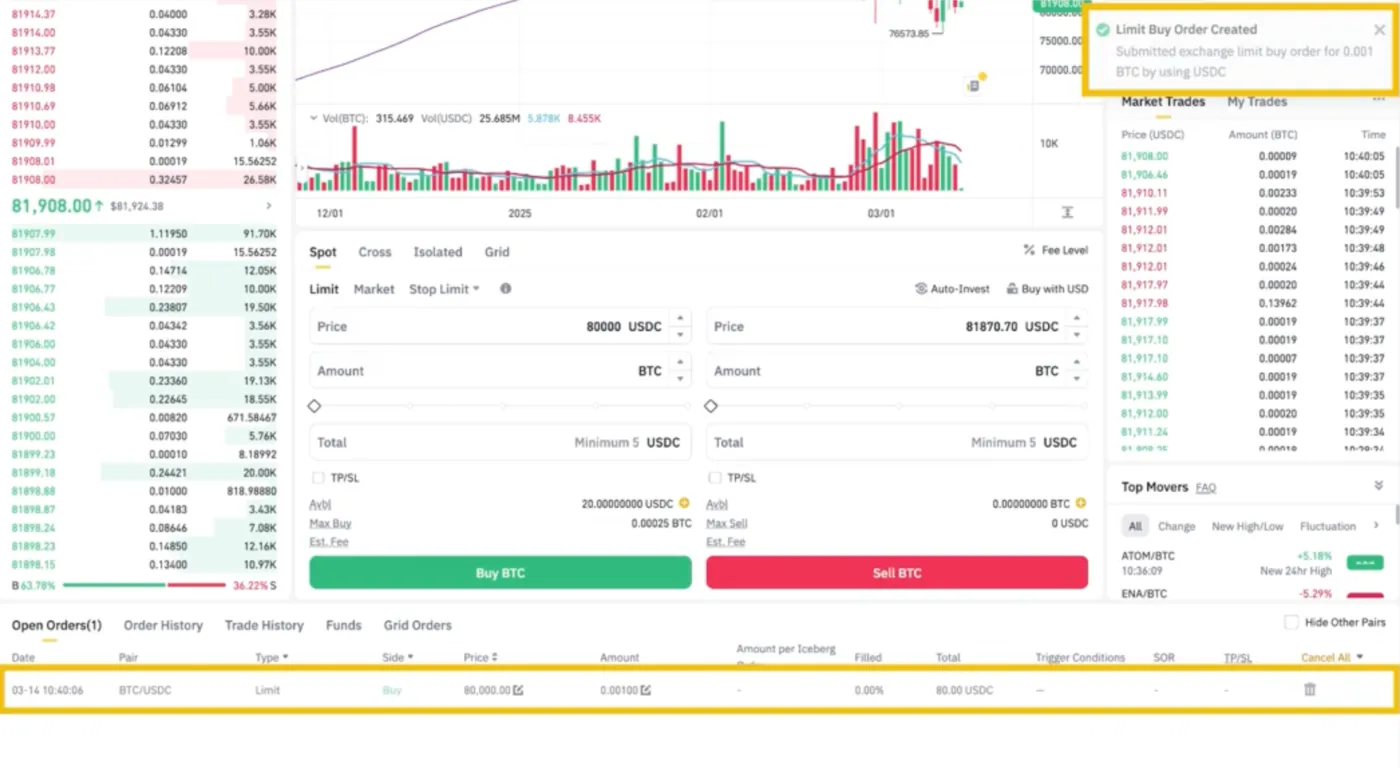
Once your limit order has been placed, you can check your pending orders in [Open Orders]. Here you can wait for the order to fill or change the price or amount. Alternatively, to cancel an order, you can click the trash can icon or use the [Cancel All] button.
Frequently Asked Questions (FAQ)
- Q1. What is the difference between a limit order and a market order in spot trading
- A. A limit order is filled only when the price you set is reached, while a market order is filled immediately at the current market price.
- Q2. Where are the trading funds taken from?
- A. By default, they are deducted from your Spot, Funding, and Earn accounts, and you can also choose the wallet you want with the [Avbl] button.
- Q3. Where can I check my order history?
- A. You can check it in the [Open Orders] menu at the bottom of the order screen, and once an order is filled, it is immediately reflected in your wallet balance.
- Q4. How is spot trading different from margin trading?
- A. Spot trading means buying and selling only with the assets you own, while margin trading means trading with borrowed funds.