How to Swap and Trade Tokens in Binance Wallet
4 min read · · Korean original
Contents 7
Hello, this is Bitpunk. In the previous post, we looked at how to transfer funds between Binance Wallet and the exchange. In this post, we'll walk through how to do "spot trading," in other words, how to "swap," in Binance Wallet.
1. Log in to Binance and open your Web3 wallet
After logging in to the Binance app, go to [Wallet] at the top. If you don't have a Binance account, you'll first need to sign up for Binance and then create and back up your Web3 wallet.
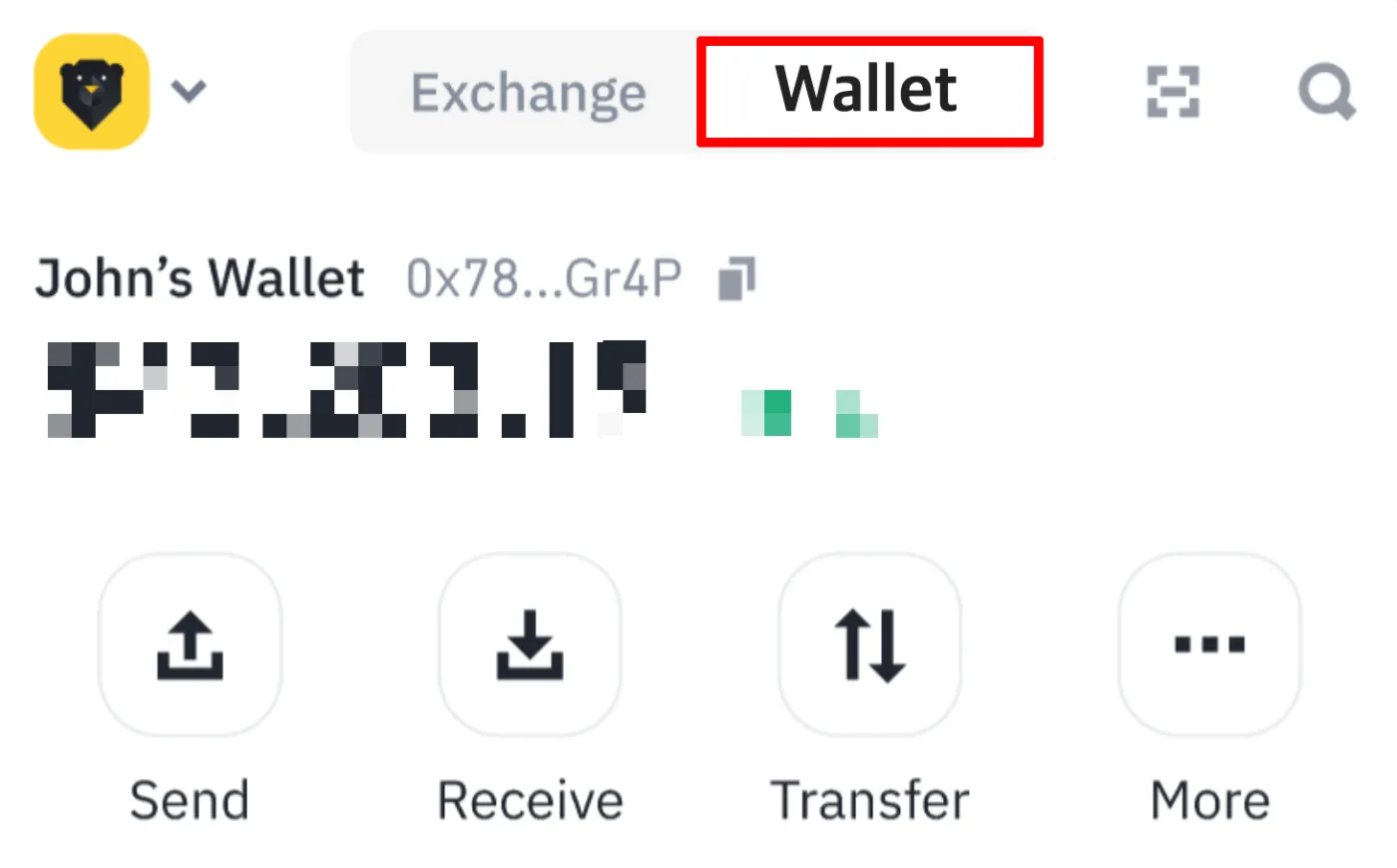
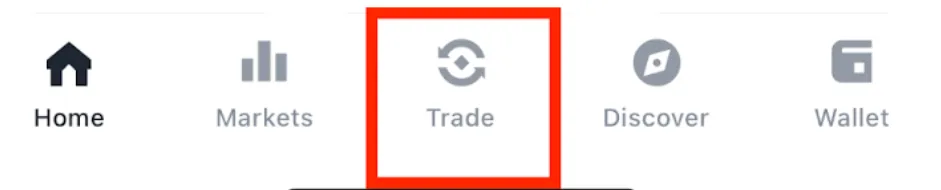
Next, as shown below, you can select [Trade] at the bottom of the wallet to go to the swap page. Here you can trade the coins you hold.
2. Choose the swap tokens and network
Are you on the [Swap] tab? Now, select the tokens you want to exchange and their network. Below is an example of converting BNB into USDT. Once you enter the amount of BNB you want to trade, you can see basic information about the trade, such as the swap rate, the amount you'll receive, and slippage.
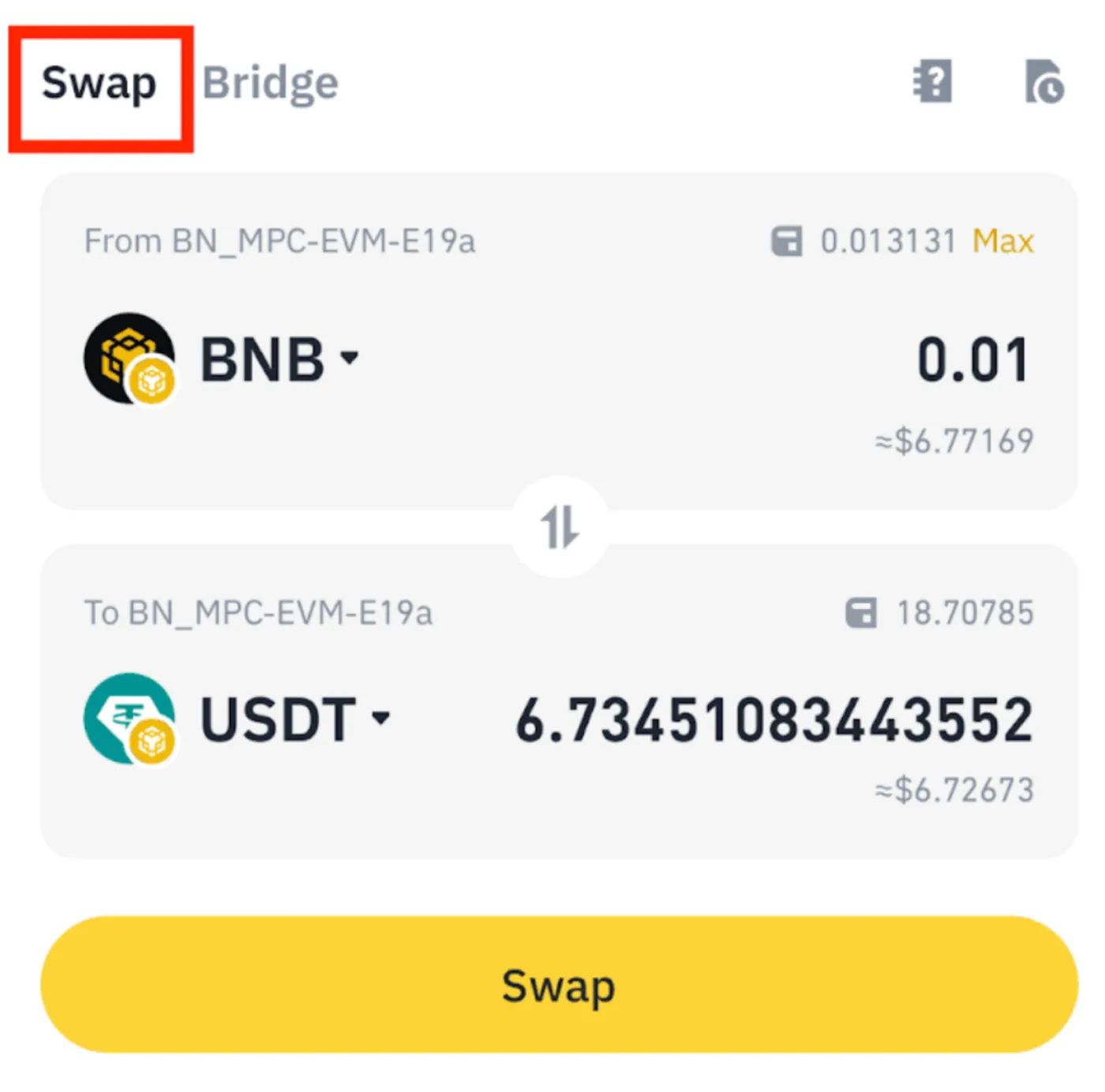
Binance Wallet also supports "cross-chain swaps," which move coins to a different network. For example, you can exchange BNB on BNB Smart Chain for USDT on the Arbitrum network. You can also use the bridge feature to easily move funds to another chain.
3. Approve the token
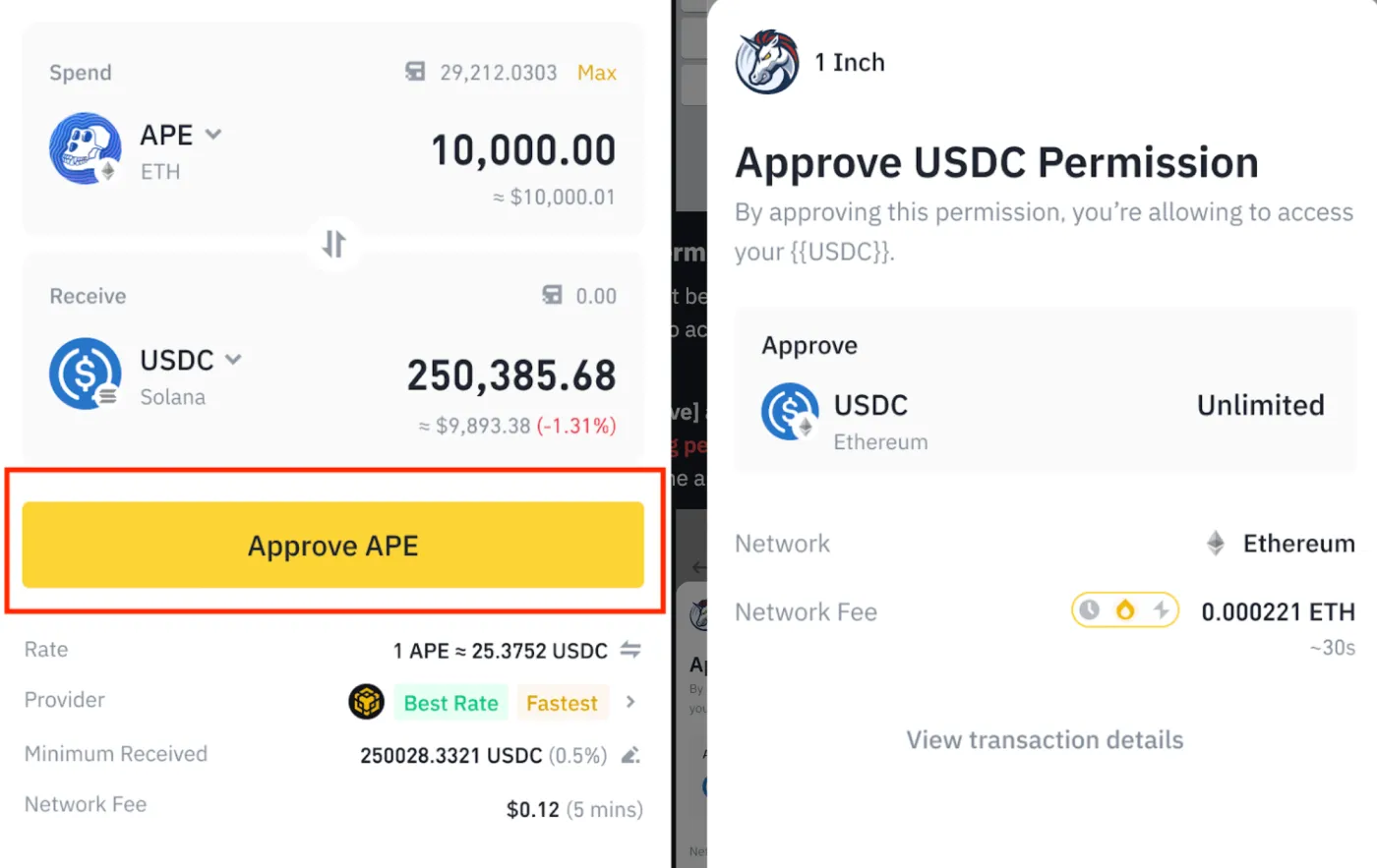
If this is your first time trading a particular token in your Binance wallet, you must go through a "spending permission approval" step. Press the 'Approve' button to grant access to that token. A small gas fee is required for this.
4. Check the swap details
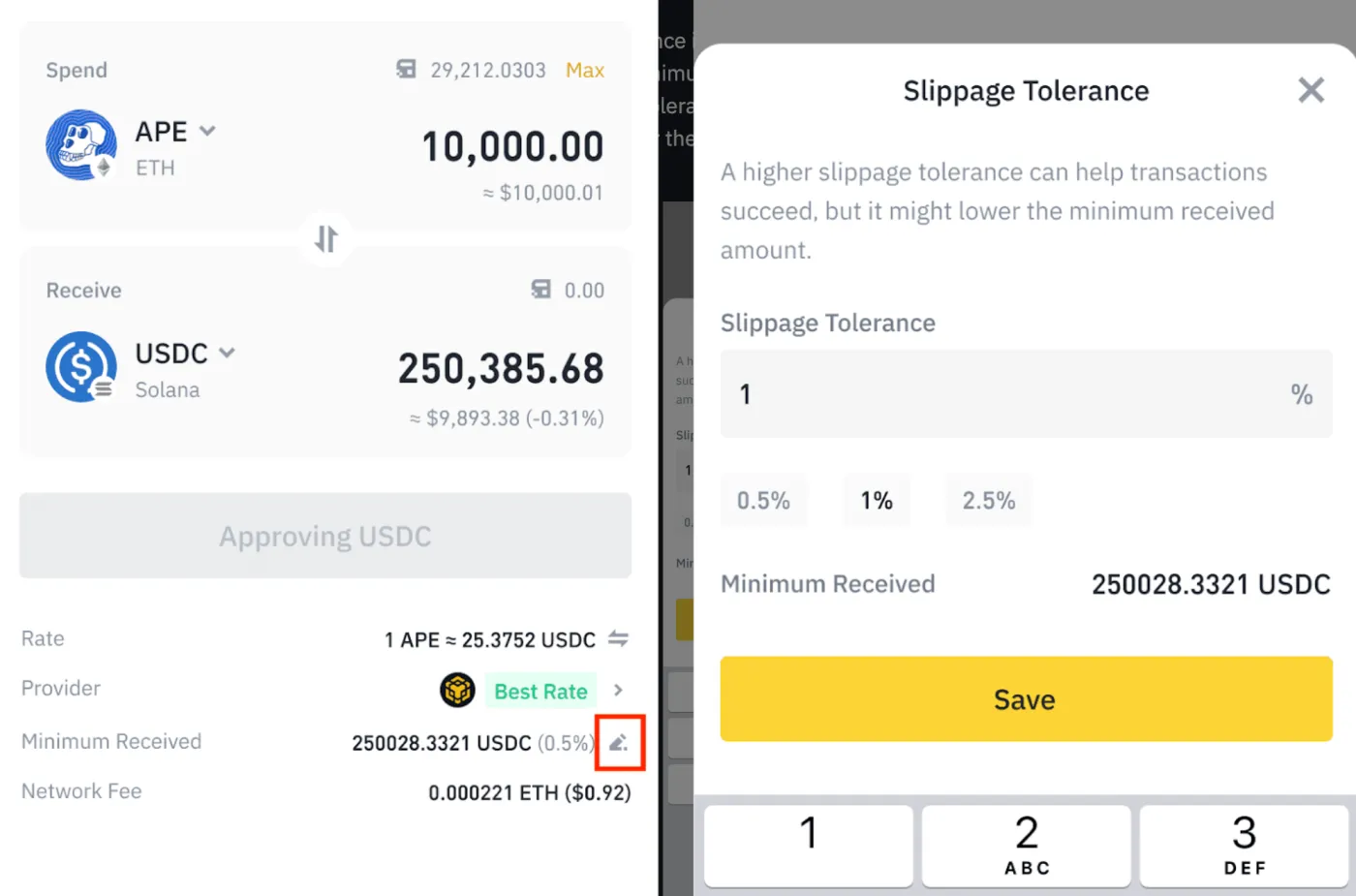
Once the approval is complete, the [Swap] button becomes active. There's one more thing to check: the trade details shown below the [Swap] button. These include slippage, network fees, transaction fees, and more.
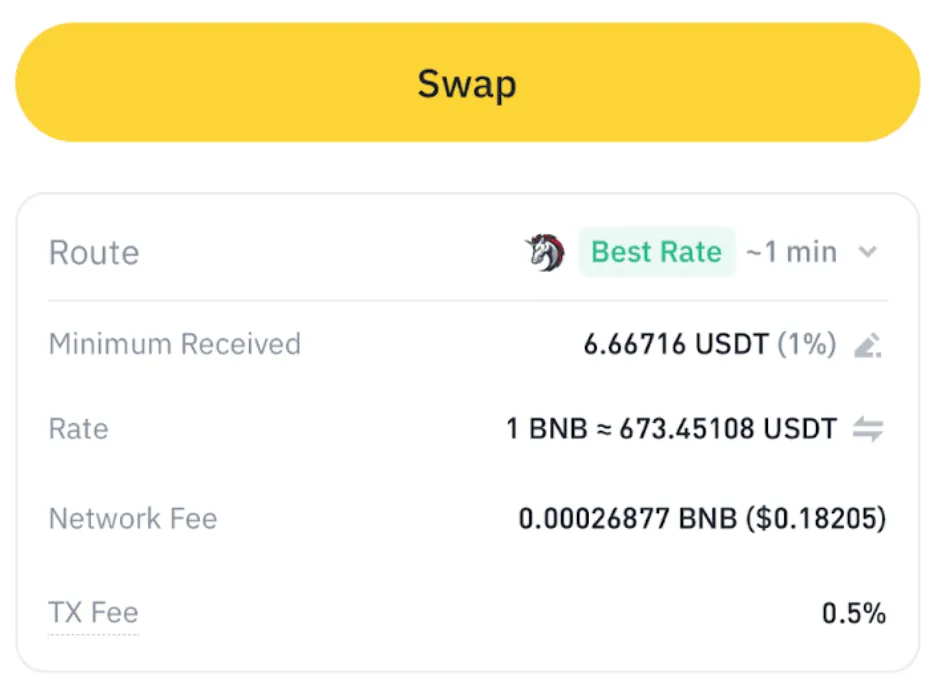
Among these, pay close attention to the 'Minimum Received' section. This is the final trade amount with slippage applied, meaning the minimum amount you'll receive after the token swap.
Slippage is the difference between the expected trade price and the price at which the trade actually executes. Slippage tends to grow when market volatility is high or liquidity is low.
If you want to adjust slippage, press the edit button next to 'Minimum Received' to change the percentage. This percentage is the range of slippage you're willing to accept, and the lower you set it, the better for you. However, if you set slippage too low, the trade may fail.
5. Make the trade
If everything looks correct, it's time to make the trade. Select the token you want to exchange in 'From', and the asset you want to receive in 'To'.
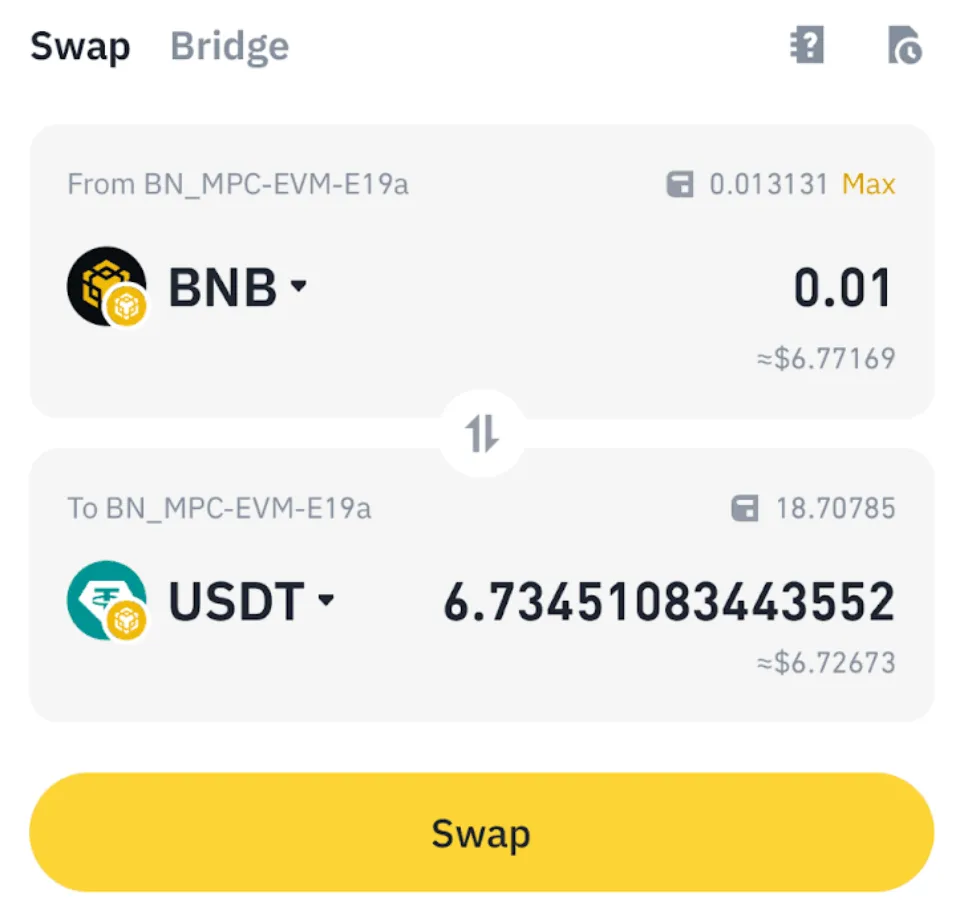
Press [Swap] at the bottom to complete the trade. A small gas fee is required for this. After you confirm the swap, a pending screen like the one below appears.
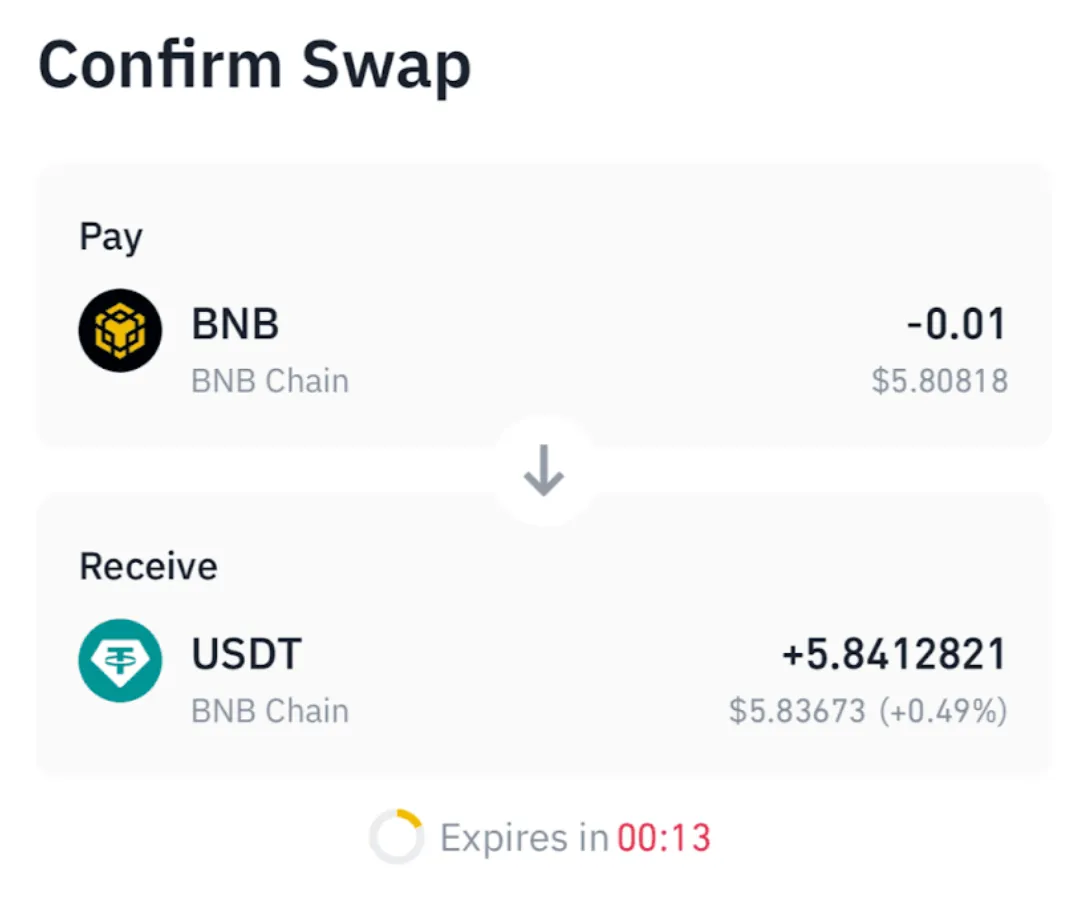
On Binance Smart Chain (BSC), a trade takes roughly 15 seconds. When the network is congested with transactions, it may take a bit longer, so please be patient.
Wrapping up
That covers how to swap tokens using the Binance Web3 wallet. You can think of Binance Wallet's swap feature as the same thing as the spot trading we're all familiar with.
The difference is that, because a Web3 wallet is self-custodial and you manage your assets yourself, there are a few extra steps: 1) approving funds before trading, 2) preparing a token for gas fees, and 3) checking slippage.
We've put together plenty of information about the Binance Web3 wallet here. Check out the link below to learn more ways to use your Web3 wallet.
 Binance Web3 Wallet: How to Use It and How to Transfer Funds4 min read
TIP. What if swaps don't work in the wallet?
The most common reason a swap fails in Binance Wallet is that you don't have enough gas (fees) to pay the transaction fee. Each network chain requires a different gas token, so make sure you hold the right coin in your wallet.
| Chain name | Fees paid in |
|---|---|
| Ethereum | ETH |
| BNB Chain | BNB |
| Arbitrum | ETH |
| Solana | SOL |
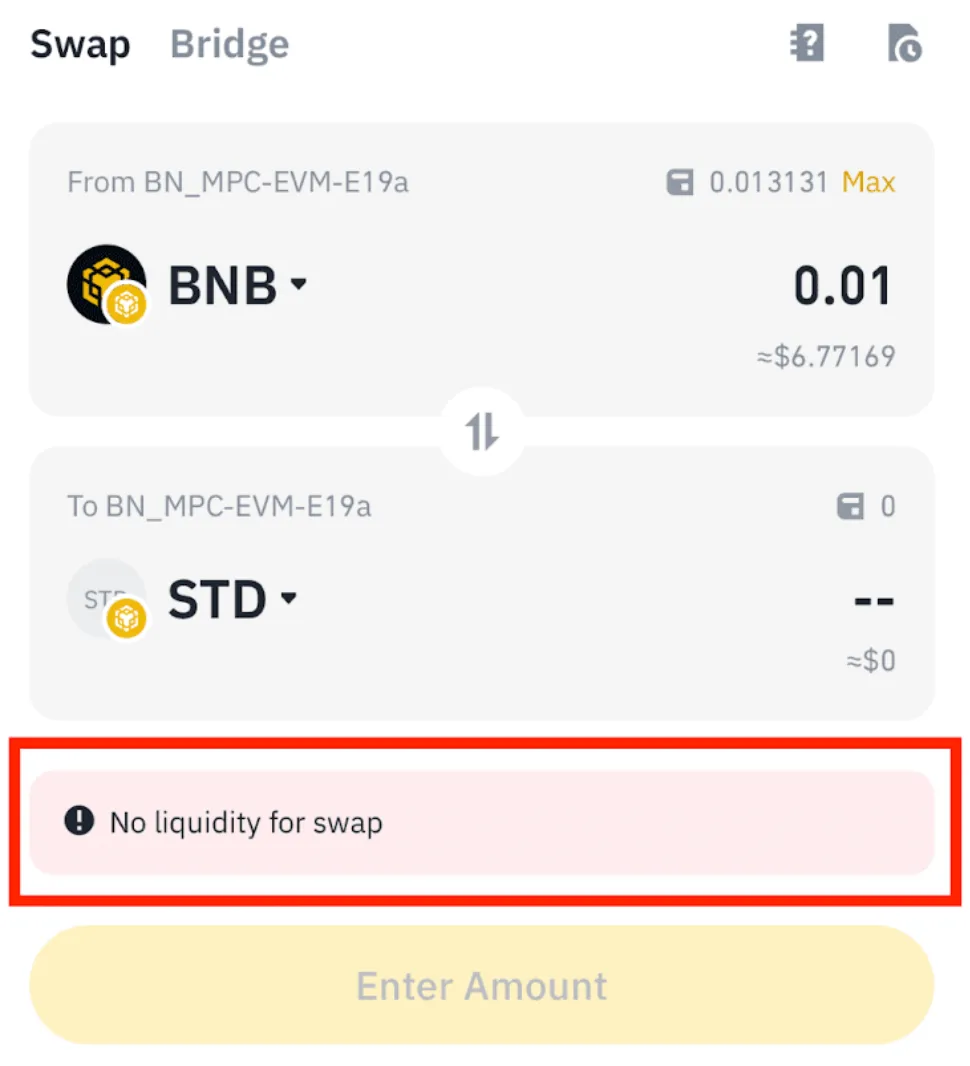
Also, if liquidity is too low or you try to swap too large an amount, you may see the message 'No liquidity for swap', as shown below. This means there aren't enough funds in that pool, so the trade can't go through.